
PETLIBRO PLAF108
PETLIBRO AIR WiFi Automatic Pet Feeder User Manual
Model: PLAF108
Introduction
Thank you for choosing the PETLIBRO AIR WiFi Automatic Pet Feeder. This device is designed to provide convenient and reliable feeding for your pet, ensuring they receive meals on schedule even when you are away. This manual will guide you through the setup, operation, and maintenance of your new feeder.
Product Overview
The PETLIBRO AIR WiFi Automatic Pet Feeder (Model PLAF108) features a cordless design with a built-in rechargeable battery, allowing flexible placement. It connects to your home WiFi (2.4GHz only) for remote control via the PETLIBRO app, enabling customized feeding schedules and real-time notifications.

Figure 1: PETLIBRO AIR WiFi Automatic Pet Feeder. This image shows the main unit of the feeder in black, with a stainless steel bowl filled with kibble. A smartphone displaying the PETLIBRO app interface is shown next to it, illustrating the remote control capabilities. A battery icon with a charging symbol is also visible, indicating its rechargeable nature.
Setup Guide
1. Unboxing and Assembly
- Carefully remove all components from the packaging.
- Assemble the feeder by attaching the food tank to the base. Ensure it clicks securely into place.
- Place the stainless steel bowl into the designated slot at the front of the feeder.
2. Powering On and Charging
- The feeder comes with a built-in 5200mAh rechargeable battery. Fully charge the device before first use. A full charge takes approximately 8 hours and can last up to 30 days.
- Connect the provided power cord to the feeder and a power outlet. The charging indicator light will illuminate.
- The feeder can operate on battery power alone, allowing for flexible placement without being tethered to an outlet.
3. App Installation and WiFi Connection
- Download the PETLIBRO App from your smartphone's app store (iOS or Android).
- Open the app and follow the on-screen instructions to create an account or log in.
- Add your PETLIBRO AIR feeder to the app. Ensure your smartphone is connected to a 2.4GHz WiFi network. The feeder only supports 2.4GHz WiFi.
- Follow the app's prompts to connect the feeder to your home WiFi network. This typically involves pressing a button on the feeder to enter pairing mode and then confirming the connection in the app.

Figure 2: App Integration and Scheduling. This image displays the PETLIBRO feeder in a home setting with a cat eating from it. A smartphone screen shows the app's scheduling interface, highlighting the ease of customizing feeding times and portions. A note indicates support for 2.4GHz WiFi only.
Operating Instructions
1. Filling the Food Tank
- Open the lid of the food tank by pressing the button on top.
- Pour dry pet food into the tank. The feeder supports kibble sizes from 2-15mm in diameter.
- Close the lid securely. The lid is designed to prevent spills even if the feeder is tipped over.
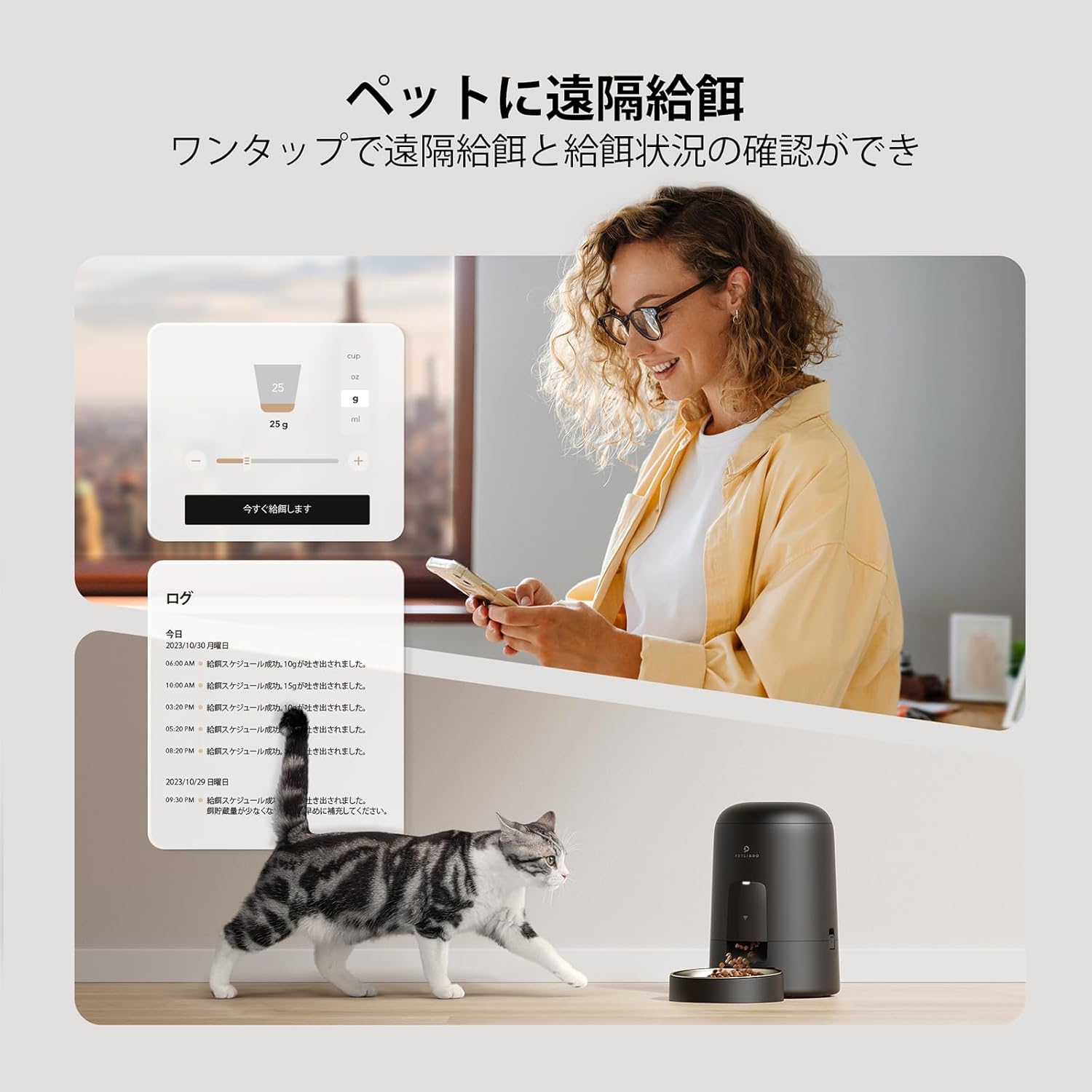
Figure 3: Secure Lid Mechanism. This image provides a close-up view of the feeder's lid, demonstrating the push-button mechanism for opening and closing. Arrows indicate the locking action, ensuring food remains secure inside the tank even if the unit is accidentally knocked over.
2. Setting Up Feeding Schedules via App
- In the PETLIBRO app, navigate to the feeding schedule section.
- You can set up to 10 meals per day. For each meal, specify the time and the portion size (5g-80g per meal).
- The app allows for flexible customization to match your pet's dietary needs and routine.

Figure 4: Uninterrupted WiFi Functionality. This image illustrates the continuous WiFi connectivity of the PETLIBRO feeder, even when running on battery power. It shows the app interface with feeding schedules, battery life (5200mAh, 30-day duration), and multi-user access, emphasizing 24/7 app service.
Video 1: PETLIBRO AIR WiFi Automatic Feeder - App Control Demonstration. This video demonstrates the key features of the PETLIBRO AIR WiFi Automatic Feeder, including its cordless design, smartphone remote control capabilities, and how to set up feeding schedules using the app. It highlights the convenience and flexibility of managing your pet's meals remotely.
3. Manual Feeding
- You can dispense food manually at any time through the PETLIBRO app.
- This feature is useful for providing extra treats or adjusting feeding on the fly.
4. Remote Monitoring and Notifications
- The app provides real-time feeding history, allowing you to track when and how much your pet has eaten.
- Receive instant notifications on your smartphone for low food levels, battery status, or any abnormal operation, ensuring peace of mind.

Figure 5: Remote Feeding for Pets. This image shows a user interacting with the PETLIBRO app on her smartphone, demonstrating the remote feeding capability. A cat is visible near the feeder, illustrating the convenience of dispensing food with a single tap and checking feeding status from anywhere.
Maintenance and Cleaning
Regular cleaning of your PETLIBRO feeder is essential to maintain hygiene and ensure your pet's health. The feeder is designed for easy disassembly and cleaning.
Cleaning Instructions:
- Disconnect the feeder from power if connected.
- Remove the stainless steel bowl for washing.
- Disassemble the food tank, lid, and rotor components. These parts can be thoroughly washed with water and mild detergent.
- Important: Do not wash the base unit of the feeder, as it contains electronic components. Wipe the base with a damp cloth if needed.
- Ensure all washed parts are completely dry before reassembling to prevent mold growth and maintain food freshness.

Figure 6: Easy Disassembly and Cleaning. This image shows various components of the PETLIBRO feeder, including the food tank, lid, and stainless steel bowl, being washed in a sink. This highlights the product's design for easy cleaning to prevent bacterial growth and maintain pet health. A warning is included not to wash the base unit.
Troubleshooting
| Problem | Possible Cause | Solution |
|---|---|---|
| Feeder not connecting to WiFi. | Incorrect WiFi band (only 2.4GHz supported); incorrect password; feeder too far from router. | Ensure your router is set to 2.4GHz. Verify WiFi password. Move feeder closer to the router. Restart feeder and router. |
| Food not dispensing. | Food tank empty; kibble size too large; food jammed; low battery. | Refill food tank. Ensure kibble is 2-15mm. Clear any food jams in the dispenser. Charge the feeder. |
| App notifications not received. | App permissions not granted; unstable internet connection; app not running in background. | Check app notification settings on your phone. Ensure stable WiFi connection. Keep app running in background or check regularly. |
| Battery life shorter than expected. | Frequent manual dispensing; poor signal strength requiring more power. | Reduce frequency of manual dispensing if not necessary. Ensure feeder is in an area with good WiFi signal. |
Specifications
- Model: PLAF108
- Brand: PETLIBRO
- Dimensions: 19.5 x 19.5 x 29 cm
- Weight: 1.67 kg
- Capacity: 2L (approx. 1kg dry food)
- Power Supply: Rechargeable 5200mAh battery (up to 30 days) / AC Power
- WiFi Connectivity: 2.4GHz only
- Feeding Schedule: 1-10 meals/day
- Portion Size: 5g-80g per meal
- Kibble Size: 2-15mm diameter recommended
- Material: Food-grade 304 Stainless Steel bowl
Warranty and Support
The PETLIBRO AIR WiFi Automatic Pet Feeder comes with a 2-year manufacturer's warranty. For any questions, technical support, or warranty claims, please contact PETLIBRO customer service through the official PETLIBRO website or the contact information provided in the app.
For more information, visit the official PETLIBRO Store on Amazon.
Related documentsPLAF108


Ask a question about this manual
Ask about setup, troubleshooting, compatibility, parts, safety, or missing instructions. Manuals+ will review the question and use this page’s manual context to help answer it.