
ZERTRAN [2G+32G]
ZERTRAN 9-inch Carplay Android Auto Touchscreen Autoradio Car Stereo User Manual
Model: [2G+32G] for Toyota Yaris 2012-2017
Introduction
This manual provides detailed instructions for the installation, operation, and maintenance of your ZERTRAN 9-inch Carplay Android Auto Touchscreen Autoradio Car Stereo. Please read this manual thoroughly before using the product to ensure proper functionality and safety.
Product Features:
- CarPlay & Android Auto integration for seamless smartphone connectivity.
- 9-inch touchscreen display for enhanced visual and operational experience.
- Plug & Play installation with compatibility for original car plugs.
- Integrated GPS navigation, multimedia playback, Bluetooth, Wi-Fi, and DSP.
- Steering wheel control compatibility.
Package Contents
Verify that all items listed below are present in your package:

Image: Overview of all components included in the ZERTRAN car stereo package, including the 9-inch display, various cables, GPS antenna, and installation tools.
- 9-inch Head Unit
- Power Cable
- Cable Plug
- Camera Input Cable
- USB Cable (4-pinhole)
- USB Cable (6-pinhole)
- GPS Antenna
- RCA Wire Harness
- AHD Reverse Camera (Bundled)
- External Microphone (Bundled)
- Crowbar Tools (Bundled)
Setup and Installation
This unit is designed for plug-and-play installation. However, professional installation is recommended. Ensure the vehicle's power is disconnected before beginning installation.
1. Compatibility Check
This unit is specifically designed for Toyota Yaris models from 2012-2017. Verify your vehicle's dashboard configuration before installation.
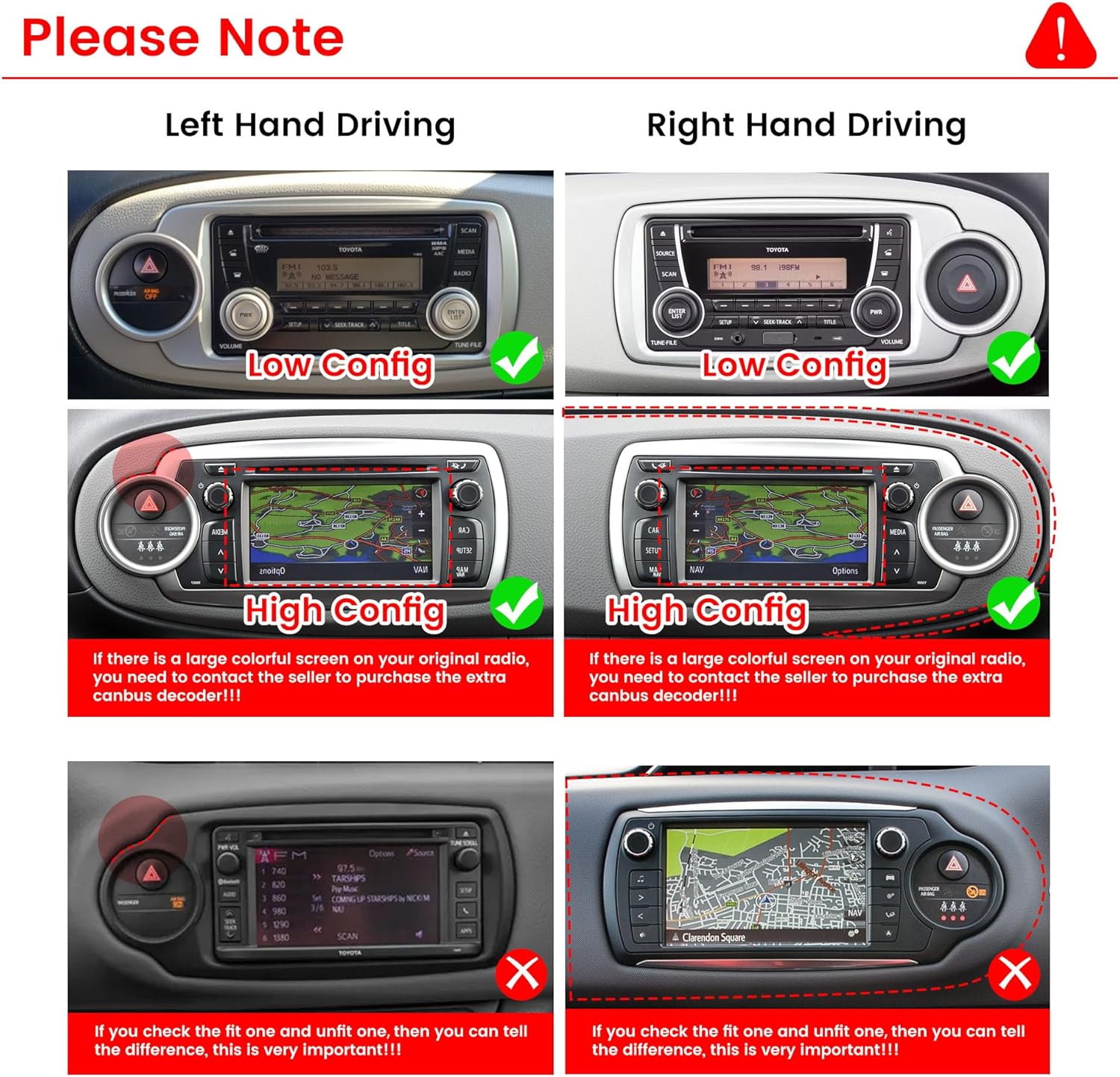
Image: Visual guide for checking compatibility with Toyota Yaris dashboards. It illustrates different configurations (Low Config, High Config) for both left-hand and right-hand drive vehicles. Important: If your original radio has a colorful screen (High Config), a canbus decoder may be required. Contact the seller if this applies to your vehicle.
2. Removing the Original Unit
- Carefully use the provided crowbar tools to pry open the dashboard trim around the original car stereo.
- Unscrew any retaining bolts holding the original unit in place.
- Gently pull out the original unit and disconnect all wiring harnesses.
3. Connecting the New Unit
- Connect the new power cable and cable plug to the corresponding ports on the ZERTRAN head unit and the vehicle's wiring harness.
- Attach the GPS antenna, positioning it in a location with a clear view of the sky for optimal signal reception.
- Connect the USB cables and RCA wire harness as needed for external devices or amplifiers.
- If installing the reverse camera, connect the camera input cable to the head unit and route the camera cable to the rear of the vehicle.
4. Testing and Securing
- Before fully reassembling the dashboard, temporarily connect the unit and turn on the vehicle's ignition to test basic functions (power, audio, touchscreen response).
- Once verified, secure the head unit with screws and reattach the dashboard trim.

Image: A side-by-side comparison showing the original car stereo in a Toyota Yaris dashboard (Before Installation) and the ZERTRAN 9-inch head unit installed (After Installation).
Operating Instructions
1. Basic Operation
- Power On/Off: Press and hold the power button (usually located on the front panel or as a soft button on the screen) to turn the unit on or off.
- Volume Control: Adjust volume using the physical knob (if present) or the on-screen controls.
- Home Screen: Tap the home icon to return to the main application interface.
2. CarPlay & Android Auto
Connect your smartphone via USB or wirelessly (if supported by your device and the unit) to activate CarPlay or Android Auto.

Image: Illustration of CarPlay and Android Auto functionality, demonstrating how an iPhone (for CarPlay) and an Android device (for Android Auto) integrate with the car stereo's display, showing common app icons.
- CarPlay (for iOS devices): Connect your iPhone using a USB cable. The CarPlay interface will automatically launch, mirroring compatible apps like Phone, Maps, Messages, and Music.
- Android Auto (for Android devices): Connect your Android phone via a USB cable. The Android Auto interface will appear, providing access to navigation, communication, and media apps.
- Voice Assistant: Utilize voice commands (Siri for CarPlay, Google Assistant for Android Auto) for hands-free operation.
3. GPS Navigation
The unit supports various navigation applications. Ensure the GPS antenna is properly installed for accurate positioning.

Image: The car stereo display showing a GPS navigation map, with icons for various navigation applications such as Google Maps, iGO, and others, indicating support for multiple mapping services.
- Access navigation apps from the main menu.
- Enter your destination using the touchscreen keyboard or voice input.
- Follow on-screen directions and voice prompts.
4. Bluetooth Functionality
Pair your smartphone to the unit via Bluetooth for hands-free calling and audio streaming.

Image: The car stereo display showing the Bluetooth interface for making calls and streaming music. It displays a dial pad for phone calls and icons representing Bluetooth connectivity and audio playback.
- Go to the Bluetooth settings menu on the head unit.
- Enable Bluetooth on your smartphone and search for available devices.
- Select the head unit from the list and confirm pairing.
5. FM Radio
Access the FM radio tuner for local broadcasts.

Image: The car stereo display showing the FM radio interface, with frequency display, station presets, and controls for tuning and scanning.
- Select the "Radio" application from the main menu.
- Use the on-screen controls to scan for stations or manually tune to a frequency.
- Save preferred stations to presets.
6. Steering Wheel Control
Configure the unit to work with your vehicle's steering wheel controls.

Image: The car stereo display showing the "Steering Learn" menu, where users can program the unit to recognize and respond to their vehicle's steering wheel control buttons for functions like volume, track skip, and call management.
- Navigate to "Settings" > "Steering Learn" or similar option.
- Follow the on-screen prompts to assign functions to your steering wheel buttons.
7. Reverse Camera (Optional)
If the reverse camera is installed, it will automatically display the rear view when the vehicle is shifted into reverse gear.

Image: The car stereo display showing the view from a rear-mounted camera, complete with parking guidelines, indicating the reverse camera functionality.
Maintenance
- Cleaning: Use a soft, dry cloth to clean the screen and unit. Avoid abrasive cleaners or solvents.
- Software Updates: Periodically check the manufacturer's website or contact support for available software updates to ensure optimal performance and access to new features.
- Environmental Conditions: Avoid exposing the unit to extreme temperatures, direct sunlight for prolonged periods, or excessive moisture.
Troubleshooting
| Problem | Possible Cause | Solution |
|---|---|---|
| Unit does not power on. | No power connection; Blown fuse. | Check power cables and connections. Inspect vehicle's fuse box and replace any blown fuses. |
| No sound. | Volume too low; Mute activated; Speaker wires disconnected. | Increase volume. Check if mute is active. Verify speaker wire connections. |
| GPS signal lost or inaccurate. | GPS antenna improperly installed or obstructed. | Ensure GPS antenna has a clear view of the sky and is securely connected. |
| CarPlay/Android Auto not connecting. | Incorrect USB cable; Phone software issue; Unit software issue. | Use a high-quality USB data cable. Restart your phone and the head unit. Ensure phone and unit software are updated. |
| Steering wheel controls not working. | Controls not programmed; Wiring issue. | Go to "Steering Learn" settings and reprogram the controls. Check wiring connections. |
Specifications
- Display Size: 9 Inches
- Operating System: Android
- Resolution: 1080p
- Connectivity: Bluetooth, RCA, USB, Wi-Fi
- Special Features: Touchscreen, CarPlay, Android Auto, GPS Navigation, FM Radio, DSP, Steering Wheel Control
- Vehicle Service Type: Car (Toyota Yaris 2012-2017)
- Mounting Type: Dashboard Mount
- Item Weight: Approximately 4.4 pounds
- Package Dimensions: Approximately 15.35 x 12.6 x 6.3 inches
Warranty and Support
For warranty information or technical support, please contact ZERTRAN customer service. Refer to your purchase documentation for specific warranty terms and contact details.
Manufacturer: ZERTRAN
Contact: Please refer to the contact information provided with your purchase or visit the official ZERTRAN website for support.
Ask a question about this manual
Ask about setup, troubleshooting, compatibility, parts, safety, or missing instructions. Manuals+ will review the question and use this page’s manual context to help answer it.