
1. Introduction
This user manual provides comprehensive instructions for the KTC 32 inch Curved Gaming Monitor (Model: H32S17). Designed for an immersive gaming and viewing experience, this monitor features a 1500R curved HVA panel, a crisp 2K 1440P resolution, and a high refresh rate of 180Hz with a rapid 1ms MPRT response time. It supports Adaptive Sync technology, compatible with both FreeSync Premium and G-SYNC, ensuring smooth, tear-free visuals. With 120% sRGB color gamut and HDR10 support, it delivers vibrant and accurate colors. Please read this manual thoroughly before using your monitor to ensure proper setup and operation.
2. What's in the Box
Verify that all components are present in the package:
- 1 x 31.5 inch Curved Gaming Monitor
- 1 x Base
- 1 x Bracket
- 1 x 59'' (1.5M) DP Cable
- 1 x 59'' (1.5M) Power Cord
3. Setup Guide
3.1 Physical Assembly
Carefully remove the monitor and its components from the packaging. Attach the monitor stand's bracket to the back of the monitor, ensuring it clicks securely into place. Then, attach the base to the bracket. For alternative mounting, the monitor supports VESA (3.9x3.9'') mounting options, allowing for wall or arm mounting (mounting hardware sold separately).
3.2 Connectivity
The KTC H32S17 monitor offers a variety of ports for versatile connectivity:
- HDMI 2.0 x1: Supports up to 144Hz refresh rate.
- DisplayPort 1.2 x2: Supports up to 170Hz refresh rate.
- USB 2.0 x1: For connecting peripherals.
- Earphone Jack x1: For audio output.
- DC x1: For power input.
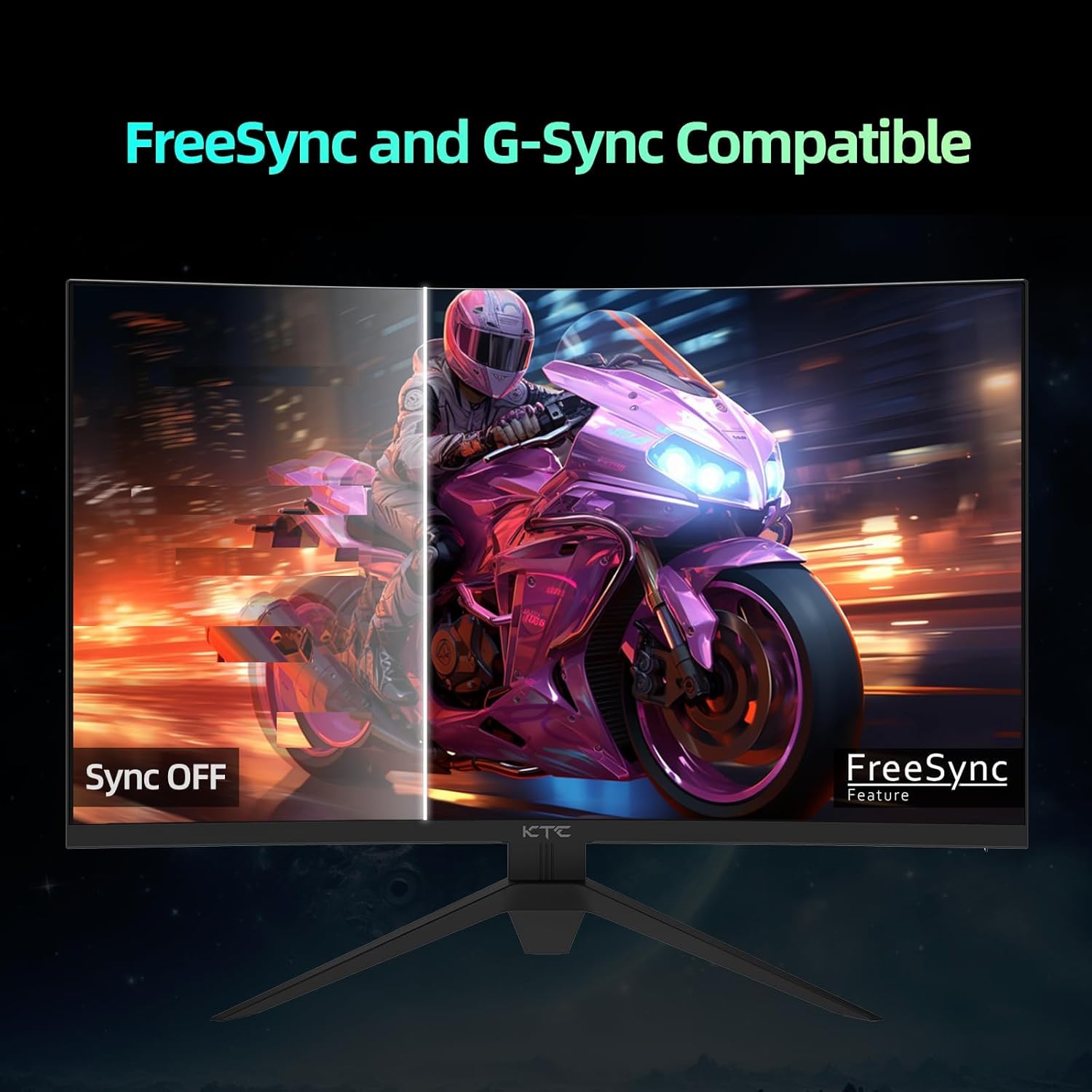
Image: Rear view of the KTC monitor highlighting its abundant connectivity options and the 5-way OSD navigation joystick.
Connect the appropriate video cable (DisplayPort recommended for optimal performance) from your computer or gaming console to the monitor. Plug in the power cord to the DC port and then to a power outlet.
4. Operating Instructions
4.1 Power On/Off and OSD Navigation
The monitor features a convenient 5-way OSD Navigation Joystick, typically located on the back or bottom of the monitor. Press the joystick to power on/off the monitor. Use the joystick to navigate through the On-Screen Display (OSD) menu to adjust various settings.
4.2 Display Settings and Features
Optimize your viewing experience by adjusting the following settings:
- High Refresh Rate & Fast Response Time: Experience ultra-smooth visuals with a blazing 180Hz refresh rate and a lightning-quick 1ms MPRT (Moving Picture Response Time). This minimizes motion blur, crucial for fast-paced gaming.

Image: Visual representation of the monitor's 180Hz refresh rate and 1ms response time, ensuring smooth and quick responses.
- True Colors and High Resolution: The monitor boasts a Wide Quad High Definition (WQHD) 2560 x 1440p resolution, delivering sharp and detailed images. With an expansive 120% sRGB color gamut and HDR10 support, it produces vibrant and accurate colors with a high dynamic range and a 3500:1 contrast ratio.
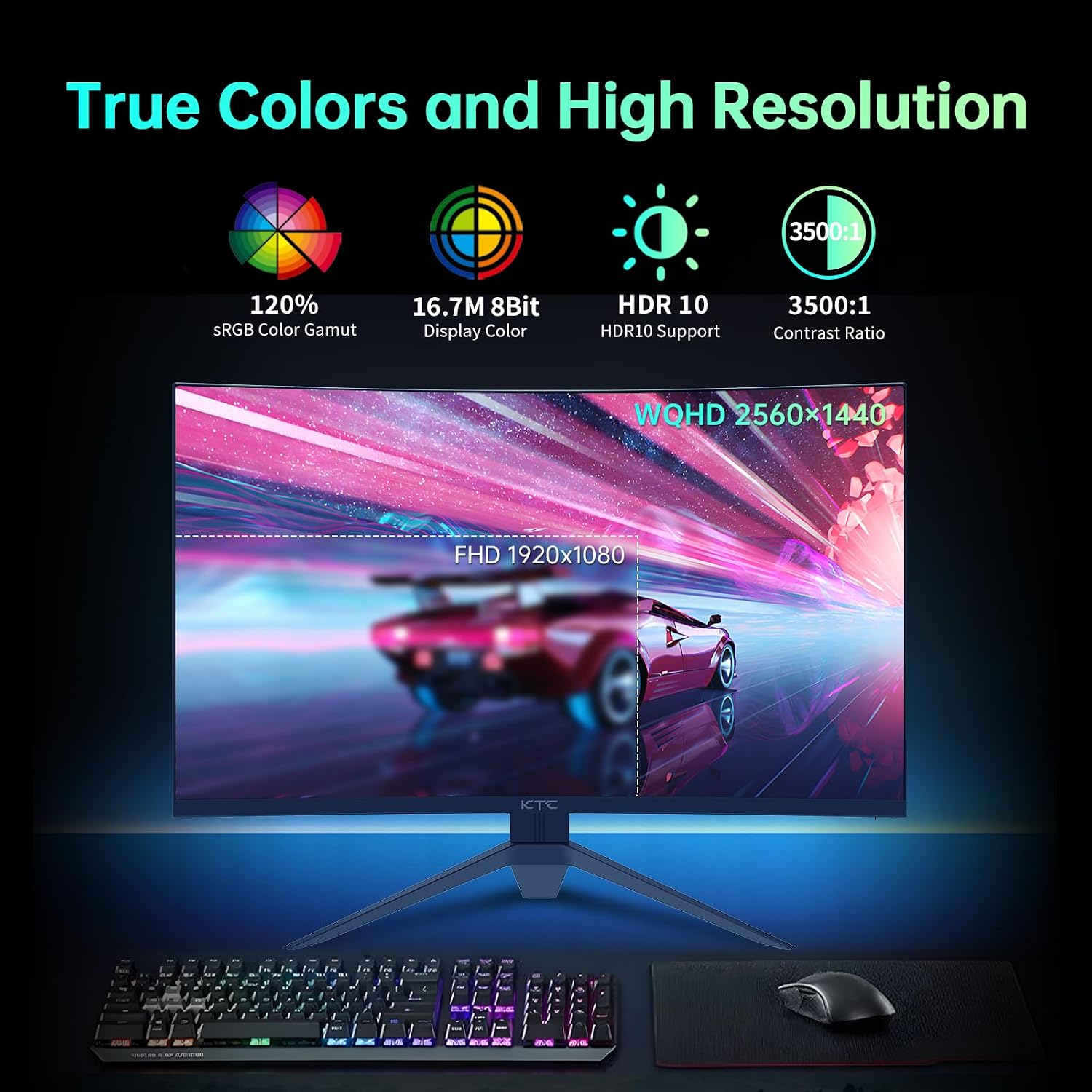
Image: Comparison of FHD and WQHD resolutions, emphasizing true colors and high resolution capabilities.
- Immersive Visual Experience: The 1500R curved HVA panel wraps the image around your field of view, enhancing immersion. A wide 178° viewing angle ensures consistent image quality from various positions, and the Eye Saver Mode helps reduce eye strain during long sessions.

Image: Demonstrating the immersive visual experience provided by the curved HVA panel and wide viewing angles.
- Adaptive Sync Compatibility: This monitor supports Adaptive Sync, making it compatible with both AMD FreeSync Premium and NVIDIA G-SYNC technologies. This feature synchronizes the monitor's refresh rate with your GPU's frame rate, eliminating screen tearing and stuttering for a fluid gaming experience.

Image: Illustrating the benefit of FreeSync and G-Sync compatibility by comparing visuals with and without sync enabled.
- Superior Game Assists (GamePlus): Enhance your gaming performance with built-in GamePlus features:
- Crosshairs (LoS): Provides an on-screen crosshair for improved aiming accuracy in FPS games.
- Game Timer: An on-screen timer to help track in-game events.
- FPS Counter: Displays your current frames per second, allowing you to monitor performance.

Image: Depicting the monitor's GamePlus features, including crosshairs, game timer, and FPS counter, for an enhanced gaming experience.
- Eye Protection: The monitor incorporates Low Blue Light and Flicker-Free technologies to reduce eye strain and fatigue during extended use.

Image: Illustrating the benefits of Low Blue Light and Flicker-Free technologies for eye protection.
5. Maintenance
To ensure the longevity and optimal performance of your KTC monitor, follow these maintenance guidelines:
- Cleaning the Screen: Gently wipe the screen with a soft, lint-free cloth. For stubborn smudges, lightly dampen the cloth with water or a non-abrasive screen cleaner. Never spray liquid directly onto the screen.
- Cleaning the Casing: Use a soft, dry cloth to clean the monitor's casing. Avoid using harsh chemicals, abrasive cleaners, or solvents, as they may damage the surface.
- Ventilation: Ensure the monitor's ventilation openings are clear and unobstructed to prevent overheating.
- Storage: When not in use for extended periods, store the monitor in a cool, dry place, preferably in its original packaging to protect it from dust and physical damage.
6. Troubleshooting
If you encounter issues with your monitor, refer to the following common problems and solutions:
6.1 No Power
- Ensure the power cord is securely connected to both the monitor and a working power outlet.
- Check if the power indicator light on the monitor is on.
- Try a different power outlet.
6.2 No Signal
- Verify that the video cable (DisplayPort or HDMI) is securely connected to both the monitor and your computer/device.
- Ensure your computer/device is powered on and not in sleep mode.
- Select the correct input source on the monitor using the OSD menu.
- Try a different video cable or port.
6.3 Image Issues (Distortion, Flickering, Incorrect Colors)
- Adjust the resolution and refresh rate settings on your computer to match the monitor's native resolution (2560 x 1440) and supported refresh rates (up to 180Hz).
- Check your graphics card drivers and update them if necessary.
- Reset the monitor to factory settings via the OSD menu.
- Ensure the video cable is not damaged.
If the problem persists after trying these steps, please contact KTC customer support for further assistance.
7. Technical Specifications
| Feature | Specification |
|---|---|
| Brand | KTC |
| Model Number | H32S17 |
| Screen Size | 32 Inches |
| Resolution | 2560 x 1440 Pixels (QHD Ultra Wide 1440p) |
| Screen Surface Description | Curved (1500R) |
| Aspect Ratio | 16:9 |
| Image Brightness | 300 Candela |
| Refresh Rate | Up to 180Hz (via DisplayPort) |
| Response Time | 1ms MPRT |
| Color Gamut | 120% sRGB |
| HDR Support | HDR10 |
| Adaptive Sync | Compatible with FreeSync Premium & G-SYNC |
| Connectivity | HDMI 2.0 x1, DisplayPort 1.2 x2, USB 2.0 x1, Earphone Jack x1, DC x1 |
| VESA Support | 3.9x3.9'' (100x100mm) |
| Product Dimensions | 24.25 x 14.33 x 23.5 inches |
| Item Weight | 13.2 pounds |
| Voltage | 19 Volts (DC) |
8. Warranty and Support
KTC provides a 3-year warranty for this monitor, ensuring quality and reliability. For any technical assistance, product inquiries, or warranty claims, please contact KTC customer support.

Image: Overview of KTC's customer support offerings, including warranty details.
You can typically find contact information for KTC support on their official website or through the retailer where you purchased the product. Please have your model number (H32S17) and purchase details ready when contacting support.


