
Keychron M3
Keychron M3 Wireless Gaming Optical Mouse User Manual
Model: M3
Introduction
Thank you for choosing the Keychron M3 Wireless Gaming Optical Mouse. This manual provides detailed instructions for setting up, operating, and maintaining your new mouse. The Keychron M3 is designed for versatility, offering tri-mode connectivity (2.4 GHz wireless, Bluetooth 5.1, and wired USB-C) and a high-precision sensor for optimal performance in both gaming and productivity tasks. Its lightweight and ergonomic design ensures comfort during extended use.

Figure 1: Keychron M3 Wireless Gaming Optical Mouse (White) with included USB-C and USB-A dongles.
What's in the Box
Please ensure all items are present before proceeding with setup:
- Keychron M3 Wireless Gaming Optical Mouse
- Detachable Type-C to Type-C Cable
- Type-A to Type-C Adapter
- USB-C 2.4 GHz Receiver
- USB-A 2.4 GHz Receiver

Figure 2: The Keychron M3 mouse alongside its USB-C and USB-A wireless receivers.
Setup
The Keychron M3 offers three connection modes: 2.4 GHz Wireless, Bluetooth 5.1, and Wired USB-C.
2.4 GHz Wireless Connection
- Locate the 2.4 GHz receiver (either Type-C or Type-A) from the packaging.
- Plug the receiver into an available USB port on your computer (Windows or Mac).
- Turn on the mouse using the switch on the bottom. Ensure it is set to the 2.4G mode.
- The mouse should automatically connect to the receiver.
Bluetooth 5.1 Connection
- Turn on the mouse and set the switch on the bottom to the Bluetooth mode.
- On your computer (Windows or Mac), open Bluetooth settings.
- Search for new devices. The mouse should appear as "Keychron M3".
- Select "Keychron M3" to pair.
Wired USB-C Connection
- Connect one end of the provided Type-C to Type-C cable to the mouse.
- Connect the other end to a USB-C port on your computer. If your computer only has USB-A ports, use the included Type-A to Type-C adapter.
- The mouse will function as a wired mouse and charge simultaneously.
Operating Instructions
The Keychron M3 is designed for intuitive use with advanced customization options.
DPI Adjustment
The mouse features a PixArt PAW 3395 sensor with up to 26,000 DPI. You can adjust the DPI sensitivity on-the-fly using the dedicated DPI button, typically located near the scroll wheel. Pressing this button cycles through preset DPI levels.

Figure 3: The top of the Keychron M3 mouse, highlighting the scroll wheel and the DPI adjustment button.
Programmable Buttons and RGB Lighting
The Keychron M3 includes programmable macro buttons and customizable RGB lighting effects. To personalize these features, download and install the Keychron Engine software from the official Keychron website.
- Keychron Engine Software: This software allows you to:
- Modify key assignments and set shortcuts.
- Customize RGB lighting effects and colors.
- Create and assign dedicated macros.
- Adjust professional settings such as Lift-Off Distance (LOD), polling rate (up to 1000 Hz), and DPI.
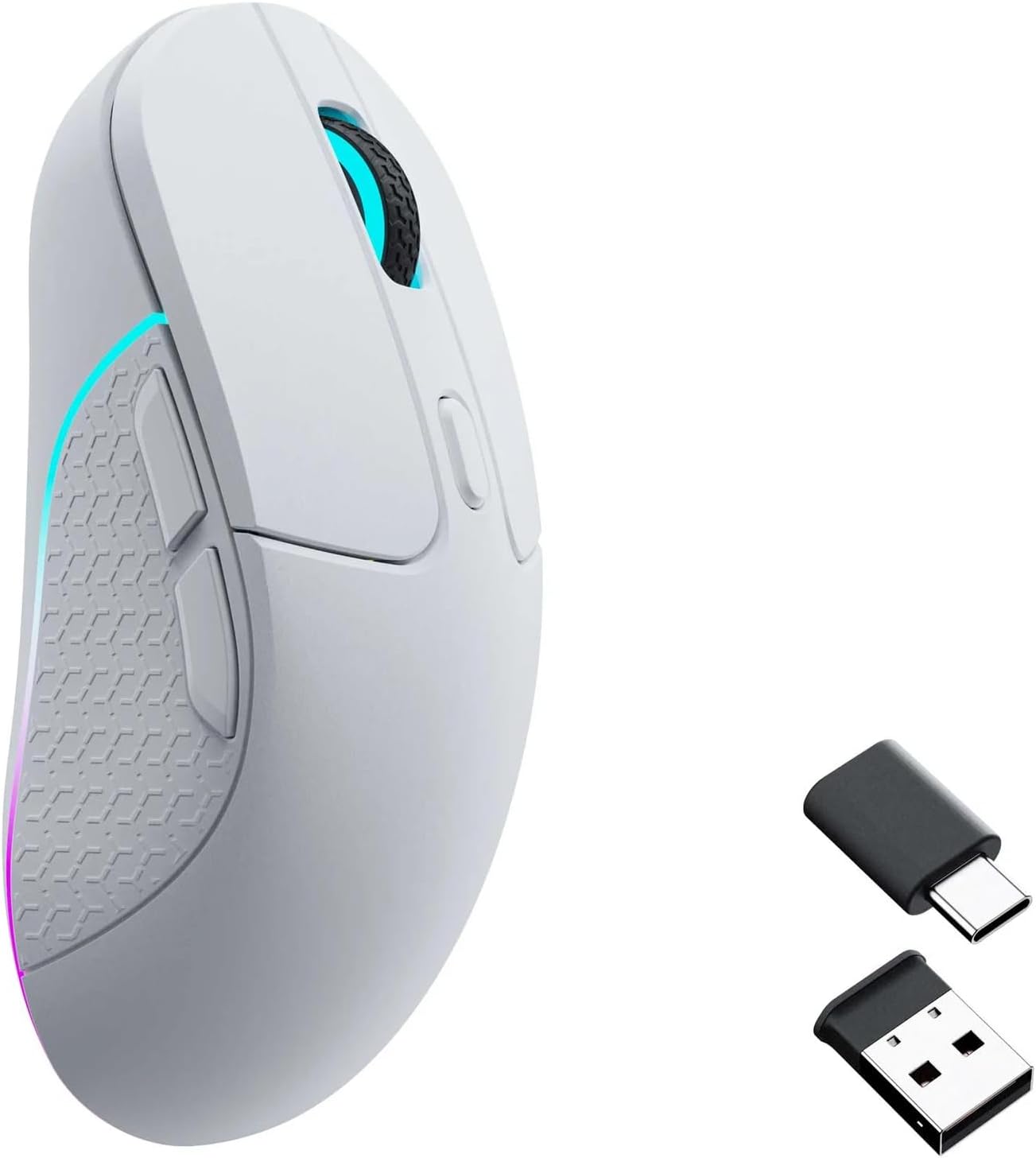
Figure 4: Screenshot of the Keychron Engine software, demonstrating the interface for customizing mouse settings and RGB lighting.

Figure 5: The Keychron M3 mouse displaying its customizable RGB lighting effects.
Maintenance
To ensure the longevity and optimal performance of your Keychron M3 mouse, follow these maintenance guidelines:
- Cleaning: Use a soft, dry cloth to wipe the surface of the mouse. For stubborn dirt, slightly dampen the cloth with water or a mild, non-abrasive cleaner. Avoid excessive moisture.
- Sensor Care: Keep the optical sensor on the bottom of the mouse clean and free of dust or debris. Use a cotton swab or compressed air if necessary.
- Storage: When not in use for extended periods, store the mouse in a cool, dry place away from direct sunlight and extreme temperatures.
- Battery Life: The mouse is powered by a nonstandard battery. Charge the mouse using the provided USB-C cable when the battery indicator shows low power.
Troubleshooting
| Problem | Possible Cause | Solution |
|---|---|---|
| Mouse not responding (2.4 GHz Wireless) | Receiver not properly connected; mouse not in 2.4G mode; low battery. | Ensure receiver is fully inserted. Check mouse switch is set to 2.4G. Charge the mouse. |
| Mouse not connecting (Bluetooth) | Mouse not in Bluetooth pairing mode; Bluetooth disabled on computer; interference. | Ensure mouse switch is set to Bluetooth. Enable Bluetooth on your computer. Try re-pairing. Move closer to the computer. |
| Inaccurate tracking or cursor lag | Dirty optical sensor; unsuitable surface; low battery; wireless interference. | Clean the optical sensor. Use a mouse pad or a clean, non-reflective surface. Charge the mouse. Reduce wireless interference by moving other devices. |
| Buttons or scroll wheel not working | Software glitch; physical obstruction. | Restart your computer. Check for debris around buttons/scroll wheel. Reinstall Keychron Engine software if applicable. |
Specifications
- Model: M3
- Sensor: PixArt PAW 3395
- DPI: Up to 26,000 DPI
- IPS: Up to 650 IPS
- Polling Rate: Up to 1000 Hz
- Connectivity: Tri-Mode (2.4 GHz Wireless, Bluetooth 5.1, Wired USB-C)
- Weight: Approximately 79g (2.79 ounces)
- Dimensions: 125.2 mm (Length) x 66.4 mm (Width) x 40.6 mm (Height)
- Battery: 1 Nonstandard Battery (Rechargeable)
- Compatible Devices: Windows PC, Mac
- Included Components: Detachable Type-C to Type-C Cable, Type-A to Type-C Adapter, USB-C 2.4 GHz Receiver, USB-A 2.4 GHz Receiver

Figure 6: Detailed dimensions of the Keychron M3 mouse.
Warranty and Support
For warranty information and technical support, please refer to the official Keychron website or contact Keychron customer service directly. Keep your purchase receipt as proof of purchase for warranty claims.
Manufacturer: Keychron
Official Website: www.keychron.com
Related documentsM3


Ask a question about this manual
Ask about setup, troubleshooting, compatibility, parts, safety, or missing instructions. Manuals+ will review the question and use this page’s manual context to help answer it.