
Azpen TF800
Azpen 8 Inch Unlocked LTE Tablet User Manual
Model: TF800 | Brand: Azpen
Introduction
Thank you for choosing the Azpen 8 Inch Unlocked LTE Tablet. This device is designed to provide a versatile and powerful mobile computing experience, featuring an Android 12 OS, Octa-Core CPU, 3GB RAM, and 32GB storage. Its IPS HD display offers clear visuals, and built-in 4G LTE connectivity ensures you stay connected on the go. This manual provides essential information for setting up, operating, and maintaining your tablet.

Image: Front and back view of the Azpen 8 Inch Unlocked LTE Tablet, showcasing its sleek design.
Product Features
- Advanced Connectivity: Stay connected with built-in 4G LTE and Wi-Fi. LTE bands B2/B4/B5/B7/B12/B17/B66 are compatible with T-Mobile and AT&T networks. (SIM card not included; check carrier compatibility before purchase).
- Powerful Performance: Experience stunning performance with the quick and powerful Android 12 OS, driven by an Octa-Core 8 x 1.6 GHz CPU & GPU.
- Ample Storage & RAM: Equipped with 3GB of DDR4 RAM and 32GB of internal storage, expandable up to 128GB via Micro SD Slot, providing ample space for movies, songs, and games.
- Vibrant Display: The stunning 8-inch HD (1280 x 800) IPS display delivers a crisper and brighter image for an enhanced viewing experience.
- Extended Battery Life: A 4000 mAh battery allows for up to 6 hours of watching or browsing without frequent recharging.
- Dual Cameras & Bluetooth: Features Bluetooth connectivity and dual cameras (front and rear) for versatile use.

Image: The tablet highlighting its 4G LTE compatibility with major carrier networks like AT&T and T-Mobile.
Get to Know Your Device
Familiarize yourself with the physical components and ports of your Azpen Tablet.
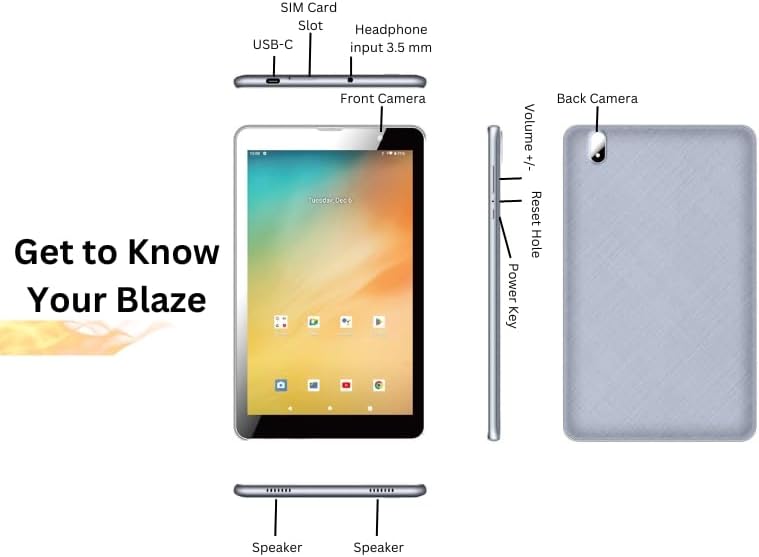
Image: Detailed diagram illustrating the location of the SIM Card Slot, USB-C port, 3.5mm Headphone input, Front Camera, Back Camera, Volume buttons, Reset Hole, Power Key, and Speakers on the Azpen Tablet.
- SIM Card Slot: Insert your 4G LTE SIM card here for cellular data connectivity.
- USB-C Port: Used for charging the tablet and connecting to a computer for data transfer.
- Headphone Input (3.5 mm): Connect your wired headphones or external speakers.
- Front Camera: For video calls and selfies.
- Back Camera: For taking photos and videos.
- Volume +/-: Adjust the audio volume.
- Reset Hole: A small pinhole for performing a hard reset if the device becomes unresponsive.
- Power Key: Press and hold to power on/off or restart the device. Short press to wake/sleep the screen.
- Speakers: Located at the bottom for audio output.
Setup
Initial Power On and Setup Wizard
- Charge the Tablet: Before first use, fully charge your tablet using the provided USB-C cable and power adapter. The battery indicator will show charging status.
- Power On: Press and hold the Power Key until the Azpen logo appears on the screen.
- Follow On-Screen Prompts: The Android 12 setup wizard will guide you through selecting your language, connecting to a Wi-Fi network, setting up your Google account, and configuring basic settings.
Inserting SIM Card and Micro SD Card
To utilize cellular data or expand storage, insert the respective cards into their designated slots.
- Power Off: Ensure the tablet is powered off before inserting or removing cards.
- Locate Slots: Refer to the "Get to Know Your Device" diagram for the exact location of the SIM card slot and Micro SD card slot.
- Insert SIM Card: Gently push your nano-SIM card into the SIM card slot until it clicks into place. Ensure the correct orientation.
- Insert Micro SD Card: Gently push your Micro SD card into the Micro SD card slot until it clicks into place.
- Power On: Power on the tablet. The device should automatically detect the inserted cards.
Operating Instructions
Basic Navigation
- Touchscreen Gestures: Navigate the Android 12 interface using taps, swipes, pinches, and long presses.
- Home Screen: Access your apps, widgets, and notifications from the customizable home screen.
- Quick Settings: Swipe down from the top of the screen to access quick settings for Wi-Fi, Bluetooth, brightness, and more.
Connecting to Wi-Fi and Bluetooth
- Wi-Fi: Go to
Settings > Network & internet > Internet. Select your desired Wi-Fi network and enter the password if prompted. - Bluetooth: Go to
Settings > Connected devices > Connection preferences > Bluetooth. Turn Bluetooth on and select a device to pair with.
Using Cameras
The tablet features both front and rear cameras for photos and video.
- Open Camera App: Tap the Camera icon on your home screen or app drawer.
- Switch Cameras: Use the camera switch icon to toggle between the front and rear cameras.
- Take Photo/Record Video: Tap the shutter button to take a photo or the record button to start/stop video recording.
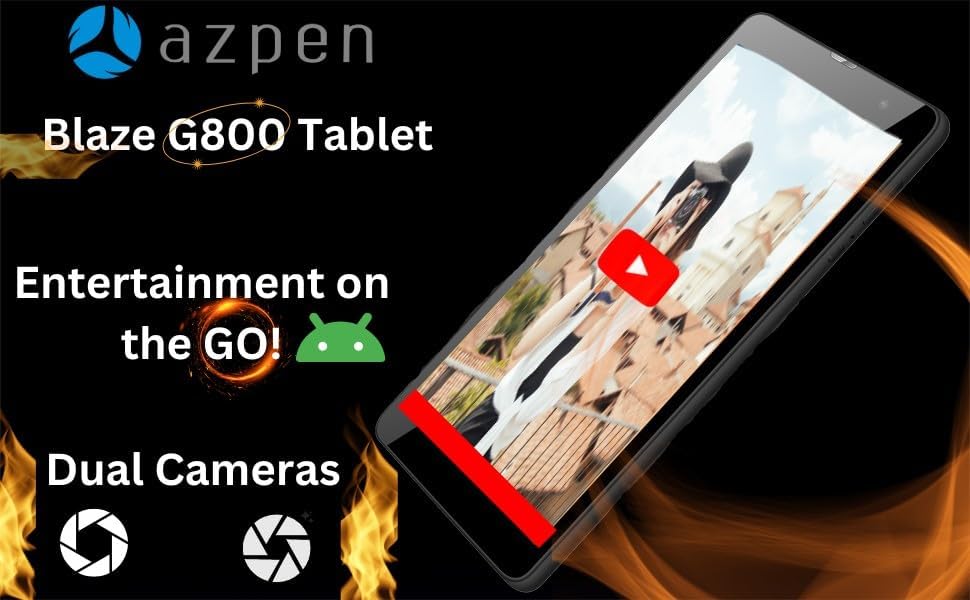
Image: The tablet showcasing its capability for entertainment on the go, featuring dual cameras and a video playing on screen.

Image: Multiple Azpen tablets displaying different applications and media, emphasizing the Octa-Core CPU's power for gaming, HD shows, and multitasking.
Maintenance
Battery Care
- Optimal Charging: Use the original charger and cable. Avoid overcharging or letting the battery drain completely too often.
- Temperature: Avoid exposing the tablet to extreme temperatures, as this can degrade battery life.
- Storage: If storing the tablet for an extended period, charge it to about 50% before turning it off.
Storage Management
- Clear Cache: Regularly clear app caches to free up space. Go to
Settings > Apps > [App Name] > Storage & cache > Clear cache. - Delete Unused Apps: Uninstall apps you no longer use.
- Transfer Files: Move large files (photos, videos) to the Micro SD card or cloud storage to free up internal memory.

Image: The tablet showcasing its storage and RAM capabilities, ideal for playing intense games, powered by Android 12.
Troubleshooting
| Problem | Possible Solution |
|---|---|
| Tablet won't turn on. | Ensure the battery is charged. Connect the charger and wait a few minutes before attempting to power on again. If unresponsive, press and hold the Power Key for 10-15 seconds. |
| Tablet is frozen or unresponsive. | Press and hold the Power Key for 10-15 seconds to force a restart. If that doesn't work, use a thin pin to press the Reset Hole. |
| Wi-Fi connection issues. | Restart the tablet and your Wi-Fi router. Forget the network in Settings > Network & internet > Internet and reconnect. Ensure you are within range. |
| Slow performance. | Close unused apps, clear app caches, and free up storage space. Consider a factory reset as a last resort (backup data first). |
| SIM card not detected. | Ensure the SIM card is correctly inserted and activated with your carrier. Restart the tablet. Verify carrier compatibility (T-Mobile and AT&T networks supported). |
Factory Reset
A factory reset will erase all data from your tablet and restore it to its original factory settings.
- Backup Data: Before proceeding, back up all important data to a computer or cloud storage.
- Navigate to Reset: Go to
Settings > System > Reset options > Erase all data (factory reset). - Confirm: Follow the on-screen instructions to confirm the reset. The tablet will restart and begin the reset process.
Specifications
| Feature | Detail |
|---|---|
| Model Name | TF800 (TFBLAZE) |
| Operating System | Android 12 |
| CPU | Octa-Core 8 x 1.6 GHz |
| RAM | 3 GB DDR4 |
| Internal Storage | 32 GB |
| Expandable Storage | Up to 128 GB via Micro SD Slot |
| Display Size | 8 Inches |
| Display Resolution | 1280 x 800 pixels (IPS HD) |
| Wireless Communication | 4G LTE (Bands B2/B4/B5/B7/B12/B17/B66), Wi-Fi, Bluetooth |
| Cameras | Dual Cameras (Front and Rear) |
| Battery Capacity | 4000 mAh |
| Product Dimensions | 10.2 x 6.2 x 0.38 inches |
| Item Weight | 1.23 pounds |
| Color | Black |
Warranty and Support
For warranty information and technical support, please refer to the documentation included with your product packaging or visit the official Azpen website.
Manufacturer: Richwoods
Date First Available: September 3, 2023
Ask a question about this manual
Ask about setup, troubleshooting, compatibility, parts, safety, or missing instructions. Manuals+ will review the question and use this page’s manual context to help answer it.