1. Introduction
Thank you for choosing the IRONCK HK-CD-69 L-Shaped Computer Corner Desk. This versatile desk is designed to enhance your workspace with its L-shaped configuration, integrated LED lighting, convenient power outlets, and a reversible, tiltable drafting table. This manual provides essential information for safe assembly, operation, maintenance, and troubleshooting to ensure optimal performance and longevity of your desk. Please read these instructions carefully before assembly and retain them for future reference.
2. Setup and Assembly
The IRONCK HK-CD-69 desk is designed for straightforward assembly. All necessary parts are clearly labeled, and the instruction booklet includes detailed steps and two different layout options to suit your space. We recommend two people for assembly to ensure stability and ease of construction. All required assembly tools are included.
2.1 Package Contents
Before beginning assembly, verify that all components listed in the packing list are present and undamaged. If any parts are missing or damaged, please contact customer support.
2.2 Assembly Steps
- Unpack and Organize: Lay out all parts on a clean, soft surface to prevent scratches. Group similar parts together.
- Frame Assembly: Follow the provided diagrams to assemble the metal frame components. Ensure all screws are finger-tightened initially.
- Desktop Installation: Secure the desktop panels to the assembled frame. Pay attention to the orientation for the tiltable drawing board section.
- Reversible Design: The desk can be configured as a right L-shape, left L-shape, or separated into two individual desks to form an I-shape or T-shape. Refer to the specific diagrams in your instruction booklet for your desired layout.
- Shelving and Monitor Stand: Attach the storage shelves and monitor stand as indicated.
- Power Outlet and LED Strip Installation: Integrate the power outlet strip and LED lighting according to the instructions. Ensure proper cable management.
- Final Tightening: Once all components are in place and aligned, securely tighten all screws using the provided tools. Do not overtighten.
2.3 Desk Dimensions and Layout Options

Figure 1: Desk Dimensions. This diagram illustrates the overall measurements of the L-shaped desk, including the length of each segment and the depth, crucial for planning your space.
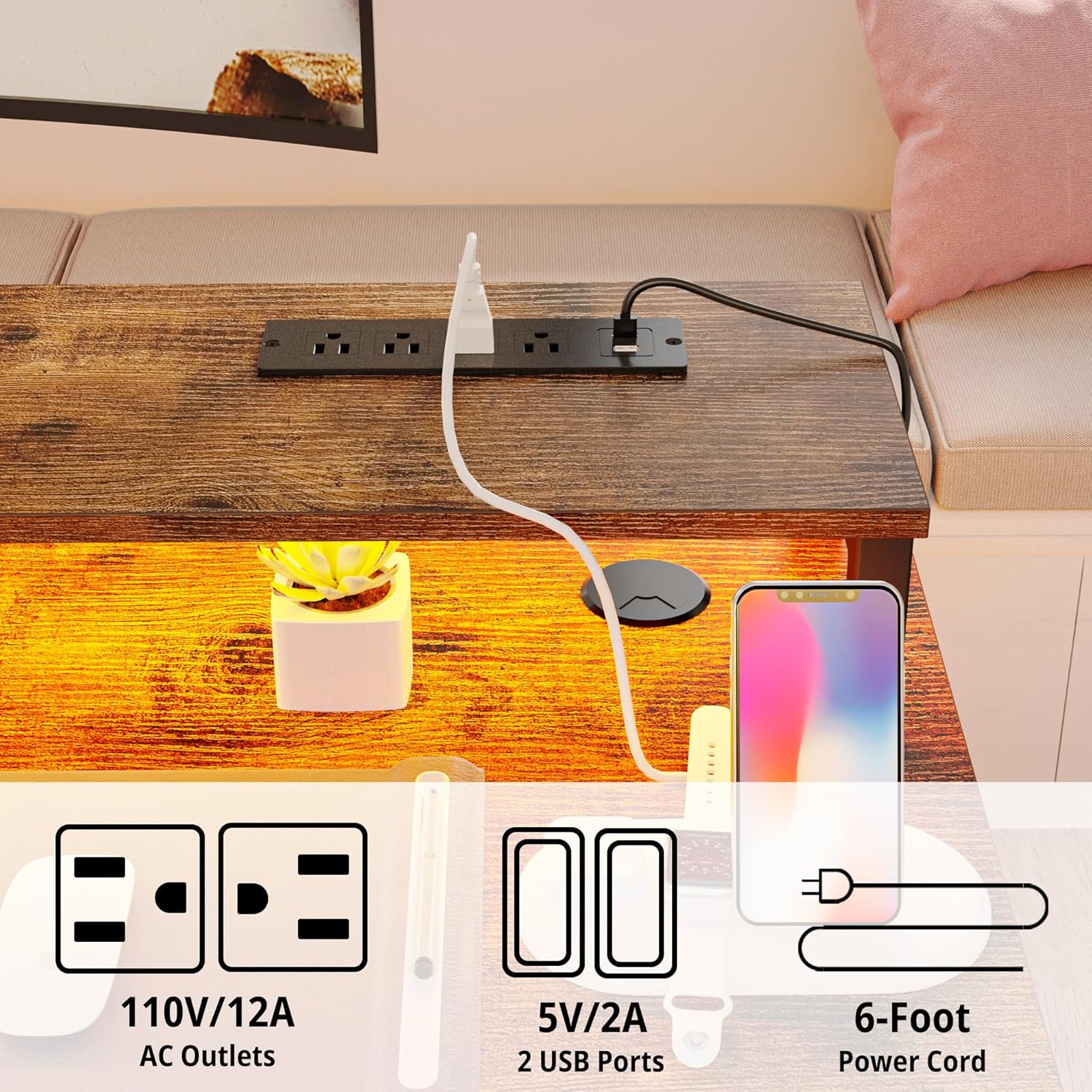
Figure 2: Reversible Design Options. This image displays how the desk can be assembled in different layouts, including a standard L-shape, or separated into two distinct desks for flexible use.
3. Operating Instructions
3.1 Smart LED Lights
The integrated LED lights offer customizable ambiance for your workspace. Control options include a Bluetooth app, a 24-key infrared remote, or direct key control. Choose from 16 colors and 21 flashing modes to suit your preference.
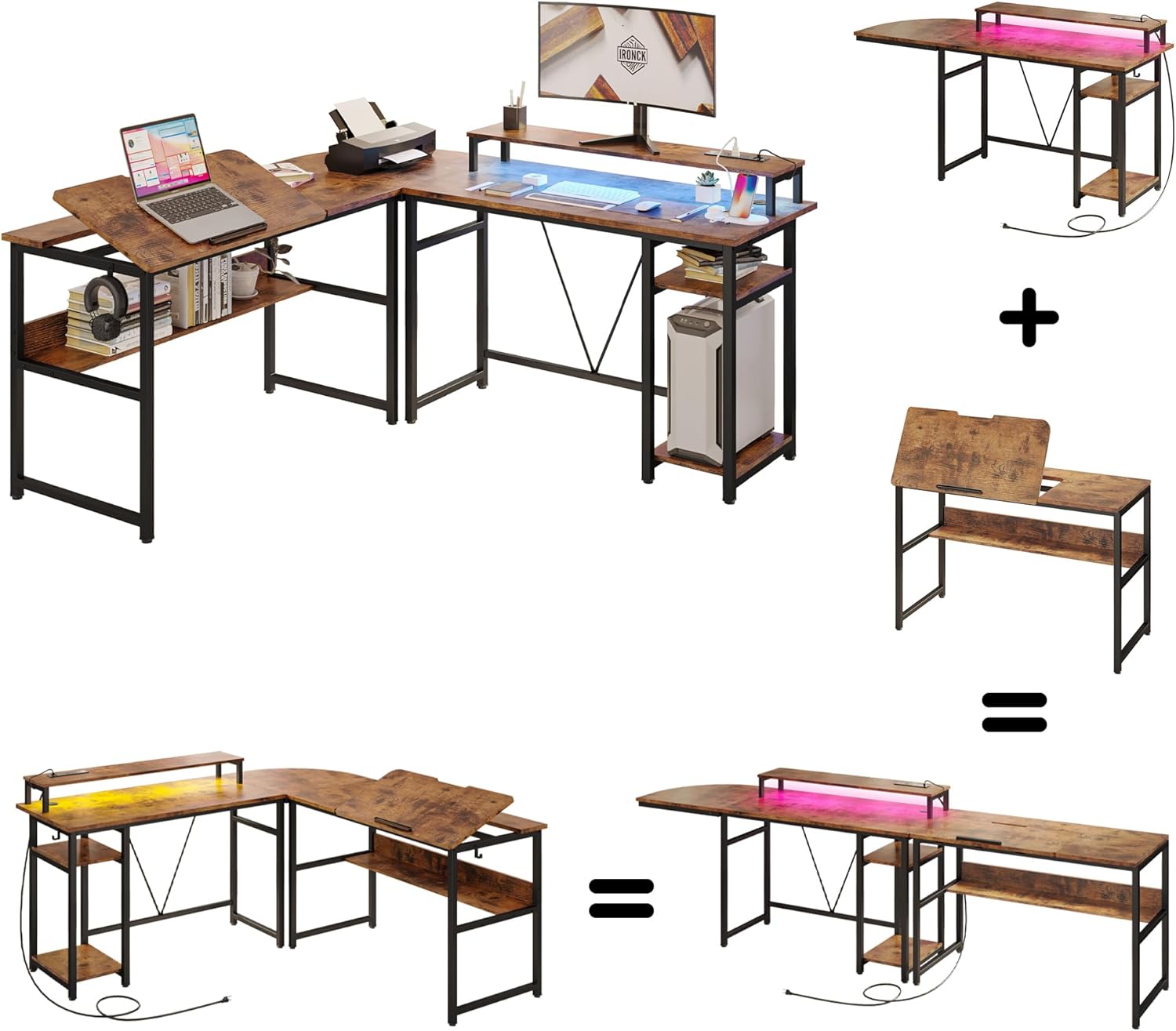
Figure 3: Smart LED Lights. This image highlights the LED lighting strip integrated into the monitor stand, providing adjustable illumination for your desk.
3.2 Integrated Power Outlets and USB Charging Ports
The desk features a built-in power strip with 4 standard AC outlets and 2 fast-charging USB ports. This provides convenient access to power for your electronic devices directly on your desktop.
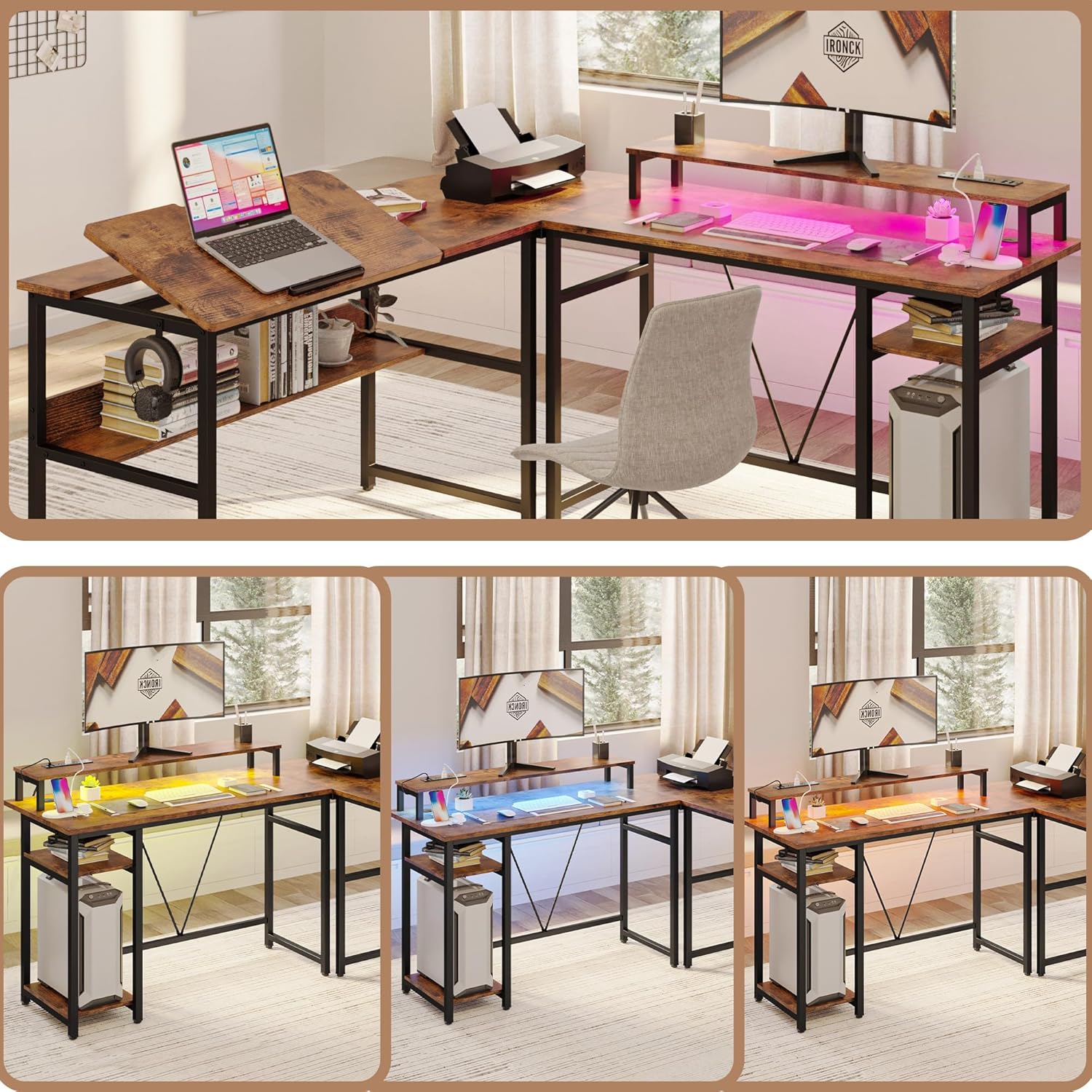
Figure 4: Power Outlets and USB Ports. This image shows the integrated power strip, offering convenient charging and power access for multiple devices.
3.3 Tiltable Drawing Board
One section of the desktop functions as a tiltable drawing board, adjustable up to 80 degrees. A sheet stopper is included to prevent papers or devices from sliding off when tilted. This feature is ideal for drafting, drawing, or comfortable reading.

Figure 5: Tiltable Drawing Board. This composite image illustrates the adjustable nature of the drawing board, its support mechanism, and the sheet stopper.
3.4 Additional Features

Figure 6: Additional Desk Features. This image highlights the monitor stand for ergonomic viewing, a wire management grommet for cable organization, a safe shelf, and ample storage shelves for various items.
3.5 Product Video Overview
Video 1: Desk with Lights, Sockets and Adjustable Drawing Board. This video provides a visual overview of the desk's key features, including the LED lighting, integrated power outlets, and the adjustable drawing board.
4. Maintenance
Proper maintenance will ensure the longevity and appearance of your IRONCK desk.
- Cleaning: Wipe surfaces with a soft, damp cloth. For stubborn marks, use a mild, non-abrasive cleaner. Avoid harsh chemicals, solvents, or abrasive cleaning pads, as these can damage the finish.
- Spills: Immediately wipe up any spills to prevent staining or damage to the wood surface.
- Hardware: Periodically check all screws and fasteners to ensure they remain tight. Retighten as necessary to maintain stability.
- Electrical Components: Ensure the power cord and LED light connections are secure and free from damage. Do not attempt to repair electrical components yourself.
- Heat and Moisture: Avoid placing hot items directly on the desktop. Use coasters or protective pads. Keep the desk away from excessive moisture or direct sunlight to prevent warping or fading.
5. Troubleshooting
If you encounter any issues with your desk, refer to the following troubleshooting guide:
- Desk Wobbles:
Solution: Ensure all assembly screws are fully tightened. Check that the desk is placed on a level surface. Adjust leveling feet if present. - LED Lights Not Working:
Solution: Verify the power cord for the LED strip is securely plugged into a working outlet. Check the connection between the LED strip and its controller. If using a remote, ensure the battery is functional. If using an app, confirm Bluetooth connection. - Power Outlets/USB Ports Not Functioning:
Solution: Confirm the desk's main power cord is plugged into a live wall outlet. Check the power strip's circuit breaker (if applicable) and reset if tripped. Ensure devices are properly plugged into the outlets/ports. - Tiltable Drawing Board Not Adjusting Smoothly:
Solution: Inspect the hinge mechanisms for any obstructions or debris. Ensure the support arms are correctly aligned and free to move. Apply a small amount of silicone lubricant to the hinges if movement is stiff. - Missing or Damaged Parts:
Solution: Do not proceed with assembly. Contact IRONCK customer support immediately for replacement parts.
6. Specifications
| Feature | Detail |
|---|---|
| Brand | IRONCK |
| Model Number | HK-CD-69 |
| Desk Design | L-Shaped Computer Desk |
| Product Dimensions (D x W x H) | 23.6"D x 70.8"W x 36.2"H |
| Top Material Type | Wood (P2 MDF Board) |
| Base Material | Heavy-duty Powder-coated Steel |
| Maximum Weight Recommendation | 300 Pounds |
| Maximum Tilt Angle (Drawing Board) | 80 Degrees |
| Item Weight | 99 Pounds |
| Power Outlets | 4 AC Outlets |
| USB Charging Ports | 2 USB Ports (Fast Charging) |
| LED Lights | 16 Colors, 21 Flashing Modes (Bluetooth app/remote/key control) |
| Included Components | Bookcase, Built-in Outlet, Built-in USB Port, Headphone Hook, Monitor Stand |
| Assembly Required | Yes (Tools included, 2 people recommended) |
7. Warranty and Support
Specific warranty details are not provided in this manual. For information regarding warranty coverage, claims, or any product-related inquiries, please contact IRONCK customer support directly. You can often find contact information on the product packaging, the IRONCK official website, or through your point of purchase.
For additional support and to explore other IRONCK products, please visit the IRONCK Store.


