
YOJOCK FT-A3
YOJOCK USB Tester Meter A3 User Manual
Model: FT-A3
1. Introduction
The YOJOCK USB Tester Meter A3 is a versatile 2-in-1 digital multimeter designed for comprehensive testing of USB-A and Type-C devices. It accurately measures voltage, current, power, and capacity, and supports fast charge recognition protocols like QC 2.0/3.0. This manual provides detailed instructions for its setup, operation, and maintenance to ensure optimal performance and longevity.

Figure 1: YOJOCK USB Tester Meter A3
2. Product Overview
2.1. Components
The USB Tester Meter A3 features a compact design with multiple input/output ports and a clear display for easy monitoring.
- 1.44-inch TFT Color LCD Screen: Displays measurement data and menu options.
- USB-A Input: For connecting to USB-A power sources.
- Type-C Input: For connecting to Type-C power sources.
- Micro USB Input: For connecting to Micro USB power sources.
- USB-A Output: For connecting devices to be tested.
- Type-C Output: For connecting devices to be tested.
- Function Buttons: Four buttons for navigation and operation.

Figure 2: Labeled diagram of the USB Tester Meter A3, showing input/output ports and function buttons.
2.2. Key Features
- Multifunctional Testing: Measures Voltage (4.5V-24.0V), Current (0-8.0A), Power, and Capacity.
- Fast Charge Recognition: Supports QC 2.0/3.0 protocols.
- Cable Impedance Measurement: Helps assess cable quality.
- Wide Compatibility: Compatible with USB-A, Type-C, and Micro USB devices.
- Flexible Display: 1.44-inch LCD screen with 360-degree rotation for optimal viewing angle.
- Data Storage: Ability to record and store measurement data.
- Safety Protection: Automatically cuts off output to protect appliances from damage.

Figure 3: Overview of the multifunctional features of the USB Tester Meter A3.
3. Setup and Connection
To begin using your USB Tester Meter A3, follow these steps:
- Connect to Power Source: Plug the appropriate input connector (USB-A, Type-C, or Micro USB) of the tester into your power source (e.g., wall charger, power bank, computer USB port).
- Connect Device to be Tested: Plug the device you wish to test (e.g., smartphone, tablet, USB fan) into the corresponding output port (USB-A or Type-C) on the tester.
- Observe Readings: The screen will immediately display real-time voltage, current, and other relevant data.
Important Note for Type-C Connections:
When using a Type-C charger, it must be connected to a load that supports the PD (Power Delivery) protocol. If only one Type-C port is connected and the device does not support PD, the USB tester screen may not light up. This is a normal working principle for Type-C and not a malfunction. If the display does not light up, try flipping the Type-C cable and re-inserting it, or ensure a compatible load is connected.

Figure 4: Illustration of Type-C connection and troubleshooting for display not lighting up.
4. Operating Instructions
4.1. Navigating the Interface
The tester features four operation buttons. The specific functions of these buttons may vary slightly depending on the active screen, but generally:
- "NEXT" Button: Press to cycle through different display interfaces (Measurement Main, Quick Charge Identification, Data Recording, Wire Group Impedance, Voltage Graphing, Current Graphing, Setting Interface).
- "HELP" Button: Press for on-screen help or additional information related to the current interface.
- Other buttons (not explicitly labeled in diagram but implied by "4 Function Button"): Used for specific actions within each interface, such as adjusting settings or clearing data.
4.2. Display Interfaces
The USB Tester Meter A3 offers several display modes to provide comprehensive data:
- Measurement Main Interface: Displays real-time voltage, current, power, accumulated capacity (mAh), and energy (mWh).
- Quick Charge Identification Interface: Shows the detected fast charging protocol (e.g., QC 2.0, QC 3.0, PD).
- Data Recording Interface: Records accumulated capacity and energy over time.
- Wire Group Impedance Measurement Interface: Measures the impedance of the connected cable.
- Voltage Graphing Interface: Provides a real-time graph of voltage fluctuations.
- Current Graphing Interface: Provides a real-time graph of current fluctuations.
- Setting Interface: Allows adjustment of display brightness, auto-off timer, and other parameters.

Figure 5: Visual representation of the various display interfaces available on the USB Tester Meter A3.
4.3. Screen Rotation
The display supports 360-degree rotation for convenient viewing from any angle. To rotate the screen, press the button corresponding to the horizontal menu bar (likely one of the function buttons, refer to the on-screen prompts or experiment with the "NEXT" button if no specific rotation button is indicated). This feature ensures positive readings regardless of how the tester is plugged in.

Figure 6: Demonstration of the 360-degree screen rotation feature.
5. Applications
The YOJOCK USB Tester Meter A3 is ideal for a wide range of applications, including:
- Charging Performance Assessment: Verify the charging speed and quality of wall chargers, car chargers, and solar panel chargers.
- Cable Quality Testing: Measure cable impedance to identify inefficient or faulty charging cables.
- Power Bank Capacity Verification: Test the actual capacity and energy output of power banks.
- Device Charging Monitoring: Observe real-time charging data for smartphones, tablets, laptops, and other USB-powered devices.
- Troubleshooting: Diagnose charging issues by identifying abnormal voltage or current levels.

Figure 7: Various scenarios demonstrating the practical applications of the USB Tester Meter A3.

Figure 8: The USB Tester Meter A3 in use, measuring the charging performance of a smartphone connected to a wall charger.
6. Maintenance
To ensure the longevity and accuracy of your YOJOCK USB Tester Meter A3, follow these maintenance guidelines:
- Cleaning: Use a soft, dry cloth to clean the device. Avoid using abrasive cleaners or solvents.
- Storage: Store the tester in a cool, dry place away from direct sunlight and extreme temperatures.
- Handling: Handle the device with care to prevent physical damage. Avoid dropping or subjecting it to strong impacts.
- Connector Care: Keep the USB and Type-C connectors clean and free of dust or debris to ensure proper contact. The gold-plated contacts are designed for durability, but proper care is still recommended.
7. Troubleshooting
| Problem | Possible Cause | Solution |
|---|---|---|
| Screen does not light up when connected via Type-C. |
|
|
| Inaccurate readings. |
|
|
| Buttons are unresponsive. |
|
|
8. Specifications
| Parameter | Value |
|---|---|
| Model Number | FT-A3 |
| Measuring Voltage Range | 4.5V - 24.0V |
| Measuring Current Range | 0 - 8.0A |
| Measurement Type | Voltmeter, Amperemeter, Wattmeter |
| Display | 1.44-inch TFT Color LCD Screen |
| Power Source | Corded Electric |
| Dimensions | 3.31 x 2.87 x 0.75 inches |
| Weight | 1.41 ounces |
9. What's in the Box
Upon opening the package, you should find the following items:
- 1 x YOJOCK USB Tester Meter A3
- 1 x User Manual (this document)
- 2 x Type-C Accessories (adapters)
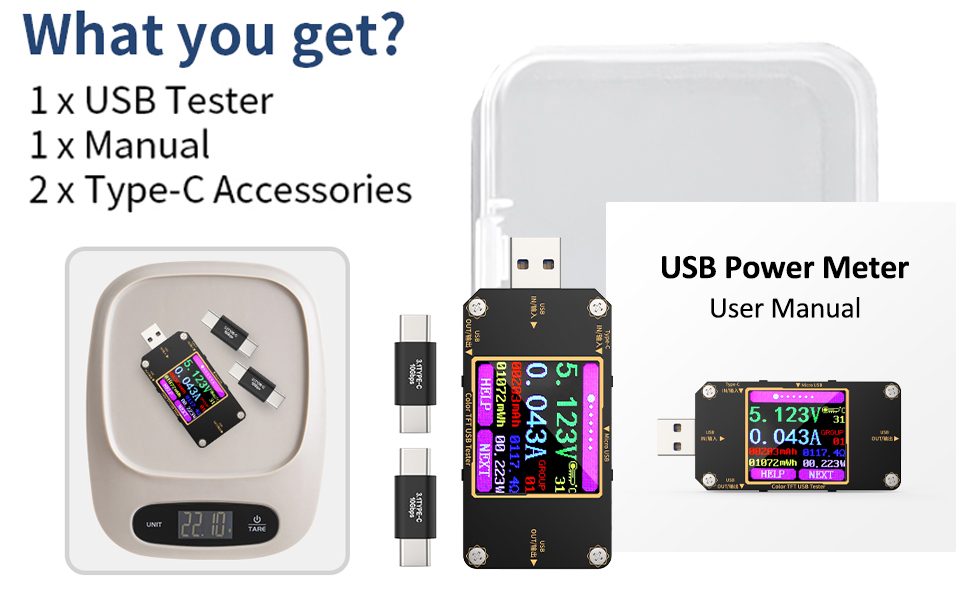
Figure 9: Contents of the YOJOCK USB Tester Meter A3 package.
10. Warranty and Support
YOJOCK stands behind its products. The USB Tester Meter A3 comes with a hassle-free 18-month warranty covering product defects.
For any inquiries, technical support, or warranty claims, please contact our friendly customer service team:
- Email: ServiceYojock@outlook.com
- Website: www.yojock.com
Please have your model number (FT-A3) and purchase information ready when contacting support.

Figure 10: Back of the product packaging showing manufacturer information and contact details.
Related documentsFT-A3


Ask a question about this manual
Ask about setup, troubleshooting, compatibility, parts, safety, or missing instructions. Manuals+ will review the question and use this page’s manual context to help answer it.