
1. Introduction
Thank you for purchasing the MEBERRY Tablet M8. This 12-inch Android 13 tablet is designed to provide a versatile and powerful computing experience, whether for work, learning, or entertainment. Featuring a vibrant 2K display, robust Octa-Core processor, and ample memory, the M8 is built for efficiency and enjoyment.
This manual provides essential information on setting up, operating, maintaining, and troubleshooting your device to ensure optimal performance and longevity.
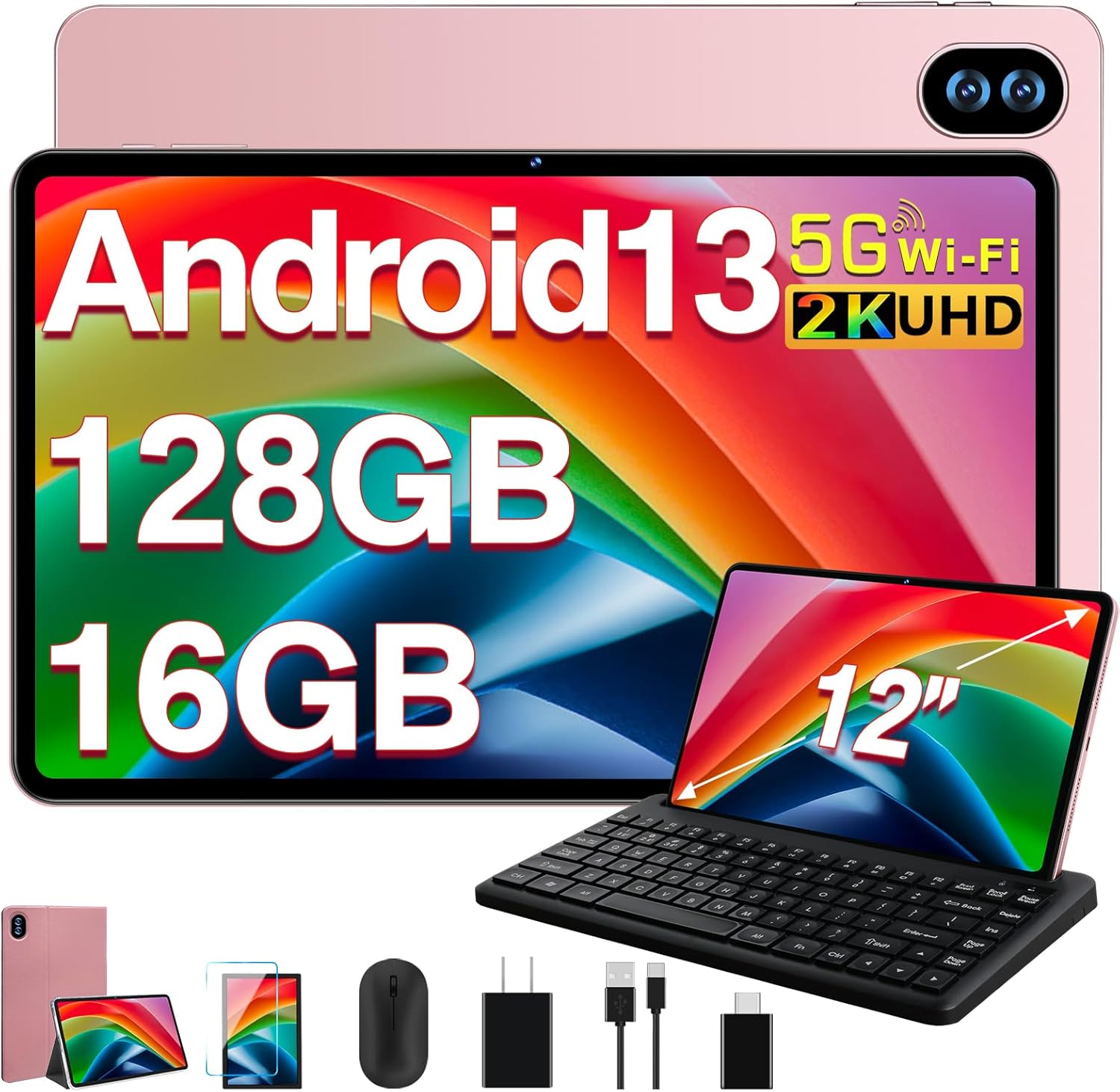
Figure 1.1: MEBERRY Tablet M8 and its accompanying accessories.
2. What's in the Box
Upon opening your MEBERRY Tablet M8 package, please verify that all the following items are included:
- MEBERRY Tablet M8 (12-inch, Gold)
- Bluetooth Keyboard
- Wireless Mouse
- Power Adapter
- USB-C Charging Cable
- USB-A to USB-C Adapter
- Protective Case
- Screen Protector (pre-applied or included separately)
- User Manual (this document)
3. Setup Guide
3.1 Initial Charging
Before first use, it is recommended to fully charge your MEBERRY Tablet M8. Connect the provided USB-C charging cable to the tablet's USB-C port and the power adapter, then plug the adapter into a wall outlet. The charging indicator will illuminate.
3.2 Powering On/Off
- To Power On: Press and hold the Power button (located on the side of the tablet) for a few seconds until the MEBERRY logo appears on the screen.
- To Power Off: Press and hold the Power button until the power options menu appears. Select "Power off" and confirm.
- To Restart: From the power options menu, select "Restart."
3.3 Initial Setup Wizard
Upon first power-on, the Android 13 setup wizard will guide you through essential configurations:
- Select your preferred language.
- Connect to a Wi-Fi network.
- Accept the terms and conditions.
- Sign in with your Google account or create a new one.
- Set up screen lock (PIN, pattern, or password).
- Review and adjust privacy settings.
3.4 Connecting Accessories
Your MEBERRY Tablet M8 comes with a Bluetooth keyboard and a wireless mouse for enhanced productivity.
3.4.1 Bluetooth Keyboard
- Ensure the keyboard is charged and powered on.
- On your tablet, go to Settings > Connected devices > Bluetooth.
- Turn on Bluetooth.
- Put the keyboard into pairing mode (refer to the keyboard's specific instructions, usually by pressing a dedicated pairing button or key combination).
- Select the keyboard from the list of available devices on your tablet and follow any on-screen prompts to complete pairing.
3.4.2 Wireless Mouse
The wireless mouse typically connects via a USB dongle. Use the provided USB-A to USB-C adapter to connect the mouse dongle to the tablet's USB-C port.

Figure 3.1: The MEBERRY Tablet M8 can be used as a 2-in-1 device with keyboard and mouse.
3.5 Inserting a Micro SD Card
The tablet supports storage expansion up to 1TB via a Micro SD card. Locate the SIM/SD card tray on the side of the tablet. Use the provided SIM ejector tool (if included) or a small paperclip to open the tray. Carefully place the Micro SD card into the designated slot and reinsert the tray.
4. Operating Your Tablet
4.1 Display and Visuals
The MEBERRY Tablet M8 features a 12-inch 2K HD display with a resolution of 2000*1200 pixels, offering clear and vibrant visuals. The screen incorporates new touch technology for improved viewing angles and touch sensitivity.
- Eye Protection Mode: Reduces blue light emission to minimize eye strain, especially during prolonged use. This can typically be found in Display settings.
- Dark Mode: Changes the system's color scheme to a darker palette, which can be more comfortable in low-light environments and save battery on some display types.
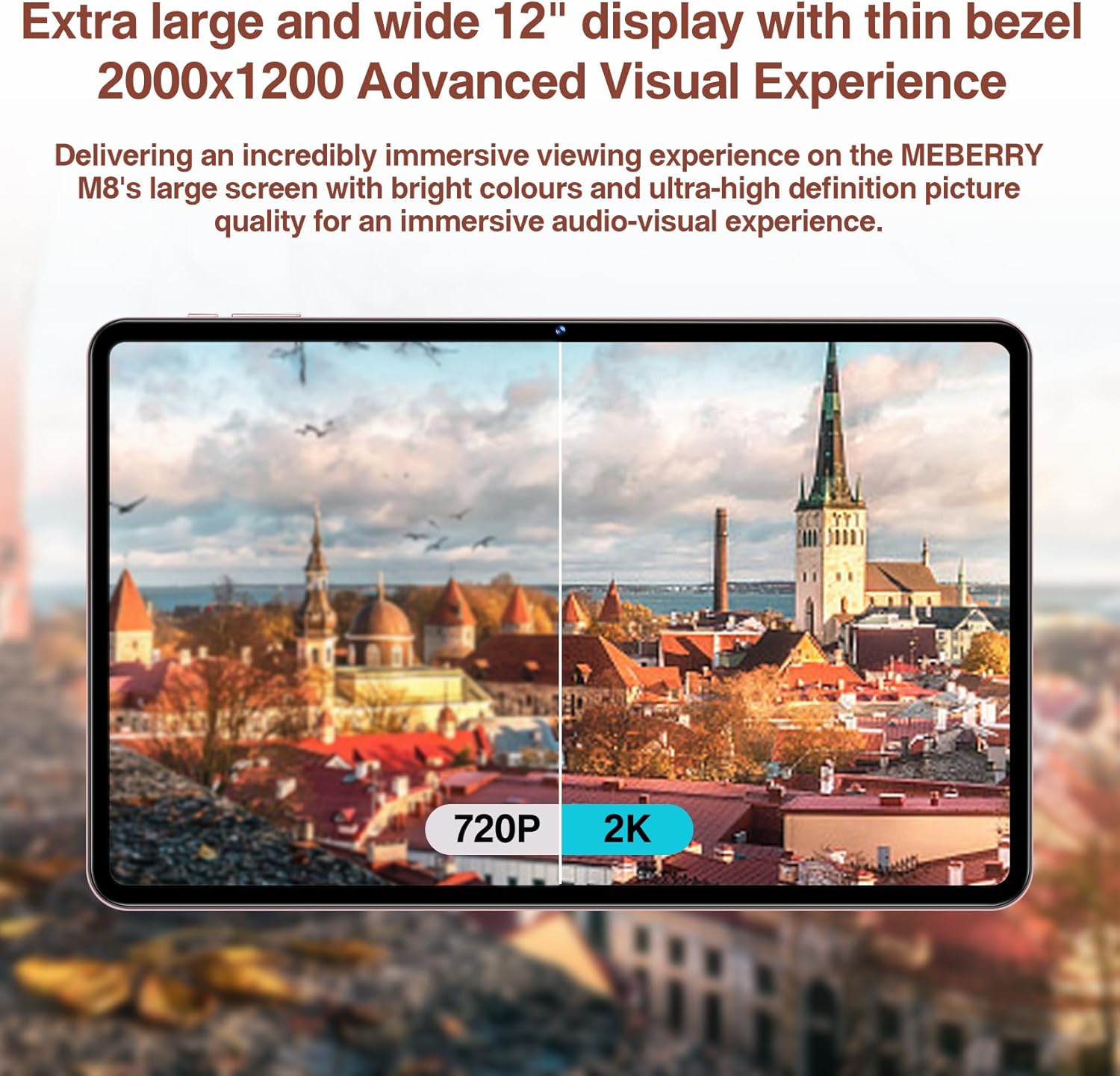
Figure 4.1: The 2K display offers significantly enhanced visual clarity.
4.2 Performance and Storage
The tablet runs on the latest Android 13 operating system, providing enhanced privacy, security, and overall system speed. It is powered by a stable Octa-Core processor (MT8183) with a clock speed of up to 2.0 GHz, ensuring fast application launches and efficient multitasking.

Figure 4.2: The MT8183 Octa-Core processor powers the MEBERRY M8.
The M8 comes with 16GB of RAM (10GB physical + 6GB virtual) and 128GB of internal storage (ROM). This ample memory ensures smooth operation and sufficient space for applications and files. Storage can be expanded by up to 1TB using a Micro SD card.

Figure 4.3: Memory and storage capabilities of the MEBERRY M8.
4.3 Battery Management
Equipped with an 8000mAh battery and intelligent power management, the tablet is designed for extended use. Expected battery life includes:
- Up to 14 hours of game play
- Up to 16 hours of video watching
- Up to 72 hours of standby time

Figure 4.4: Battery performance overview.
4.4 Camera Usage
The MEBERRY M8 features a 13MP rear camera and a 5MP front camera, suitable for capturing photos, recording videos, and engaging in video calls.
- Taking Photos/Videos: Open the Camera application from the home screen or app drawer. Select photo or video mode and tap the shutter button.
- Video Calls: Use popular communication apps (e.g., Google Meet, Zoom, Skype) that utilize the front camera for video conferencing.
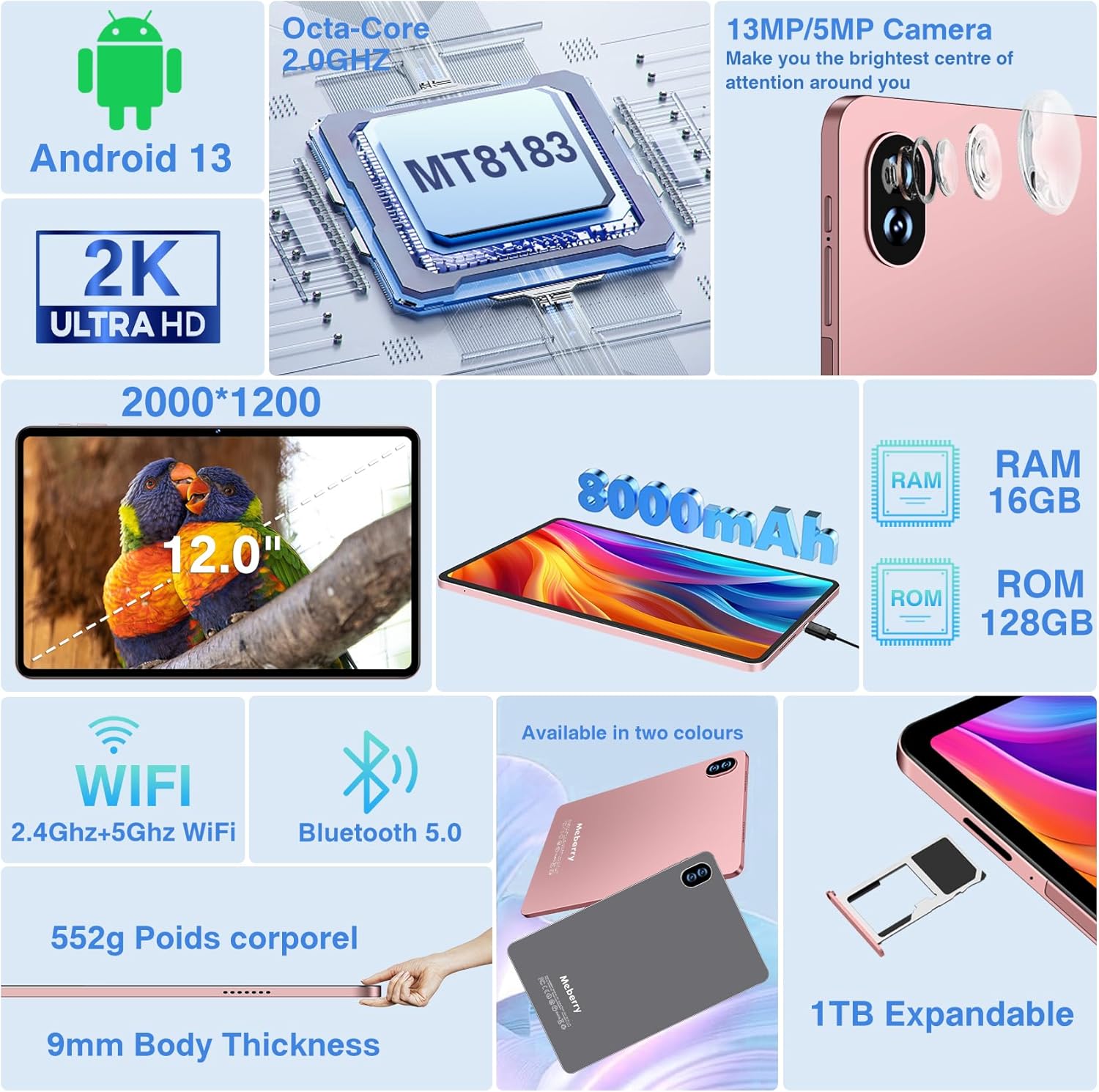
Figure 4.5: Camera specifications are part of the overall product features.
4.5 Connectivity
The tablet supports both 2.4Ghz and 5.0Ghz Wi-Fi networks (802.11a/b/g/n/ac) and Bluetooth 5.0, ensuring stable and fast wireless connections.
- Wi-Fi: To connect to Wi-Fi, go to Settings > Network & internet > Internet. Select your desired network and enter the password if required.
- Bluetooth: To connect Bluetooth devices, go to Settings > Connected devices > Bluetooth. Turn on Bluetooth and pair with your device.
- Audio: The tablet is equipped with four speakers for high-quality audio output.
5. Maintenance
5.1 Cleaning the Tablet
To clean the screen and body of your tablet, use a soft, lint-free cloth. For stubborn smudges, slightly dampen the cloth with water or a screen-specific cleaning solution. Avoid using harsh chemicals or abrasive materials.
5.2 Battery Care
- Avoid exposing the tablet to extreme temperatures (hot or cold).
- Do not let the battery completely drain frequently. Charge it before it reaches 0%.
- Use only the provided charger or a certified compatible charger.
5.3 Software Updates
Regularly check for and install system updates to ensure your tablet has the latest features, security patches, and performance improvements. Go to Settings > System > System update.
5.4 Storage Management
To maintain optimal performance, periodically manage your tablet's storage. Delete unnecessary files, uninstall unused apps, and clear app caches. You can check storage usage in Settings > Storage.
6. Troubleshooting
This section addresses common issues you might encounter with your MEBERRY Tablet M8.
| Problem | Possible Cause | Solution |
|---|---|---|
| Tablet does not turn on | Low battery; System crash | Charge the tablet for at least 30 minutes. Press and hold the Power button for 10-15 seconds to force a restart. |
| Wi-Fi connection issues | Incorrect password; Router issue; Tablet Wi-Fi module issue | Verify Wi-Fi password. Restart your router. Toggle Wi-Fi off/on on the tablet. Forget the network and reconnect. |
| Bluetooth accessories not connecting | Accessory not in pairing mode; Bluetooth off on tablet | Ensure accessory is in pairing mode. Check tablet's Bluetooth settings. Restart both devices. |
| Tablet is slow or freezing | Too many apps open; Low storage; Software bug | Close background apps. Clear app caches. Free up storage space. Restart the tablet. |
| Screen not responding | Temporary software glitch | Force restart the tablet by holding the Power button. |
6.1 Factory Reset
If issues persist, a factory reset can resolve many software-related problems. Warning: This will erase all data on your tablet. Back up important files before proceeding.
- Go to Settings > System > Reset options.
- Select Erase all data (factory reset).
- Confirm your decision and enter your PIN/pattern/password if prompted.
- The tablet will restart and begin the reset process.
7. Specifications
Detailed technical specifications for the MEBERRY Tablet M8:
| Feature | Specification |
|---|---|
| Model Name | M8 |
| Operating System | Android 13 |
| Screen Size | 12 Inches |
| Screen Resolution | 2000*1200 Pixels (2K HD) |
| Processor | Octa-Core (MT8183), 2.0 GHz |
| RAM | 16GB (10GB physical + 6GB virtual) |
| Internal Storage (ROM) | 128GB |
| Expandable Storage | Up to 1TB via Micro SD card |
| Rear Camera | 13 MP |
| Front Camera | 5 MP |
| Battery Capacity | 8000mAh |
| Wireless Connectivity | 802.11a/b/g/n/ac (2.4Ghz & 5.0Ghz WiFi) |
| Bluetooth | Bluetooth 5.0 |
| Audio | Dual Speakers |
| Dimensions (LxWxH) | 10.9 x 6.85 x 0.35 inches |
| Item Weight | 4.62 pounds |
| Color | M8 Gold |
8. Warranty and Support
MEBERRY is committed to providing quality products and customer experience. For any product-related inquiries, technical support, or warranty claims, please refer to the contact information provided with your purchase documentation or visit the official MEBERRY support website.
Please retain your proof of purchase for warranty purposes.