
1. Product Overview
The BoxWave ClearTouch Anti-Glare Screen Protector is designed to protect the screen of your Eyoyo EM15A 15-inch monitor. This film is engineered to reduce glare, resist fingerprints, and provide a smooth, matte surface for enhanced usability and screen visibility.

Image: The BoxWave ClearTouch Anti-Glare Screen Protector packaging, showing two screen protectors and included installation accessories.
Key Features:
- Anti-Glare: Disperses light to reduce reflections and glare, improving screen readability in various lighting conditions. Reduces 90% of UV rays.
- Anti-Fingerprint: Matte surface repels smudges, dust, and fingerprints, keeping your screen cleaner.
- Precision Cut: Designed specifically for the Eyoyo EM15A Monitor (15") to ensure a perfect fit and full accessibility to all screen functions.
- Smooth Surface: Provides a paper-like feel, enhancing touch interaction and stylus use.
- Clean Application: Features a glueless adhesive that leaves no sticky residue upon removal.
- Two-Pack: Includes two screen protectors and installation accessories.
2. Setup and Installation
Proper installation is crucial for optimal performance. Follow these steps carefully:
Included Accessories:
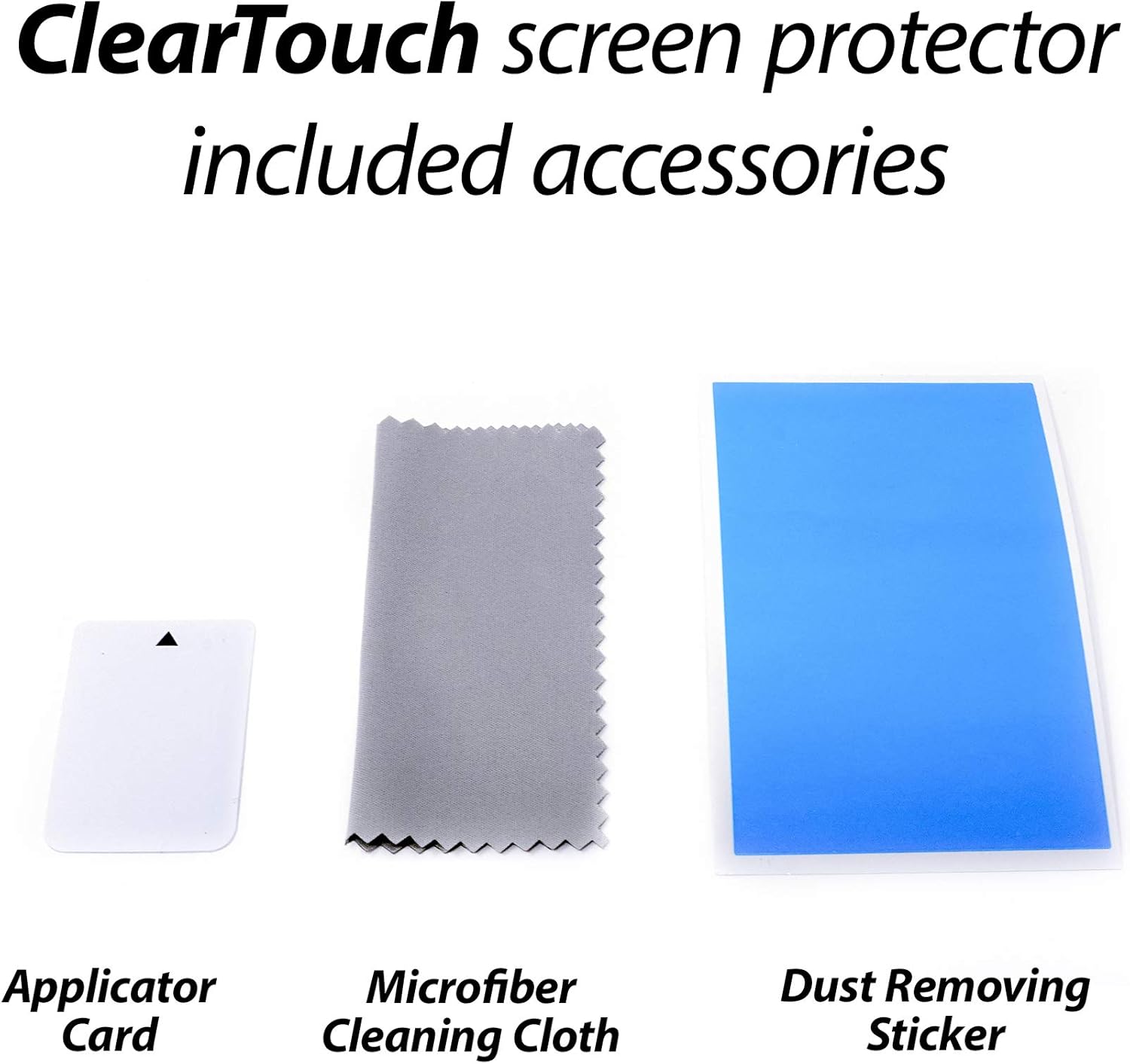
Image: The included accessories for screen protector installation: an applicator card, a microfiber cleaning cloth, and a dust removing sticker.
- Microfiber Cleaning Cloth: For cleaning the screen surface.
- Dust Removing Sticker: To lift any remaining dust particles.
- Applicator Card: To smooth out bubbles during application.
Installation Steps:
- Clean the Screen: Use the microfiber cleaning cloth to thoroughly clean the monitor screen. Ensure there are no dust, smudges, or fingerprints. For stubborn marks, a screen cleaner (not included) can be used sparingly.
- Remove Dust: Use the dust removing sticker to gently dab the screen surface, lifting any remaining dust particles. Inspect the screen under good lighting to ensure it is completely dust-free.
- Align the Protector: Carefully peel back a small portion of the protective layer (usually marked '1' or 'back') from one corner of the screen protector. Align the exposed edge of the screen protector with the corresponding edge of your monitor screen. Ensure all cutouts (if any) align correctly with your device's features.
- Apply Gradually: Slowly peel off the rest of the protective layer while simultaneously applying the screen protector to the monitor surface. Use the applicator card to gently push out any air bubbles as you go, working from the center outwards.
- Smooth Out Bubbles: If bubbles remain, use the applicator card to push them towards the nearest edge. For small, persistent bubbles, you may gently lift a corner of the protector and reapply, ensuring no dust is trapped underneath.
- Remove Top Layer: Once the screen protector is fully applied and free of major bubbles, carefully peel off the top protective layer (usually marked '2' or 'front').
- Final Inspection: Perform a final check for any remaining dust or bubbles. The screen protector is now installed.
3. Operating Characteristics
Once installed, the ClearTouch Anti-Glare Screen Protector enhances your monitor's usability through its unique properties:
- Glare Reduction: The matte finish effectively diffuses harsh light, significantly reducing reflections and glare from ambient light sources or direct sunlight. This improves visual comfort and screen clarity.
- Fingerprint and Smudge Resistance: The oleophobic layer on the protector minimizes the appearance of fingerprints and smudges, keeping your screen looking clean with less effort.
- Enhanced Touch Experience: The smooth, paper-like texture provides a comfortable and responsive surface for touch interactions and is ideal for use with a stylus, offering a natural writing or drawing feel.
- Scratch Protection: The durable film acts as a barrier against scratches, scuffs, and minor impacts, preserving the original screen of your Eyoyo EM15A monitor.

Image: A monitor screen displaying a note-taking application, with a stylus being used to write, demonstrating the paper-like feel provided by the screen protector.

Image: A visual comparison showing one half of a screen clean and clear, while the other half is covered in fingerprints, illustrating the anti-smudge capability of the protector.
4. Maintenance
To maintain the clarity and effectiveness of your screen protector, follow these simple maintenance guidelines:
- Regular Cleaning: Use the included microfiber cleaning cloth to gently wipe the screen protector. For best results, wipe in one direction.
- Stubborn Marks: For more persistent smudges, lightly dampen the microfiber cloth with water or a screen-safe cleaning solution. Avoid harsh chemicals, alcohol, or abrasive materials, as these can damage the protector's coating.
- Avoid Sharp Objects: While the protector offers scratch resistance, avoid contact with sharp objects that could potentially pierce or deeply scratch the film.
- Storage: If you remove the protector for any reason, store it flat in a clean, dust-free environment to prevent damage or dust accumulation on the adhesive side.
5. Troubleshooting
If you encounter issues during or after installation, consider the following solutions:
- Bubbles After Installation: Small bubbles can often be pushed out to the edge using the applicator card. If a bubble persists and appears to have a dust particle underneath, gently lift the nearest edge of the protector with a piece of tape, use the dust removing sticker to lift the particle, and then reapply.
- Dust Trapped Underneath: This is the most common cause of bubbles. Ensure the screen is meticulously clean before application. If dust is trapped, carefully lift the protector's edge and use the dust removing sticker to remove the particle.
- Misalignment: If the protector is significantly misaligned, it may be necessary to carefully peel it off and reapply. The glueless adhesive allows for reapplication, but excessive handling can introduce dust.
- Reduced Touch Sensitivity: Ensure the screen protector is applied smoothly without large air gaps. If touch sensitivity is still an issue, verify that your monitor's touch settings are calibrated correctly (if applicable).
- Damaged Protector: If the protector becomes scratched or damaged, use the second protector provided in the 2-pack for replacement.
6. Specifications
| Brand | BoxWave |
| Model Compatibility | Eyoyo EM15A Monitor (15") |
| Material | Polyethylene Terephthalate |
| Screen Surface Description | Matte, Anti-Glare |
| Item Weight | 4.3 ounces (for the package) |
| Package Contents | 2x ClearTouch Anti-Glare Screen Protectors, Installation Accessories (Microfiber Cleaning Cloth, Dust Removing Sticker, Applicator Card) |
7. Warranty and Support
For specific warranty information or technical support regarding your BoxWave ClearTouch Anti-Glare Screen Protector, please refer to the official BoxWave website or contact their customer service directly. Contact details are typically available on the product packaging or the manufacturer's official support pages.
As this product comes in a two-pack, you have an additional screen protector available for future use or as a replacement if the first one becomes damaged.