
ZTE E1320
ZTE E1320 AX3000 WiFi 6 Router User Manual
Model: E1320
1. Introduction
This manual provides detailed instructions for the installation, operation, and maintenance of your ZTE E1320 AX3000 WiFi 6 Router. Please read this manual thoroughly before using the device to ensure proper and safe operation.
2. Safety Information
- Do not expose the device to water or moisture.
- Do not open or attempt to repair the device yourself. Refer all servicing to qualified personnel.
- Use only the power adapter supplied with the device.
- Ensure proper ventilation around the device to prevent overheating.
- Keep the device away from heat sources and direct sunlight.
3. Package Contents
Verify that all items are present in your package:
- 1 x ZTE E1320 AX3000 WiFi 6 Router
- 1 x Power Adapter
- 1 x Ethernet Cable
- 1 x Quick Start Guide (This Manual)
4. Product Overview
Familiarize yourself with the components of your ZTE E1320 Router.
4.1 Front View
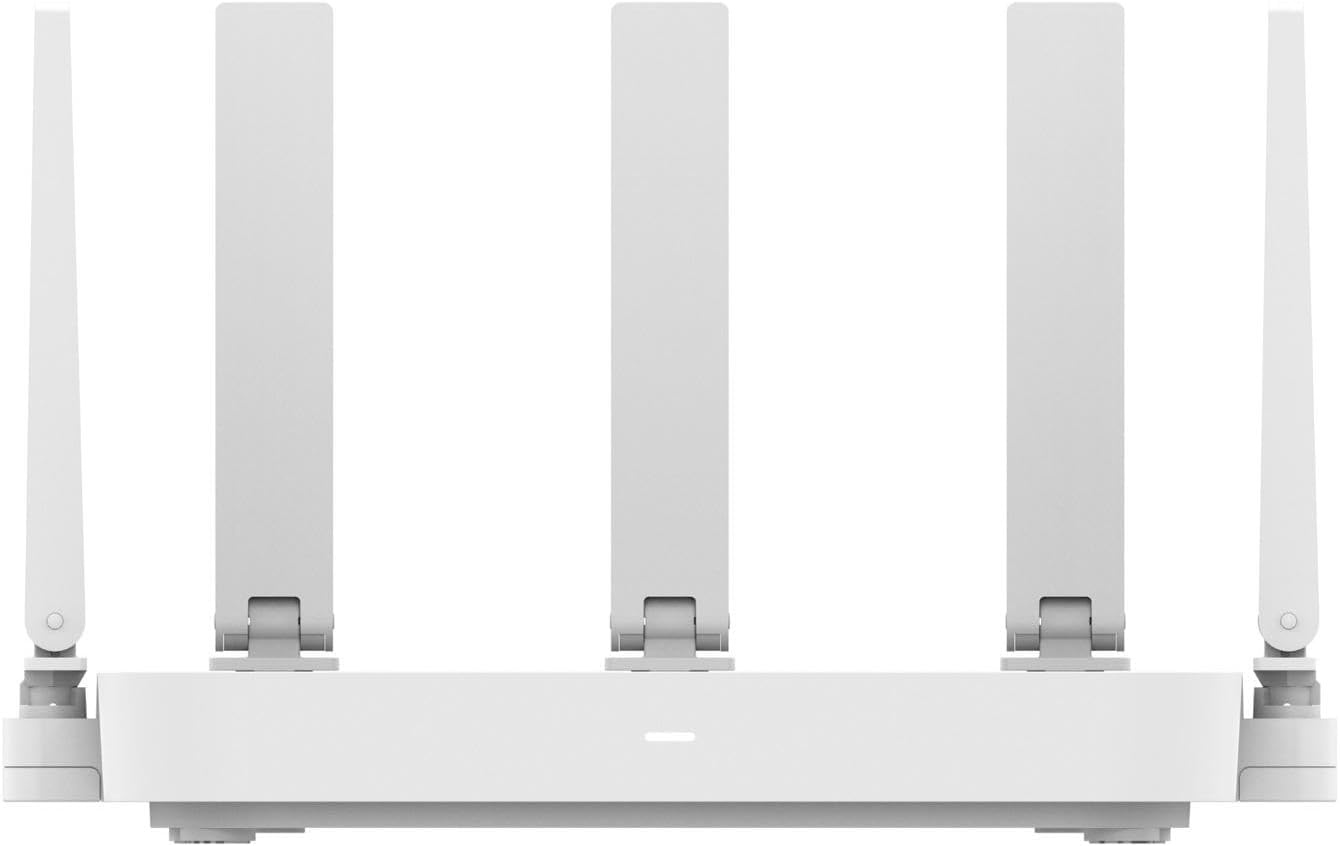
Figure 4.1: Front view of the ZTE E1320 Router, showing the ZTE logo and WiFi 6 indicator.
The front panel features the ZTE brand logo and a WiFi 6 indicator, providing a clean and minimalist design.
4.2 Top View

Figure 4.2: Top view of the ZTE E1320 Router, highlighting the ventilation grille.
The top surface includes a textured ventilation grille, designed for efficient heat dissipation to maintain optimal performance.
4.3 Rear View (Ports and Buttons)

Figure 4.3: Rear view of the ZTE E1320 Router, showing WAN, LAN ports, Reset/WPS button, and Power input.
The rear panel houses all essential connectivity ports and control buttons:
- WAN Port: Connects to your modem or internet service provider's equipment.
- LAN Ports (LAN1, LAN2, LAN3): Connect wired devices such as computers, gaming consoles, or smart TVs.
- RESET/WPS Button: Press and hold to reset the router to factory settings. Short press for WPS function.
- POWER Port: Connects to the supplied power adapter.
4.4 Side Views

Figure 4.4: Side view of the ZTE E1320 Router, showing the adjustable antennas.
The router features five external antennas, two on each side and one in the middle, which can be adjusted for optimal signal coverage.
4.5 Bottom View

Figure 4.5: Bottom view of the ZTE E1320 Router, showing ventilation holes and mounting points.
The bottom of the router includes additional ventilation holes and mounting points for flexible placement options.
5. Setup Guide
Follow these steps to set up your ZTE E1320 Router:
- Position the Router: Place the router in a central location in your home or office, away from obstructions and electronic devices that may cause interference. Ensure good ventilation.
- Connect to Power: Connect the supplied power adapter to the POWER port on the router and plug the other end into a power outlet. The power indicator light should turn on.
- Connect to Modem: Use the included Ethernet cable to connect the WAN port of the ZTE E1320 Router to the LAN/Ethernet port of your modem or optical network terminal (ONT).
- Connect Devices (Optional): For wired connections, use Ethernet cables to connect your computers, gaming consoles, or other devices to the LAN ports (LAN1, LAN2, LAN3) on the router.
- Wait for Initialization: Allow a few minutes for the router to boot up and establish an internet connection. The indicator lights should show a stable connection.
- Connect to Wi-Fi:
- Find the Wi-Fi network name (SSID) and password printed on the label at the bottom of your router.
- On your computer or mobile device, search for available Wi-Fi networks.
- Select the SSID corresponding to your router and enter the password to connect.
- Access Router Management Page:
- Open a web browser (e.g., Chrome, Firefox, Edge).
- Type the default IP address (usually
192.168.1.1or192.168.0.1) into the address bar and press Enter. - Enter the default username and password (often
adminfor both, or as specified on the router label). - Follow the on-screen instructions to complete the initial setup, including changing the default Wi-Fi name and password for security.
6. Operating Instructions
6.1 Wi-Fi 6 Connectivity
The ZTE E1320 supports Wi-Fi 6 (802.11ax) standard, offering speeds up to 3000Mbps. This advanced standard provides higher efficiency, faster speeds, and better performance in dense environments compared to previous Wi-Fi generations.
6.2 Dual-Band Operation (2.4 GHz & 5 GHz)
The ZTE E1320 operates on both 2.4 GHz and 5 GHz frequency bands. The 2.4 GHz band offers wider coverage and better penetration through walls, while the 5 GHz band provides faster speeds and less interference, ideal for high-bandwidth activities like streaming and gaming.
6.3 Mesh Functionality
The ZTE E1320 supports Mesh networking, allowing you to create a seamless whole-home Wi-Fi system by adding compatible Mesh units. This eliminates Wi-Fi dead zones and provides a single, unified network name for all your devices.
6.4 Gigabit Ethernet Ports
The router is equipped with Gigabit Ethernet ports (1 WAN, 3 LAN), providing high-speed wired connections for devices that require stable and fast network access, such as desktop computers, smart TVs, and network-attached storage (NAS).
6.5 Advanced Settings (via Web Interface)
Access the router's web management interface (refer to Section 5, Step 7) to configure advanced settings such as:
- Network Name (SSID) and Password changes
- Guest Network setup
- Parental Controls
- Quality of Service (QoS) settings
- Port Forwarding and VPN settings
- Firmware updates
7. Maintenance
- Regular Reboot: Periodically reboot your router (e.g., once a month) by unplugging it from the power outlet for 10 seconds and then plugging it back in. This can resolve minor performance issues.
- Keep Firmware Updated: Check the router's web management interface for available firmware updates. Keeping the firmware up-to-date ensures optimal performance, security, and access to new features.
- Clean the Device: Use a soft, dry cloth to clean the exterior of the router. Do not use liquid cleaners or aerosols. Ensure ventilation holes are free from dust accumulation.
- Secure Your Network: Regularly change your Wi-Fi password and use a strong, unique password. Consider enabling WPA3 encryption if available.
8. Troubleshooting
| Problem | Possible Cause | Solution |
|---|---|---|
| No Internet Access | Modem or router not powered on; incorrect cable connection; ISP issue. |
|
| Weak Wi-Fi Signal | Router placement; interference from other devices; physical obstructions. |
|
| Cannot Access Router Management Page | Incorrect IP address; device not connected to router; browser cache issue. |
|
| Forgot Wi-Fi Password or Admin Password | Password forgotten. |
|
9. Specifications
| Feature | Detail |
|---|---|
| Model Number | E1320 |
| Wireless Standard | 802.11ax (Wi-Fi 6) |
| Wireless Speed | Up to 3000Mbps |
| Frequency Band | Dual Band (2.4 GHz & 5 GHz) |
| Ethernet Ports | 1 x WAN Gigabit, 3 x LAN Gigabit |
| Antennas | 5 External Antennas |
| Special Features | Mesh Function, 160 MHz Bandwidth, Beamforming |
| Dimensions | 26 x 17.5 x 5 cm |
| Weight | 250 g |
| Color | White |
10. Warranty and Support
For warranty information and technical support, please refer to the warranty card included in your product package or visit the official ZTE website. You can also contact ZTE customer service for assistance with product setup, troubleshooting, and general inquiries.
ZTE Official Website: www.zte.com.cn
Please have your product model number (E1320) and serial number ready when contacting support.
Related documentsE1320


Ask a question about this manual
Ask about setup, troubleshooting, compatibility, parts, safety, or missing instructions. Manuals+ will review the question and use this page’s manual context to help answer it.