
YAMAHA FGDP-50
Yamaha Finger Drum Pad FGDP-50 Instruction Manual
Model: FGDP-50 | Brand: YAMAHA
Introduction
The Yamaha FGDP-50 is a portable finger drum pad designed for beat-making, composition, and performance. It features highly responsive pads with velocity sensitivity and aftertouch, allowing for expressive drumming. This manual provides essential information for setting up, operating, and maintaining your FGDP-50.

Figure 1: Yamaha FGDP-50 Finger Drum Pad.
Key Features
- 18 Performance Pads: Designed for intuitive finger drumming.
- 8 RGB-backlit Assignable Pads: Customize with various sounds and visual feedback.
- Velocity Sensitivity & Aftertouch: Captures the nuances of your performance.
- 48 Preset Drum Kits: A wide variety of sounds to get started.
- USB Connectivity: For connecting to computers (PC/Mac) and USB storage devices.
- Built-in Speaker & Rechargeable Battery: Enables portable use without external equipment.
- Aux In: Allows playing along with external audio sources.
- Rec'n'Share Feature: Easily record and share performances.
Setup
1. Unboxing and Initial Inspection
Carefully remove the FGDP-50 from its packaging. Inspect the device for any signs of damage. Ensure all included accessories are present.
Video 1: Official Yamaha Finger Drum Pads Overview. This video demonstrates the features and capabilities of the Yamaha FGDP-50 and FGDP-30 models, including pad responsiveness, sound variety, and connectivity options.
2. Powering On and Charging
The FGDP-50 has a built-in rechargeable battery. For first use, it is recommended to fully charge the device. Connect the provided USB cable to the "TO HOST" micro-USB port on the rear of the unit and the other end to a USB power adapter (not included) or a computer's USB port.
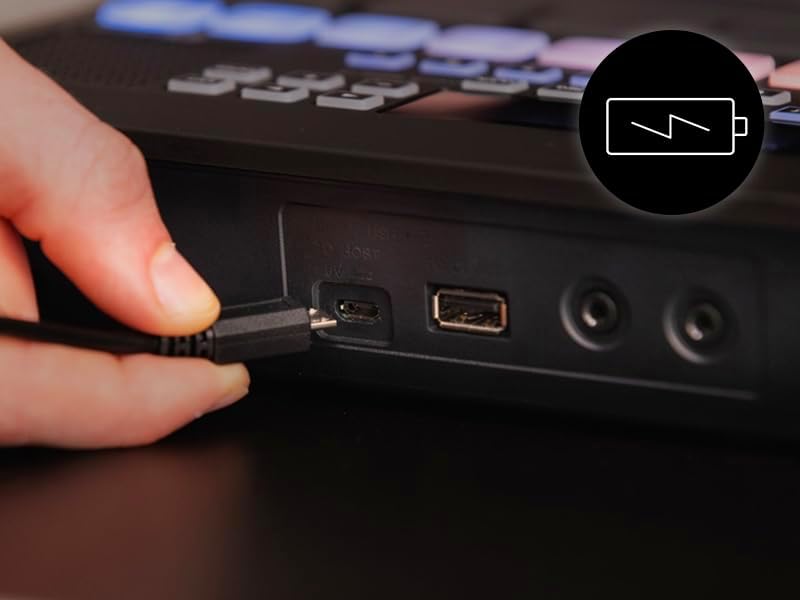
Figure 2: Connecting the USB cable for charging or power.
Press and hold the power button on the side of the unit to turn it on. The display will illuminate, and the pads will light up. If the battery is low, a "Low Battery" message will appear on the display.

Figure 3: Top panel layout of the FGDP-50.
3. Connections
The FGDP-50 offers various connection options:
- USB TO HOST (Micro-USB): Connects to a computer for MIDI/Audio data transfer and power.
- USB TO DEVICE (USB-A): For connecting a USB flash drive to load samples or save performances.
- AUX IN (3.5mm stereo mini jack): Connect an external audio player (e.g., smartphone) to play along with backing tracks.
- PHONES/OUTPUT (3.5mm stereo mini jack): Connect headphones for private practice or an external amplifier/speaker system.

Figure 4: Rear panel connections.

Figure 5: Connecting an external audio device via AUX IN.
Operating Instructions
1. Basic Finger Drumming
The FGDP-50's pads are ergonomically arranged for comfortable and effective finger drumming. Experiment with different finger positions and pressure to explore the velocity sensitivity of the pads.

Figure 6: Ergonomic pad layout for finger drumming.
2. Using Preset Drum Kits
The FGDP-50 comes with 48 high-quality preset drum kits. Use the [KIT] button and navigation controls to browse and select different kits. Each kit offers a unique set of drum sounds and percussion elements.
3. RGB Pads
The 8 assignable RGB-backlit pads can be customized to trigger various voices and provide visual feedback. Refer to the detailed manual for instructions on assigning voices to these pads.

Figure 7: RGB pads in action, providing visual cues.
4. Built-in Metronome (Click)
To help with timing and rhythm, the FGDP-50 includes a built-in metronome. Press the [CLICK] button to activate or deactivate the metronome. You can adjust the tempo using the dedicated tempo controls.
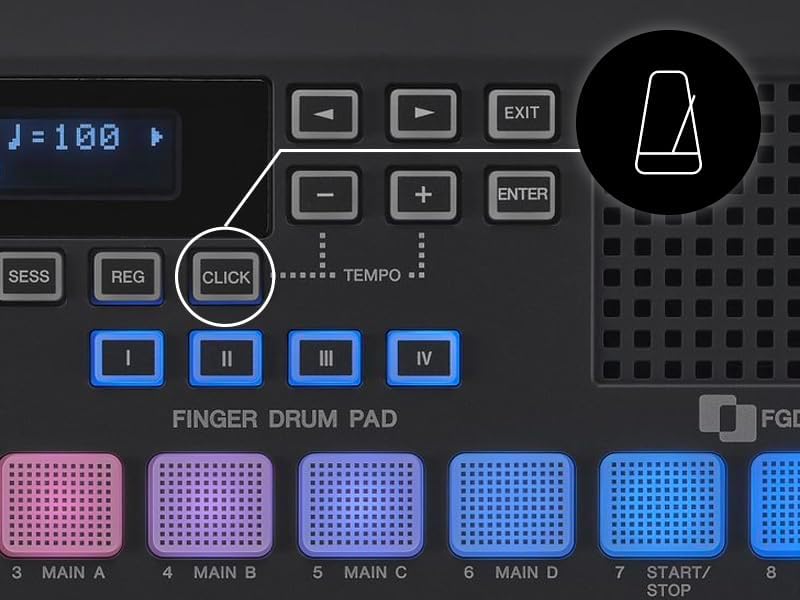
Figure 8: Metronome (CLICK) button and tempo adjustment.
5. Playback Sampler (FGDP-50 only)
The FGDP-50 allows you to load one-shot samples or loops from a USB flash drive. Insert your USB drive into the "TO DEVICE" USB-A port. Use the [AUDIO] button and display menu to navigate and select your desired samples for playback.
6. Rec'n'Share App Integration
Enhance your recording and sharing experience by connecting your FGDP-50 to the Yamaha Rec'n'Share app on your smartphone. This app allows you to easily record high-quality audio and video of your performances for social media or personal archives.

Figure 9: Using the Rec'n'Share app with FGDP-50.
Maintenance
To ensure the longevity and optimal performance of your Yamaha FGDP-50, follow these maintenance guidelines:
- Cleaning: Use a soft, dry cloth to wipe down the surface of the unit. For stubborn dirt, slightly dampen the cloth with water and a mild detergent, then wipe dry immediately. Avoid abrasive cleaners or solvents.
- Storage: Store the device in a cool, dry place away from direct sunlight, extreme temperatures, and high humidity.
- Handling: Avoid dropping the unit or subjecting it to strong impacts. Do not place heavy objects on top of it.
- Battery Care: For optimal battery life, avoid fully discharging the battery frequently. If storing for an extended period, charge the battery to about 50% every few months.
Troubleshooting
If you encounter issues with your FGDP-50, refer to the following common problems and solutions:
| Problem | Possible Cause | Solution |
|---|---|---|
| Unit does not power on. | Low or depleted battery. | Connect the unit to a USB power source and allow it to charge. Ensure the power button is pressed firmly. |
| No sound from speaker/headphones. | Volume too low; incorrect output connection; internal speaker muted. | Increase the volume. Ensure headphones are fully plugged into the PHONES/OUTPUT jack. Check if the internal speaker is muted in settings. |
| Pads are unresponsive or inconsistent. | Pad sensitivity settings; dirty pads. | Adjust pad sensitivity settings via the menu. Clean the pad surfaces with a soft, dry cloth. |
| Cannot load samples from USB. | Incorrect file format; USB drive not formatted correctly; drive not fully inserted. | Ensure samples are in a compatible format (e.g., WAV). Format the USB drive to FAT32. Re-insert the USB drive firmly into the "TO DEVICE" port. |
For further assistance, please contact Yamaha customer support or visit the official Yamaha website.
Specifications
| Feature | Detail |
|---|---|
| Model Number | FGDP-50 |
| Item Weight | 2.43 pounds |
| Product Dimensions | 8.8 x 8.8 x 2 inches |
| Pads | 18 Performance Pads, 8 RGB-backlit Assignable Pads |
| Connectivity Technology | USB |
| Compatible Devices | PC, Laptop |
| Power Source | USB powered, built-in rechargeable battery |
| Special Features | Backlit, Velocity Sensitive Keys, Portable, Beat Maker |
Warranty and Support
Your Yamaha FGDP-50 is covered by a manufacturer's warranty. Please refer to the warranty card included in your product packaging for specific terms and conditions. For technical support, product registration, or service inquiries, visit the official Yamaha Musical Instruments website or contact their customer service department.
Online Support: Yamaha FGDP-50 Product Page
Related documentsFGDP-50


Ask a question about this manual
Ask about setup, troubleshooting, compatibility, parts, safety, or missing instructions. Manuals+ will review the question and use this page’s manual context to help answer it.