1. Introduction
The Unitek Switch Dock Station is a versatile accessory designed for Nintendo Switch and Switch OLED consoles. It serves as a portable replacement for the official dock, offering enhanced connectivity and functionality. This device allows for TV mode display, charging, wired network access, and convenient game card management.

Image 1.1: The Unitek Switch Dock Station connected to a Nintendo Switch console, displaying gameplay on a screen.
Key features include 4K HDMI video output, three USB-A ports, an RJ45 Gigabit Ethernet port, a USB-C PD 3.0 power port, and a unique 4-slot game card reader with a dedicated power port. Its compact and lightweight design makes it suitable for both home use and travel.

Image 1.2: A visual comparison illustrating the smaller and lighter design of the Unitek Switch Dock Station compared to the original Nintendo Switch dock.
2. Product Overview
Familiarize yourself with the various components and ports of the Unitek Switch Dock Station.

Image 2.1: Detailed diagram labeling the ports and features of the Unitek Switch Dock Station, including HDMI, RJ45, USB-A ports, game card slots, and power inputs.
Port Descriptions:
- HDMI Port (4K 30Hz): Connects to a TV or monitor for video output.
- RJ45 Port: Provides a wired Ethernet connection for stable online gaming and faster downloads.
- USB-A Ports (x3): For connecting external peripherals such as controllers, USB drives, or other accessories.
- USB-C PD 3.0 Power Port: Main power input for the dock and charging the Nintendo Switch.
- Type-C Game Card Switcher Power Port: Dedicated power input for the game card reader module.
- Game Card Slots (x4): For inserting Nintendo Switch game cartridges.
- Game Card Storage Slot (x1): An additional slot for storing one game card.
- Game Card Access Slot: The physical connection point for the game card reader to the Nintendo Switch.
- Game Card Switch Button: Button located on the back to cycle between inserted game cards.
- Power Lights: Indicators on the front of the dock.
3. Setup Instructions
Follow these steps to set up your Unitek Switch Dock Station for use with your Nintendo Switch console.
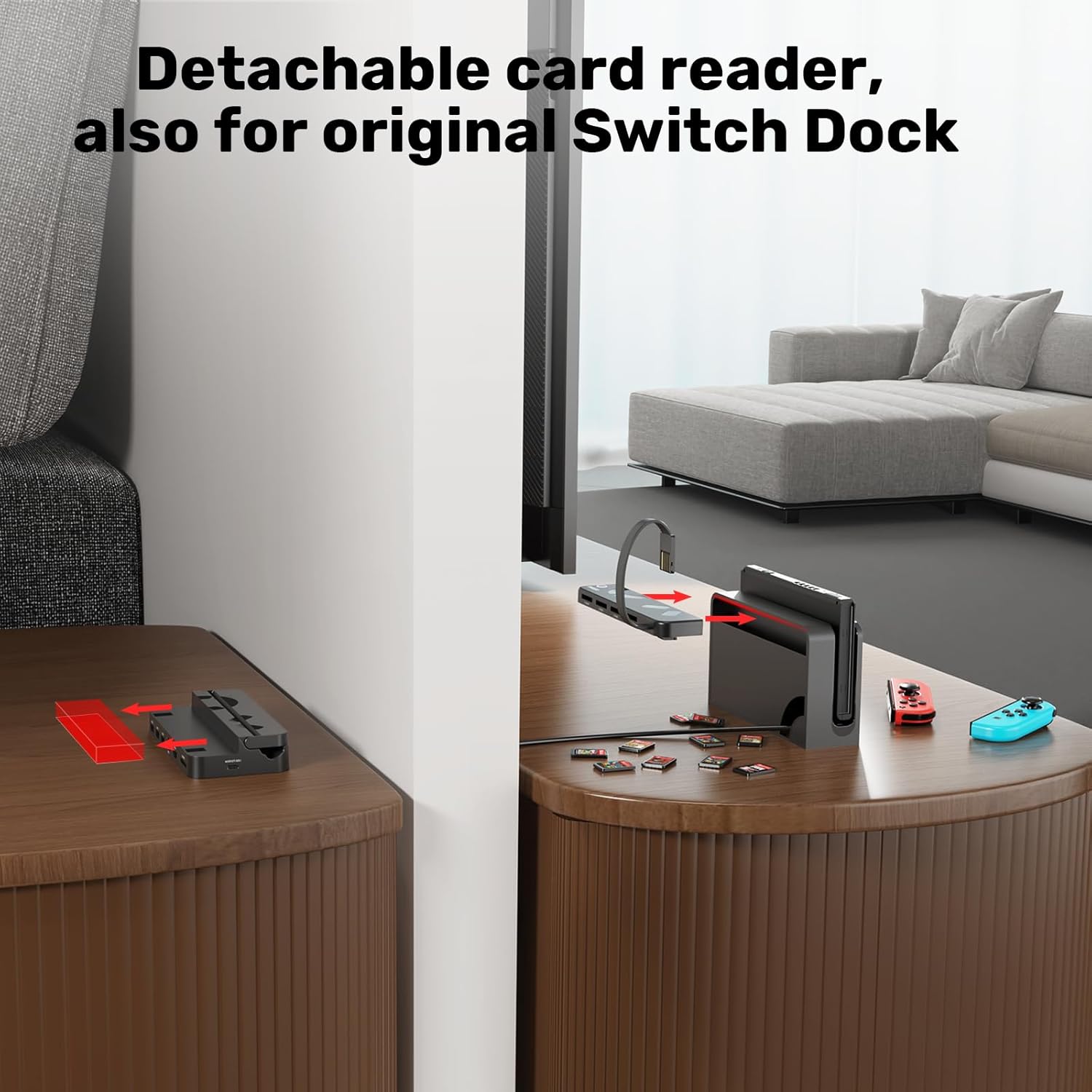
Image 3.1: Visual guide demonstrating the five steps to connect and prepare the Unitek Switch Dock Station for use.
- Connect Docking Station to AC Power Adapter: Plug a compatible USB-C AC power adapter (not included) into the USB-C PD 3.0 power port on the dock.
- Connect USB-A to C Cable for Card Reader Power: Use the included USB-A to USB-C cable to connect one of the USB-A ports on the dock to the dedicated Type-C game card switcher power port. This provides power to the game card reader module.
- Insert Card Reader Cable to Game Card Slot: Carefully insert the flexible game card access cable from the dock into the game card slot of your Nintendo Switch console.
- Connect to TV/Monitor with HDMI Cable: Connect an HDMI cable (not included) from the dock's HDMI port to your TV or monitor.
- Insert Game Cards: Insert up to four Nintendo Switch game cartridges into the designated game card slots on the dock.
Note: An AC power adapter and HDMI cable are not included with the Unitek Switch Dock Station.
4. Operating Instructions
4.1 Game Card Switching
The dock features a 4-slot game card reader, allowing you to switch between multiple games without physically changing cartridges in the console.
- Insert your desired game cards into the slots labeled 'GAME 1' through 'GAME 4'.
- Press the 'Game Card Switch Button' located on the back of the dock to cycle through the inserted games.
- An LED indicator will change color to show the currently selected game:
- Green: Standby
- Red: Game 1
- Orange: Game 2
- Blue: Game 3
- White: Game 4

Image 4.1: The Unitek Switch Dock Station illustrating the game card switching function and the corresponding LED color indicators for each game slot.
4.2 Video Output
Connect the dock to a TV or monitor via an HDMI cable to enjoy your games on a larger screen.
- The dock supports 4K, 1080P, and 720P video output.
- The Nintendo Switch console itself supports a maximum resolution of 1080P in TV mode.

Image 4.2: A Nintendo Switch console docked with the Unitek station, displaying high-resolution gameplay on a large television screen, highlighting 4K UHD video output capability.
4.3 Charging
The dock allows you to charge your Nintendo Switch console while playing in TV or tabletop mode. It incorporates a smart chip for protection against short-circuits, over-power, recovery issues, and overheating.
4.4 Network Connection
Utilize the 1000Mbps RJ45 LAN port for a stable and fast wired internet connection, which is often more reliable than Wi-Fi for online gaming and large downloads.

Image 4.3: A close-up view of the Unitek Switch Dock Station with an Ethernet cable plugged into the RJ45 port, indicating a 1000Mbps LAN connection.
4.5 Detachable Card Reader
The game card reader module is detachable and can be used independently with the original Nintendo Switch Dock, offering flexibility.

Image 4.4: The detachable game card reader module shown separately and then connected to an original Nintendo Switch dock, demonstrating its compatibility and versatility.
5. Maintenance
To ensure the longevity and optimal performance of your Unitek Switch Dock Station, follow these maintenance guidelines:
- Cleaning: Use a soft, dry cloth to wipe the exterior of the dock. Avoid using liquid cleaners or abrasive materials, as they may damage the surface or internal components.
- Storage: When not in use, store the dock in a cool, dry place away from direct sunlight and extreme temperatures.
- Handling: Handle the dock and its cables with care. Avoid dropping the device or applying excessive force to the ports.
- Game Cards: Ensure game cards are inserted and removed gently to prevent damage to the card slots.
6. Troubleshooting
If you encounter issues with your Unitek Switch Dock Station, refer to the following common problems and solutions:
- No Video Output to TV:
- Ensure the HDMI cable is securely connected to both the dock and the TV/monitor.
- Verify that the TV/monitor is set to the correct HDMI input source.
- Confirm that the dock is receiving power from a compatible AC adapter.
- Ensure the Nintendo Switch console is properly seated in the dock and powered on.
- Game Cards Not Recognized or Switching:
- Check that the flexible game card access cable is fully inserted into the Nintendo Switch's game card slot.
- Confirm that the dedicated USB-A to USB-C cable is connected to power the game card switcher module.
- Ensure game cards are inserted correctly into their respective slots.
- Press the 'Game Card Switch Button' firmly to cycle through games.
- Nintendo Switch Wakes Up from Sleep Mode:
- Some users have reported that the console may occasionally wake from sleep mode when docked. If this occurs, try disconnecting the flexible game card access cable from the Nintendo Switch console when placing it in sleep mode.
- Game Card Switch Button Location:
- The game card switch button is located on the back of the dock. This design requires reaching behind the console to operate.
- Front Power Lights Remain On:
- The front power indicator lights on the dock are designed to remain illuminated when the dock is powered. This is normal operational behavior.
7. Specifications
| Feature | Detail |
|---|---|
| Product Dimensions | 6.65 x 0.78 x 1.52 inches |
| Item Weight | 8.8 ounces |
| Model Number | d2a45ded-da37-471c-9d43-6d269ea3316c |
| Manufacturer | Unitek |
| Brand | Unitek |
| Connector Type | USB |
| Compatible Devices | Nintendo Switch, Nintendo Switch OLED |
| Special Feature | Lightweight Design, 4-slot Game Card Reader, 4K HDMI Output, Gigabit Ethernet |
| Input Voltage | 20 Volts |
| Amperage | 2.25 Amps |
| Total USB Ports | 3 (USB-A) |
| Wattage | 45 watts |
8. Warranty and Support
Unitek products are designed for reliability and performance. For specific warranty information, please refer to the documentation included with your purchase or visit the official Unitek website.
If you have any questions, require technical assistance, or experience issues not covered in this manual, please contact Unitek customer support through the Amazon message system or the contact methods provided on the official Unitek website.


