
Introduction
This manual provides detailed instructions for setting up, operating, and maintaining your Lenovo ThinkCentre Tiny-in-One 24-inch Touchscreen Monitor. Please read this manual thoroughly before using the product to ensure proper functionality and to maximize your user experience.

Figure 1: Front view of the Lenovo ThinkCentre Tiny-in-One 24-inch monitor.
The ThinkCentre Tiny-In-One (TIO) 24 Gen 5 Touch is a 23.8-inch borderless In-Plane Switching (IPS) Full HD (1920 x 1080) display. It features 99% sRGB color support, a 1080p RGB webcam with noise-cancellation microphone, integrated 3W speakers, and 10-point capacitive touch capability. Designed for efficient remote collaboration and a clutter-free workspace, it supports modular attachment with Lenovo ThinkCentre and ThinkStation Tiny PCs.
Setup Instructions
1. Unpacking and Contents
Carefully remove all components from the packaging. Ensure the following items are present:
- ThinkCentre Tiny-In-One 24 Inch Gen 5 Touch Monitor
- Monitor Stand
- 1 x Power Adaptor (90W)
- 1 x Power Cable (1 m)
- Quick Setup Guide
2. Assembling the Stand
Attach the monitor to its stand according to the instructions provided in the Quick Setup Guide. Ensure all connections are secure.
3. Connecting to a Power Source
- Connect the power cable to the 90W power adaptor.
- Plug the power adaptor into the monitor's power input port.
- Plug the other end of the power cable into a wall outlet.

Figure 2: Rear ports of the monitor, showing power input and connectivity options.
4. Connecting to a Computer
The monitor offers multiple connectivity options:
- HDMI: Connect an HDMI cable from your computer's HDMI output to the monitor's HDMI 1.4 port.
- DisplayPort (DP): Connect a DisplayPort cable from your computer's DP output to the monitor's DP 1.2 port.
- USB: Use the USB 3.2 Gen 1 Type-B port to connect the monitor to your computer for touchscreen functionality and to enable the integrated USB ports on the monitor.

Figure 3: Rear view highlighting connectivity ports.
5. Integrating a ThinkCentre Tiny PC
The monitor features a dedicated slot at the back for seamlessly integrating a Lenovo ThinkCentre or ThinkStation Tiny PC (4th Gen or newer). This modular design allows for a cable-free desk setup. Follow the specific instructions provided with your Tiny PC for installation into the monitor's housing.
Operating Instructions
1. Power On/Off
Press the power button, usually located on the bottom right or rear of the monitor, to turn the display on or off.
2. Display Features
- Full HD IPS Panel: Enjoy clear visuals with a 1920x1080 resolution and wide viewing angles.
- Natural Low Blue Light: This technology reduces harmful blue light emissions without color distortion, promoting eye comfort during extended use.
- Touchscreen: The 10-point capacitive touch display allows for intuitive interaction using your fingers or a compatible pen (sold separately).
3. Integrated Webcam and Audio
- 1080p RGB Webcam: Located at the top of the monitor, ideal for video conferencing.
- Noise-Cancellation Microphone: Ensures clear audio capture during calls.
- Integrated 3W Speakers: Provide audio output for meetings and multimedia.
- ThinkShutter: A physical privacy shutter for the webcam. Slide the shutter to cover the lens when the webcam is not in use for enhanced privacy and security.
- VoIP Buttons: Dedicated buttons for easy control of meeting functions such as mute and volume adjustment.
- Smart Traffic Light Indicator: Indicates the status of an ongoing interaction or meeting, helping to avoid distractions.
4. Adjusting Monitor Settings
Use the on-screen display (OSD) menu buttons, typically located on the bottom bezel, to adjust settings such as brightness, contrast, color, and input source. Refer to the Quick Setup Guide for specific button functions.
For advanced display settings and customization, install the ThinkColour Software. This software is compatible with Windows 10 and Windows 11 operating systems.
Maintenance
Cleaning the Monitor
- Always power off and unplug the monitor before cleaning.
- Use a soft, lint-free cloth lightly dampened with water or a non-abrasive screen cleaner.
- Do not spray cleaner directly onto the screen.
- Avoid using harsh chemicals, solvents, or abrasive materials, as these can damage the screen and casing.
Troubleshooting
Common Issues and Solutions
- No Power:
- Ensure the power cable is securely connected to the monitor and a working power outlet.
- Verify the power adaptor is correctly connected.
- No Signal:
- Check that the video cable (HDMI or DisplayPort) is securely connected to both the monitor and your computer.
- Ensure the correct input source is selected on the monitor via the OSD menu.
- Verify your computer is powered on and outputting a signal.
- Touchscreen Not Responding:
- Ensure the USB cable connecting the monitor to your computer is properly connected.
- Restart your computer.
- Verify that touchscreen drivers are correctly installed on your operating system (Windows 10/11).
- Webcam/Microphone Not Working:
- Check if the ThinkShutter is open.
- Ensure the USB cable connecting the monitor to your computer is properly connected.
- Verify privacy settings in your operating system and applications allow access to the webcam and microphone.
For further assistance, refer to the official Lenovo support website or contact customer service.
Specifications
| Feature | Detail |
|---|---|
| Brand | Lenovo |
| Model Number | Tiny-In-One |
| Screen Size | 23.8 inches |
| Resolution | Full HD (1920 x 1080 pixels) |
| Aspect Ratio | 16:9 |
| Refresh Rate | 60 Hz |
| Response Time | 4 milliseconds |
| Display Type | LED, LCD (IPS Technology) |
| Brightness | 250 Nit (typical) |
| Contrast Ratio | 1,000:1 |
| Viewing Angle | 178 degrees |
| Color Gamut | 99% sRGB |
| Touchscreen | 10-point Capacitive Touch |
| Webcam | 1080p RGB with ThinkShutter |
| Speakers | 2 x 3W Integrated |
| Connectivity | 1 x HDMI 1.4, 1 x DisplayPort 1.2, 2 x USB 3.2 Gen 1 (Type-B for upstream) |
| Power Consumption | 34 watts |
| Item Dimensions (D x W x H) | 2.9"D x 21.3"W x 14.5"H |
| Item Weight | 8.2 pounds |
| Compatible Devices | Windows 10, Windows 11 |
| Special Features | Natural Low Blue Light, Eye Comfort Technology, IPS Technology, Height/Swivel/Tilt Adjustment, VoIP Controls, Cable Lock Slot |
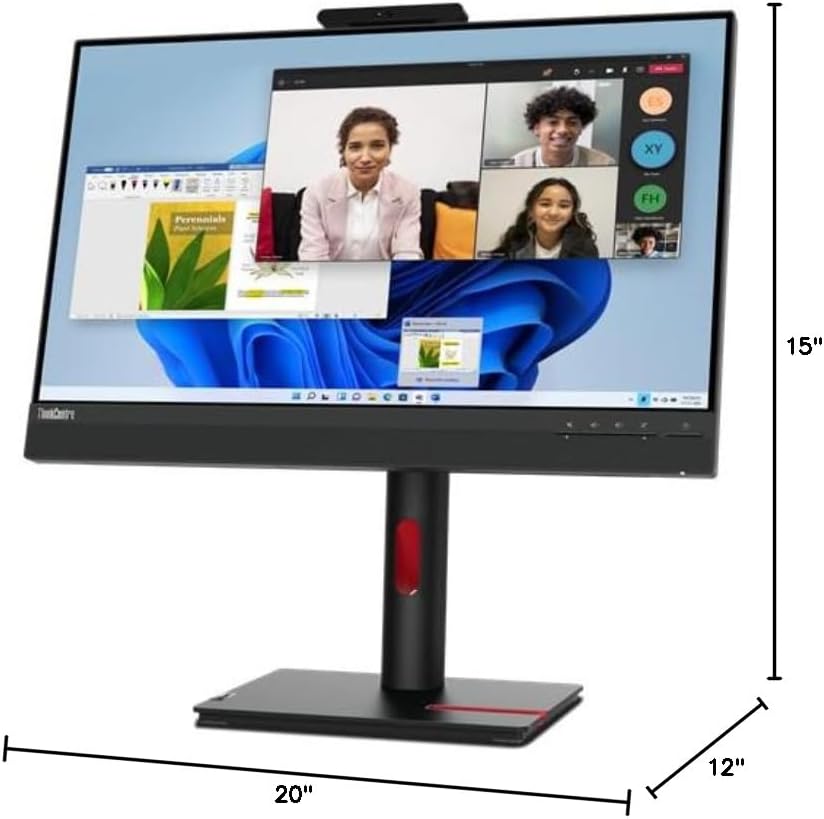
Figure 4: Monitor dimensions.
Warranty Information
Warranty information for this product is not explicitly available in the provided details. Please refer to the documentation included with your purchase or visit the official Lenovo website for the most up-to-date warranty terms and conditions.
Customer Support
For technical support, product registration, or additional resources, please visit the official Lenovo support website:
You may also find helpful information and drivers on the Lenovo website.


