
1. Introduction
Thank you for choosing the UPERFECT 14-inch Portable Touch Monitor. This manual provides essential information for the safe and efficient use of your device. Please read it thoroughly before use and retain it for future reference.
This monitor features a 14-inch Full HD (1920x1080) IPS display with 10-point multi-touch functionality, designed for portability and versatility. It is compatible with various devices including laptops, smartphones, and gaming consoles.

Image 1.1: The UPERFECT 14-inch Portable Touch Monitor showcasing its touch capabilities and key features like FHD 1080P, 10-point touch, and VESA compatibility.
2. Product Overview
2.1. Key Features
- Display: 14-inch Full HD (1920x1080) IPS Panel
- Touch: 10-point multi-touch (Windows OS only)
- Portability: Lightweight (approximately 786g) and slim design (5mm narrow bezels, 10mm thin profile)
- Connectivity: 2x Full-featured USB Type-C ports, 1x Mini-HDMI port, 1x 3.5mm Audio Jack
- Mounting: VESA compatible (75mm x 75mm)
- Protection: Includes a protective cover that doubles as a stand
- Eye Care: Blue light reduction technology
2.2. Monitor Components and Ports

Image 2.1: Detailed view of the monitor's ports and control buttons. This includes the Mini-HDMI port, two full-featured Type-C ports, ON/OFF button, Menu button, Plus button, Minus button, Back button, OTG button, and Headphone jack. Below the monitor, a compatibility chart shows Type-C connections for Switch, laptops, and smartphones, and HDMI connections for PS4/PS5, desktop PCs, and cameras.
- Mini-HDMI Port: For video and audio input from devices like game consoles, desktop PCs, and cameras.
- Full-featured Type-C Ports (x2): For video, audio, power, and touch signal transmission. Ensure your device's USB-C port supports Thunderbolt 3 or USB 3.1 protocol for full functionality.
- 3.5mm Audio Jack: For connecting external headphones or speakers.
- ON/OFF Button: Powers the monitor on or off.
- Menu Button: Accesses the On-Screen Display (OSD) menu.
- Plus (+) / Minus (-) Buttons: Navigates menu options and adjusts settings.
- Back Button: Returns to the previous menu or exits the OSD.
- OTG Button: (Functionality may vary, typically for USB On-The-Go connections for peripherals).
3. Setup
3.1. Initial Placement and Stand Setup
The monitor comes with a protective cover that also functions as a stand. Fold the cover to create a stable base for the monitor. Ensure the monitor is placed on a flat, stable surface.
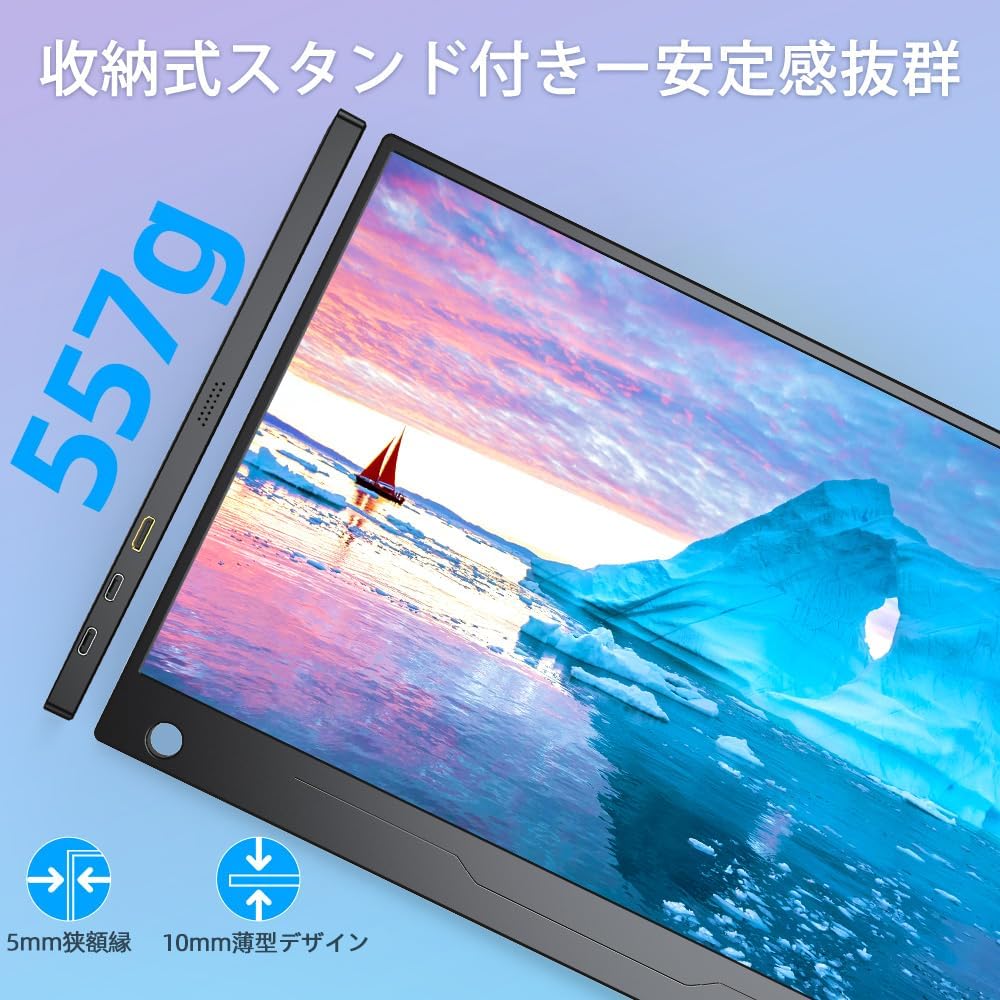
Image 3.1: The UPERFECT monitor positioned with its protective cover acting as a stand, highlighting its slim profile and lightweight design.
3.2. VESA Mounting (Optional)
The monitor is equipped with 75mm x 75mm VESA mounting holes on the back. You can attach it to a compatible monitor arm or wall mount for flexible positioning.

Image 3.2: The UPERFECT monitor securely attached to a VESA-compatible arm, demonstrating its adaptability for various setups.
3.3. Power Connection
For optimal performance, especially when using touch functionality or connecting to power-intensive devices, ensure the monitor receives sufficient power. Use the provided Type-C cable and a PD18W (or higher) power adapter to supply power to one of the monitor's Type-C ports (marked PD).
- If the display is not functioning correctly due to insufficient power, connect an external power adapter to the monitor's PD Type-C port.
- When connecting via HDMI, a separate USB-A to USB-C cable is required to enable touch functionality by connecting the PC to the monitor.
4. Operating the Monitor
4.1. Connecting to Devices
The monitor supports various connection methods:
- USB Type-C (Full-featured): Connect a single Type-C cable from your compatible laptop, smartphone, or other device to one of the monitor's full-featured Type-C ports for video, audio, power, and touch signals. Ensure your device's USB-C port supports Thunderbolt 3 or USB 3.1.
- Mini-HDMI: Connect a Mini-HDMI to HDMI cable for video and audio input. For touch functionality with an HDMI connection, a separate USB-A to USB-C cable must be connected from your PC to the monitor.
4.2. Display Modes
The monitor supports multiple display modes to enhance productivity and user experience:
- Desktop Mode: Use the monitor as a primary or secondary display for your PC, while also being able to use your smartphone.
- Extended Mode: Expand your desktop workspace across both your primary device and the portable monitor, allowing for more screen real estate.
- Duplicate Mode: Mirror the content of your primary device onto the portable monitor, useful for presentations or sharing content.
- Portrait Mode: Rotate the monitor for a vertical display, ideal for coding, reading documents, or browsing long web pages.

Image 4.1: Visual representation of the monitor's versatile display modes, including Desktop mode, Extended mode, Duplicate mode, and Portrait mode, demonstrating how it can be used with laptops and smartphones.
4.3. Touch Functionality
The monitor features 10-point multi-touch input, providing an interactive experience. This function is primarily supported on Windows operating systems. For optimal touch response, ensure adequate power supply (PD18W or higher adapter).

Image 4.2: A user interacting with the monitor using various touch gestures, illustrating the ease and responsiveness of the 10-point multi-touch feature.
Note:
- Touch panel functionality is only supported by Windows systems.
- Smartphones not compatible with USB 3.1 may not support touch functionality.
- Touch functionality is not available when connected to game consoles.
4.4. On-Screen Display (OSD) Menu
Use the Menu button to access the OSD. The Plus (+) and Minus (-) buttons navigate through options, and the Menu button typically confirms selections. The Back button exits menus.
The OSD allows you to adjust various display settings, including brightness, contrast, color temperature, input source, and audio volume.
5. Maintenance
- Cleaning: Use a soft, lint-free cloth to gently wipe the screen and body of the monitor. For stubborn marks, slightly dampen the cloth with water or a screen-safe cleaning solution. Avoid harsh chemicals or abrasive materials.
- Storage: When not in use, store the monitor in its protective cover to prevent dust and scratches. Keep it in a cool, dry place away from direct sunlight and extreme temperatures.
- Handling: Handle the monitor with care. Avoid dropping it or subjecting it to strong impacts. Do not place heavy objects on top of the monitor.
- Cables: Ensure cables are not bent sharply or tangled, which can cause damage.
6. Troubleshooting
If you encounter issues with your UPERFECT monitor, please refer to the following common problems and solutions:
| Problem | Possible Cause | Solution |
|---|---|---|
| No display / "No Signal" message | Incorrect input source selected; Loose cable connection; Insufficient power; Device not outputting signal. | Check cable connections (Type-C or HDMI). Ensure cables are fully inserted. Select the correct input source via the OSD menu. Connect an external power adapter (PD18W+) to the monitor. Verify the source device is powered on and configured to output to an external display. |
| Touch function not working or slow | Insufficient power; Incompatible operating system; Incorrect cable connection for touch; Device not supporting touch over USB-C. | Ensure the monitor is powered by a PD18W or higher adapter. Confirm your operating system is Windows. If using HDMI, connect a separate USB-A to USB-C cable from your PC to the monitor for touch data. Verify your smartphone's USB-C port supports USB 3.1 for touch. |
| Screen flickering or unstable display | Insufficient power; Faulty cable; Resolution/refresh rate mismatch. | Connect an external power adapter (PD18W+) to the monitor. Try a different cable. Adjust the resolution or refresh rate on your source device to a supported setting (e.g., 1920x1080). |
| No audio from monitor speakers | Volume too low; Muted; Audio output setting on source device. | Increase monitor volume via OSD. Check if the monitor is muted. Ensure your source device is set to output audio to the external display. |
If the problem persists after trying these solutions, please contact customer support.
7. Specifications
| Feature | Specification |
|---|---|
| Brand | UPERFECT |
| Model Number | M140B01 |
| Screen Size | 14 inches |
| Resolution | 1920 x 1080 pixels (FHD 1080p) |
| Panel Type | IPS LCD Panel |
| Aspect Ratio | 16:9 |
| Viewing Angle | 178° (Horizontal/Vertical) |
| Touchscreen | 10-point Multi-touch (Windows OS only) |
| Connectivity | 2x Full-featured USB Type-C, 1x Mini-HDMI, 1x 3.5mm Audio Jack |
| Power Input | 5 Volts (via USB Type-C) |
| Product Dimensions | 32 x 19 x 1 cm |
| Product Weight | Approx. 786g (body only) |
| Screen Surface | Non-glossy |
8. Warranty and Support
UPERFECT provides a warranty for this product. Please refer to the specific terms and conditions provided at the time of purchase or on the official UPERFECT website for detailed warranty information.
- Warranty Period: Up to 2 years from the date of purchase.
- Included: A Japanese instruction manual is included with the product.
For any questions or issues during use, please do not hesitate to contact UPERFECT customer support. Our team is available to assist you.
Contact Information: Please visit the official UPERFECT website or your point of purchase for the most up-to-date customer support contact details.


