
1. Product Overview
The Yoidesu Light Bulb Camera is a smart home security device designed for comprehensive surveillance. It features a dual-lens system providing 360-degree panoramic monitoring, enabling simultaneous dual-screen viewing without blind spots. Key functionalities include AI humanoid tracking, real-time two-way voice intercom, and intelligent full-color night vision for 24-hour security.
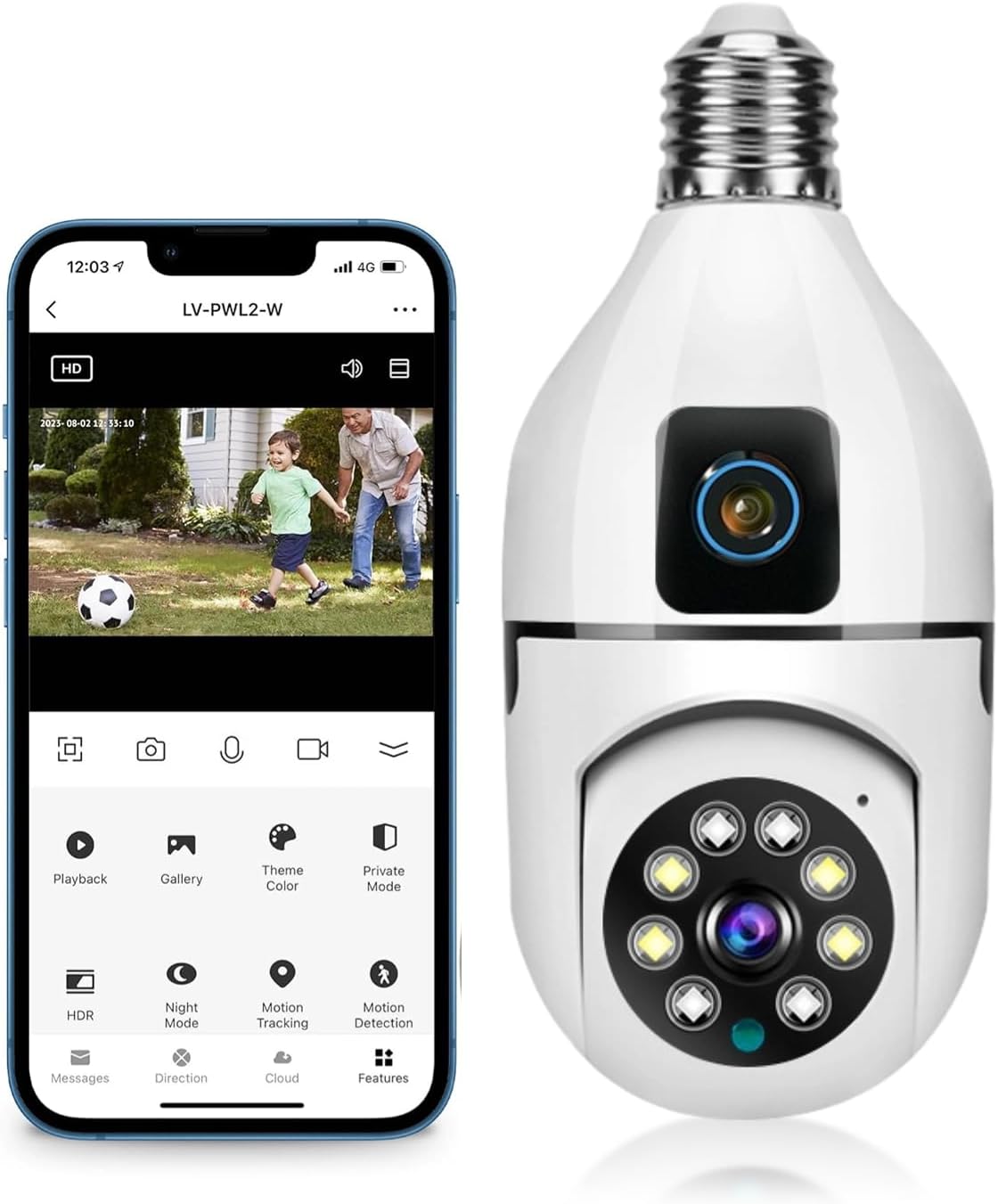
Image: Yoidesu Light Bulb Camera and its accompanying mobile application interface.
2. Package Contents
Verify that all items listed below are included in your package:
- 1 x Bulb Camera
- 1 x E27 Base
- 2 x Expansion Tubes
- 2 x Fixing Screws
- 1 x Reset Pin
- 1 x Instruction Manual

Image: All components included in the Yoidesu Light Bulb Camera package.
3. Specifications
| Feature | Detail |
|---|---|
| Model | Yoidesun7p0ym5th9 |
| Resolution | 1920 x 2160 (1MP) |
| Connectivity Protocol | Wi-Fi |
| Wireless Communication Technology | Wi-Fi |
| Controller Type | Android (App Control) |
| Mounting Type | Ceiling Mount (E27 Lamp Holder) |
| Intercom | Two-way voice |
| Night Mode | ICR infrared filter type, intelligent night vision (full color) |
| Tripod Head Control (Pan/Tilt) | Horizontal Rotation: 355 degrees, Vertical: 90 degrees |
| Memory Card Support | Small memory card supports 128GB (not included) |
| Supply Voltage | 110-220V |
| Item Weight | 9 ounces |
| International Protection Rating | IP54 |
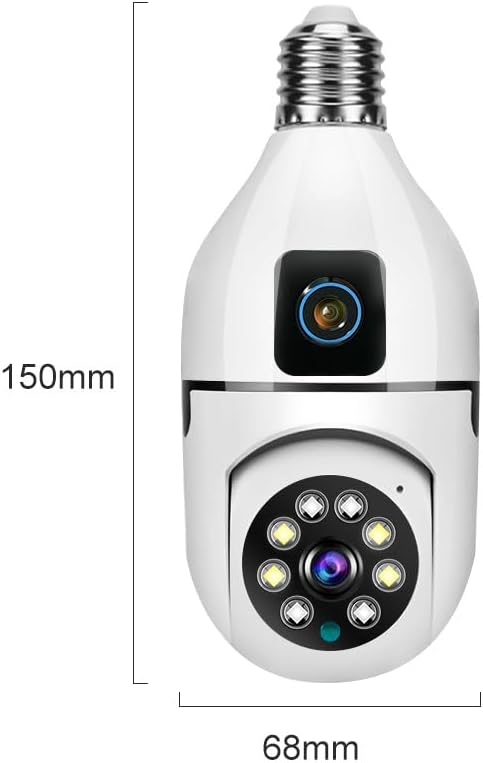
Image: Physical dimensions of the Yoidesu Light Bulb Camera.
4. Setup Instructions
4.1 Physical Installation
- Ensure the power to the lamp holder is turned off before installation.
- Screw the bulb camera into a standard E27 lamp holder.
- Turn on the power to the lamp holder. The camera will initiate and perform a self-check.
4.2 App Download and Account Creation
- Scan the QR code provided in the instruction manual or search for "V380Pro" in your mobile app store (iOS App Store or Google Play Store).
- Download and install the V380Pro mobile application.
- Open the app and follow the on-screen prompts to create a new user account or log in if you already have one.
4.3 Device Connection
- After powering on, the camera will emit a voice prompt indicating it's ready for connection.
- In the V380Pro app, select the option to add a new device.
- Choose the intelligent connection method. The app will guide you through connecting the camera to your Wi-Fi network (supports 2.4GHz Wi-Fi only).
- If prompted, scan the QR code displayed on your phone screen using the camera's lens. Maintain a distance of 15-20 cm between the phone and the camera.
- Once connected, the camera will provide a voice prompt confirming successful connection.

Image: The dual-lens design of the camera enabling panoramic monitoring.
5. Operating Instructions
5.1 Live View and Controls
- Open the V380Pro app and select your camera from the device list to access the live view.
- Use the on-screen joystick or swipe gestures to control the camera's horizontal (355°) and vertical (90°) movement.
- The dual-lens design allows for simultaneous viewing of a wide panoramic shot and a zoomed-in tracking view.
- Tap the microphone icon for two-way audio communication. Hold to speak and release to listen.
- Select 'Night Mode' to switch between intelligent full-color night vision or standard infrared mode.

Image: App interface demonstrating remote pan and tilt control of the camera.
5.2 Motion Detection and Tracking
- Enable 'AI Humanoid Tracking' in the app settings. The camera will automatically recognize and track human movement.
- Activate 'Motion Detection' to receive instant alarm messages on your mobile phone when movement is detected.
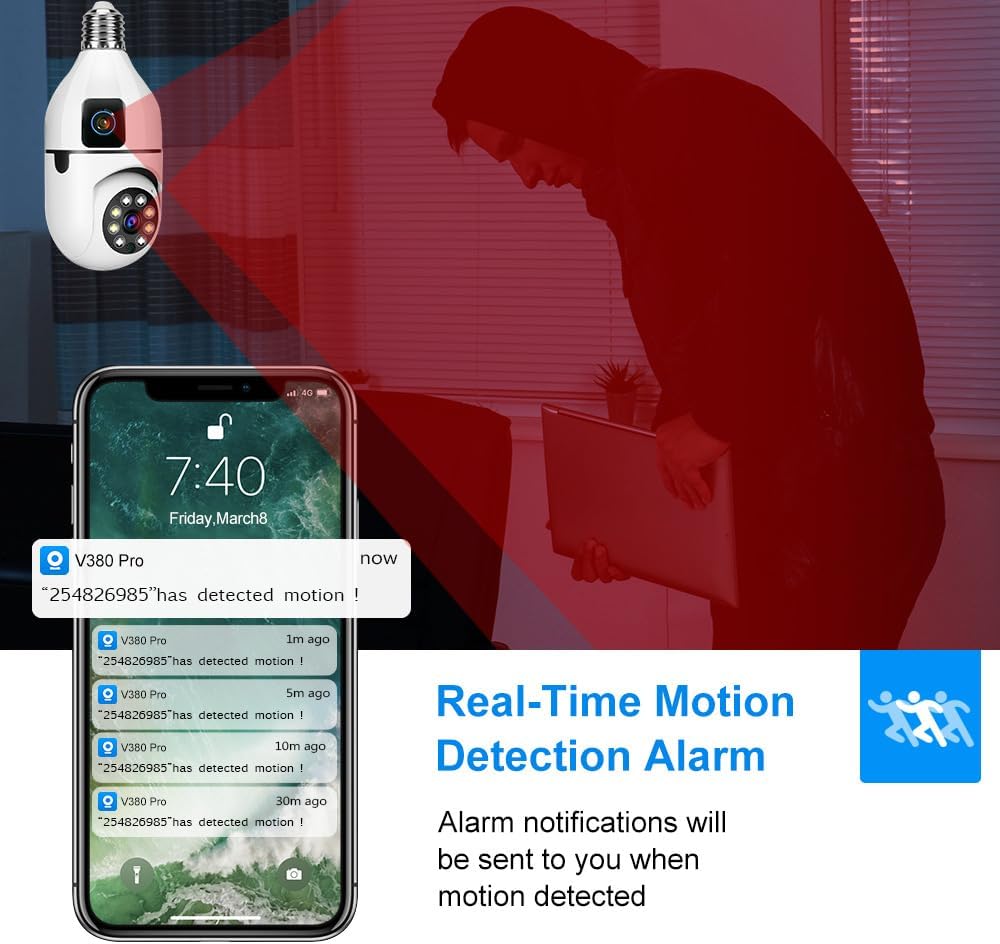
Image: Mobile phone showing real-time motion detection alarm notifications.
5.3 Recording and Storage
- The camera supports local storage via a small memory card (up to 128GB, not included). Insert the card into the designated slot on the camera.
- Cloud storage options are available through the app for continuous recording and alarm footage storage (subscription may be required).
- Access recorded footage through the 'Playback' or 'Gallery' sections within the app.

Image: Visual representation of the camera's storage options, including local TF card and cloud storage.
6. Maintenance
- Cleaning: Gently wipe the camera lens and body with a soft, dry cloth. Avoid using harsh chemicals or abrasive materials.
- Firmware Updates: Regularly check the V380Pro app for available firmware updates to ensure optimal performance and security. Follow in-app instructions for updates.
- Power Cycle: If the camera experiences issues, try turning off the power to the lamp holder for a few seconds, then turn it back on to restart the device.
7. Troubleshooting
- Camera Offline: Ensure the camera is powered on and connected to a stable 2.4GHz Wi-Fi network. Check your router's status. If the Wi-Fi signal is weak, consider moving the camera closer to the router or using a Wi-Fi extender.
- Connection Failure: If the camera fails to connect, try resetting it using the provided reset pin (refer to app instructions for location). Ensure your Wi-Fi password is correct.
- Poor Image Quality: Check your network connection speed. Ensure the camera lens is clean and free from obstructions. Adjust the resolution setting in the app (HD/SD).
- No Motion Alerts: Verify that 'Motion Detection' and 'AI Humanoid Tracking' are enabled in the app settings. Check app notification permissions on your phone.
- Two-Way Audio Issues: Ensure your phone's microphone and speaker are enabled for the V380Pro app. Check the camera's device volume settings in the app.
8. Warranty and Support
For product-specific warranty information, please refer to the documentation included with your purchase or contact the seller directly. Extended protection plans may be available for purchase separately to cover your device beyond the standard manufacturer's warranty period.
For technical support or further assistance, please consult the V380Pro app's help section or contact Yoidesu customer service.