
Teltonika RUT241
Teltonika RUT241 Industrial Cellular Router User Manual
Model: RUT241 | Brand: Teltonika
1. Introduction
This manual provides comprehensive instructions for the installation, operation, and maintenance of the Teltonika RUT241 Industrial Cellular Router. The RUT241 is designed for reliable 4G LTE and 3G connectivity, featuring Wi-Fi and two Ethernet ports, along with automatic WAN failover for continuous connection. Its robust industrial design and compact size make it suitable for various IoT and M2M applications, particularly in North America, with compatibility across Verizon, AT&T, and T-Mobile networks.
2. Safety Information
- Ensure the device is powered by the specified 9-30 VDC power supply. Using an incorrect power source may damage the device and void the warranty.
- Do not expose the device to moisture, extreme temperatures, or direct sunlight.
- Avoid placing the device near heat sources or in poorly ventilated areas.
- Only use accessories and antennas approved by Teltonika.
- Do not attempt to open or modify the device. Refer all servicing to qualified personnel.
- Dispose of electronic waste responsibly according to local regulations.
3. Package Contents
Verify that all items are present in the package:
- Teltonika RUT241 Router
- 9 W Power Supply Unit (PSU)
- 2 x LTE Antennas (swivel, SMA male)
- 1 x Wi-Fi Antenna (swivel, RP-SMA male)
- Ethernet Cable (1.5 m)
- SIM Adapter Kit
- Quick Start Guide (QSG)
4. Device Overview
The Teltonika RUT241 router features various ports, indicators, and connectors for its operation. Familiarize yourself with the device's layout before proceeding with installation.

Figure 4.1: Front view of the RUT241 router, displaying the model number, Teltonika branding, power input specifications (9-30 VDC), and the default IP address (192.168.1.1).

Figure 4.2: Angled view of the RUT241, highlighting the WAN and LAN Ethernet ports, the 4-pin industrial DC power socket, and LED indicators for signal strength and network status.

Figure 4.3: Another angled view of the RUT241, showing the SMA male connectors for LTE antennas, the RP-SMA male connector for the Wi-Fi antenna, and the recessed reset button.
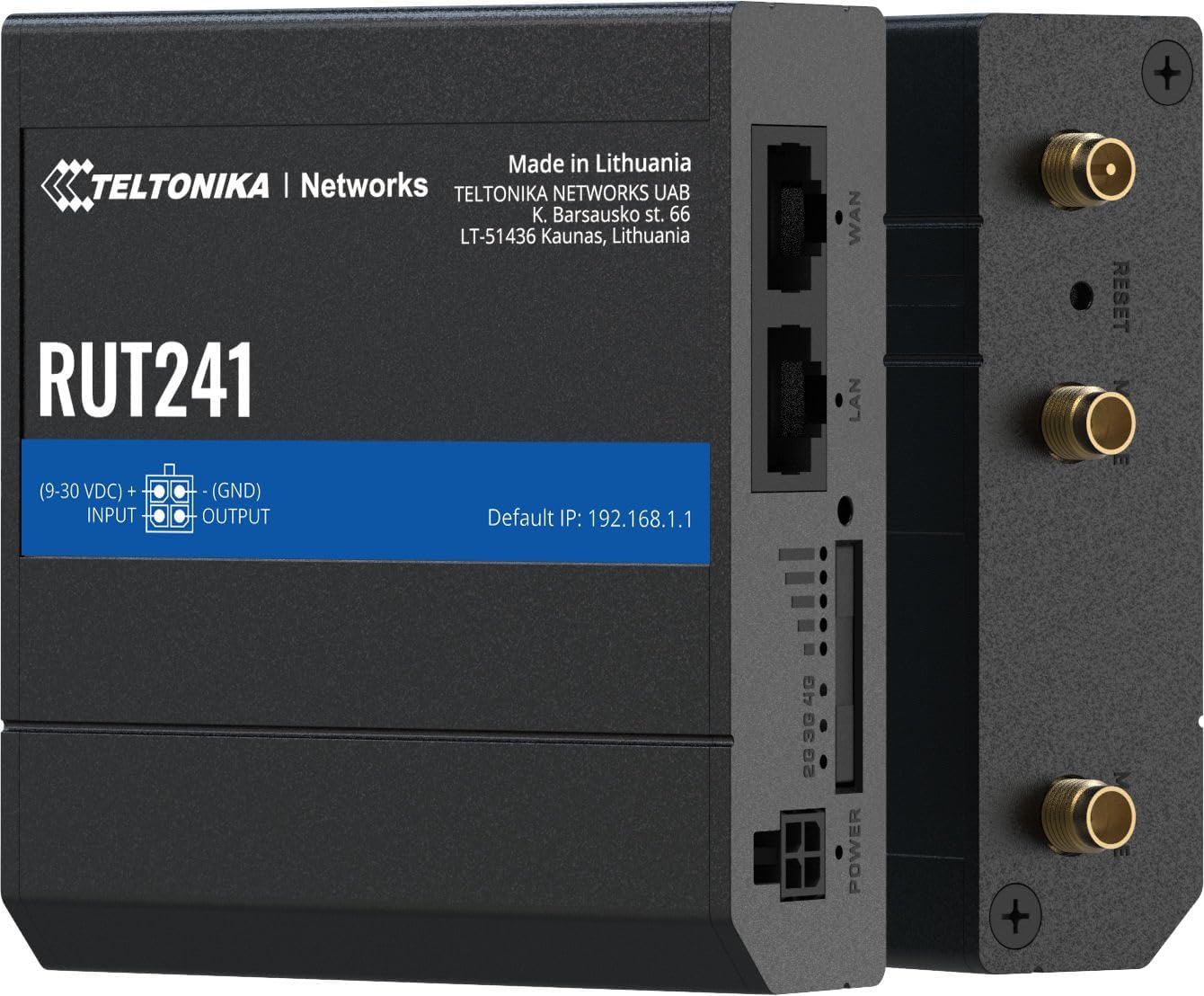
Figure 4.4: Side view of the RUT241, providing a clear look at the WAN and LAN ports, power input, signal strength LEDs, and antenna connectors.

Figure 4.5: Bottom view of the RUT241, showing the SIM card slot cover and mounting screw points for industrial installations.

Figure 4.6: Top view of the RUT241, detailing the Wi-Fi, Reset, and Mobile antenna connectors.
5. Setup
5.1. SIM Card Installation
- Ensure the router is powered off.
- Locate the SIM card slot on the bottom of the device (refer to Figure 4.5).
- Use the provided SIM adapter kit if your SIM card is not standard size.
- Insert the prepared SIM card into the slot until it clicks into place.
- Replace the SIM card slot cover securely.
5.2. Antenna Connection
- Connect the two LTE antennas to the SMA male connectors labeled "MOBILE" on the device (refer to Figure 4.6).
- Connect the Wi-Fi antenna to the RP-SMA male connector labeled "WIFI" (refer to Figure 4.6).
- Position the antennas for optimal signal reception.
5.3. Power Connection
- Connect the 9 W PSU to the 4-pin industrial DC power socket on the router.
- Plug the PSU into a suitable power outlet. The router will power on automatically.
5.4. Initial Access
- Connect your computer to the router's LAN port using the provided Ethernet cable.
- Open a web browser and navigate to the default IP address: 192.168.1.1.
- Follow the on-screen instructions to complete the initial configuration, including setting up a new password.
6. Operating Instructions
6.1. Mobile Connectivity
The RUT241 supports 4G LTE (Cat 4) and 3G connectivity. Once the SIM card is installed and the device is powered on, it will automatically attempt to establish a mobile connection. The signal strength LEDs on the device indicate the current mobile signal quality.
6.2. WAN Failover
The router is equipped with WAN failover functionality, ensuring continuous internet access. If the primary WAN connection (e.g., Ethernet WAN) fails, the router will automatically switch to the available backup connection (e.g., cellular 4G LTE) to maintain network uptime.
6.3. Wi-Fi Hotspot
The RUT241 functions as a wireless access point, providing Wi-Fi connectivity for up to 50 simultaneous users. Default Wi-Fi credentials can be found on the device label or in the Quick Start Guide. It is recommended to change the default Wi-Fi password during initial setup for security.
6.4. Remote Management and VPN
For advanced management and secure access, the RUT241 supports Teltonika Remote Management System (RMS) and various VPN services. Refer to the Teltonika Networks Wiki for detailed configuration guides on these features.
7. Maintenance
- Firmware Updates: Regularly check the Teltonika Networks website for the latest firmware updates to ensure optimal performance, security, and access to new features.
- Cleaning: Use a soft, dry cloth to clean the device. Do not use liquid cleaners or aerosols.
- Environmental Conditions: Ensure the router operates within its specified temperature and humidity ranges to prevent damage.
- Backup Configuration: Periodically back up your router's configuration settings through the web interface to facilitate quick restoration if needed.
8. Troubleshooting
8.1. No Power
- Verify that the 9 W PSU is correctly connected to the router and a working power outlet.
- Check the power cable for any damage.
- Ensure the input voltage is within the 9-30 VDC range if using an alternative power source.
8.2. No Internet Connection (Mobile)
- Confirm the SIM card is correctly inserted and activated with a data plan.
- Check the mobile signal strength LEDs on the router. If signal is weak, reposition antennas or the router.
- Verify APN settings in the router's web interface. The default is "Auto", but some carriers may require specific settings.
- Ensure the cellular network is available in your location and compatible with the RUT241 (Verizon, AT&T, T-Mobile in North America).
8.3. No Wi-Fi Connectivity
- Ensure the Wi-Fi antenna is securely connected.
- Check if Wi-Fi is enabled in the router's web interface.
- Verify Wi-Fi network name (SSID) and password.
8.4. Cannot Access Web Interface
- Ensure your computer is connected to the router's LAN port or Wi-Fi network.
- Verify your computer's IP settings are set to obtain an IP address automatically (DHCP).
- Confirm you are using the correct default IP address: 192.168.1.1.
- If you have changed the router's IP address, use the new address.
- If the issue persists, perform a factory reset by pressing and holding the reset button for approximately 10 seconds while the device is powered on. Warning: This will erase all custom configurations.
9. Specifications
| Category | Feature | Detail |
|---|---|---|
| Mobile | Mobile Module | 4G (LTE) - Cat 4 up to 150 Mbps, 3G - Up to 42 Mbps |
| APN | Auto | |
| Wireless | Wireless Mode | IEEE 802.11b/g/n, Access Point (AP), Station (STA) |
| WiFi Users | Up to 50 simultaneous connections | |
| Ethernet | WAN Port | 1 x WAN port 10/100 Mbps |
| LAN Port | 1 x LAN port, 10/100 Mbps | |
| Network | Routing | Static routing, Dynamic routing (BGP, OSPF v2, RIP v1/v2, NHRP) |
| DHCP | Static and dynamic IP allocation, DHCP Relay, Relayd | |
| System | CPU | Mediatek MIPS 24Kc 580 MHz |
| RAM | 128 MB, DDR2 | |
| FLASH Storage | 16 MB, SPI Flash | |
| Power | Connector | 4-pin industrial DC power socket |
| Input Voltage Range | 9 - 30 VDC | |
| PoE (Passive) | Passive PoE over spare pairs. 9-30 VDC | |
| Physical | Casing Material | Aluminum |
| Dimensions (WxHxD) | 3.26 x 0.98 x 2.91 inches (82.8 x 24.9 x 73.9 mm) | |
| Weight | 0.27 pounds (122.5 g) | |
| Color | Black |
10. Warranty and Support
For warranty information and technical support, please refer to the official Teltonika Networks website or contact your authorized Teltonika Networks reseller. Detailed documentation, firmware updates, and support resources are available online.
Teltonika Networks Official Website: teltonika-networks.com
Related documentsRUT241


Ask a question about this manual
Ask about setup, troubleshooting, compatibility, parts, safety, or missing instructions. Manuals+ will review the question and use this page’s manual context to help answer it.