
1. Setup
1.1 Package Contents
Verify that all items are present in the package:
- Keyboard Case
- USB Cable
- User Manual
1.2 Tablet Compatibility
This keyboard case is compatible with the following Samsung Galaxy Tab models:
- Samsung Galaxy Tab S8 Plus 12.4 inch (2022 release, Models SM-X800/X806/X808)
- Samsung Galaxy Tab S7 FE 5G 12.4 inch (2021 release, Models SM-T730/T733/T735/T736/T738)
- Samsung Galaxy Tab S7+ / S7 Plus 12.4 inch (2020 Release, Models SM-T970/T975/T976/T978)

Image: Compatibility chart for Nillkin keyboard case, detailing compatible Samsung Galaxy Tab S8 Plus, S7 FE, and S7 Plus 12.4-inch models with their respective model numbers.
1.3 Case Installation
To install your tablet into the Nillkin Bumper Combo Keyboard Case:
- Separate the keyboard from the case. The keyboard is detachable for flexible use.
- Tilt the corner of your tablet with the camera into the case first.
- Gently press the other corners to secure the tablet firmly in place. Ensure all edges are fitted securely.
Video: Nillkin Bumper Combo Keyboard Case Installation Guide. This video demonstrates the step-by-step process of installing the tablet into the protective case.
1.4 Bluetooth Pairing
To connect the keyboard to your tablet via Bluetooth:
- Turn on the keyboard using the power switch.
- Press the "Fn" and "C" keys on the keyboard simultaneously. The indicator light will flash, indicating it's in pairing mode.
- On your Samsung Galaxy Tab, go to Settings > Connections > Bluetooth and turn Bluetooth on.
- Select "Bluetooth Keyboard" from the list of available devices.
- Confirm the pairing request on your tablet. Once connected, the indicator light on the keyboard will stop flashing.
Video: Quick Setup Guide for Nillkin Bumper Combo Keyboard Case. This video illustrates the Bluetooth pairing process and initial setup steps.
2. Operating Instructions
2.1 Keyboard Functions
The keyboard features a standard QWERTY layout with scissor-structured keys for comfortable typing. It includes a full row of AndroidOS function keys for quick control of your tablet.

Image: Detachable laptop-like keyboard with backlit keys, highlighting scissor structure keys and AndroidOS function keys.
Backlight Control:
The keyboard features 7 colors and 3 levels of adjustable backlit brightness. To adjust:
- Press the Backlight Key (usually F3 or F4 with a lightbulb icon) to cycle through brightness levels.
- Press Fn + Backlight Key to change the backlight color.
Trackpad Usage:
The sensitive trackpad supports Multi-Touch gestures for navigation, editing, and browsing. It includes palm rejection technology to prevent accidental inputs while typing.
- Single-finger tap: Left-click.
- Two-finger tap: Right-click.
- Two-finger scroll: Scroll up/down or left/right.
- Pinch to zoom: Zoom in/out on content.

Image: Enhanced trackpad demonstrating multi-touch gesture capabilities and precision.
Video: Nillkin Bumper Combo Keyboard Case Function Introduction. This video provides an overview of the keyboard and trackpad functionalities.
2.2 Adjustable Stand and Multi-Mode Use
The integrated kickstand allows for angle adjustments from 0° to 180°, supporting both landscape and portrait orientations. The keyboard can be easily detached for tablet-only use, ideal for drawing or gaming.

Image: Keyboard case demonstrating adjustable stand angles and multi-mode usage (laptop, reading, drawing).

Image: Multiple usage scenarios for the Nillkin keyboard case, including typing, reading, and drawing.
2.3 S Pen Holder and Charging
The case features precise cutouts to ensure the S Pen can be charged properly when attached to the tablet. Additionally, an extra easy-access holder securely stores the S Pen, making it convenient to take out and use.
2.4 Sliding Camera Cover
A unique sliding camera cover is integrated into the case design to protect the tablet's camera lens and ensure user privacy.

Image: Close-up of the case highlighting military-grade protection and the unique sliding camera cover.
3. Maintenance
3.1 Cleaning
To clean the keyboard case, use a soft, damp cloth. Avoid using harsh chemicals or abrasive materials that could damage the surface.
3.2 Battery Charging
The keyboard is equipped with a 500mAh battery and uses a Type-C charging port. A full charge provides up to 100 hours of use or 180 days of standby time. The keyboard features auto sleep/wake functionality to conserve battery life.
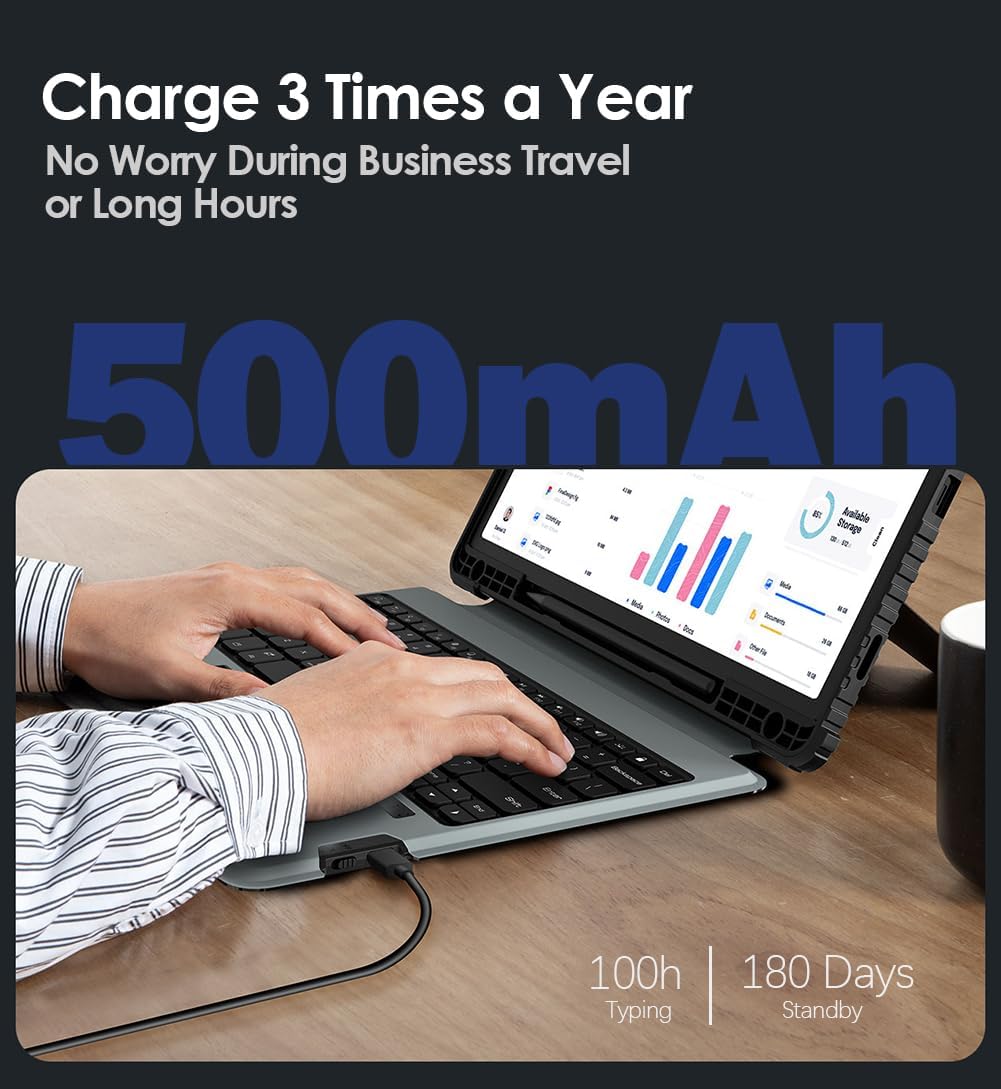
Image: Battery life details, showing 100 hours of typing and 180 days of standby time for the 500mAh battery.
4. Troubleshooting
4.1 Keyboard Not Connecting
- Ensure the keyboard is powered on and fully charged.
- Verify Bluetooth is enabled on your tablet and the keyboard is in pairing mode (indicator light flashing).
- Forget the device in your tablet's Bluetooth settings and attempt to re-pair.
- Restart both the tablet and the keyboard.
4.2 Trackpad Issues
- Ensure the trackpad is enabled. Some keyboards have a function key combination to enable/disable the trackpad.
- Clean the trackpad surface to remove any dirt or debris.
- Check tablet settings for mouse and trackpad sensitivity and adjust as needed.
4.3 Backlight Not Working
- Press the backlight key to cycle through brightness levels.
- Ensure the keyboard battery is not critically low.
5. Specifications
| Feature | Detail |
|---|---|
| Brand | Nillkin |
| Compatible Devices | Samsung Galaxy Tab S7 FE, Samsung Galaxy Tab S7 Plus, Samsung Galaxy Tab S8 Plus |
| Connectivity Technology | Bluetooth |
| Keyboard Description | Multi Functional |
| Recommended Uses | Business, Education, Everyday Use, Multimedia, Personal, Student |
| Special Features | Adjustable Stand, Backlit, Camera Cover, Heavy Duty Protection, Shockproof |
| Color | Black |
| Keyboard Backlighting Color Support | RGB (7 colors) |
| Material | Metal, Polycarbonate, Thermoplastic Polyurethanes |
| Number of Keys | 83 |
| Keyboard Layout | QWERTY |
| Power Source | Battery Powered |
| Battery Capacity | 500mAh |
| Battery Life (Typing) | Up to 100 hours |
| Standby Time | Up to 180 days |
| Water Resistance Level | Not Water Resistant |
6. Warranty & Support
6.1 Product Warranty
This Nillkin product comes with a 1-year manufacturer warranty. This warranty covers defects in materials and workmanship under normal use. Please retain your proof of purchase for warranty claims.
6.2 Customer Support
Nillkin provides 7x24 customer service and lifetime technical support for its products. If you have any questions, require assistance, or encounter issues with your keyboard case, please contact Nillkin customer service through the listing page or your order page. We are committed to providing satisfactory support and ensuring a positive product experience.