
1. Introduction
Thank you for choosing the SOLAKAKA K21 RGB Backlit Tri-Mode Wireless Mechanical Number Pad. This device is designed to enhance your productivity and gaming experience with its versatile connectivity, customizable features, and durable construction. This manual provides detailed instructions to help you set up, operate, and maintain your number pad.

A clear view of the SOLAKAKA K21 number pad, highlighting its transparent keycaps and vibrant RGB backlighting. An individual ice crystal switch is displayed in the bottom left corner.
2. Product Overview
Key Features:
- Tri-Mode Connectivity: Supports Bluetooth (3 devices), 2.4GHz wireless, and Type-C wired connections.
- Ice Crystal Switches: Lubricated mechanical switches for smoother pressing and comfortable sound.
- Hot-Swappable Design: Compatible with 3-pin and 5-pin Cherry-style switches, allowing easy replacement of switches and keycaps.
- 18 RGB Backlit Effects: Customizable RGB lighting with various effects through transparent keycaps.
- Macro Driver Support: Personalize key functions and lighting via custom software.
- Wide Compatibility: Compatible with Windows 7/8/10/XP/VISTA, MAC OS, PC, Laptops, Macbooks, and Mobile Phones.
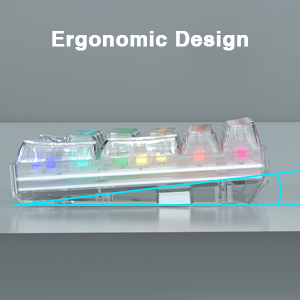
- Ergonomic Design: Designed for comfortable use.
- Non-Slip Stands: Equipped with round silicone non-slip stands for stability.
What's in the Box:
- SOLAKAKA K21 Number Pad
- USB Type-C Cable
- User Manual
3. Setup Instructions
3.1. Charging the Number Pad
Before initial use, ensure the number pad is fully charged. Connect the provided USB Type-C cable to the number pad's charging port and the other end to a USB power source (e.g., computer USB port, wall adapter). The charging indicator will show the charging status.
A detailed view of the Type-C charging port on the K21 number pad, indicating its fast charging capability.
3.2. Connecting the Number Pad
The K21 number pad supports three connection modes: Bluetooth, 2.4GHz wireless, and Type-C wired.

An illustration of the K21 number pad's versatile connectivity, showing it connected via Bluetooth to a smartphone, 2.4GHz wireless to a tablet, and Type-C wired to a laptop, highlighting its ability to save up to 5 devices.
3.2.1. Type-C Wired Connection:
- Connect the provided USB Type-C cable to the number pad and your computer's USB port.
- The number pad will automatically be recognized by your system.
- Use the combination key FN+4 to switch to Type-C wired mode.
3.2.2. 2.4GHz Wireless Connection:
- Locate the 2.4GHz USB receiver (usually stored in a compartment on the number pad).
- Plug the USB receiver into an available USB port on your computer.
- Use the combination key FN+0 to switch to 2.4GHz wireless mode. The number pad should connect automatically.
3.2.3. Bluetooth Connection (up to 3 devices):
- Use combination keys FN+1, FN+2, or FN+3 to select a Bluetooth channel. The indicator light for the selected channel will blink, indicating it's in pairing mode.
- On your device (PC, laptop, Macbook, mobile phone), open Bluetooth settings.
- Search for new devices and select "SOLAKAKA K21" (or similar) from the list.
- Once paired, the indicator light will stop blinking and remain solid.
- To switch between paired Bluetooth devices, press FN+1, FN+2, or FN+3 for the desired channel.
4. Operating Instructions
4.1. RGB Backlighting
The K21 number pad features 18 different RGB lighting effects. You can cycle through these effects using dedicated function keys or customize them further with the software.

The K21 number pad illuminated with colorful RGB backlighting, demonstrating one of its 18 available lighting effects through the transparent keycaps.
4.2. Hot-Swappable Switches and Keycaps
The K21 number pad is designed with a hot-swappable PCB, supporting both 3-pin and 5-pin Cherry-style mechanical switches. This allows you to easily change switches without soldering, customizing the typing feel to your preference. The transparent keycaps can also be replaced.

The K21 number pad with some keycaps and switches detached, illustrating its hot-swappable design and transparent keycaps, allowing for easy customization.
4.3. Custom Software and Macro Settings
The number pad supports custom software for advanced personalization. This software allows you to:
- Customize RGB lighting effects and colors.
- Remap key functions.
- Set up macros for complex commands.
To download the software, visit: bit.ly/m/solakaka. Select model "K21" and follow the installation instructions. The number pad functions without the software, but customization requires it.

The SOLAKAKA K21 number pad displayed next to a computer monitor showing the custom software interface, which allows for personalized lighting and key function settings.
5. Maintenance
To ensure the longevity and optimal performance of your SOLAKAKA K21 number pad, follow these maintenance guidelines:
- Cleaning: Use a soft, dry cloth to wipe the surface of the number pad. For deeper cleaning, you can carefully remove keycaps and use compressed air to clear dust and debris from underneath. Avoid using harsh chemicals or abrasive materials.
- Storage: When not in use for extended periods, store the number pad in a cool, dry place away from direct sunlight and extreme temperatures.
- Battery Care: To preserve battery life, avoid fully discharging the number pad frequently. Charge it regularly, and if storing for a long time, ensure it has a partial charge (around 50%).
- Switch/Keycap Replacement: When replacing switches or keycaps, use the provided tools (if any) and apply gentle force to avoid damaging the PCB or switch sockets.
6. Troubleshooting
If you encounter any issues with your SOLAKAKA K21 number pad, please refer to the following common solutions:
6.1. Number Pad Not Responding:
- Check Connection: Ensure the USB cable is securely connected for wired mode, the 2.4GHz receiver is properly inserted, or Bluetooth is paired correctly.
- Battery Level: The battery might be low. Connect the number pad to a power source using the Type-C cable to charge it.
- Mode Switch: Verify that the number pad is in the correct connection mode (FN+0 for 2.4GHz, FN+1/2/3 for Bluetooth, FN+4 for Wired).
- Restart: Try restarting your computer or device and the number pad.
6.2. Bluetooth Connection Issues:
- Re-pair: Remove the number pad from your device's Bluetooth list and attempt to pair it again.
- Interference: Move the number pad closer to your device and away from other wireless devices that might cause interference.
- Device Compatibility: Ensure your device's Bluetooth version is compatible.
6.3. RGB Lighting Not Working or Incorrect:
- Brightness: Adjust the brightness settings using the number pad's function keys or the custom software.
- Software Conflict: If you have custom software installed, ensure it's running correctly and not conflicting with default settings. Try resetting lighting effects through the software.
6.4. Keys Not Registering or Double-Typing:
- Switch Issue: If a specific key is problematic, the switch might be faulty. Utilize the hot-swappable feature to replace the switch.
- Debris: Check for any debris under the keycap or around the switch.
If these steps do not resolve your issue, please contact SOLAKAKA customer support for further assistance.
7. Specifications
| Feature | Detail |
|---|---|
| Model Number | K21 |
| Connectivity | Bluetooth (3 devices), 2.4GHz Wireless, Type-C Wired |
| Keys | 21 Keys |
| Switches | Ice Crystal Mechanical Switches, Hot-Swappable (3-pin/5-pin) |
| Keycaps | Transparent, Pudding-style |
| Backlighting | 18 RGB Lighting Effects |
| Compatibility | Windows 7/8/10/XP/VISTA, MAC OS, PC, Laptop, Macbook, Mobile Phones |
| Battery | 1 Lithium Ion battery (included) |
| Item Weight | 13.1 ounces |
| Package Dimensions | 6.89 x 6.65 x 2.24 inches |
8. Warranty and Support
SOLAKAKA is committed to providing satisfactory after-sales service. If you have any questions, concerns, or require technical support regarding your K21 number pad, please contact our customer service team through the retailer where you purchased the product or visit the official SOLAKAKA website for support contact information.


