
Introduction
This manual provides essential information for setting up, operating, maintaining, and troubleshooting your Blackview ZENO 1 8-inch Android 15 Tablet. Please read this guide thoroughly to ensure optimal performance and longevity of your device.
1. Setup
1.1 Unboxing and Package Contents
Carefully open the Blackview ZENO 1 package and verify all contents. The box should contain the following items:
- 1x Blackview ZENO 1 Tablet
- 1x Detachable Stand
- 1x Screen Protector (pre-applied)
- 1x Clear Case
- 1x USB-C Cable
- 1x Charger
- 1x SIM Card Removal Tool
Video: Unboxing the Blackview ZENO 1 8-inch tablet and its included accessories.
1.2 Inserting SIM Card and MicroSD Card
The Blackview ZENO 1 supports dual SIM cards and a MicroSD card for expanded storage up to 2TB. Use the provided SIM card removal tool to open the SIM tray located on the side of the tablet. Carefully place your SIM card(s) and/or MicroSD card into the tray according to the diagram, then reinsert the tray into the device.
Video: Demonstration of inserting a SIM card into the Blackview ZENO 1 tablet.
1.3 Initial Power On and Basic Configuration
Press and hold the Power button on the side of the tablet until the Blackview logo appears. Follow the on-screen prompts to select your language, connect to a Wi-Fi network, and complete the initial Android 15 setup. You may be prompted to sign in with a Google account.

Image: The Blackview ZENO 1 tablet displaying its key specifications on the screen.
1.4 Attaching the Detachable Stand/Case
The Blackview ZENO 1 comes with a detachable stand and a clear case. The stand can be easily attached to the back of the tablet for hands-free viewing in various orientations. The clear case provides protection while allowing the stand to be used.
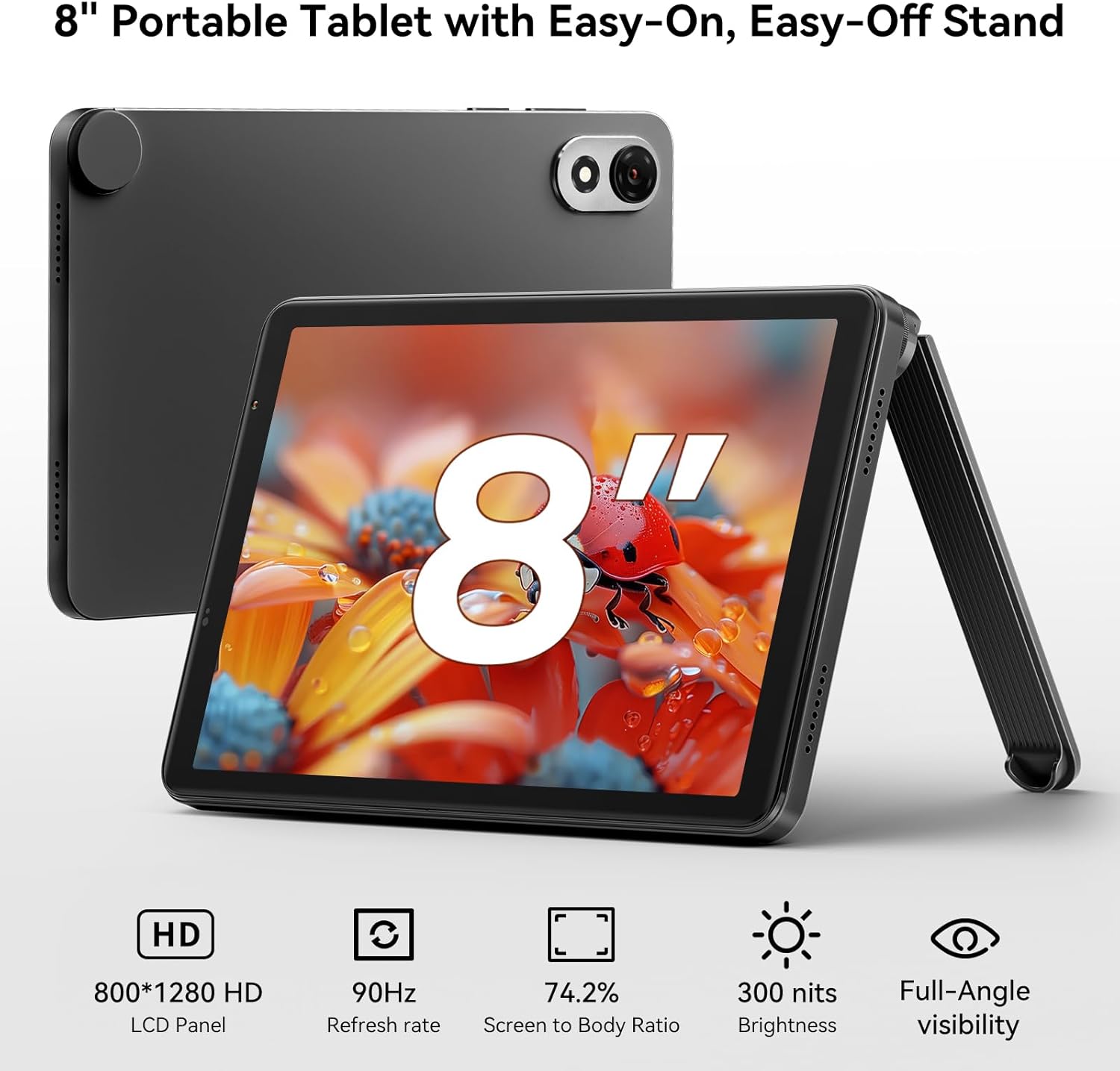
Image: The Blackview ZENO 1 tablet positioned with its detachable stand, highlighting the 8-inch HD display.
2. Operating the Blackview ZENO 1
2.1 Basic Navigation and Android 15
The tablet runs on Android 15, offering a user-friendly interface. Navigate using touch gestures: swipe to unlock, tap to open apps, pinch to zoom, and swipe from the top for notifications and quick settings. Android 15 includes features like AI-powered chats, instant image generation, voice-activated Q&A, intuitive controls, and voice-based unlocking.

Image: The Blackview ZENO 1 tablet showcasing the Android 15 operating system and its integrated Gemini AI capabilities.
2.2 Connectivity
The ZENO 1 supports high-speed dual-band 2.4G/5G WiFi for stable internet access. It also features Bluetooth 5.2 for connecting wireless accessories and GPS for navigation.
2.3 Storage Management
The tablet comes with 18GB RAM (6GB + 12GB expansion) and 256GB internal storage. This can be expanded up to 2TB using a MicroSD card, providing ample space for applications, media, and documents.
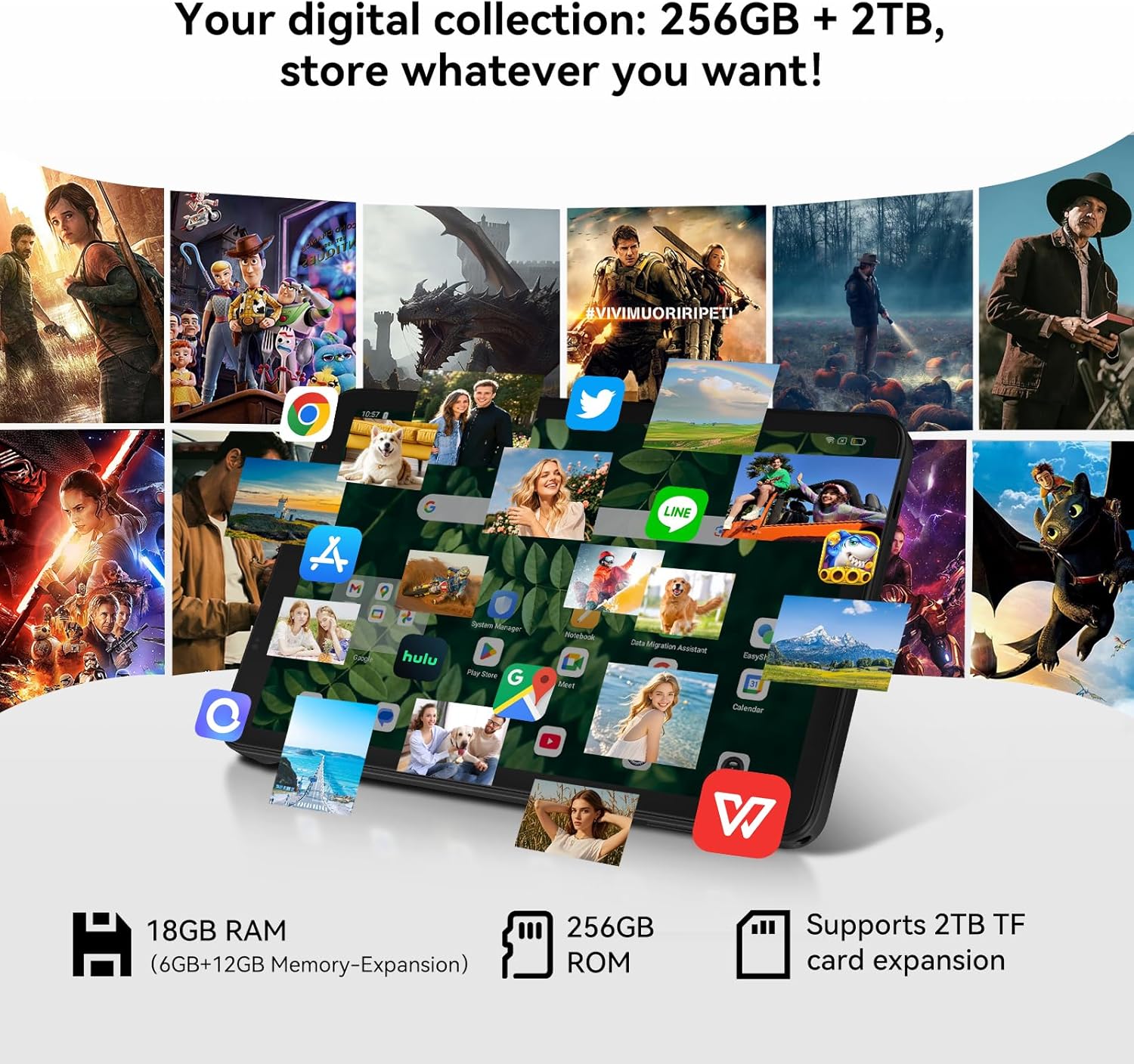
Image: The Blackview ZENO 1 tablet illustrating its extensive storage and RAM capabilities for various applications.
2.4 Display and Audio
Experience vivid visuals on the 8-inch HD display with an 800x1280 resolution and a smooth 90Hz refresh rate. The tablet also features dual stereo speakers and Widevine L1 support for 1080P streaming from services like Netflix and Prime Video.
2.5 Camera Usage
The ZENO 1 is equipped with an 8MP front camera and an 8MP rear camera, suitable for video calls and capturing everyday moments.

Image: The Blackview ZENO 1 tablet highlighting its camera features and face unlock functionality.
2.6 Battery Management
The 6000mAh battery provides up to 11 hours of web browsing or 672 hours of standby time. Use the included USB-C cable and charger for optimal charging.

Image: The Blackview ZENO 1 tablet being charged, emphasizing its 6000mAh battery.
3. Maintenance
3.1 Cleaning the Device
To clean your tablet, use a soft, lint-free cloth. For stubborn smudges, slightly dampen the cloth with water or a screen-safe cleaner. Avoid harsh chemicals or abrasive materials.
3.2 Software Updates
Regularly check for system updates to ensure your tablet has the latest features, security patches, and performance improvements. Go to Settings > System > System updates to check for and install available updates.
3.3 Battery Care
To prolong battery life, avoid extreme temperatures. It is recommended to keep the battery charge between 20% and 80% for optimal long-term health. Use only the provided charger and cable.
4. Troubleshooting
4.1 Common Issues and Solutions
- Tablet not turning on: Ensure the battery is charged. Connect the charger and wait a few minutes before attempting to power on again.
- Slow performance: Close unnecessary background applications. Clear cache regularly. Consider a factory reset if issues persist after backing up your data.
- Wi-Fi connectivity issues: Restart your tablet and Wi-Fi router. Forget the network and reconnect. Ensure you are within range of the Wi-Fi signal.
- Apps crashing: Ensure apps are updated to their latest versions. Clear the app's cache or data (Settings > Apps > [App Name] > Storage).
5. Specifications
| Feature | Specification |
|---|---|
| Brand | Blackview |
| Model Name | ZENO 1 |
| Operating System | Android 15 |
| Screen Size | 8 Inches |
| Screen Resolution | 800x1280 Pixels |
| Processor | Unisoc T615 Octa-Core (1.8 GHz) |
| RAM | 18GB (6GB + 12GB Expansion) |
| Flash Memory Size | 256 GB (Expandable up to 2TB via TF card) |
| Wireless Type | 802.11ax (Dual-band 2.4G/5G WiFi) |
| Rear Webcam Resolution | 8 MP |
| Front Camera Resolution | 8 MP |
| Battery Capacity | 6000mAh |
| Average Battery Life | Up to 24 Hours (Standby: 672 Hours) |
| Product Dimensions | 7.83 x 4.96 x 0.3 inches |
| Weight | Approximately 336.5g |
6. Warranty and Support
6.1 Product Warranty
The Blackview ZENO 1 tablet comes with a 2-year repair warranty. Blackview products undergo strict examination and quality testing. For detailed warranty terms and conditions, please refer to the warranty card included in your package or visit the official Blackview website.
6.2 Technical Support
For technical assistance or inquiries, please contact Blackview customer support. Lifetime technician support is available for Blackview tablets.
- Online Support: Refer to the official Blackview website for FAQs and support resources.
- Contact Information: Specific contact details (email, phone) can be found on the warranty card or the Blackview support page.


