
Strong 4GMIFI150D
STRONG 4GMIFI150D CAT4/4G LTE Mobile Hotspot User Manual
Model: 4GMIFI150D
1. Introduction
This manual provides detailed instructions for the setup, operation, maintenance, and troubleshooting of your STRONG 4GMIFI150D CAT4/4G LTE Mobile Hotspot. Please read this manual carefully before using the device to ensure optimal performance and safety.
The STRONG 4GMIFI150D is a portable 4G LTE mobile hotspot designed to provide high-speed internet access on the go. It allows you to share a 4G/3G connection with up to 32 Wi-Fi enabled devices, including tablets, mobile phones, laptops, and gaming consoles.
2. Package Contents
Verify that all items are present in the package:
- 1x STRONG 4G Portable Hotspot 150D
- 1x USB cable for power supply
- 1x Quick Installation Guide
- 1x Safety instructions and warranty card

Image: Contents of the STRONG 4G Portable Hotspot 150D package, including the device, its retail box, a USB charging cable, a quick installation guide, and safety/warranty information.
3. Device Overview
Familiarize yourself with the physical features and display indicators of your mobile hotspot.

Image: Front view of the STRONG 4GMIFI150D Mobile Hotspot. It features a central display screen and a power button below it. The screen shows indicators for 4G signal, LTE Hotspot status, battery level, Wi-Fi signal, SMS reception, current time, and data usage.

Image: Detailed view of the STRONG 4GMIFI150D's screen display, illustrating icons for 4G signal strength, battery level, SMS reception information, Wi-Fi signal level, and a section for displaying time and downloaded data.

Image: Various views of the STRONG 4GMIFI150D Mobile Hotspot, showing its front with the display, side profiles, top, and bottom, highlighting its compact and sleek design.
4. Setup
4.1. Inserting the SIM Card
The STRONG 4GMIFI150D requires a 4G SIM card to establish an internet connection. Ensure the device is powered off before inserting or removing the SIM card.
- Locate the SIM card slot on the device.
- Carefully insert your 4G SIM card into the slot until it clicks into place. Ensure the SIM card is oriented correctly according to the diagram on the device or in the quick installation guide.
- Close the SIM card slot cover if applicable.
4.2. Charging the Device
Before first use, fully charge the device. The 2100 mAh battery provides up to 8 hours of intensive use.
- Connect the provided USB cable to the micro-USB port on the hotspot.
- Connect the other end of the USB cable to a USB power adapter (not included) or a computer's USB port.
- The battery indicator on the display will show charging progress.
5. Operating Instructions
5.1. Powering On/Off
- To power on: Press and hold the power button until the screen illuminates.
- To power off: Press and hold the power button until the device shuts down.
5.2. Connecting Devices to the Hotspot
Once the hotspot is powered on and has established a 4G connection, you can connect your Wi-Fi enabled devices.
- On your Wi-Fi enabled device (e.g., smartphone, laptop), open the Wi-Fi settings.
- Scan for available Wi-Fi networks.
- Select the network name (SSID) of your STRONG 4GMIFI150D hotspot. The SSID and default password (WPA/WPA2) are typically found on a sticker inside the battery compartment or on the device's screen.
- Enter the Wi-Fi password when prompted.
- Your device should now be connected to the internet via the hotspot.
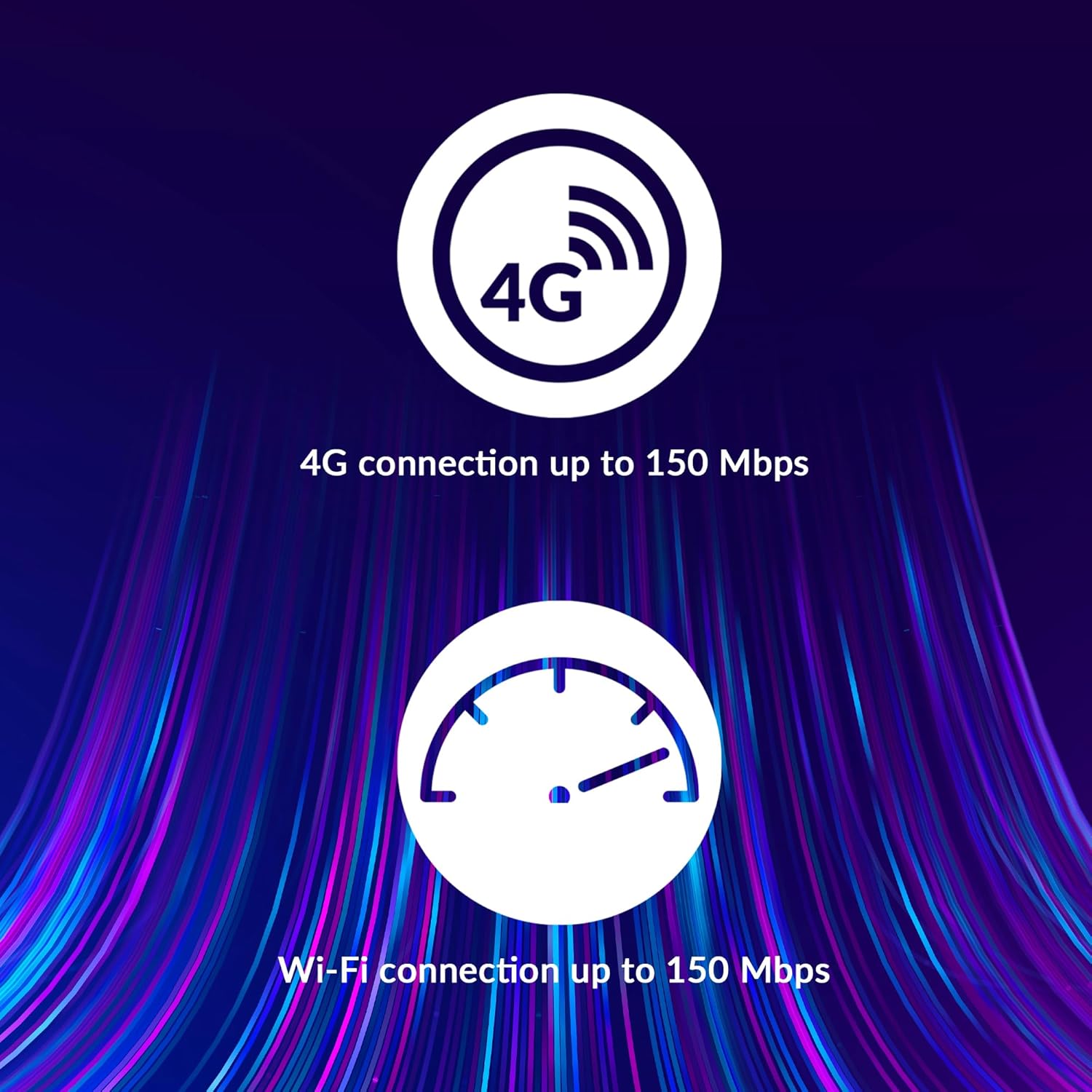
Image: A user holding the STRONG 4GMIFI150D Mobile Hotspot, demonstrating the QR code feature on its screen. This QR code can be scanned by compatible devices to quickly connect to the Wi-Fi network without manually entering the password.
For quick access, you can scan the QR code displayed on the hotspot's screen using a compatible device. This will automatically configure the Wi-Fi connection.
Example QR code content (for reference, actual values vary): WIFI:S:STRONG_XXXX_2.4GHz;T:WPA;P:XXXXXXXXXX;;
5.3. Web Management Interface
For advanced settings and monitoring, access the web management interface:
- Connect your device to the hotspot's Wi-Fi network.
- Open a web browser and enter the default IP address (usually 192.168.0.1 or 192.168.1.1) found in the Quick Installation Guide or on the device.
- Enter the default username and password (e.g., admin/admin).
- From here, you can manage Wi-Fi settings, security protocols (WPA/WPA2), PIN code management, and view connection status.
6. Performance
The STRONG 4GMIFI150D offers robust performance for various internet activities.
- 4G Connection Speed: Up to 150 Mbps download speed.
- Wi-Fi Connection Speed: Up to 150 Mbps.
- Device Support: Connect up to 32 Wi-Fi devices simultaneously.
- Battery Life: Up to 8 hours of intensive use with the 2100 mAh battery.

Image: A graphic representation highlighting the performance capabilities of the hotspot, showing a 4G connection speed of up to 150 Mbps and a Wi-Fi connection speed of up to 150 Mbps.

Image: A person working on a laptop outdoors with the STRONG 4GMIFI150D Mobile Hotspot placed on the table next to them, illustrating the device's portability and suitability for remote work or travel.
7. Maintenance
7.1. Cleaning
Wipe the device with a soft, dry cloth. Do not use liquid cleaners or aerosols.
7.2. Battery Care
- Avoid exposing the battery to extreme temperatures.
- Charge the battery regularly, even if the device is not in use, to maintain its lifespan.
- If the device will not be used for an extended period, store it with a partial charge (around 50%).
7.3. Firmware Updates
Periodically check the manufacturer's website or the device's web management interface for available firmware updates to ensure optimal performance and security.
8. Troubleshooting
| Problem | Possible Cause | Solution |
|---|---|---|
| No internet connection | No SIM card inserted, incorrect APN settings, no 4G signal, data plan exhausted. | Ensure SIM card is correctly inserted. Check APN settings via web interface. Move to an area with better signal. Check data plan with your mobile operator. |
| Cannot connect to Wi-Fi | Incorrect Wi-Fi password, hotspot is off, too many devices connected. | Verify Wi-Fi password. Ensure hotspot is powered on. Disconnect some devices if 32 devices are already connected. |
| Slow internet speed | Weak 4G signal, network congestion, distance from hotspot, too many connected devices. | Relocate the hotspot for better signal. Reduce the number of connected devices. Move closer to the hotspot. |
| Device not turning on | Battery drained, faulty battery/charger. | Charge the device for at least 30 minutes. Try a different USB cable or power adapter. |
9. Specifications
| Feature | Detail |
|---|---|
| Model | 4GMIFI150D |
| Brand | Strong |
| Connectivity Type | Wi-Fi, 4G LTE |
| Wireless Standard | 802.11b |
| 4G Speed | Up to 150 Mbps (Download) |
| Wi-Fi Speed | Up to 150 Mbps |
| Supported Devices | Up to 32 Wi-Fi devices |
| Battery Capacity | 2100 mAh Lithium Ion |
| Battery Life | Up to 8 hours (intensive use) |
| Product Dimensions | 19 x 5.7 x 14 cm |
| Item Weight | 189 g |
| Security | WPA/WPA2, PIN code management |
| Operating System | RouterOS (internal) |
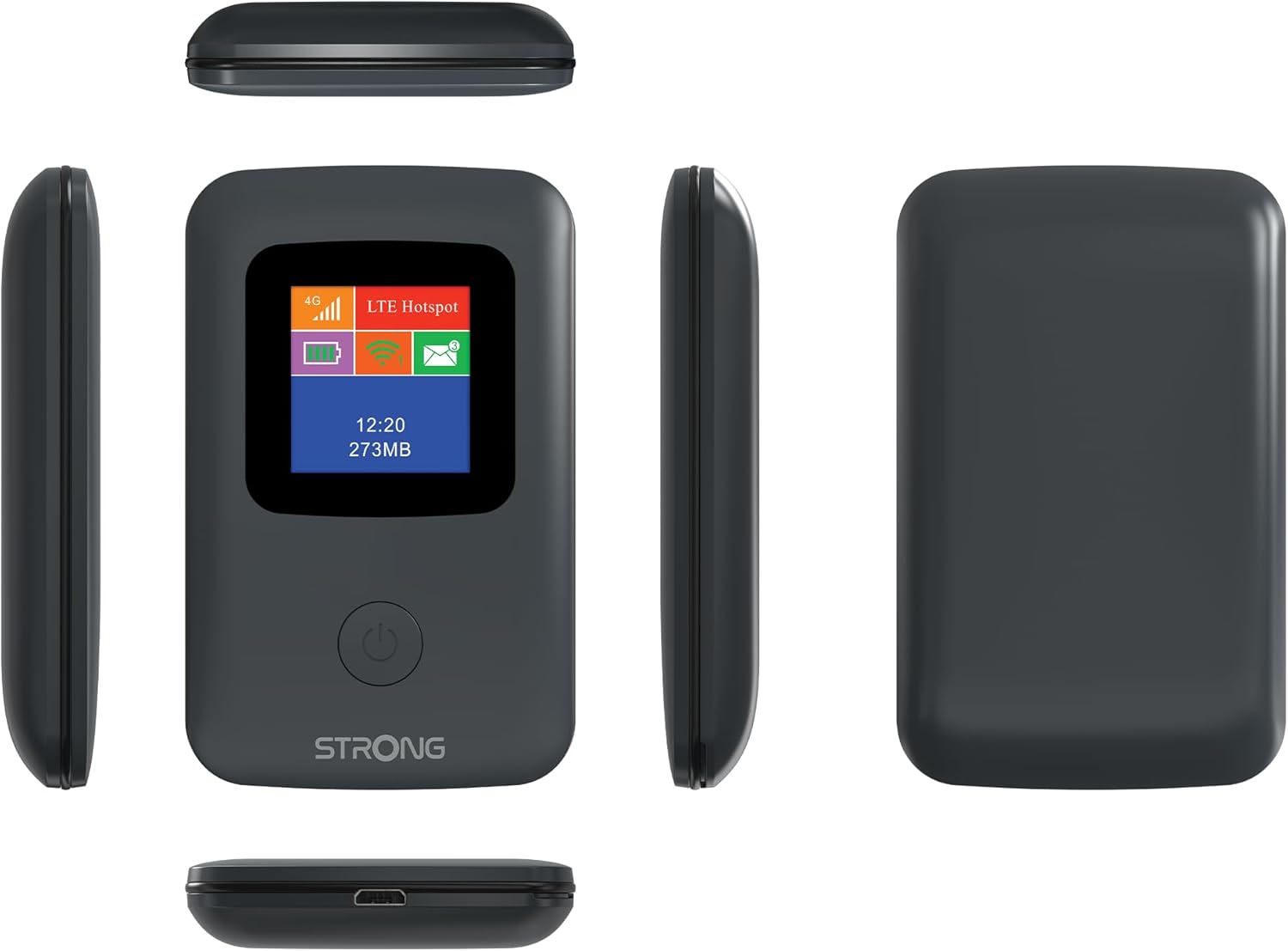
Image: A size comparison showing the STRONG 4GMIFI150D Mobile Hotspot next to a standard credit card, indicating its compact dimensions (92mm height, 58mm width) relative to a credit card (86mm height, 54mm width).
10. Warranty and Support
This product comes with a warranty as detailed in the included warranty card. For technical support, troubleshooting assistance beyond this manual, or warranty claims, please refer to the contact information provided in your product packaging or visit the official Strong website.
Please retain your proof of purchase for warranty purposes.
11. Safety Information
- Do not expose the device to water or excessive humidity.
- Avoid dropping or subjecting the device to strong impacts.
- Do not attempt to disassemble or repair the device yourself. Refer to qualified service personnel.
- Use only the provided or recommended accessories.
- Dispose of the device and its battery responsibly according to local regulations.
Related documents4GMIFI150D


Ask a question about this manual
Ask about setup, troubleshooting, compatibility, parts, safety, or missing instructions. Manuals+ will review the question and use this page’s manual context to help answer it.