
Introduction
This manual provides detailed instructions for the setup, operation, maintenance, and troubleshooting of your COOPERS CP20PRO Android 15 Tablet. Please read this manual thoroughly to ensure proper use and to maximize the performance and longevity of your device. Keep this manual for future reference.
What's in the Box
Upon unboxing, verify that all the following items are included:
- COOPERS CP20PRO Android 15 Tablet
- Protective Case
- Wireless Keyboard
- Wireless Mouse
- Stylus
- Type-C Cable (for charging and data transfer)

Image: COOPERS CP20PRO Tablet and its complete accessory kit.
Setup
1. Initial Charging
Before first use, fully charge your tablet. Connect the provided Type-C cable to the tablet's charging port and the other end to a compatible USB power adapter (not included) or a computer's USB port. The charging indicator will show the charging status.

Image: Tablet charging via the unified Type-C port. A full charge typically takes 2-3 hours.
2. Power On/Off
- To Power On: Press and hold the Power button located on the side of the tablet until the screen illuminates.
- To Power Off: Press and hold the Power button, then select 'Power off' from the options that appear on the screen.
- To Restart: Press and hold the Power button, then select 'Restart' from the options.
3. Connecting Accessories (Keyboard, Mouse, Stylus)
The COOPERS CP20PRO tablet supports Bluetooth connectivity for its wireless keyboard, mouse, and stylus.
- Enable Bluetooth on Tablet: Go to Settings > Connected devices > Bluetooth and toggle Bluetooth ON.
- Pairing the Mouse:
a. Turn on the switch button at the bottom of the wireless mouse.
b. The mouse will enter pairing mode (indicator light may flash).
c. On your tablet, search for available Bluetooth devices and select the mouse to pair. - Pairing the Keyboard:
a. Turn on the keyboard's power switch (usually on the side or back).
b. Press the Bluetooth connection button on the keyboard (often labeled 'Connect' or a Bluetooth icon).
c. On your tablet, search for available Bluetooth devices and select the keyboard to pair. - Pairing the Stylus: The stylus typically connects automatically when powered on and Bluetooth is active on the tablet, or it may require a similar pairing process as the mouse/keyboard if it has a dedicated Bluetooth button.
Image: Step-by-step guide for connecting the wireless mouse and keyboard via Bluetooth.
Operating Instructions
1. Android 15 Operating System
Your COOPERS CP20PRO tablet runs on the Android 15 operating system, providing a user-friendly interface and access to a wide range of applications. The tablet is GMS certified, allowing full access to the Google Play Store for downloading apps like Netflix, TikTok, Facebook, and more.

Image: Tablet interface showing GMS certified applications and Google Play Store access.
2. Display and Visuals
The tablet features a 10.1-inch IPS HD display with a resolution of 1280x800 pixels. This display technology offers wide viewing angles and vibrant colors. An integrated eye protection mode helps reduce eye strain during extended use.

Image: The 10.1-inch HD screen provides clear and comfortable viewing.
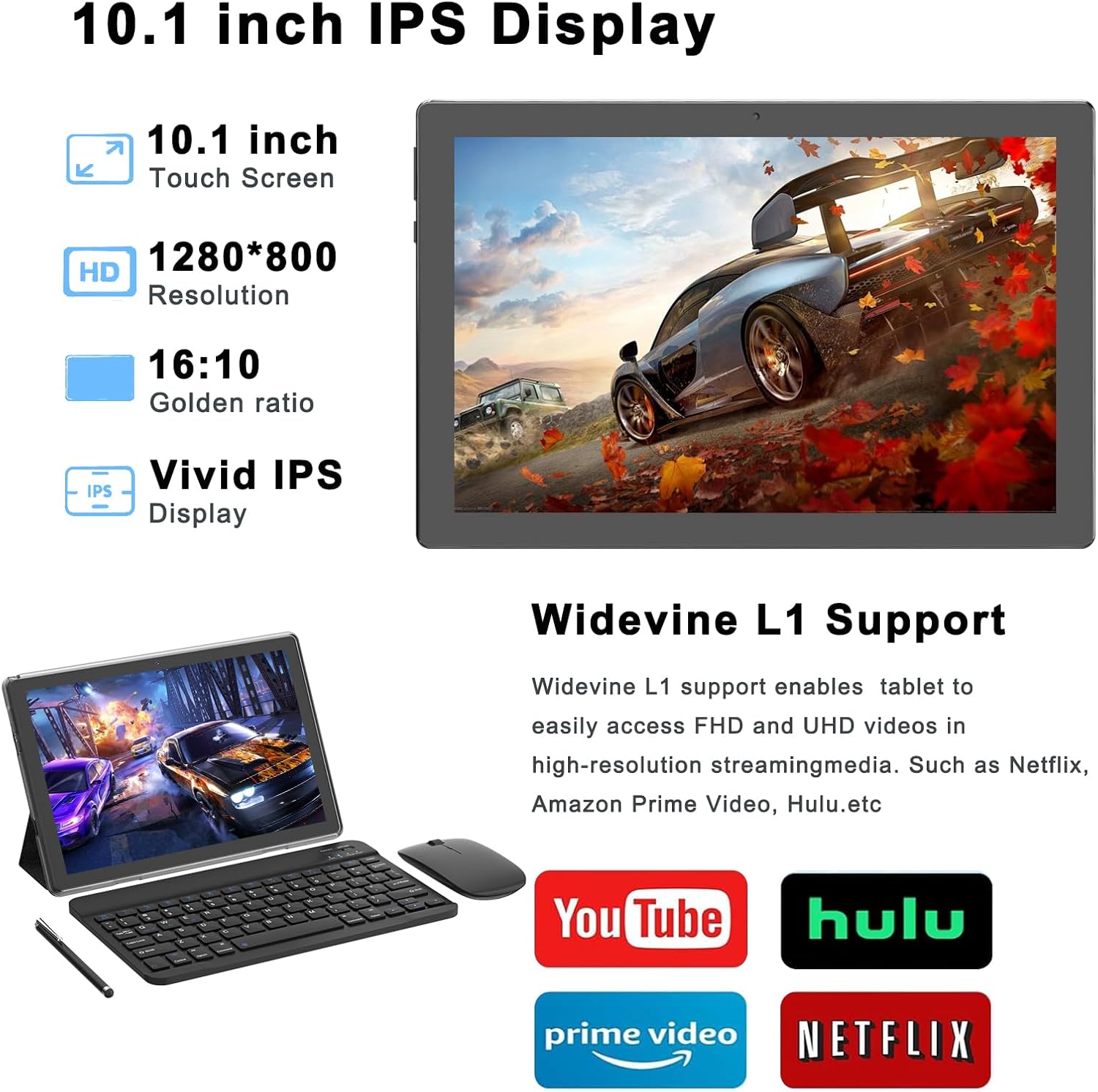
Image: The IPS display and Widevine L1 support enhance multimedia streaming.
3. Performance and Storage
Equipped with a 2.0Ghz Quad-core Processor and 18GB RAM (4GB fixed, 14GB virtual), the tablet is designed for efficient multitasking and application performance. It includes 128GB of internal storage, expandable up to 2TB via a microSD card (not included), providing ample space for applications, media, and documents.
4. Connectivity
- Wi-Fi: Supports 2.4Ghz and 5Ghz Wi-Fi 6 (802.11ac) for fast and stable internet connections.
- Bluetooth: Features Bluetooth 5.0 for connecting wireless peripherals such as headphones, speakers, and the included keyboard and mouse.
5. Cameras
The tablet includes dual cameras: a 2MP front-facing camera for video calls and selfies, and an 8MP rear-facing camera for capturing photos and videos.

Image: Dual cameras allow for capturing both portraits and landscapes.
Maintenance
- Cleaning: Use a soft, lint-free cloth to clean the screen and body of the tablet. Avoid using harsh chemicals or abrasive materials.
- Software Updates: Regularly check for and install system updates to ensure optimal performance and security. Go to Settings > System > System update.
- Battery Care: To prolong battery life, avoid extreme temperatures and do not let the battery completely drain frequently.
- Storage Management: Periodically clear unnecessary files and apps to maintain sufficient storage space and performance.
Troubleshooting
Common Issues and Solutions
- Tablet Not Turning On: Ensure the tablet is sufficiently charged. Connect it to the charger for at least 30 minutes, then try powering it on again.
- Slow Performance: Close unused applications, clear cache, or restart the tablet. Check for available system updates.
- Wi-Fi Disconnection: Try restarting your Wi-Fi router and the tablet. Ensure you are within range of the Wi-Fi signal. If the issue persists, forget the network in Wi-Fi settings and reconnect.
- Bluetooth Accessories Not Connecting: Ensure Bluetooth is enabled on both the tablet and the accessory. Make sure the accessory is in pairing mode. Try restarting both devices.
- Screen Unresponsive: Perform a forced restart by holding the power button for approximately 10-15 seconds until the device powers off and restarts.
Specifications
| Feature | Specification |
|---|---|
| Model Name | CP20PRO |
| Operating System | Android 15 |
| Screen Size | 10.1 Inches |
| Screen Resolution | 1280 x 800 Pixels (IPS HD) |
| Processor | 2.0 GHz Quad-core (MediaTek) |
| RAM | 18GB (4GB fixed + 14GB virtual) |
| Internal Storage | 128GB |
| Expandable Storage | Up to 2TB (via microSD card, not included) |
| Rear Camera | 8 MP |
| Front Camera | 2 MP |
| Wireless Connectivity | Wi-Fi 6 (802.11ac) 2.4Ghz/5Ghz |
| Bluetooth | Bluetooth 5.0 |
| Battery Life (Average) | 6 Hours |
| Product Dimensions | 9.5 x 0.3 x 6.5 inches |
| Item Weight | 2.44 pounds |
| Color | Black |
Warranty and Support
For warranty information and technical support, please refer to the documentation provided with your purchase or contact COOPERS customer service directly. Details for contacting support are typically available on the manufacturer's official website or through your retailer.


