
Introduction
This manual provides comprehensive instructions for the installation, operation, maintenance, and troubleshooting of your Leadfan Car Stereo Radio. This unit is designed specifically for Honda Civic models from 2006 to 2011, offering advanced features such as wireless CarPlay, Android Auto, GPS navigation, Bluetooth connectivity, and a high-definition touch screen. Please read this manual thoroughly before installation and use to ensure proper functionality and safety.

Image: The Leadfan Car Stereo Radio unit, showing the 10.1-inch display, custom bezel for Honda Civic, and included accessories such as wiring harnesses, a backup camera, and a GPS module.
Package Contents
Verify that all items listed below are included in your package. If any items are missing or damaged, please contact customer support.
- 1 x Leadfan Car Android Player (Main Unit)
- 1 x Power Harness
- 1 x GPS Antenna
- 1 x RCA Cable
- 1 x CAM-IN (Rearview Camera Cable)
- 1 x USB Cable (2 pieces)
- 1 x User Manual
- 1 x AHD Backup Camera

Image: A visual representation of all components included in the Leadfan Car Stereo package, such as the main unit, various cables (power, RCA, USB, camera), GPS module, and backup camera.
Setup and Installation
This section outlines the steps for installing your new car stereo. Professional installation is recommended if you are unfamiliar with car audio wiring.
Vehicle Compatibility
This unit is specifically designed for Honda Civic models manufactured between 2006 and 2011. The included custom bezel and wiring harness ensure a seamless fit and plug-and-play installation without the need for additional accessories.

Image: A comparison showing the car's dashboard before and after the installation of the Leadfan Car Stereo, highlighting the integrated and factory-like appearance.
Wiring Connections
- Power Harness: Connect the main power harness to your vehicle's existing wiring. Ensure all connections are secure and correctly matched (ACC, B+, GND, ILL, etc.).
- RCA Cables: Connect the RCA cables for audio output (front, rear, subwoofer) and auxiliary input as needed.
- USB Cables: Route the USB cables to a convenient location for connecting external devices or USB drives.
- GPS Antenna: Mount the GPS antenna in a location with a clear view of the sky, typically on the dashboard or under the windshield, and connect it to the unit.
- Rearview Camera: Connect the rearview camera cable (CAM-IN) to the unit and route the camera wiring to the rear of the vehicle. Ensure the camera receives power and the reverse trigger wire is connected to activate the camera automatically when reversing.
- WiFi/Bluetooth Antennas: Ensure the WiFi and Bluetooth antennas are properly connected for optimal signal reception.
Steering Wheel Control (SWC) Setup
After connecting the SWC wires from the vehicle's harness to the stereo, you will need to program the steering wheel buttons through the unit's settings menu. Navigate to the 'Steering Wheel Control' or 'SWC Learning' section in the system settings and follow the on-screen instructions to assign functions to each button.

Image: The user interface for setting up steering wheel controls, showing options to learn and assign functions to physical buttons. Also displays the automatic reverse camera view with parking guidelines.
Operating Instructions
This section details the primary functions and features of your Leadfan Car Stereo.
Main Interface and Navigation
The 10.1-inch HD touch screen provides an intuitive interface. Swipe left or right to access different application pages. Tap on icons to launch applications such as Phone, Music, Maps, Messages, and more.
Wireless CarPlay & Android Auto
The unit supports wireless Apple CarPlay and Android Auto, allowing seamless integration with your smartphone. This enables access to navigation, music, calls, and messages directly from the stereo's display.
- Connection: Ensure Bluetooth is enabled on your phone and the car stereo. Pair your phone with the stereo via Bluetooth. Once paired, the system should prompt you to enable CarPlay or Android Auto.
- Features: Access Siri or Google Assistant for voice commands, use Apple Maps or Google Maps for navigation, stream music from your preferred apps, and manage calls and messages hands-free.
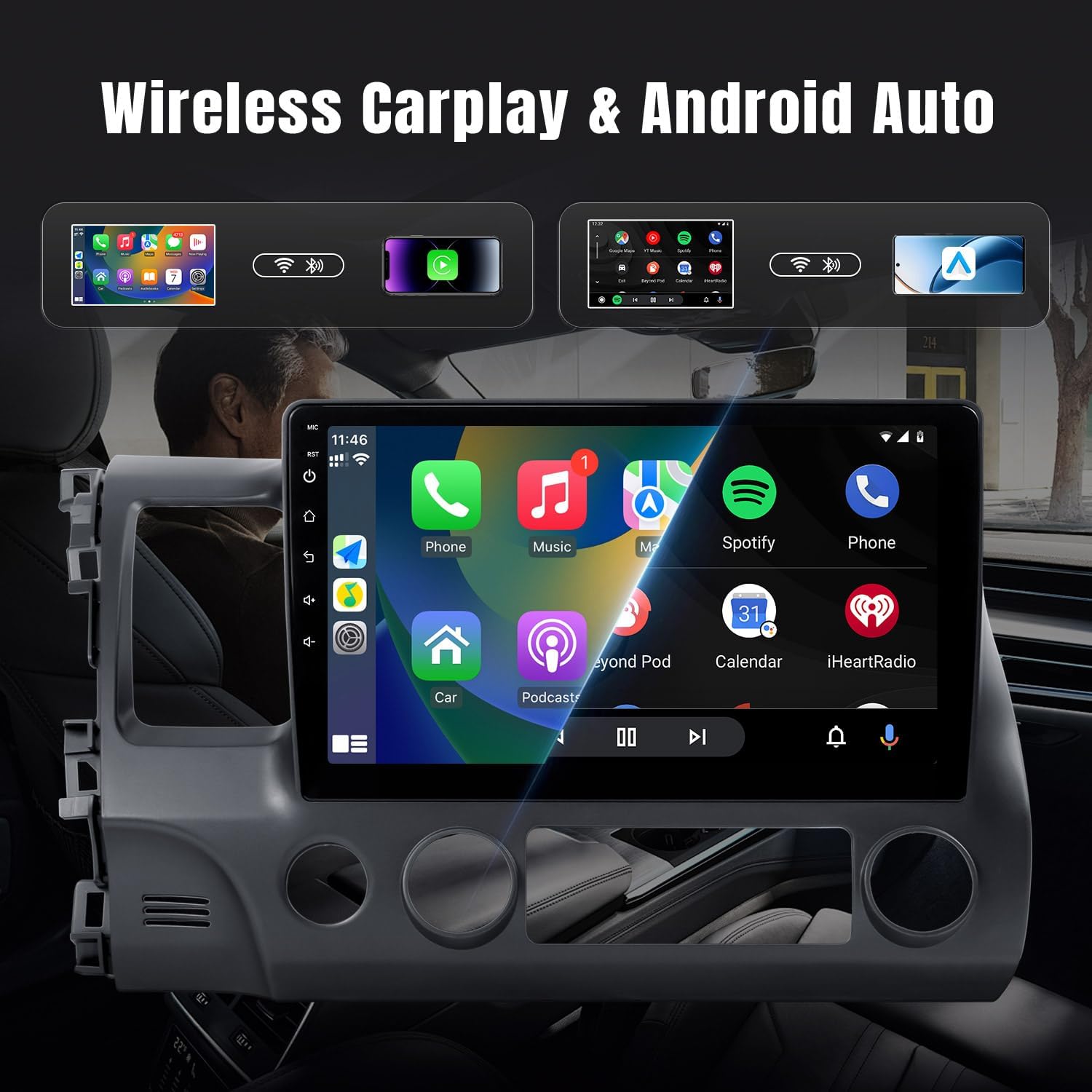
Image: The car stereo display showing the Apple CarPlay interface with various applications like Phone, Music, Maps, and Messages, demonstrating the seamless smartphone integration.

Image: An illustration demonstrating wireless CarPlay and Android Auto functionality, showing an iPhone and an Android phone wirelessly connected to the car stereo, enabling voice commands and app access.
Bluetooth Connectivity (5.0)
The built-in Bluetooth 5.0 module supports hands-free calling and wireless music playback.
- Pairing: Go to the Bluetooth settings on the stereo and your phone. Search for available devices on your phone and select 'Leadfan Car Stereo' (or similar name) to pair.
- Hands-Free Calling: Once paired, you can make and receive calls directly from the stereo's screen. The built-in microphone ensures clear communication.
- Audio Streaming: Play music from your phone wirelessly through the car's speakers.

Image: The Bluetooth interface of the car stereo, displaying options for dialing, call records, contacts, and music playback, with a song currently playing.
GPS Navigation
The stereo comes with a built-in GPS receiver and pre-installed offline maps (e.g., HereWeGo). You can also use online maps when connected to Wi-Fi.
- Offline Maps: Launch the pre-installed navigation app to use offline maps. Ensure maps for your region are downloaded.
- Online Maps: Connect the unit to a Wi-Fi hotspot (e.g., from your phone) to use online navigation apps like Google Maps, Waze, etc., downloaded from the Play Store.

Image: The GPS navigation screen on the car stereo, showing a map with a route, estimated arrival time, and distance. Icons for various navigation applications are also visible.

Image: A split view demonstrating both GPS navigation and Wi-Fi connectivity, showing the map interface on one side and various streaming and social media applications accessible via Wi-Fi on the other.
FM Radio
The unit features a high-quality FM radio with limitless preset station storage.
- Tuning: Use the touch screen to manually tune to stations or perform an automatic scan to find and save available stations.
- Presets: Save your favorite stations for quick access.
Reverse Function
When the vehicle is shifted into reverse gear, the screen will automatically display the view from the connected rearview camera, improving safety during parking and maneuvering.
Wi-Fi Connection
Connect the stereo to a Wi-Fi network or a mobile hotspot to access online features, download apps from the Play Store (e.g., YouTube, Spotify, Pandora), and browse the internet.
Maintenance
Proper maintenance ensures the longevity and optimal performance of your car stereo.
- Screen Cleaning: Use a soft, lint-free cloth to gently wipe the touch screen. For stubborn smudges, slightly dampen the cloth with water or a screen-safe cleaner. Avoid abrasive materials or harsh chemicals.
- Software Updates: Periodically check for system software updates through the unit's settings menu (if available). Updates can improve performance, add new features, and fix bugs.
- General Care: Avoid exposing the unit to extreme temperatures, direct sunlight for prolonged periods, or excessive moisture. Ensure proper ventilation around the unit.
Troubleshooting
This section addresses common issues you might encounter. For problems not listed here, please contact customer support.
| Problem | Possible Cause | Solution |
|---|---|---|
| No Power | Incorrect wiring; Blown fuse; Vehicle battery issue. | Check power harness connections (ACC, B+). Inspect vehicle fuses. Ensure car battery is charged. |
| No Sound | Speaker wires disconnected; Volume too low; Mute function active; Incorrect audio output settings. | Verify speaker wire connections. Increase volume. Check if mute is enabled. Adjust audio settings. |
| GPS Not Working / Poor Signal | GPS antenna not connected or poorly placed; Offline maps not downloaded; No internet for online maps. | Ensure GPS antenna is securely connected and has a clear view of the sky. Download necessary offline maps. Connect to Wi-Fi for online maps. |
| Bluetooth Connectivity Issues | Bluetooth not enabled; Incorrect pairing process; Interference. | Ensure Bluetooth is on for both devices. Delete previous pairings and re-pair. Move away from other electronic devices. |
| CarPlay/Android Auto Not Connecting | Bluetooth/Wi-Fi issues; Phone compatibility; App not running. | Check Bluetooth and Wi-Fi connections. Ensure your phone's OS is compatible. Restart phone and stereo. |
| Screen Lag / Unresponsive Touch | Too many apps running; System overload; Software glitch. | Close unnecessary applications. Restart the unit. Perform a factory reset if issues persist (backup data first). |
| Rear Camera Not Displaying | Camera not powered; CAM-IN cable loose; Reverse trigger wire not connected. | Check camera power supply. Secure CAM-IN connection. Ensure reverse trigger wire is correctly wired to the vehicle's reverse light signal. |
Specifications
Key technical specifications for the Leadfan Car Stereo Radio:
- Model Number: 2G+32G+carplay for Honda Civic 2006-2011
- Display Size: 10.1 Inches
- Operating System: Android 12
- RAM: 2GB
- ROM: 32GB
- Connectivity Technology: Bluetooth (5.0), USB, Wi-Fi
- Special Features: Touchscreen, Wireless CarPlay, Android Auto, GPS Navigation, FM Radio, Backup Camera Support, Steering Wheel Control
- Product Dimensions: 9.64 x 7.08 x 15.35 inches
- Item Weight: 4.38 pounds
- Audio Output Mode: Stereo
- Mounting Type: Dashboard Mount (specific to Honda Civic 2006-2011)
Warranty and Support
Warranty Information
This Leadfan Car Stereo Radio comes with a 1-Year Warranty from the date of purchase, covering manufacturing defects. Additionally, a 12-Month Replacement option is available within this period for eligible issues.
Return Policy
A 60-Day No Worry Return period is provided, allowing you to return the product if you are not satisfied.
Customer Support
For any questions, technical assistance, or warranty claims, please contact Leadfan customer service. We aim to provide a quick reply within 24 hours. Lifetime after-sales consultation and technical support are available.
You can typically reach Leadfan support via the Amazon messaging system or through the contact information provided on the official Leadfan store page on Amazon.


