
1. Introduction
Thank you for choosing the AUNMAS Automatic Smart Lock. This advanced digital entry lock provides enhanced security and convenient access for your home or apartment. Featuring multiple unlock methods including fingerprint, password, and IC card, alongside an integrated 1080P HD camera and digital door viewer, this system offers comprehensive entry monitoring and control. This manual provides essential information for proper installation, operation, and maintenance of your smart lock.
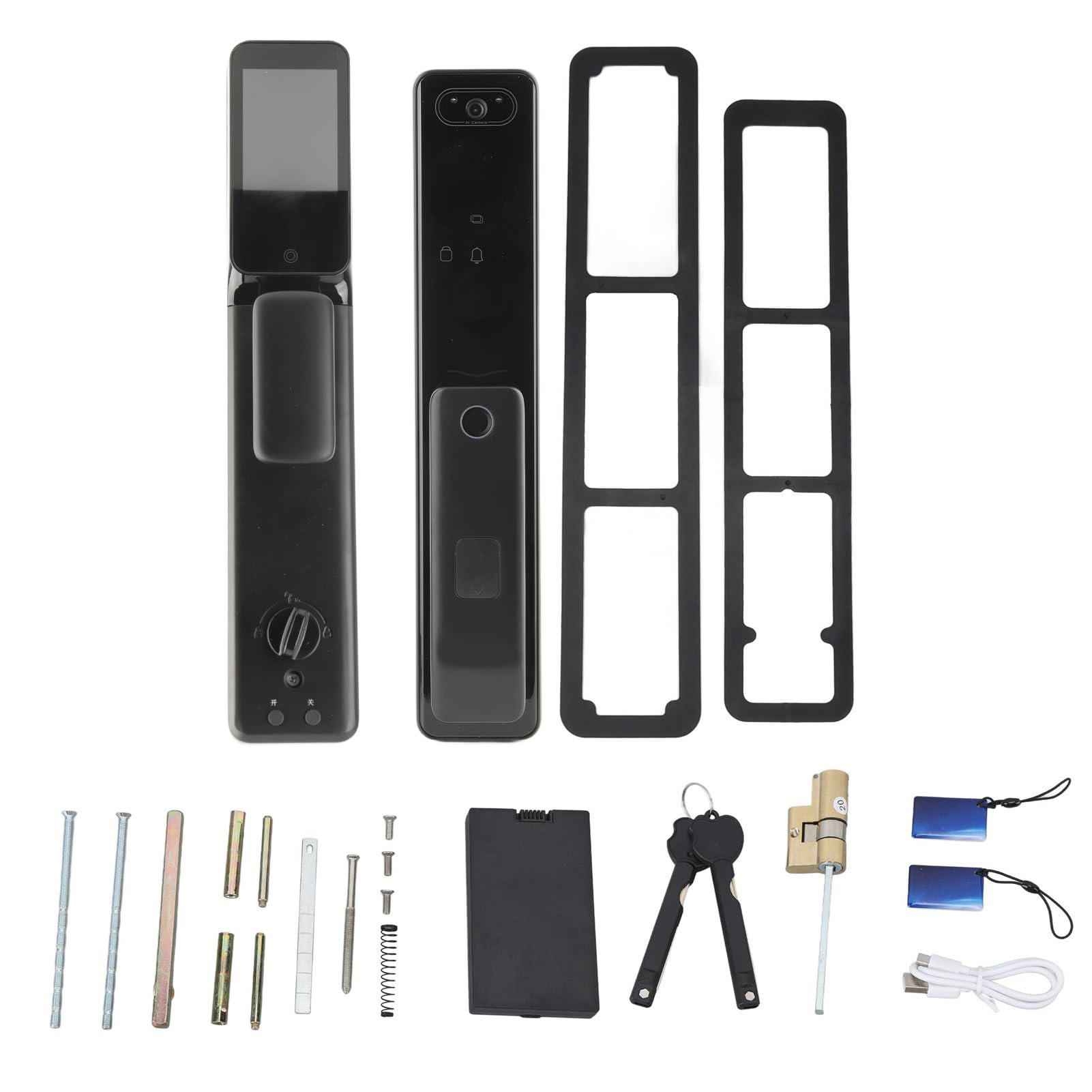
Image 1: Overview of the AUNMAS Automatic Smart Lock components.
2. Safety Information
- Read all instructions: Before installation and use, carefully read and understand all instructions in this manual.
- Emergency Keys: Keep the emergency keys in a safe, accessible location outside of your home. Do not store them inside the property secured by the smart lock.
- Battery Safety: Use only the specified battery type (Lithium battery x1, 3200mAh, YC07A). Do not mix old and new batteries, or different types of batteries. Dispose of batteries according to local regulations.
- Environmental Conditions: Avoid exposing the lock to extreme temperatures, direct sunlight for prolonged periods, or excessive moisture.
- Cleaning: Use a soft, dry cloth for cleaning. Avoid abrasive cleaners or solvents that may damage the finish or electronic components.
- Professional Installation Recommended: While designed for universal fit, professional installation is recommended to ensure optimal performance and security.
3. Setup and Installation
3.1 Package Contents
Verify that all components are present before beginning installation:
- 2 x Door Handle (Internal and External Units)
- 2 x Door Handle Pad
- 6 x Screw
- 2 x IC Card
- 1 x Charging Cable (USB)
- 2 x Emergency Key
- 1 x Lock Cylinder
- 1 x Battery (Lithium, 3200mAh, YC07A)
- 4 x Accessory (various mounting hardware)
- 1 x Spring
3.2 Pre-Installation Check
- Ensure your door is compatible. The lock is designed for universal fit on standard exterior doors, accommodating both left-handed and right-handed configurations.
- Confirm the door thickness is within the recommended range for smart lock installation.
- Charge the provided battery fully using the USB charging cable before installation.
3.3 Installation Steps (General Guide)
This is a general guide. Refer to the detailed diagrams and specific instructions provided in the physical manual for precise steps.
- Prepare the Door: Remove any existing lock hardware. Ensure the door frame and boreholes are clean and clear.
- Install Lock Cylinder: Insert the lock cylinder into the door edge.
- Mount External Unit: Position the external door handle unit, ensuring the camera and fingerprint sensor are correctly oriented.
- Mount Internal Unit: Align the internal door handle unit with the external unit, connecting any necessary cables. Secure both units using the provided screws and accessories.
- Install Battery: Insert the fully charged lithium battery into the designated compartment within the internal unit.
- Test Operation: After installation, test the mechanical lock function with the emergency key. Then, proceed to initial setup for electronic functions.

Image 2: AUNMAS Smart Lock installed on a door.

Image 3: Internal and external units of the smart lock.
4. Operating Instructions
4.1 Initial Setup and User Management
Upon first power-up, the lock will guide you through setting up an administrator fingerprint or password. This administrator account is essential for adding and managing other users.
- Administrator Setup: Follow the on-screen prompts to register the first fingerprint or set an administrator password.
- Adding Users: As an administrator, you can add additional users with fingerprint, password, or IC card access. Navigate to the user management menu on the lock's display.
- Deleting Users: Administrators can remove user access as needed from the user management menu.
4.2 Unlocking the Door
- Fingerprint Unlock: Place your registered finger on the fingerprint sensor. The lock will automatically unlock upon successful verification.
- Password Unlock: Enter your registered password on the keypad, followed by the '#' key. The lock will unlock automatically.
- IC Card Unlock: Present your registered IC card to the card reader area on the external unit. The lock will unlock.
- Emergency Key Unlock: In case of power failure or electronic malfunction, use the physical emergency key to manually unlock the door.
4.3 Locking the Door
The AUNMAS Smart Lock features a fully automatic locking mechanism. After the door closes, the lock will automatically engage, securing your property.
4.4 Real-Time Visitor Verification
The integrated 1080P HD camera and digital door viewer allow for real-time monitoring of your entryway.
- On-Screen View: When a visitor interacts with the lock (e.g., presses the doorbell button), their image will appear on the internal display.
- Mobile App View: Connect the lock to your Wi-Fi network (if applicable) and use the dedicated mobile application to view live video feed and interact with visitors from your smartphone.
- Recording: The camera records videos and photos upon visitor interaction, providing a log of entry oversight.

Image 4: Front view of the smart lock, showing access methods.
5. Maintenance
5.1 Cleaning
- Wipe the lock's surface with a soft, dry, lint-free cloth.
- Do not use liquid cleaners, sprays, or abrasive chemicals, as these can damage the electronic components or finish.
- Keep the fingerprint sensor and camera lens clean for optimal performance.
5.2 Battery Management
- The lock is powered by a 3200mAh lithium battery.
- Monitor the battery level indicator on the lock's display or via the mobile app.
- When the battery is low, recharge it using the provided USB charging cable. The USB charging port ensures a consistent power supply for continuous operation.
- A fully charged battery supports extended use across diverse user scenarios.
6. Troubleshooting
If you encounter issues with your AUNMAS Automatic Smart Lock, refer to the following common problems and solutions:
| Problem | Possible Cause | Solution |
|---|---|---|
| Lock does not respond to fingerprint/password/IC card. | Low battery; unregistered access method; sensor/keypad obstruction. | Recharge battery; ensure access method is registered; clean sensor/keypad; use emergency key. |
| Door does not lock automatically. | Door not fully closed; obstruction in door frame; sensor malfunction. | Ensure door is fully closed; check for obstructions; contact support if issue persists. |
| Camera/Door Viewer not working. | Low battery; software glitch; camera lens obstructed. | Recharge battery; restart the lock (if possible); clean camera lens; check app connection. |
| Cannot connect to Wi-Fi/mobile app. | Incorrect Wi-Fi password; weak signal; app not updated. | Verify Wi-Fi credentials; move router closer; update app; reset lock's network settings. |
| Lock makes unusual noises. | Mechanical obstruction; internal component issue. | Check for physical obstructions around the deadbolt; if noise persists, contact customer support. |
If the problem persists after attempting these solutions, please contact AUNMAS customer support for further assistance.
7. Specifications
| Feature | Detail |
|---|---|
| Brand | AUNMAS |
| Model Name/Number | AUNMASudgv6zncqh |
| Lock Type | Deadbolt |
| Material | Acrylonitrile Butadiene Styrene (ABS) |
| Color | Black |
| Special Features | Anti-Theft, Fingerprint, Keyless Entry, Digital Door Viewer, 1080P HD Camera |
| Recommended Uses | Home, Apartments |
| Style | Modern |
| Controller Type | Hand Control, SmartThings (Compatibility) |
| Control Method | Touch |
| Connectivity Protocol | Wi-Fi |
| Smart Home Compatibility | Smart Home Compatible |
| Item Weight | 6.93 pounds (approx. 3215g) |
| Package Dimensions | 19 x 10 x 4.25 inches |
| Battery | Lithium battery x1, 3200mAh, YC07A |
| Included Components | 2 Door Handles, 2 Door Handle Pads, 6 Screws, 2 IC Cards, 1 Charging Cable, 2 Keys, 1 Lock Cylinder, 1 Battery, 4 Accessories, 1 Spring |