
1. Introduction
This instruction manual provides essential information for the safe and efficient use of your COOPERS Android 15 Tablet 10-inch, model CP10PRO. Please read this manual thoroughly before using the device and retain it for future reference.
2. Package Contents
Verify that all items listed below are present in your product package:
- COOPERS Android 15 Tablet (10-inch)
- Wireless Keyboard
- Wireless Mouse
- Protective Case
- Stylus Pen
- Type-C Charging Cable

Image: COOPERS Android 15 Tablet and its accompanying accessories.
3. Product Overview
The COOPERS Android 15 Tablet is a versatile 10-inch device designed for various tasks, from entertainment to productivity. Key features include:
- Display: 10.1-inch HD IPS screen with 1280x800 resolution.
- Performance: Quad-Core processor, 6GB RAM (2GB physical + 4GB virtual), 32GB internal storage, expandable up to 1TB via microSD card.
- Operating System: Android 15 with Google Mobile Service (GMS) certification.
- Connectivity: 2.4GHz Wi-Fi, Bluetooth.
- Cameras: 2MP front camera, 8MP rear camera.
- Battery: 6000mAh capacity, providing up to 8 hours of video playback.
- Accessories: Includes a wireless keyboard, mouse, stylus, and protective case for a 2-in-1 computing experience.
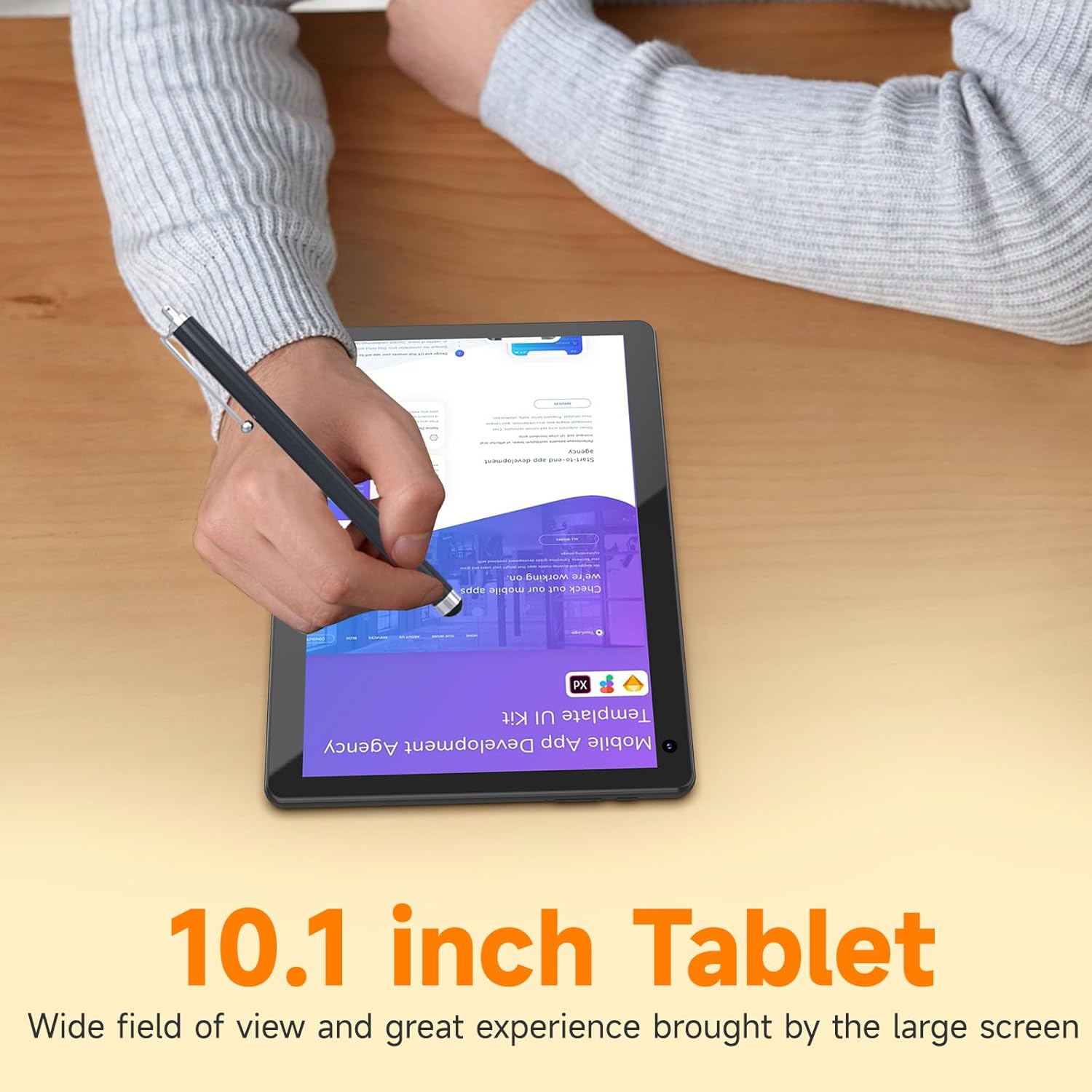
Image: The 10.1-inch display of the COOPERS tablet, demonstrating stylus interaction.

Image: Illustration of the tablet's dual camera system, featuring a 2MP front camera and an 8MP rear camera.
4. Setup
4.1 Initial Charging
Before first use, fully charge the tablet using the provided Type-C cable and a compatible power adapter (not included). The battery indicator on the screen will show charging status. A full charge typically takes several hours.

Image: Tablet connected to a charger, highlighting its 6000mAh battery and Type-C fast charging capability.
4.2 Powering On/Off
- To Power On: Press and hold the Power button located on the side of the tablet until the screen illuminates.
- To Power Off: Press and hold the Power button, then select "Power off" from the options that appear on the screen.
- To Restart: Press and hold the Power button, then select "Restart" from the options.
4.3 Initial Android Setup
Upon first power-on, follow the on-screen prompts to complete the initial setup. This includes selecting your language, connecting to a Wi-Fi network, and signing in with your Google account. A Google account is required to download applications from the Google Play Store.
4.4 Connecting Accessories (Keyboard, Mouse)
The included keyboard and mouse connect wirelessly via Bluetooth.
- Ensure the keyboard and mouse are powered on and in pairing mode (refer to their individual manuals if necessary).
- On your tablet, navigate to Settings > Connected devices > Bluetooth.
- Toggle Bluetooth to "On" if it's not already.
- Tap "Pair new device" and select the keyboard or mouse from the list of available devices.
- Follow any on-screen prompts to complete the pairing process.
5. Operating Instructions
5.1 Basic Navigation
- Touch: Tap an icon to open an app or select an item.
- Swipe: Drag your finger across the screen to scroll through pages or lists.
- Pinch-to-Zoom: Use two fingers to zoom in or out on images and web pages.
- Home Screen: Tap the Home button (usually a circle or house icon) to return to the main screen.
- Back: Tap the Back button (usually an arrow) to return to the previous screen.
5.2 Wi-Fi Connectivity
To connect to a Wi-Fi network:
- Go to Settings > Network & internet > Wi-Fi.
- Ensure Wi-Fi is turned on.
- Select your desired 2.4GHz network from the list.
- Enter the password if prompted and tap "Connect".
5.3 Using the Google Play Store
Your tablet is GMS certified, allowing full access to the Google Play Store for downloading applications, games, movies, and books.
- Open the "Play Store" app from your home screen or app drawer.
- Search for the desired application.
- Tap "Install" to download and install the app.

Image: Android 15 interface on the tablet, showing common app icons.
5.4 Camera Operation
The tablet features a 2MP front camera and an 8MP rear camera.
- Open the "Camera" app.
- Tap the camera switch icon to alternate between front and rear cameras.
- Tap the shutter button to capture photos or start/stop video recording.
5.5 Storage Management
The tablet comes with 32GB of internal storage. You can expand this by inserting a microSD card (up to 1TB) into the designated slot.
- To insert a microSD card, locate the card slot on the side of the tablet and gently push the card in until it clicks.
- To manage storage, go to Settings > Storage.
6. Maintenance
6.1 Cleaning the Device
Use a soft, lint-free cloth to clean the screen and body of the tablet. Avoid using harsh chemicals or abrasive materials, which can damage the surface.
6.2 Battery Care
- Avoid extreme temperatures, as they can affect battery life.
- Do not leave the tablet fully discharged for extended periods.
- Use only the provided Type-C cable for charging.
6.3 Software Updates
Periodically check for system updates to ensure optimal performance and security. Go to Settings > System > System update to check for and install available updates.
7. Troubleshooting
| Issue | Possible Solution |
|---|---|
| Tablet does not power on | Ensure the battery is charged. Connect the tablet to a power source and try again. If unresponsive, press and hold the power button for 10-15 seconds to force a restart. |
| Slow performance or freezing | Close unused applications. Clear cache from apps in Settings > Apps. Restart the tablet. Ensure sufficient free storage space. |
| Wi-Fi connection issues | Ensure Wi-Fi is enabled. Restart your router and the tablet. Forget the network and reconnect. Verify the Wi-Fi password. |
| Accessories (keyboard/mouse) not connecting | Ensure accessories are charged and in pairing mode. Re-pair them via Bluetooth settings. Restart the tablet. |
| Touchscreen unresponsive in certain areas | Restart the tablet. Ensure the screen is clean and free of debris. If the issue persists, contact customer support. |
If troubleshooting steps do not resolve the issue, please refer to the support information provided by your retailer or the manufacturer.
8. Specifications
| Feature | Detail |
|---|---|
| Model Number | CP10PRO |
| Brand | COOPERS |
| Operating System | Android 15 |
| Screen Size | 10.1 Inches |
| Screen Resolution | 1280 x 800 Pixels (HD IPS) |
| Processor | Quad-Core, 1.8 GHz (Allwinner ARM chipset) |
| RAM | 6GB (2GB physical + 4GB virtual) |
| Internal Storage | 32GB |
| Expandable Storage | Up to 1TB via microSD card |
| Wireless Connectivity | 802.11n (2.4GHz Wi-Fi), Bluetooth |
| Front Camera | 2MP |
| Rear Camera | 8MP |
| Battery Capacity | 6000mAh |
| Average Battery Life | Up to 8 hours (video playback) |
| Dimensions (LxWxH) | 10 x 5 x 0.31 inches |
| Item Weight | 2.72 pounds |
9. Warranty and Support
For warranty information and customer support, please refer to the documentation provided at the time of purchase or contact your retailer. Specific warranty terms and conditions may vary.
For technical assistance or further inquiries, please reach out to COOPERS customer service through their official channels, if available, or the seller from whom the product was purchased.


