
1. Introduction
This manual provides comprehensive instructions for the setup, operation, maintenance, and troubleshooting of your TCL 65S41 65-inch 4K UHD HDR LED Smart Roku TV. Please read this manual thoroughly before using your television to ensure proper functionality and safety.
2. Important Safety Information
Always follow basic safety precautions when using this product to reduce the risk of fire, electric shock, and injury.
- Do not block ventilation openings.
- Do not install near any heat sources.
- Protect the power cord from being walked on or pinched.
- Only use attachments/accessories specified by the manufacturer.
- Unplug this apparatus during lightning storms or when unused for long periods.
- Refer all servicing to qualified service personnel.
3. What's in the Box
Verify that all components are present:
- TCL 65S41 65-inch 4K UHD HDR LED Smart Roku TV
- Remote Control (RC280)
- Two "AAA" Batteries for Remote Control
- TV Stand (2 pieces)
- M4 x 35 Screws (4 for stand)
- Quick Start Guide
- Warranty Information
4. Setup
4.1 Attaching the TV Stand
If you are not wall-mounting the TV, attach the included stands. Ensure the TV is placed on a soft, flat surface to prevent screen damage.
- Carefully place the TV face-down on a clean, cushioned surface.
- Align each stand with the screw holes on the bottom of the TV.
- Secure each stand with two M4 x 35 screws.
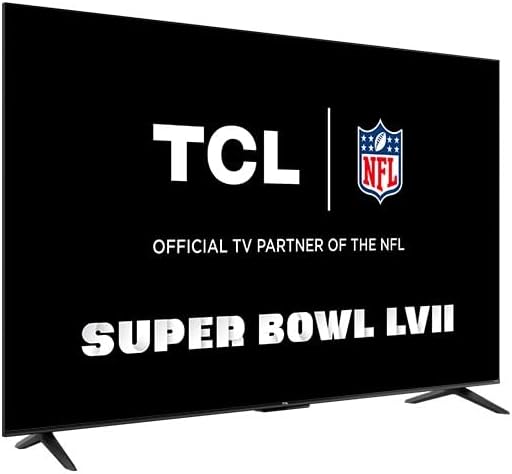
Image: Front view of the TCL 65S41 television with its two stand feet attached, showing the screen and the TCL logo at the bottom center.

Image: Side profile of the TCL 65S41 television, illustrating its slim design and the attached stand.
4.2 Wall Mounting (Optional)
If you choose to wall-mount your TV, ensure you use a VESA-compatible mount (200mm x 200mm) and M6 x 12 screws. Consult a professional for installation if you are unsure.
4.3 Connecting Devices
Your TV features multiple input ports for various devices.

Image: Rear view of the TCL 65S41 television, highlighting the various input ports and mounting points.
- HDMI: Connect up to four HDMI devices (e.g., Blu-ray player, game console, cable box). One port supports eARC for enhanced audio return.
- Composite A/V: For older devices with red, white, and yellow RCA connectors.
- Digital Optical Audio Output: For connecting to a soundbar or audio receiver.
- Headphone Jack: For private listening.
- RF Antenna Input: For connecting an antenna for over-the-air channels.
- USB 2.0: For connecting USB storage devices to play media.
- Ethernet: For a wired internet connection.
4.4 Powering On and Initial Setup
- Insert the "AAA" batteries into the remote control.
- Connect the power cord to the TV and then to a power outlet.
- Press the power button on the remote or the TV's control button.
- Follow the on-screen instructions for initial Roku TV setup, including language selection, network connection (Wi-Fi or Ethernet), and channel scanning.
5. Operating Your TV
5.1 Roku TV Interface
The Roku TV home screen provides easy access to streaming channels, inputs, and settings. You can customize the home screen to arrange your favorite channels and inputs.
5.2 Remote Control Functions
The included RC280 remote control offers intuitive navigation. Key functions include:
- Power: Turns the TV on or off.
- Directional Pad: Navigates menus and selects items.
- OK/Select: Confirms selections.
- Home: Returns to the Roku TV home screen.
- Back: Returns to the previous screen.
- Volume Up/Down: Adjusts audio volume.
- Mute: Mutes or unmutes audio.
- Instant Replay: Replays the last few seconds of video.
- Star (*): Accesses options for the selected item.
- Shortcut Buttons: Direct access to popular streaming services.
5.3 Voice Control
Your TCL Roku TV supports voice control through Siri, Alexa, and Hey Google. Use a compatible voice assistant device to search for content, launch channels, or switch inputs.
5.4 Streaming and AirPlay
- Streaming Channels: Access thousands of streaming channels for movies, TV shows, news, and sports.
- AirPlay: Share videos, photos, and music directly from your Apple devices to the TV. Ensure both devices are on the same Wi-Fi network.
5.5 Live TV
If you have connected an antenna, use the Live TV Channel Guide to browse and watch over-the-air channels. The TV also supports Live TV Pause for up to 30 minutes.
6. Maintenance
6.1 Cleaning Your TV
- Always unplug the TV before cleaning.
- Use a soft, lint-free cloth to gently wipe the screen and cabinet.
- For stubborn marks, lightly dampen the cloth with water or a mild, non-abrasive cleaner specifically designed for electronics.
- Never spray cleaner directly onto the screen or cabinet.
6.2 Software Updates
Your Roku TV receives automatic software updates to improve performance and add new features. Ensure your TV is connected to the internet for these updates.
7. Troubleshooting
Refer to the following table for common issues and their solutions:
| Problem | Possible Solution |
|---|---|
| No power | Check if the power cord is securely connected to the TV and the outlet. Try a different outlet. |
| No picture, but sound is present | Ensure the correct input source is selected. Check cable connections to external devices. |
| No sound, but picture is present | Check volume level and mute status. Verify audio cable connections. Check TV audio output settings. |
| Remote control not working | Replace batteries. Ensure no obstructions between remote and TV. |
| Cannot connect to Wi-Fi | Ensure Wi-Fi is enabled on the TV. Restart your router. Check Wi-Fi password. |
| Picture quality issues (e.g., blurry, distorted) | Check source resolution. Adjust picture settings (brightness, contrast, sharpness). Ensure cables are securely connected. |
8. Specifications
| Feature | Detail |
|---|---|
| Model | 65S41 |
| Screen Size | 65 inches (64.5" viewable) |
| Resolution | 3840 x 2160 (4K UHD) |
| Display Technology | LED |
| High Dynamic Range (HDR) | HDR10, HLG |
| Refresh Rate | 60 Hz |
| Smart Platform | Roku TV |
| Voice Control Compatibility | Siri, Alexa, Hey Google |
| HDMI Inputs | 4 (1 eARC) |
| USB Ports | 1 (USB 2.0) |
| Wireless Connectivity | 802.11ac 2x2 Dual Band (2.4GHz & 5GHz) |
| Ethernet Port | Yes |
| Audio Output Power | 10W + 10W |
| Premium Audio | Dolby Digital Plus |
| VESA Wall Mount Pattern | 200mm x 200mm |
| Product Dimensions (with stand) | 56.9" x 34.8" x 11.8" |
| Product Weight (with stand) | 31.1 lbs |
9. Warranty Information
This product comes with a 1-year limited warranty. For detailed terms and conditions, please refer to the warranty information included in your product packaging or visit the official TCL support website.
10. Support
For further assistance, technical support, or to register your product, please visit the official TCL support website or contact customer service using the information provided in your Quick Start Guide.
Online Support: www.tcl.com/us/en/support


