
Introduction
This manual provides essential information for setting up, operating, maintaining, and troubleshooting your Blackview Tab 80 tablet. Please read this manual thoroughly to ensure proper use and to maximize the performance and longevity of your device.
1. Setup
1.1 What's in the Box
- Blackview TAB 80 Tablet
- Power Adapter
- User Manual
1.2 Charging the Tablet
Before first use, fully charge your Blackview Tab 80. Connect the provided power adapter to the tablet's Type-C port. The tablet features a 7680mAh battery for extended usage.
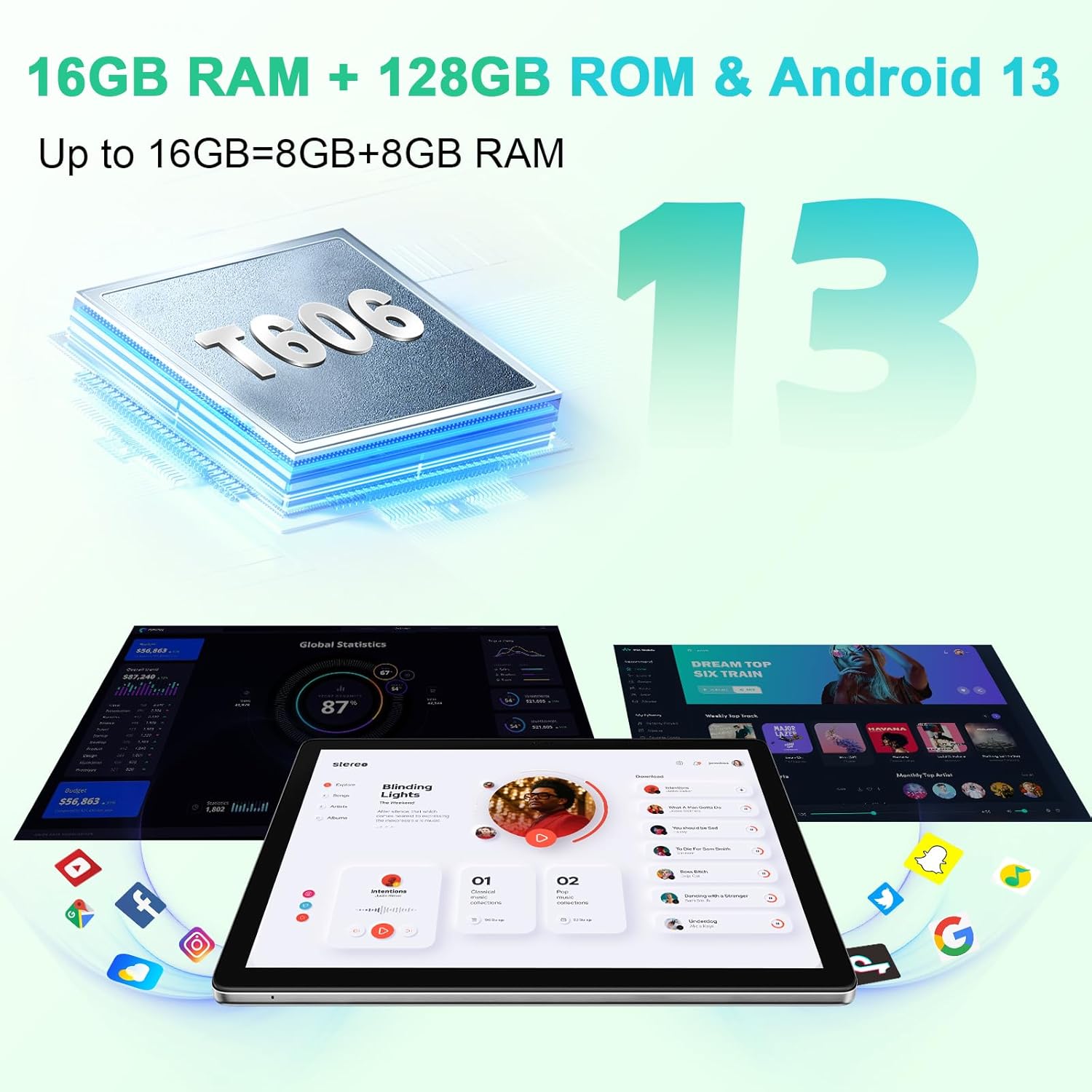
Image: The Blackview Tab 80 tablet highlighting its 7680mAh battery and Type-C charging port, along with estimated usage times for various activities.
1.3 SIM and TF Card Installation
The Blackview Tab 80 supports dual 4G SIM cards for cellular connectivity and a TF (microSD) card for expandable storage up to 1TB. Locate the SIM/TF card tray on the side of the tablet. Use the provided ejector tool to open the tray, then carefully insert your SIM cards and/or TF card as indicated on the tray.

Image: An infographic detailing key specifications of the Blackview Tab 80, including its 4G LTE capability and memory configuration.
1.4 Initial Power On and Setup Wizard
Press and hold the power button until the Blackview logo appears. The tablet will boot into Android 13 with Doke OS_P 3.0. Follow the on-screen instructions to select your language, connect to Wi-Fi, set up your Google account, and configure basic settings.
2. Operating
2.1 Display Features
The Blackview Tab 80 features a 10.1-inch HD display with a resolution of 1280x800 pixels. It includes several modes to enhance your viewing experience and protect your eyes:
- PC Mode: Optimizes the interface for a desktop-like experience.
- Face Unlock: Securely unlock your device using facial recognition.
- Eye Protection Modes: Adjusts screen brightness and color temperature to reduce eye strain, especially in low-light conditions.
- Split-Screen View: Allows you to run two applications simultaneously side-by-side.

Image: The Blackview Tab 80 showcasing its 10.1-inch HD display and various display modes.
2.2 Performance and Storage
Powered by an Octa-Core UNISOC T606 processor, the Tab 80 offers smooth performance for multitasking and applications. It comes with 16GB of RAM (including extended RAM) and 128GB of internal storage, which can be expanded up to 1TB using a TF card.

Image: Visual representation of the Blackview Tab 80's 16GB RAM, 128GB ROM, and Android 13 operating system, emphasizing its processing power.
2.3 Connectivity
The tablet supports dual 4G LTE for mobile data and calls, Wi-Fi 5.0 (802.11a/b/g/n/ac) for fast internet access, and Bluetooth 5.0 for connecting wireless peripherals.

Image: The Blackview Tab 80 demonstrating its productivity features, including Dual 4G LTE and Wi-Fi connectivity, useful for navigation and communication.
2.4 Camera Functionality
Capture moments with the 13MP rear camera and take clear selfies or make video calls with the 8MP front camera.
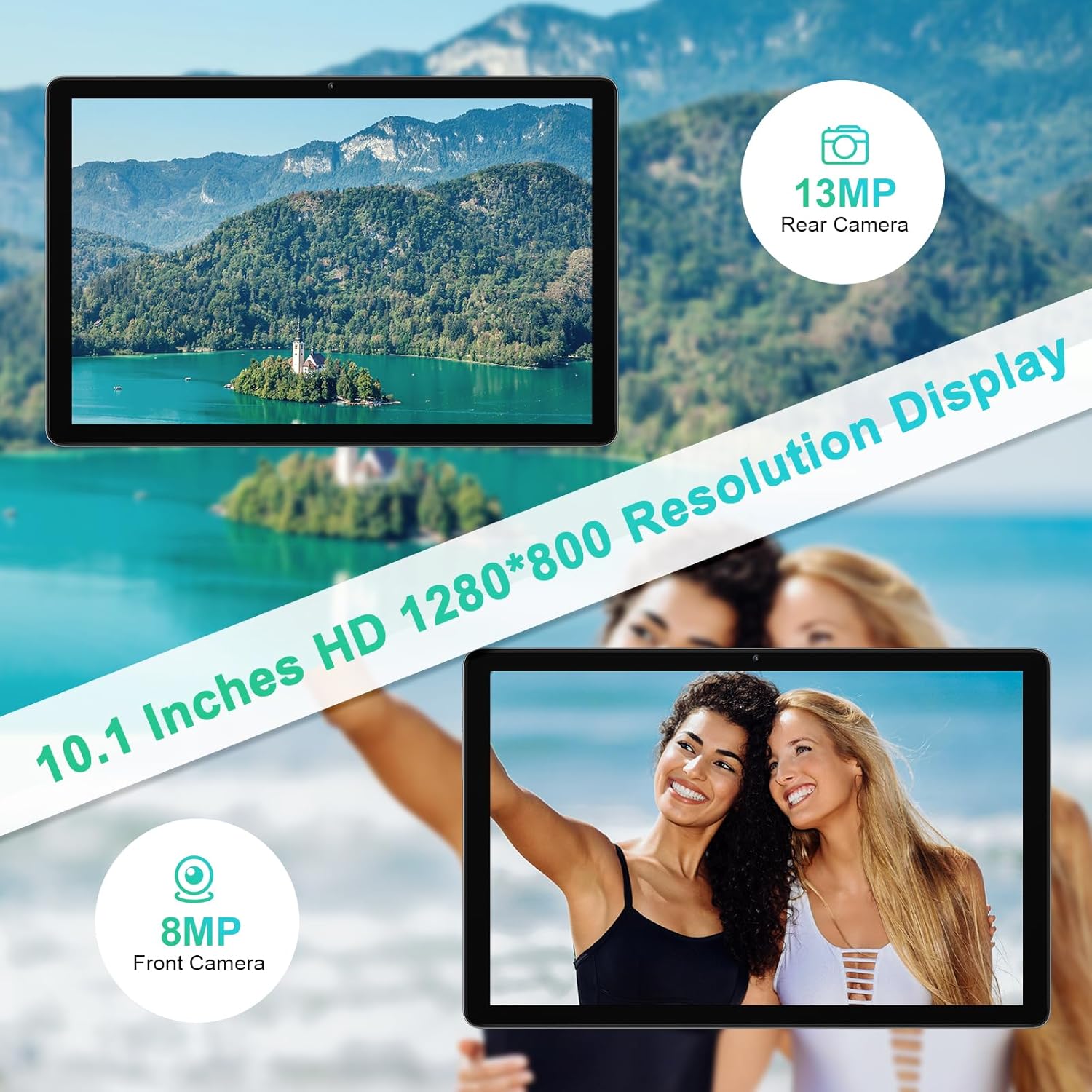
Image: The Blackview Tab 80 highlighting its 13MP rear and 8MP front cameras, along with its 10.1-inch HD 1280x800 resolution display.
2.5 Audio and Navigation
Experience immersive sound with the dual Smart-K BOX speakers. The tablet also supports multiple navigation systems including GPS, GLONASS, Galileo, and Beidou for accurate positioning.
3. Maintenance
3.1 Battery Care
- Avoid extreme temperatures.
- Do not let the battery drain completely before recharging regularly.
- Use only the provided charger or a certified compatible charger.
3.2 Software Updates
Regularly check for system updates to ensure your tablet has the latest features, security patches, and performance improvements. You can usually find this option in the tablet's settings under 'System' or 'About tablet'.
3.3 Cleaning Your Tablet
Use a soft, lint-free cloth to clean the screen and body of the tablet. Avoid using harsh chemicals or abrasive materials that could damage the surface.
4. Troubleshooting
4.1 Common Issues and Solutions
- Tablet not turning on: Ensure the battery is charged. Press and hold the power button for at least 10-15 seconds.
- Apps crashing or freezing: Close background applications. Clear app cache or data. Restart the tablet.
- Wi-Fi/Bluetooth connectivity issues: Toggle Wi-Fi/Bluetooth off and on. Restart your router/Bluetooth device. Forget and reconnect to the network/device.
- Slow performance: Close unused apps. Clear storage space. Consider a factory reset if issues persist after backing up data.
4.2 Factory Reset
If you encounter persistent software issues, a factory reset may resolve them. Warning: A factory reset will erase all data on your tablet. Back up important data before proceeding. Go to Settings > System > Reset options > Erase all data (factory reset).
5. Specifications
| Feature | Detail |
|---|---|
| Brand | Blackview |
| Model Name | TAB80 |
| Operating System | Android 13 |
| Processor | Octa-Core UNISOC T606 (1.6 GHz) |
| RAM | 16 GB (including extended RAM) |
| Internal Storage | 128 GB |
| Expandable Storage | Up to 1 TB via TF card |
| Screen Size | 10.1 Inches |
| Display Resolution | 1280 x 800 Pixels (HD) |
| Rear Camera | 13 MP |
| Front Camera | 8 MP |
| Battery Capacity | 7680 mAh (Lithium-polymer) |
| Connectivity | Dual 4G LTE, Wi-Fi (802.11a/b/g/n/ac), Bluetooth 5.0 |
| Navigation | GPS, GLONASS, Galileo, Beidou |
| Dimensions (L x W x H) | 24.6 x 17 x 0.85 cm |
| Weight | 500 grams |
6. Warranty and Support
The Blackview TAB 80 Tablet comes with a 24-month warranty. For any questions or product-related issues, please contact Blackview customer service via Amazon email or through their official support channels. Our professional technical team is available to provide prompt assistance and technical support.


