
Blackview Blackview Tab 80
Blackview Tab 80 10-inch Android 13 Tablet User Manual
Model: Blackview Tab 80
1. Introduction
Thank you for choosing the Blackview Tab 80. This tablet is designed to provide a versatile and powerful experience, featuring a 10.1-inch HD+ display, 16GB RAM, 128GB ROM, and the Android 13 operating system. Powered by an Octa-Core T606 processor, it supports Dual 4G LTE and 5G WiFi connectivity, ensuring smooth performance for various tasks from entertainment to productivity. This manual provides essential information on setting up, operating, maintaining, and troubleshooting your device to ensure optimal performance and longevity.

Figure 1.1: Blackview Tab 80 Tablet Overview. This image displays the sleek design of the tablet, highlighting its 16GB RAM, 128GB ROM, and Android 13 operating system.
2. Package Contents
Please check the box for the following items:
- Blackview TAB 80 Tablet
- Power Adapter
- User Manual
3. Device Layout
Familiarize yourself with the physical components of your Blackview Tab 80:
- Power Button: Located on the side, used to power on/off or wake/sleep the device.
- Volume Buttons: Adjust audio volume.
- USB Type-C Port: For charging and data transfer.
- 3.5mm Headphone Jack: For connecting wired headphones.
- SIM/TF Card Slot: Insert Nano-SIM cards for 4G LTE connectivity and a TF (microSD) card for storage expansion.
- Front Camera (8MP): For video calls and selfies.
- Rear Camera (13MP): For capturing photos and videos.
- Speakers: Dual Smart-K BOX speakers for audio output.

Figure 3.1: Key Features and Component Overview. This infographic provides a detailed look at the tablet's specifications, including camera resolution, memory, battery capacity, and connectivity options.

Figure 3.2: Battery and Port Details. This image highlights the tablet's 7680mAh battery and available ports, along with estimated usage durations for different activities.
4. Setup
4.1. Charging the Tablet
Before first use, fully charge your Blackview Tab 80. Connect the included power adapter to the USB Type-C port on the tablet and plug it into a power outlet. The 7680mAh battery ensures long-lasting performance.
4.2. Power On/Off
- To Power On: Press and hold the Power button until the Blackview logo appears.
- To Power Off: Press and hold the Power button until the power options appear, then select 'Power off'.
- To Sleep/Wake: Briefly press the Power button.
4.3. SIM and TF Card Installation
The Blackview Tab 80 supports dual 4G LTE SIM cards and TF (microSD) card expansion up to 2TB. Locate the SIM/TF card slot on the side of the tablet. Use the provided SIM ejector tool to open the tray. Carefully place your Nano-SIM card(s) and/or TF card into the designated slots, ensuring correct orientation. Gently push the tray back into the tablet until it clicks into place.
4.4. Initial Setup
Upon first power-on, the tablet will guide you through the initial setup process. This includes selecting your language, connecting to a Wi-Fi network, setting up your Google account, and configuring basic security settings. Follow the on-screen prompts to complete the setup.
5. Operating the Tablet
5.1. Navigation
The Blackview Tab 80 uses touch gestures for navigation:
- Tap: Select an item or open an app.
- Swipe: Scroll through screens or lists.
- Pinch-to-Zoom: Zoom in or out on images and web pages.
- Long Press: Access contextual menus or move icons.
5.2. Connectivity
Your tablet offers multiple connectivity options:
- Wi-Fi: Supports 2.4G and 5G Wi-Fi for fast internet access. Go to Settings > Network & internet > Wi-Fi to connect to a network.
- Bluetooth 5.0: Connect to wireless headphones, speakers, and other Bluetooth devices. Go to Settings > Connected devices > Connection preferences > Bluetooth.
- Dual 4G LTE: Insert SIM cards to make calls and access mobile data even without Wi-Fi.

Figure 5.1: Connectivity and Productivity. This image illustrates the tablet's capabilities for stable connections, web browsing, and streaming, powered by Dual 4G LTE, 2.4G/5G WiFi, and the Octa-Core T606 processor.
5.3. Display Features
The 10.1-inch HD+ display (1280x800 resolution) offers several features for enhanced viewing and eye comfort:
- Eye Protection Modes: Adjusts brightness and color temperature to reduce eye strain.
- PC Mode: Optimizes the interface for a desktop-like experience.
- Split-Screen View: Run two applications simultaneously side-by-side.

Figure 5.2: Display Features. This image highlights the tablet's display capabilities, including various viewing modes and security features.
5.4. Camera
Capture moments with the tablet's cameras:
- Rear Camera: 13 Megapixels, for high-resolution photos and videos.
- Front Camera: 8 Megapixels, ideal for video calls and selfies.
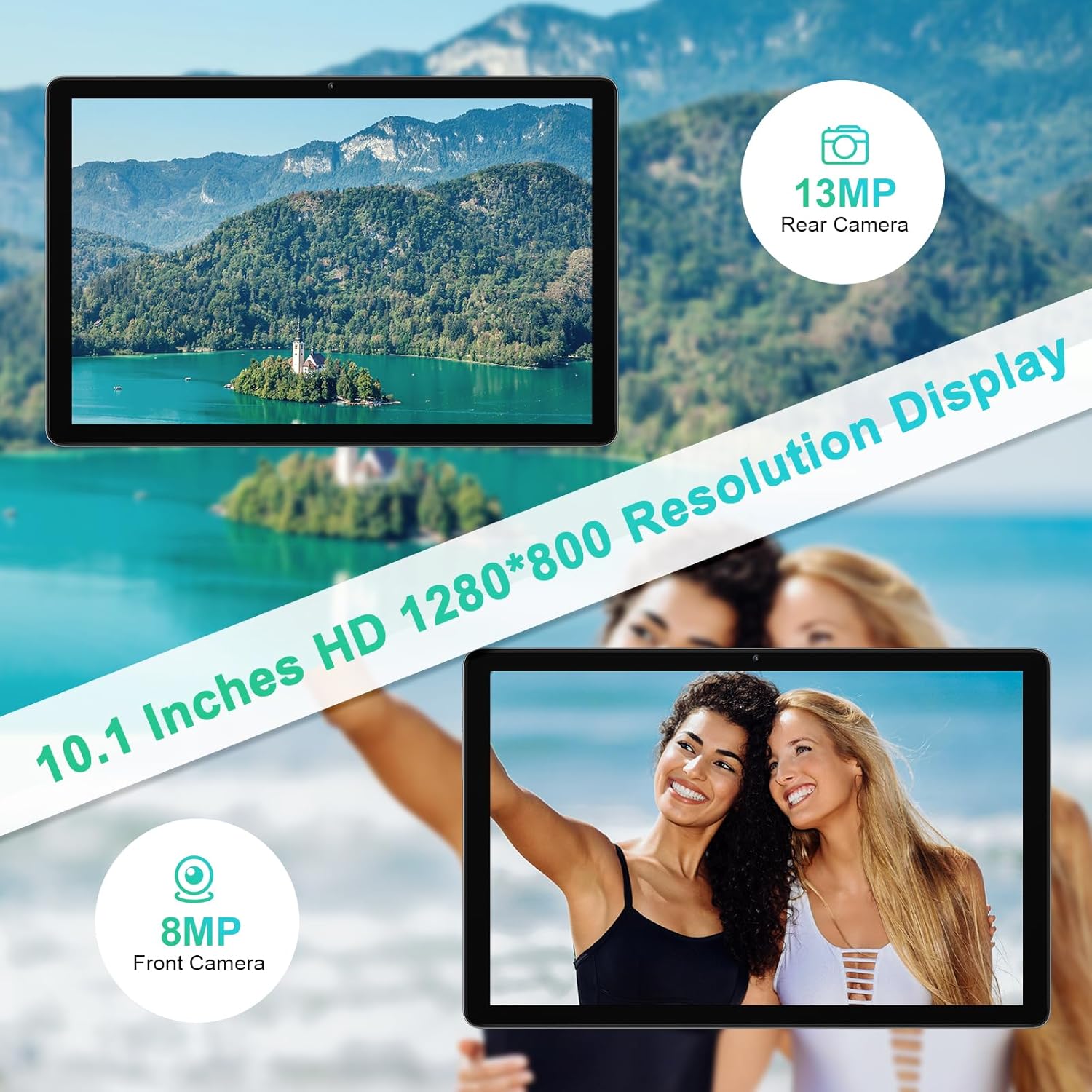
Figure 5.3: Camera Capabilities. This image demonstrates the clarity and resolution of the tablet's front and rear cameras.
5.5. Storage and Performance
The Blackview Tab 80 is equipped with:
- Internal Storage: 128GB ROM, providing ample space for apps, photos, and videos.
- Expandable Storage: Supports TF (microSD) cards up to 2TB.
- RAM: 16GB (including 8GB virtual memory), ensuring smooth multitasking and app performance.
- Processor: Octa-Core T606, for efficient and responsive operation.
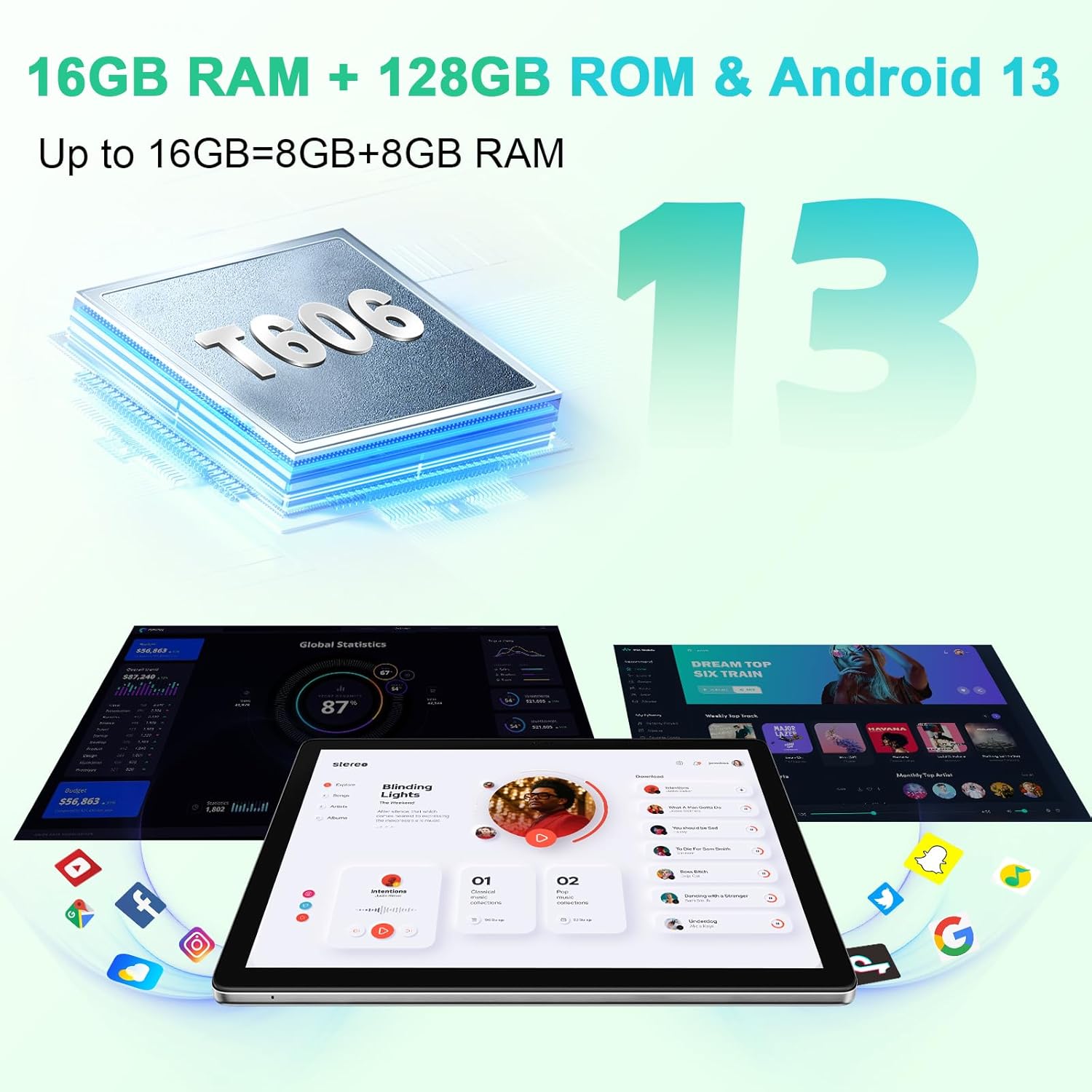
Figure 5.4: Memory and Processor. This image highlights the tablet's substantial RAM and ROM, along with its Android 13 operating system and T606 Octa-Core processor.
6. Maintenance
To ensure the longevity and optimal performance of your Blackview Tab 80, follow these maintenance guidelines:
- Cleaning: Use a soft, lint-free cloth to clean the screen and body. Avoid abrasive cleaners or solvents.
- Software Updates: Keep your tablet's software updated to the latest version of Android 13 and Doke OS_P 3.0 for security patches and new features. Check for updates in Settings > System > System update.
- Battery Care: Avoid extreme temperatures. Do not let the battery drain completely frequently, and avoid overcharging for extended periods.
- Storage Management: Regularly clear unnecessary files and uninstall unused apps to free up storage space and maintain performance.
7. Troubleshooting
If you encounter issues with your Blackview Tab 80, refer to the following common solutions:
| Problem | Possible Solution |
|---|---|
| Tablet does not power on | Ensure the battery is charged. Connect the charger and wait a few minutes before attempting to power on again. If unresponsive, press and hold the Power button for 10-15 seconds to force a restart. |
| Screen is unresponsive or frozen | Force restart the tablet by pressing and holding the Power button for 10-15 seconds. If the issue persists, consider a factory reset (backup data first). |
| Cannot connect to Wi-Fi/Bluetooth | Ensure Wi-Fi/Bluetooth is enabled in settings. Restart the tablet and the router/Bluetooth device. Forget the network/device and try reconnecting. |
| Slow performance | Close unused apps. Clear cache and data for frequently used apps. Check for system updates. Consider uninstalling large or unnecessary applications. |
| SIM card not detected | Ensure the SIM card is correctly inserted into the tray. Restart the tablet. Check if the SIM card is active with your carrier. |
If problems persist, please contact Blackview customer support.
8. Specifications
| Feature | Specification |
|---|---|
| Brand | Blackview |
| Model Number | Blackview Tab 80 |
| Operating System | Android 13 (with Doke OS_P 3.0) |
| Processor | Unisoc T606 Octa-Core |
| RAM | 16GB (8GB physical + 8GB virtual) |
| Internal Storage | 128GB |
| Expandable Storage | TF Card up to 2TB |
| Screen Size | 10.1 Inches |
| Display Resolution | 1280 x 800 HD+ |
| Rear Camera | 13 Megapixels |
| Front Camera | 8 Megapixels |
| Battery Capacity | 7680mAh |
| Connectivity | Dual 4G LTE, 5G WiFi (802.11ac), Bluetooth 5.0 |
| Ports | USB Type-C, 3.5mm Headphone Jack |
| Color | Grey |
| Dimensions (Package) | 31.1 x 20.9 x 5.2 cm |
| Weight (Package) | 850 grams |
9. Warranty and Support
Blackview offers a 24-month warranty for the Blackview Tab 80. If you have any questions or encounter problems with your product, please contact Blackview customer service. You can typically reach support via the Amazon messaging system or the contact information provided with your purchase. Please have your purchase details and model number ready when contacting support.
Ask a question about this manual
Ask about setup, troubleshooting, compatibility, parts, safety, or missing instructions. Manuals+ will review the question and use this page’s manual context to help answer it.