
T-Mobile TMOHS1
T-Mobile TMOHS1 4G LTE Portable WiFi Hotspot Device User Manual
Model: TMOHS1 | Brand: T-Mobile
Introduction
This user manual provides essential information for the safe and efficient operation of your T-Mobile TMOHS1 4G LTE Portable WiFi Hotspot Device. This device allows you to create a portable Wi-Fi hotspot, connecting up to 10 devices with dual-band Wi-Fi access. Its slim, portable, and lightweight design makes it ideal for on-the-go internet access.
What's Included
Upon unboxing your T-Mobile TMOHS1 Hotspot, please ensure all the following items are present:
- T-Mobile TMOHS1 Hotspot Device
- Rechargeable Battery (3000mAh)
- USB Type-C Charging Cable
- User Manual (this document)
- Instructions on how to set up
- Empty T-Mobile SIM Card (included inside device)
Product Features
- 4G LTE Connectivity: Provides high-speed internet access via T-Mobile's 4G LTE network.
- Multi-Device Connection: Supports connection for up to 10 devices simultaneously.
- Dual-Band Wi-Fi: Offers both 2.4GHz and 5GHz Wi-Fi frequencies for versatile connectivity.
- Long-Lasting Battery: Equipped with a 3000mAh battery for extended usage.
- Portable Design: Slim, lightweight, and compact for easy transport.
- USB Type-C Charging: Modern and convenient charging port.
- WPS Support: Simplifies Wi-Fi connection setup.
Setup Guide
1. Device Overview
Familiarize yourself with the key components of your T-Mobile TMOHS1 Hotspot.

Image: Front view of the T-Mobile TMOHS1 Hotspot with labels indicating the WPS button, LCD Home Screen, USB Type-C Charging Port, and Power Button.
2. Battery and SIM Card Installation
The T-Mobile TMOHS1 Hotspot requires a T-Mobile SIM card for cellular data connectivity. An empty T-Mobile SIM card is included inside the device. T-Mobile Internet service must be purchased separately and activated for the device to function.
- Locate the battery compartment cover on the back of the device.
- Gently remove the cover to access the battery slot and SIM card slot.
- If not already present, insert the T-Mobile SIM card into the designated SIM card slot. Ensure it is correctly oriented as indicated by the diagram near the slot.
- Insert the 3000mAh Lithium Ion Polymer Battery into the battery compartment, aligning the contacts properly.
- Replace the battery compartment cover, ensuring it clicks securely into place.

Image: Rear view of the T-Mobile TMOHS1 Hotspot's removable battery cover.
3. Charging the Device
Before initial use, fully charge the device's battery. The device can also power on automatically when connected to power, provided the battery is installed.
- Connect the supplied USB Type-C charging cable to the USB Type-C port on the side of the hotspot.
- Connect the other end of the cable to a compatible USB power adapter (not included) or a computer's USB port.
- The battery indicator light on the LCD screen will blink to indicate charging. It will become solid when fully charged.
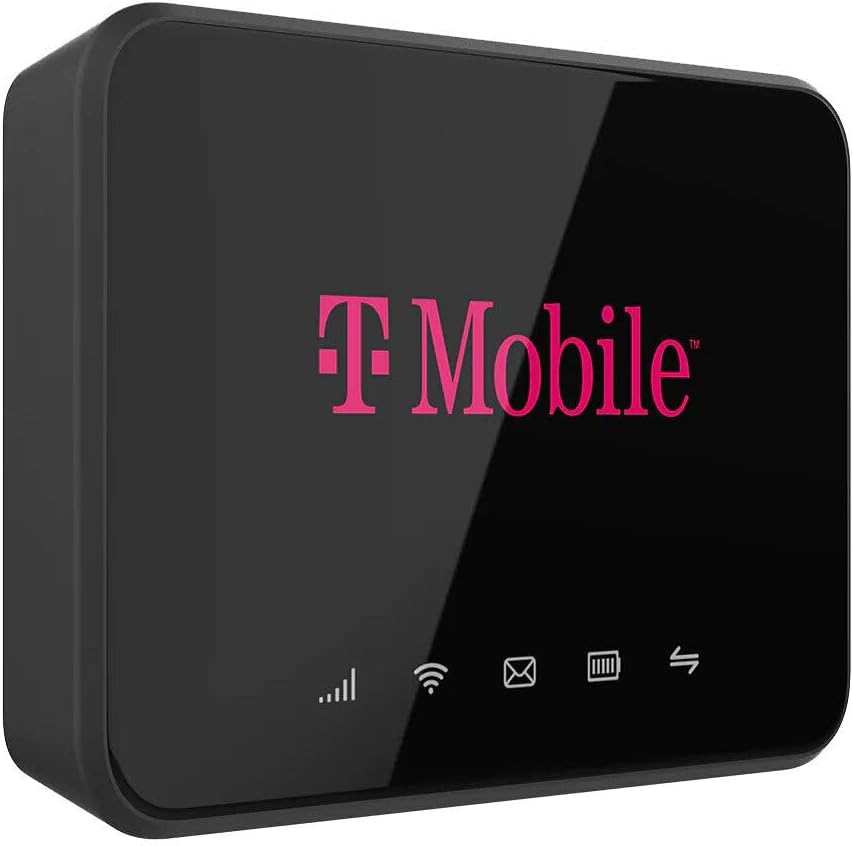
Image: Side view of the T-Mobile TMOHS1 Hotspot showing the USB Type-C charging port with a cable inserted.
4. Powering On/Off
- To Power On: Press and hold the Power Button (located on the side) for approximately 3 seconds until the T-Mobile logo appears on the screen. Alternatively, if the battery is installed, simply plug the device into a power source via the USB Type-C cable, and it will automatically power on.
- To Power Off: Press and hold the Power Button for approximately 3 seconds. A power-off prompt may appear on the screen; confirm to shut down.
Operating Instructions
1. Understanding Status Indicators
The LCD Home Screen displays various icons to provide real-time status information:
- Signal Strength: Bars indicate the strength of the 4G LTE cellular signal. More bars mean better signal.
- Wi-Fi Status: Indicates if Wi-Fi is active and if devices are connected.
- SMS Notification: An envelope icon indicates new SMS messages received on the hotspot's number.
- Battery Status: Shows the current battery level and charging status.
- Data Communication: Arrows indicate active data upload and download.

Image: Front view of the T-Mobile TMOHS1 Hotspot's display, showing active status indicators.
2. Connecting Devices to the Hotspot
To connect your Wi-Fi enabled devices (smartphones, tablets, laptops, etc.) to the T-Mobile TMOHS1 Hotspot:
- Ensure the hotspot is powered on and has an active T-Mobile data plan.
- On your device, go to the Wi-Fi settings.
- Search for available Wi-Fi networks. The hotspot's network name (SSID) and password are typically found on a sticker inside the battery compartment or on the device's packaging.
- Select the hotspot's SSID from the list.
- Enter the Wi-Fi password when prompted.
- Your device should now be connected to the internet via the hotspot.
Note: The hotspot supports both 2.4GHz and 5GHz Wi-Fi bands. Your devices will automatically connect to the most suitable band. Signal strength can vary depending on user location due to T-Mobile Towers.
3. Accessing the Web User Interface (WebUI)
For advanced settings and management, you can access the hotspot's WebUI:
- Connect your computer or mobile device to the hotspot's Wi-Fi network.
- Open a web browser (e.g., Chrome, Firefox, Safari).
- Enter the default IP address for the hotspot (usually found on a sticker inside the battery compartment or in the quick start guide) into the browser's address bar and press Enter.
- Log in using the default username and password (also found on the sticker).
- From the WebUI, you can manage settings such as Wi-Fi name (SSID), password, connected devices, data usage, and more.
Maintenance
- Cleaning: Use a soft, dry cloth to clean the exterior of the device. Avoid using liquid cleaners or aerosols.
- Battery Care: To prolong battery life, avoid exposing the device to extreme temperatures. If the device will not be used for an extended period, store it with a partial charge (around 50%) and recharge it every few months.
- Storage: Store the device in a cool, dry place away from direct sunlight and moisture.
Troubleshooting
| Problem | Possible Cause | Solution |
|---|---|---|
| Device does not power on. | Battery not installed or drained. | Ensure the battery is correctly installed and charged. This device requires the battery to be installed to power on, even when connected to USB power. |
| No internet connection. | No active T-Mobile data plan; poor cellular signal; incorrect SIM card installation. | Verify you have an active T-Mobile data plan. Check cellular signal strength on the device's display. Reinstall the SIM card. Move to an area with better signal coverage. |
| Cannot connect devices to Wi-Fi. | Incorrect Wi-Fi password; Wi-Fi disabled on hotspot. | Double-check the Wi-Fi password. Ensure Wi-Fi is enabled on the hotspot. Restart both the hotspot and the connecting device. |
| Slow internet speed. | Weak cellular signal; too many connected devices; network congestion. | Move to an area with stronger signal. Disconnect unnecessary devices. Try connecting to the 5GHz band if available and your device supports it. |
Specifications
| Feature | Detail |
|---|---|
| Model Name | T-Mobile TMOHS1 4G LTE Portable WiFi Hotspot Device |
| Item Model Number | TMOHS1 |
| Brand | T-Mobile |
| Connectivity Technology | LTE |
| Wireless Communication Standard | 802.11a |
| Frequency Band Class | Dual-Band (2.4GHz & 5GHz) |
| Battery Type | 1 Lithium Ion Polymer Battery (3000mAh) |
| Max Connected Devices | Up to 10 |
| Special Feature | WPS |
| Color | Pink |
| Item Weight | 9.5 ounces |
| Package Dimensions | 5.63 x 3.5 x 2.01 inches |
| Recommended Uses | Business, Gaming, Home |
Warranty and Support
For warranty information and technical support, please refer to the official T-Mobile website or contact T-Mobile customer service directly. Keep your purchase receipt for warranty claims.
Note: T-Mobile Internet service must be purchased separately. This device is designed to work exclusively with T-Mobile carriers and will not function with other carriers.
Related documentsTMOHS1

Ask a question about this manual
Ask about setup, troubleshooting, compatibility, parts, safety, or missing instructions. Manuals+ will review the question and use this page’s manual context to help answer it.