
Introduction
The SteelSeries Arctis 7X+ Wireless headset is engineered to deliver next-generation audio performance, extended battery life, and superior comfort across multiple gaming platforms. This manual provides essential information for setting up, operating, maintaining, and troubleshooting your headset to ensure optimal performance.
Key features include:
- Designed for Xbox Series X|S: Optimized for seamless integration with Xbox Series X|S, Xbox One, PC, PlayStation, Mac, Android, Oculus Quest 2, and Switch.
- Extreme Versatility: Features a compact USB-C dongle for easy transition between compatible devices.
- Extended Battery Life: Up to 30 hours of continuous wireless usage on a single charge.
- USB-C Charging: Modern USB-C port with quick charge capability (15 minutes for 3 hours of playtime).
- Award-Winning Arctis Sound Quality: Equipped with high-quality speaker drivers for precise audio.
- ClearCast Noise Cancelling Microphone: Retractable, bidirectional microphone for clear communication with superior noise cancellation.

Figure 1: The SteelSeries Arctis 7X+ Wireless Headset with its accompanying USB-C wireless dongle.
Setup and Connection
1. Charging the Headset
Before initial use, fully charge your Arctis 7X+ headset. Connect the supplied USB-C charging cable to the headset's USB-C port and the other end to a powered USB port (e.g., on your console, PC, or a USB wall adapter). The LED indicator on the headset will show charging status and battery level.
- A full charge provides approximately 30 hours of playtime.
- A 15-minute quick charge can provide up to 3 hours of playtime.
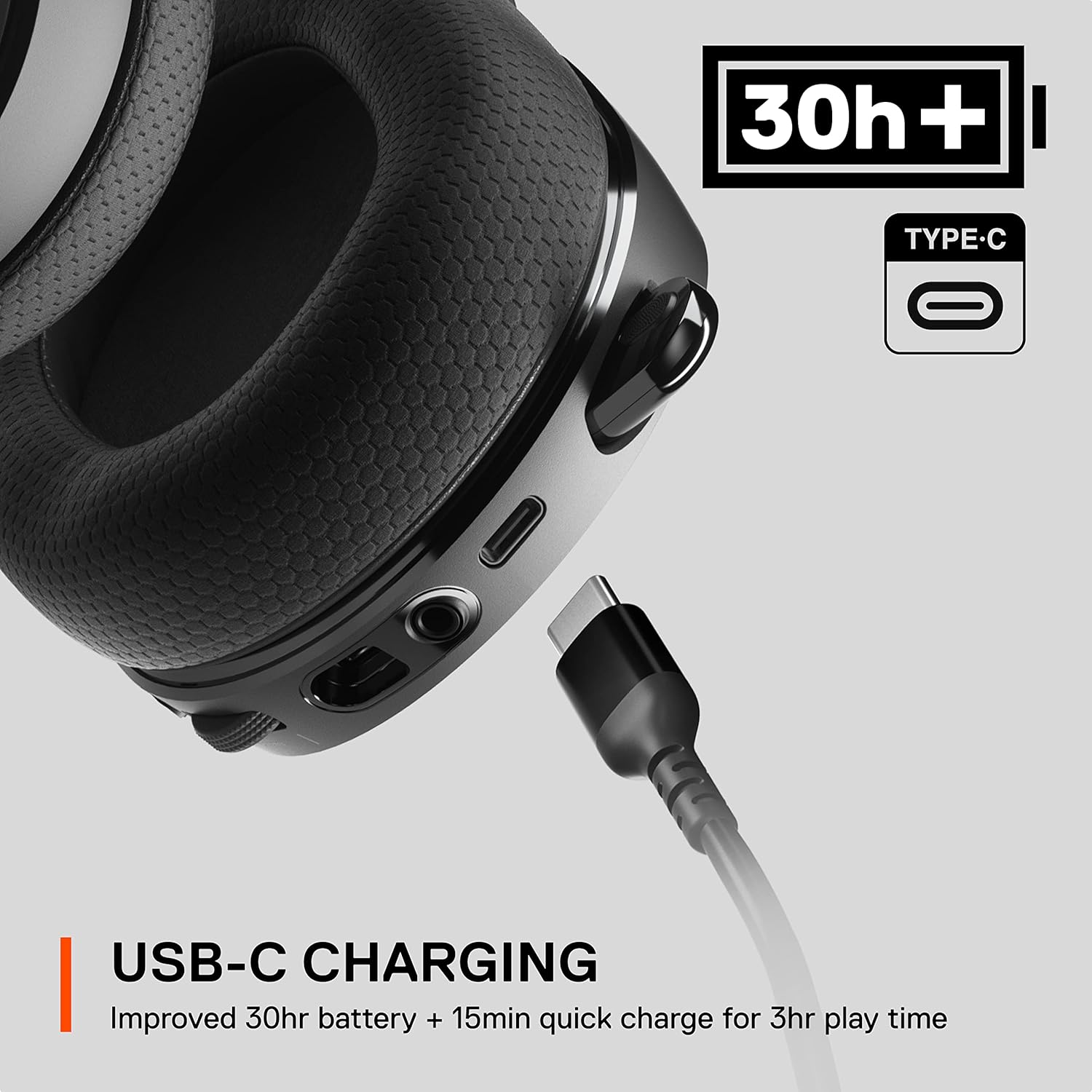
Figure 2: Close-up view of the USB-C charging port on the Arctis 7X+ headset.
2. Connecting the Wireless Dongle
The Arctis 7X+ uses a compact USB-C wireless dongle for connectivity. This dongle features a switch to select between Xbox mode and USB mode (for PC, PlayStation, Switch, etc.).
- For Xbox Series X|S / Xbox One: Set the switch on the dongle to "Xbox". Insert the USB-C dongle directly into an available USB-C port on your Xbox console. If your console only has USB-A ports, use the included USB-A adapter cable.
- For PC / PlayStation / Switch / Android / Oculus Quest 2: Set the switch on the dongle to "USB". Insert the USB-C dongle into an available USB-C port on your device. Use the USB-A adapter cable if only USB-A ports are available.
Once the dongle is connected, power on your headset. The headset should automatically connect to the dongle, indicated by a solid light on the headset.

Figure 3: The multi-platform wireless dongle, showing its compact design and compatibility with various systems.
3. Software Installation (PC Users)
For PC users, it is recommended to download and install the SteelSeries GG software suite from the official SteelSeries website. This software provides access to advanced audio customization, including the Sonar audio suite for virtual surround sound, equalizer settings, and microphone adjustments, enhancing your gaming experience.
Operating the Headset
1. On-Ear Controls
The Arctis 7X+ features intuitive on-ear controls for quick adjustments during gameplay:
- Volume Dial: Located on the left earcup, rotate to adjust the overall audio volume.
- ChatMix Dial: Located on the right earcup, this dial allows you to balance game audio and chat audio. Rotate towards "Game" to increase game volume relative to chat, or towards "Chat" to increase chat volume relative to game.
- Microphone Mute Button: A physical button on the left earcup to quickly mute/unmute the microphone. The microphone LED will illuminate when muted.
- Sidetone Dial: Located on the right earcup, this dial controls the amount of your own voice you hear through the headset, allowing you to monitor your microphone input.
- Power Button: Press and hold to power the headset on or off. A short press can indicate battery status.

Figure 4: View of the on-ear controls, including the volume dial and microphone mute button.

Figure 5: Close-up of the sidetone dial on the right earcup.
2. ClearCast Retractable Microphone
The Arctis 7X+ features a Discord Certified ClearCast microphone. This bidirectional microphone is designed for superior noise cancellation, ensuring your voice is transmitted clearly and naturally.
- To use the microphone, gently pull it out from the left earcup until it extends fully.
- To retract, push the microphone back into the earcup until it is flush.
- Ensure the microphone is positioned close to your mouth for optimal voice pickup.
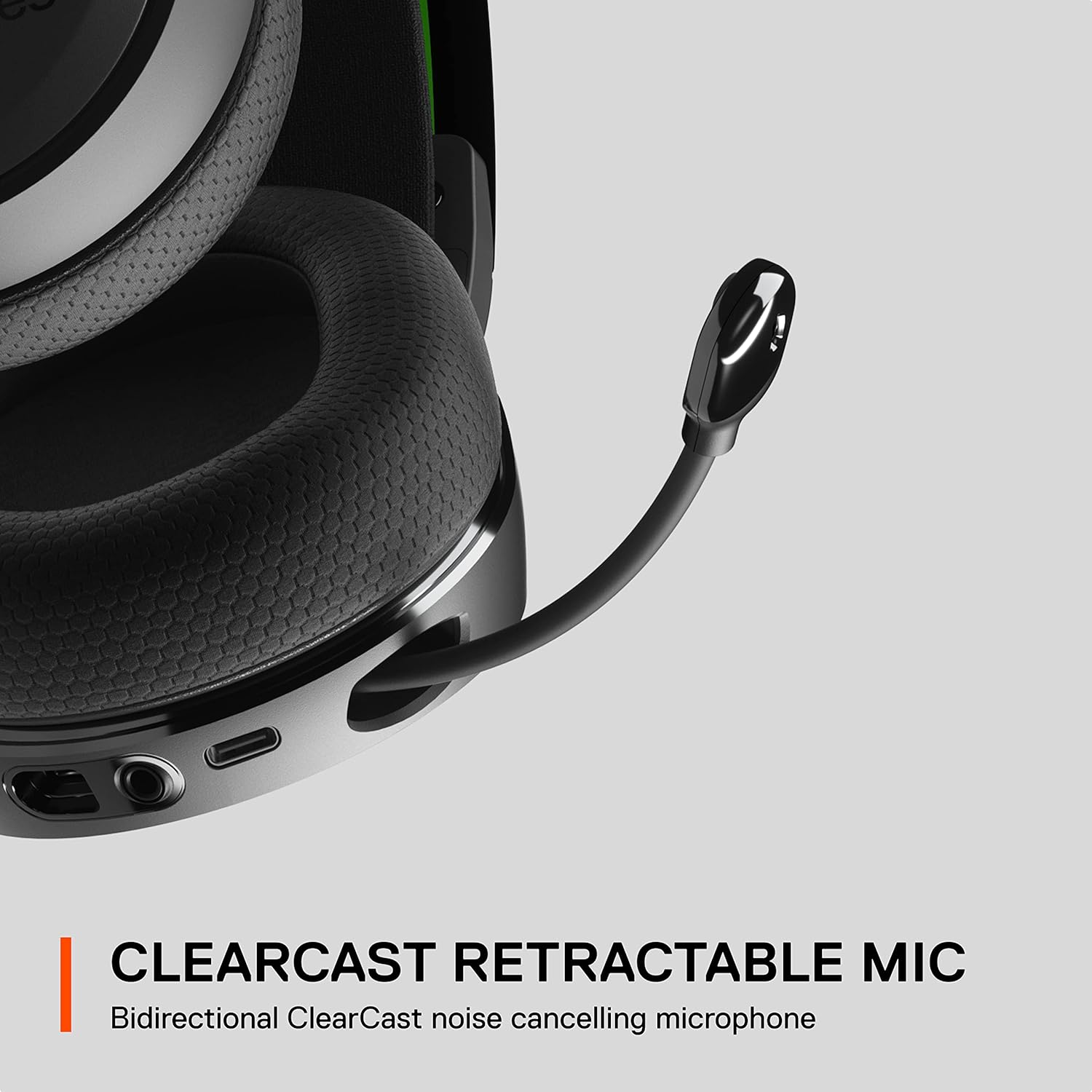
Figure 6: The retractable ClearCast microphone extended from the left earcup.
3. Audio Experience with Sonar
When used with the SteelSeries GG software on PC, the Arctis 7X+ can leverage Sonar 7.1 Virtual Surround Sound. This technology provides 360-degree precision spatial audio, allowing you to pinpoint in-game sounds with greater accuracy.
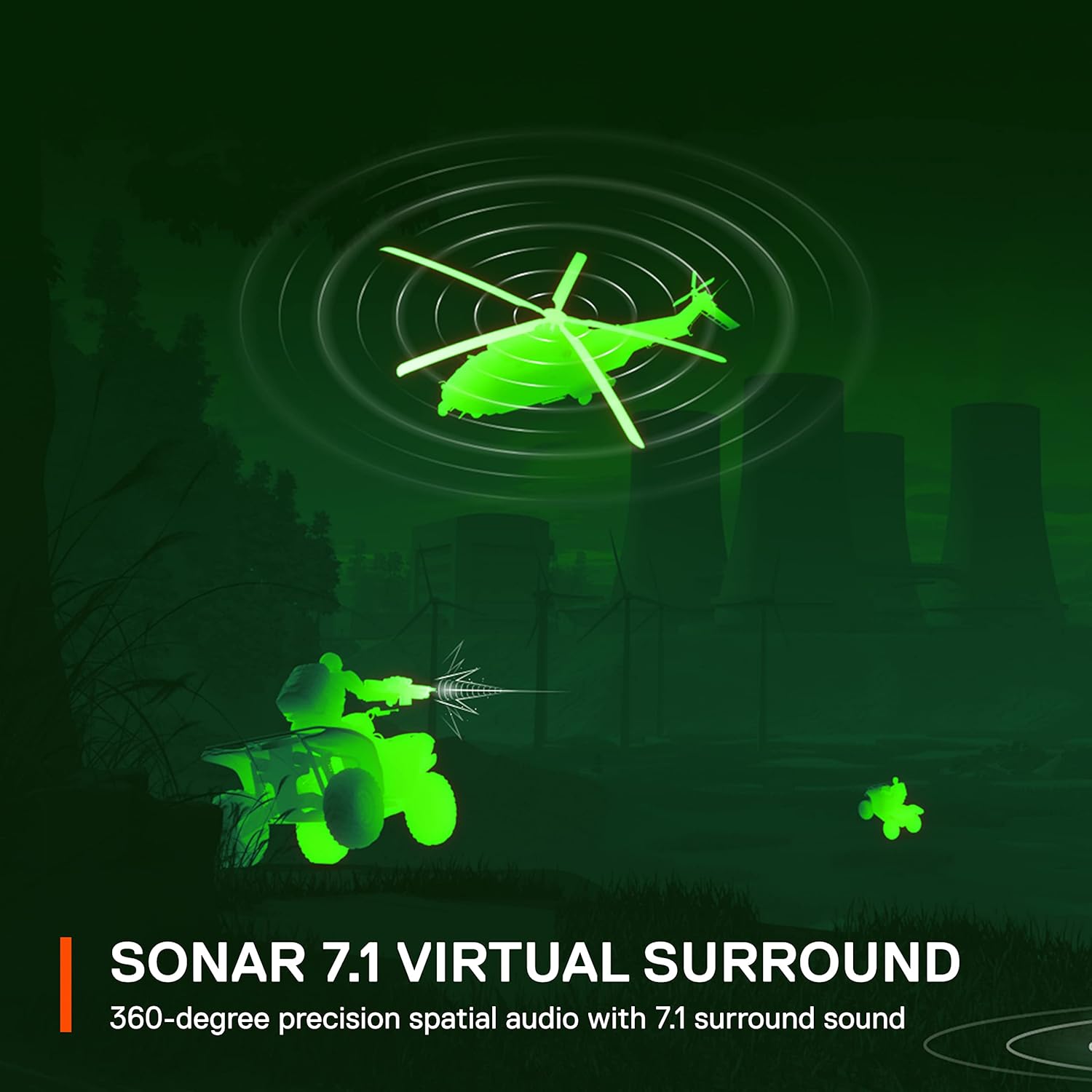
Figure 7: Visual representation of Sonar 7.1 Virtual Surround Sound, illustrating spatial audio awareness.
Maintenance
1. Cleaning
- Use a soft, dry cloth to wipe down the earcups and headband.
- For stubborn dirt, slightly dampen the cloth with water. Avoid using harsh chemicals or abrasive materials.
- Do not immerse the headset or any components in water.
2. Battery Care
- To prolong battery life, avoid fully discharging the headset frequently.
- Store the headset in a cool, dry place when not in use for extended periods.
- Charge the headset regularly, even if not used daily, to maintain battery health.
3. Comfort and Durability
The Arctis 7X+ is built with a durable lightweight steel frame and features a suspension comfort band for extended wear. The ear cushions and headstrap are designed to be swappable, allowing for replacement in case of wear and tear, contributing to the headset's longevity.

Figure 8: Close-up of the durable steel frame and adjustable suspension headband, designed for comfort.
Troubleshooting
If you encounter issues with your SteelSeries Arctis 7X+ headset, please refer to the following common solutions:
- No Audio / Low Volume:
- Ensure the headset is powered on and connected to the dongle.
- Check the volume dial on the headset and your device's audio settings.
- Verify the dongle's switch is set to the correct platform (Xbox or USB).
- For PC, check audio output device settings and SteelSeries GG software.
- Microphone Not Working:
- Ensure the microphone is fully extended and not muted (check the mute button and microphone LED).
- Check your device's input audio settings to ensure the headset microphone is selected.
- For PC, check microphone settings in SteelSeries GG software.
- Connection Issues:
- Ensure the dongle is securely plugged into your device.
- Try unplugging and re-plugging the dongle.
- Power cycle the headset (turn off, then on again).
- Ensure no other wireless devices are causing interference.
- Battery Not Charging:
- Verify the USB-C cable is properly connected to both the headset and a powered USB port.
- Try a different USB-C cable or USB port.
For further assistance, please visit the official SteelSeries support website.
Specifications
| Feature | Detail |
|---|---|
| Model Name | Arctis 7X+ |
| Connectivity Technology | Wireless (2.4GHz) |
| Wireless Communication Technology | Bluetooth (for mobile devices) |
| Compatible Devices | Xbox Series X, Xbox Series S, Xbox One, Personal Computer, PlayStation, Mac, Android, Oculus Quest 2, Switch |
| Battery Life | Up to 30 Hours |
| Charging Time (Quick Charge) | 15 minutes for 3 hours playtime |
| Microphone | Retractable ClearCast Noise Cancelling |
| Material | Steel (frame) |
| Product Dimensions | 8.15 x 8.27 x 2.07 inches |
| Item Weight | 1.59 pounds |
| UPC | 810052982687 |
| Item Model Number | 61472 |
Warranty and Support
For detailed warranty information, product registration, and technical support, please visit the official SteelSeries website. You can find FAQs, driver downloads, and contact information for customer service there.
Official SteelSeries Website: steelseries.com/support


