
1. Introduction
Thank you for choosing Lightinginside Smart LED Bulbs. These bulbs offer advanced lighting control, including voice commands, color changing capabilities, and smart automation, all without requiring a separate hub. This manual provides essential information for installation, operation, and maintenance to ensure optimal performance and safety.

Image: Six Lightinginside Smart LED Bulbs, highlighting their smart features and compatibility.
2. What's in the Box
- 6* Smart Bulbs
- User Manual
3. Setup Instructions
3.1 Installation
- Ensure the power to the light fixture is turned off before installation.
- Carefully screw the Lightinginside Smart LED Bulb into a standard E26 socket.
- Turn on the power to the light fixture. The bulb will begin to blink, indicating it is in pairing mode.
3.2 App Download & Pairing
The Lightinginside Smart LED Bulbs use the free Smart Life app for control. A 2.4GHz Wi-Fi network and Bluetooth are required for initial pairing.
- Download the "Smart Life - Smart Living" app from your device's app store (iOS or Android).
- Open the Smart Life app and tap the '+' icon to add a device.
- The app will automatically detect the blinking bulb. Follow the on-screen prompts to connect the bulb to your 2.4GHz Wi-Fi network.
- Once successfully paired, the bulb will stop blinking and remain steadily lit.

Image: Step-by-step guide for setting up the smart bulbs using the Smart Life app and integrating with voice assistants.
3.3 Voice Assistant Integration
After pairing with the Smart Life app, you can link your bulbs to Alexa or Google Assistant for voice control.
- In the Smart Life app, navigate to the bulb's settings and select the option to integrate with Alexa or Google Assistant.
- Follow the instructions within the Smart Life app to link your account with your chosen voice assistant.
- Once linked, you can use voice commands to control your bulbs.
Video: A user demonstrates the initial setup process, emphasizing the importance of having lights in the ON position for pairing.
4. Operating Instructions
4.1 Voice Control
Use simple voice commands with Alexa or Google Assistant to control your lights hands-free.
- "Alexa, turn on the kitchen light."
- "Hey Google, dim bedroom light to 50%."
- "Alexa, change living room light to blue."

Image: Voice control demonstration with Alexa and Google Assistant.
4.2 App Control
The Smart Life app provides comprehensive control over your bulbs.
- Color Changing: Choose from over 16 million RGB colors.
- Tunable White: Adjust white light from 2700K (warm) to 6500K (cool).
- Dimming: Adjust brightness from 1% to 100%.
- Scenes: Select from default scenes or create custom scenes for various moods and occasions.
- Music Sync: Sync your lights to the beat of your music (Smart Life App only).
- Group Control: Control multiple bulbs simultaneously by grouping them in the app.
- Scheduling & Automation: Set schedules, timers, and biorhythm functions for automated lighting.
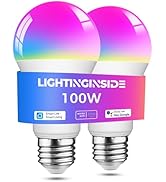
Image: Smart Life app interface showing 16 million color options.
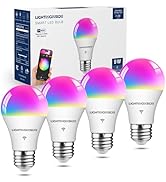
Image: Smart Life app interface showing tunable white light options (2700K-6500K).

Image: Dimmable feature of the smart bulbs, adjustable from 1% to 100% brightness.

Image: Group control functionality, allowing multiple bulbs to be managed together.
Image: Music Sync feature, where lights change to the beat of music.
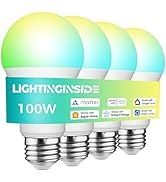
Image: Schedule and Automation features for setting timed light operations.
Video: An overview of Lightinginside WiFi Smart Light Bulbs, showcasing various features and applications.
5. Features
- Voice Control: Compatible with Alexa and Google Assistant for hands-free operation.
- Faster Setup: Upgraded 2nd-generation Bluetooth + Wi-Fi dual-channel chip for quicker and more reliable pairing.
- Flexible Configuration: Connect locally via Bluetooth or Wi-Fi, with remote control via Wi-Fi. Bulbs intelligently switch between connection types.
- Always Connected: Local control via Bluetooth is available even if Wi-Fi is temporarily unavailable.
- Automated Lighting: Utilize schedules, timers, plans, and biorhythm functions within the Smart Life App.
- Tunable White & RGB: Access over 16 million RGB colors and tunable white light from 2700K to 6500K, including default and custom scenes.
- No Hub Required: Direct connection to a 2.4 GHz WiFi network via the Smart Life App.
- Energy Saving: 9W LED (60W equivalent) design with dimming functions contributes to reduced energy consumption.

Image: Highlighting the 'No Hub Required' feature for easy setup.

Image: Illustrating the upgraded Wi-Fi & Bluetooth combo chips for flexible and seamless connectivity.
6. Specifications
| Attribute | Value |
|---|---|
| Brand | Lightinginside |
| Model Name | A19 (LYS-018) |
| Light Type | LED |
| Wattage | 9 Watts |
| Incandescent Equivalent | 60 Watts |
| Brightness | 800 Lumens |
| Bulb Shape Size | A19 |
| Bulb Base | E26 |
| Light Color | Multicolor (RGBCW) |
| Color Temperature | 2700-6500 Kelvin |
| Color Rendering Index (CRI) | 90 |
| Voltage | 120 Volts (AC) |
| Accepted Voltage Frequency | 100 to 120 Volts and 60 Hertz |
| Control Method | App, Voice |
| Connectivity | 2.4GHz WiFi, Bluetooth |
| Average Life | 25000 Hours |
| Indoor/Outdoor Usage | Indoor |
| Certifications | ETL, FCC, RoHS |
| Product Dimensions | 2.36"W x 4.17"H |
| Item Weight | 10.2 ounces (for 6-pack) |
7. Troubleshooting
7.1 Bulb is Blinking During Setup
This is normal. The blinking indicates the bulb is in pairing mode and ready to be connected to the Smart Life app. If it stops blinking unexpectedly, power cycle the bulb (turn off and on quickly 3-5 times) to re-enter pairing mode.
7.2 Connectivity Issues
- Ensure your Wi-Fi network is 2.4GHz. These bulbs do not support 5GHz networks.
- Verify your Bluetooth is enabled on your smartphone during the initial pairing process.
- If Wi-Fi goes down, local control via Bluetooth should still be available.
- If the bulb loses connection, try power cycling it (turn off and on quickly 3-5 times) to reset and re-establish connection.
7.3 Unexpected On/Off or Color Changes
- Check your Smart Life app for any active schedules, timers, or automation rules that might be causing the behavior.
- Review settings in linked voice assistant apps (Alexa, Google Home) for conflicting routines.
- Ensure the bulb is not connected to a dimmer switch, as this can cause flickering or unpredictable behavior.
8. Maintenance
- Cleaning: Ensure the bulb is off and cool before cleaning. Wipe with a soft, dry cloth. Do not use liquid cleaners.
- Storage: Store bulbs in a cool, dry place when not in use.
- Handling: Handle bulbs with care to avoid damage.
9. Safety Information
- For indoor use only.
- Do not use with standard dimmer switches, as this may cause flickering, buzzing, or damage to the bulb. Control dimming via the Smart Life app or voice assistant.
- Ensure the power is off before installing or removing the bulb.
- Do not disassemble the bulb.
- Keep out of reach of children.
10. Warranty & Support
Lightinginside products come with a 2-Year Warranty. For technical support or warranty claims, please contact Lightinginside customer service.
Customer Service: 877-522-8599 (Weekdays 8am-5pm PDT)
Lightinginside focuses on designing and offering smart lighting devices and accessories to help customers enjoy a smarter life.


