
Redragon C218
Redragon C218 Dual Tower CPU Air Cooler User Manual
Model: C218
Introduction
Thank you for choosing the Redragon C218 Dual Tower CPU Air Cooler. This manual provides essential information for the proper installation, operation, and maintenance of your new CPU cooler. The C218 is designed to deliver superior cooling performance for your CPU, featuring a dual-tower heatsink, six heat pipes, and a powerful 120mm A-RGB PWM fan. Please read this manual thoroughly before installation to ensure optimal performance and longevity of your product.

Figure 1: Redragon C218 Dual Tower CPU Air Cooler, front view.
Safety Information
Please observe the following safety precautions to prevent damage to the product or injury to yourself:
- Always disconnect power from your computer before installing or performing maintenance on the CPU cooler.
- Handle the cooler by its heatsink and fan assembly. Avoid touching the copper coldplate directly to prevent contamination.
- Be careful when handling sharp edges of the heatsink fins.
- Keep out of reach of children.
- Ensure proper grounding to prevent electrostatic discharge (ESD) damage to components.
- Do not attempt to modify the cooler. Unauthorized modifications may void your warranty and pose safety risks.
Package Contents
Verify that all items are present in the package:
- Redragon C218 CPU Cooler (with pre-attached fans)
- Installation Kit (includes mounting brackets for Intel and AMD, screws, and thermal paste)
If any items are missing or damaged, please contact Redragon customer support.
Setup and Installation
The Redragon C218 supports a wide range of Intel and AMD sockets. Please identify your CPU socket type and follow the corresponding installation steps.
General Preparation:
- Power off your computer and disconnect all cables.
- Open your computer case and locate the CPU socket on the motherboard.
- Remove any existing CPU cooler. Clean the CPU surface thoroughly with isopropyl alcohol to remove old thermal paste.
- Carefully remove the protective film from the copper coldplate of the C218 cooler.
Applying Thermal Paste:
Apply a small, pea-sized amount of the included thermal paste to the center of your CPU's Integrated Heat Spreader (IHS). The pressure from the cooler will spread it evenly.

Figure 2: Illustration of the six copper heat pipes designed for superb thermal conductivity.
Mounting Bracket Installation:
Select the appropriate mounting brackets for your CPU socket (Intel LGA 2066/2011v3/2011/1700/1200/1151/1150/1155 or AMD AM5/AM4). Attach them to the cooler base using the provided screws. Refer to the diagrams in the installation kit for specific bracket orientation.

Figure 3: The Redragon C218 cooler is compatible with both AMD and Intel platforms.
Securing the Cooler:
Carefully align the cooler with the mounting holes on your motherboard. Gently lower the cooler onto the CPU, ensuring the coldplate makes full contact. Secure the cooler by tightening the mounting screws in a diagonal pattern until snug. Do not overtighten.

Figure 4: The C218 cooler installed within a PC chassis, showcasing its compact fit.

Figure 5: Top-down view of the C218 cooler installed, highlighting its dual-tower design and RGB lighting.
Connecting the Fan and RGB Cables:
- Connect the 4-pin PWM fan cable from the cooler to the CPU_FAN header on your motherboard.
- Connect the A-RGB cable to a compatible 3-pin 5V A-RGB header on your motherboard. Ensure correct pin alignment to prevent damage.
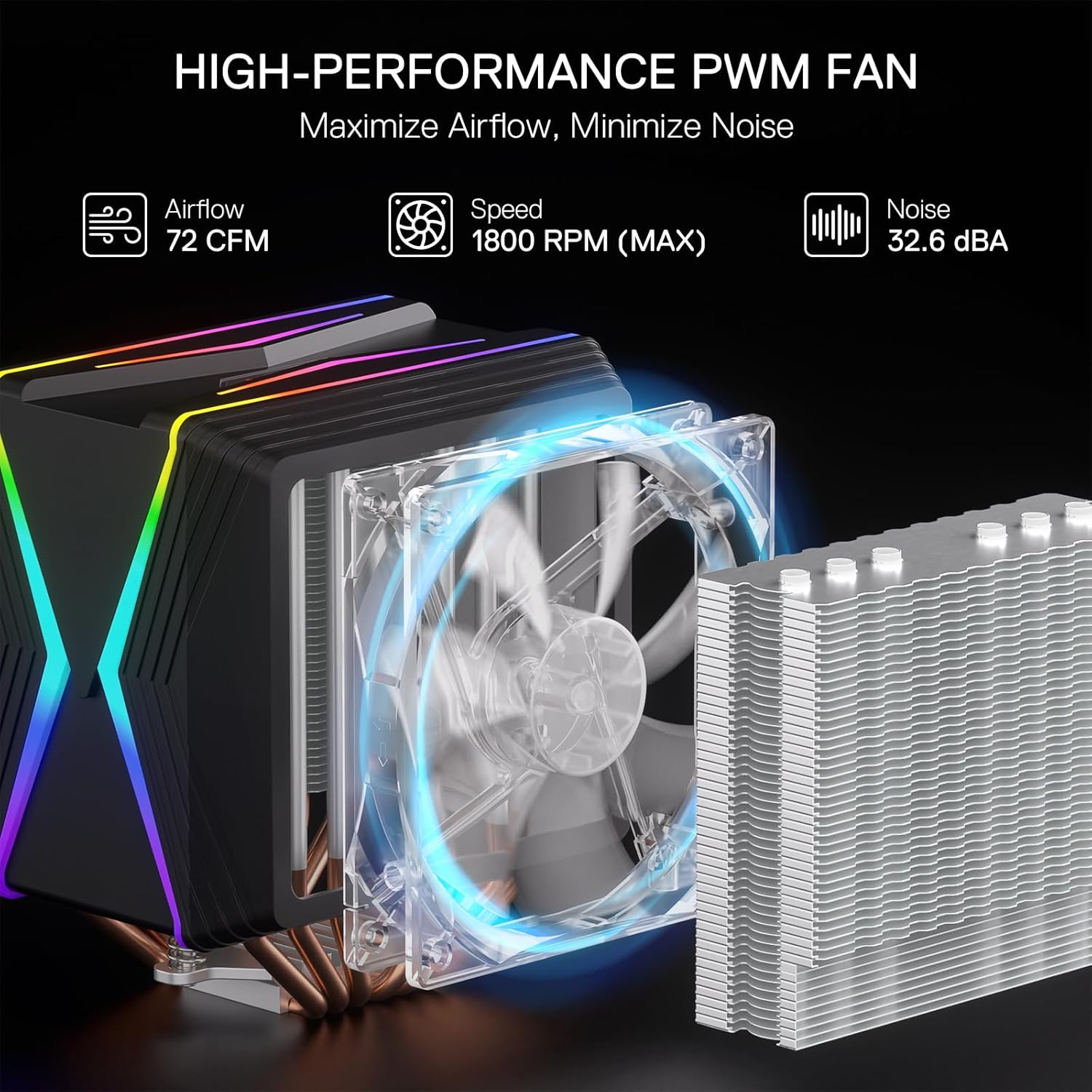
Figure 6: The high-performance 120mm PWM fan, designed for optimal airflow and minimal noise.

Figure 7: The C218 cooler showcasing its Addressable RGB (A-RGB) lighting effects.
Operating Instructions
Fan Control (PWM):
The 120mm fan on the C218 cooler utilizes Pulse Width Modulation (PWM) technology. This allows your motherboard to dynamically control the fan speed based on CPU temperature, ensuring efficient cooling while minimizing noise. You can typically configure fan curves in your motherboard's BIOS/UEFI settings or through motherboard-specific software.
- Low Noise Operation: At lower CPU temperatures, the fan will spin at reduced RPMs (e.g., 700 RPM), resulting in quiet operation.
- High Performance: Under heavy CPU load, the fan speed will increase up to 1800 RPM to provide maximum airflow (up to 72 CFM) and dissipate heat effectively.
A-RGB Lighting Control:
The A-RGB lighting on the C218 is controlled via your motherboard's 3-pin 5V A-RGB header. Most modern motherboards come with software that allows you to customize lighting effects, colors, and synchronization with other A-RGB components. Refer to your motherboard's manual for specific instructions on A-RGB software and control.
Maintenance
Regular maintenance helps ensure optimal performance and extends the lifespan of your CPU cooler:
- Dust Removal: Periodically (every 3-6 months, or more frequently in dusty environments), use compressed air to blow dust out of the heatsink fins and fan blades. Ensure the fan is held stationary while blowing to prevent over-spinning and potential damage.
- Fan Cleaning: If dust buildup is significant on the fan blades, gently wipe them with a soft, dry cloth.
- Thermal Paste: While not typically required frequently, if you remove the cooler for any reason, it is recommended to clean off the old thermal paste from both the CPU and the cooler's coldplate and apply fresh thermal paste before reinstallation.
Troubleshooting
| Problem | Possible Cause | Solution |
|---|---|---|
| CPU temperature is high. |
|
|
| Fan is noisy. |
|
|
| A-RGB lighting not working. |
|
|
Specifications
| Feature | Detail |
|---|---|
| Model Number | C218 |
| Product Dimensions (L x W x H) | 5.47" x 4.45" x 6.46" (139mm x 113mm x 164.3mm) |
| Weight | 2.49 Pounds |
| Cooling Method | Air Cooling |
| Heat Pipes | 6 Copper Heat Pipes |
| Fan Size | 120mm |
| Fan Speed | 700-1800 RPM (PWM) |
| Air Flow Capacity | 72 CFM (Max) |
| Noise Level | 32.6 dB (Max) |
| Power Connector Type | 4-Pin PWM (Fan), 3-Pin 5V (A-RGB) |
| Voltage | 12 Volts |
| Wattage | 9 Watts |
| Compatible Sockets | Intel LGA 2066/2011v3/2011/1700/1200/1151/1150/1155, AMD AM5/AM4 |

Figure 8: Detailed dimensions of the Redragon C218 CPU cooler.
Warranty and Support
The Redragon C218 CPU Air Cooler comes with a 5-year warranty, covering defects in materials and workmanship from the date of purchase. This warranty does not cover damage caused by accident, misuse, abuse, neglect, improper installation, or unauthorized modification.

Figure 9: Redragon offers a 5-year warranty for the C218 CPU cooler.
For technical support, warranty claims, or further assistance, please visit the official Redragon website or contact their customer service department. Please have your product model number (C218) and proof of purchase ready when contacting support.
Redragon Official Website: www.redragonusa.com
Related documentsC218


Ask a question about this manual
Ask about setup, troubleshooting, compatibility, parts, safety, or missing instructions. Manuals+ will review the question and use this page’s manual context to help answer it.