
cimetech K116-Black
cimetech Bluetooth Keyboard and Mouse User Manual
Model: K116-Black
Introduction
Thank you for choosing the cimetech Bluetooth Keyboard and Mouse combo. This ultra-slim, wireless set is designed to provide a comfortable and efficient typing and navigation experience across various devices. Featuring silent scissor-switch keys and an adjustable DPI mouse, this product is ideal for PC, Laptop, Mac, and other compatible systems. Please read this manual carefully to ensure proper setup and operation.
Package Contents
- 1 x cimetech Bluetooth Keyboard
- 1 x cimetech Bluetooth Mouse
- 2 x AAA Batteries (pre-installed in keyboard)
- 1 x USB-C Charging Cable (for mouse)
- 1 x User Manual (this document)
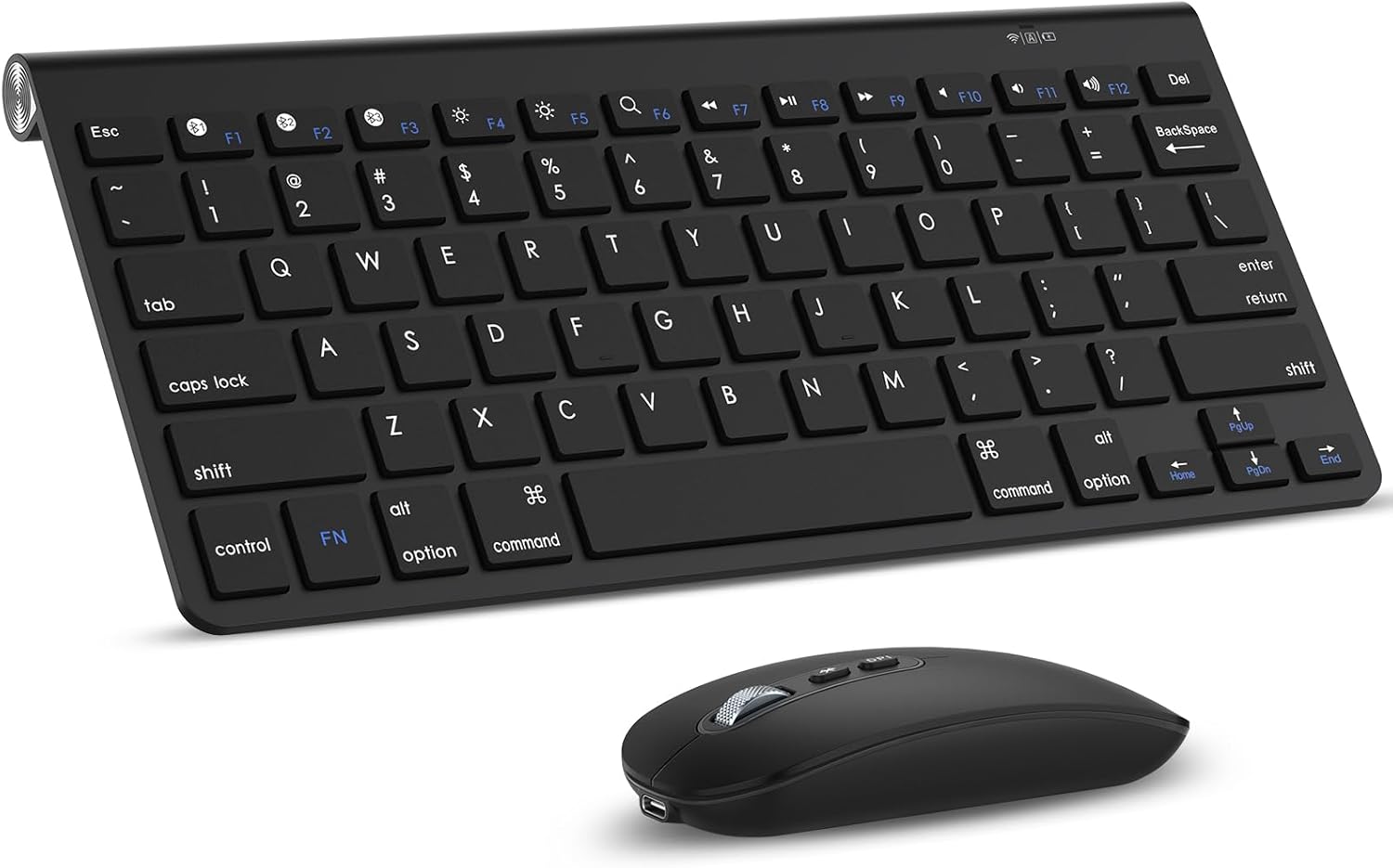
Image: The cimetech Bluetooth Keyboard and Mouse combo, showcasing the sleek black design of both devices.
Setup and Connection
1. Powering On
- Keyboard: Locate the battery compartment on the back of the keyboard. Ensure the two AAA batteries are correctly inserted. Flip the power switch to the "ON" position.
- Mouse: The mouse is rechargeable. Ensure it is sufficiently charged using the provided USB-C cable. Flip the power switch on the bottom of the mouse to the "ON" position.

Image: Illustration showing the keyboard's battery compartment for AAA batteries and the mouse connected via a USB-C charging cable.
2. Bluetooth Pairing
Both the keyboard and mouse connect via Bluetooth 5.1. Follow these steps to pair them with your device:
- Ensure both the keyboard and mouse are powered on.
- For Keyboard: Press and hold the Fn + C keys simultaneously for 3-5 seconds. The Bluetooth indicator light on the keyboard will start blinking, indicating it is in pairing mode.
- For Mouse: Press the Bluetooth pairing button on the bottom of the mouse. The indicator light on the mouse will start blinking.
- On your computer, tablet, or smartphone, navigate to the Bluetooth settings.
- Search for new devices. You should see "cimetech Keyboard" and "cimetech Mouse" (or similar names) appear in the list of available devices.
- Select each device one by one to complete the pairing process. Once paired, the indicator lights on the keyboard and mouse will stop blinking and remain solid or turn off.
Note: Some multimedia functions may not be available with macOS.
Operating Instructions
Keyboard Features
- Scissor-Switch Keys: Provides a sensitive response and silent keystrokes for a comfortable typing experience.
- Ergonomic Design: The keyboard features a slight incline and rubberized feet for stability and to reduce wrist strain during long typing sessions.
- Function Keys: Utilize the Fn key in combination with the F1-F12 keys for various multimedia and system functions (e.g., volume control, media playback).
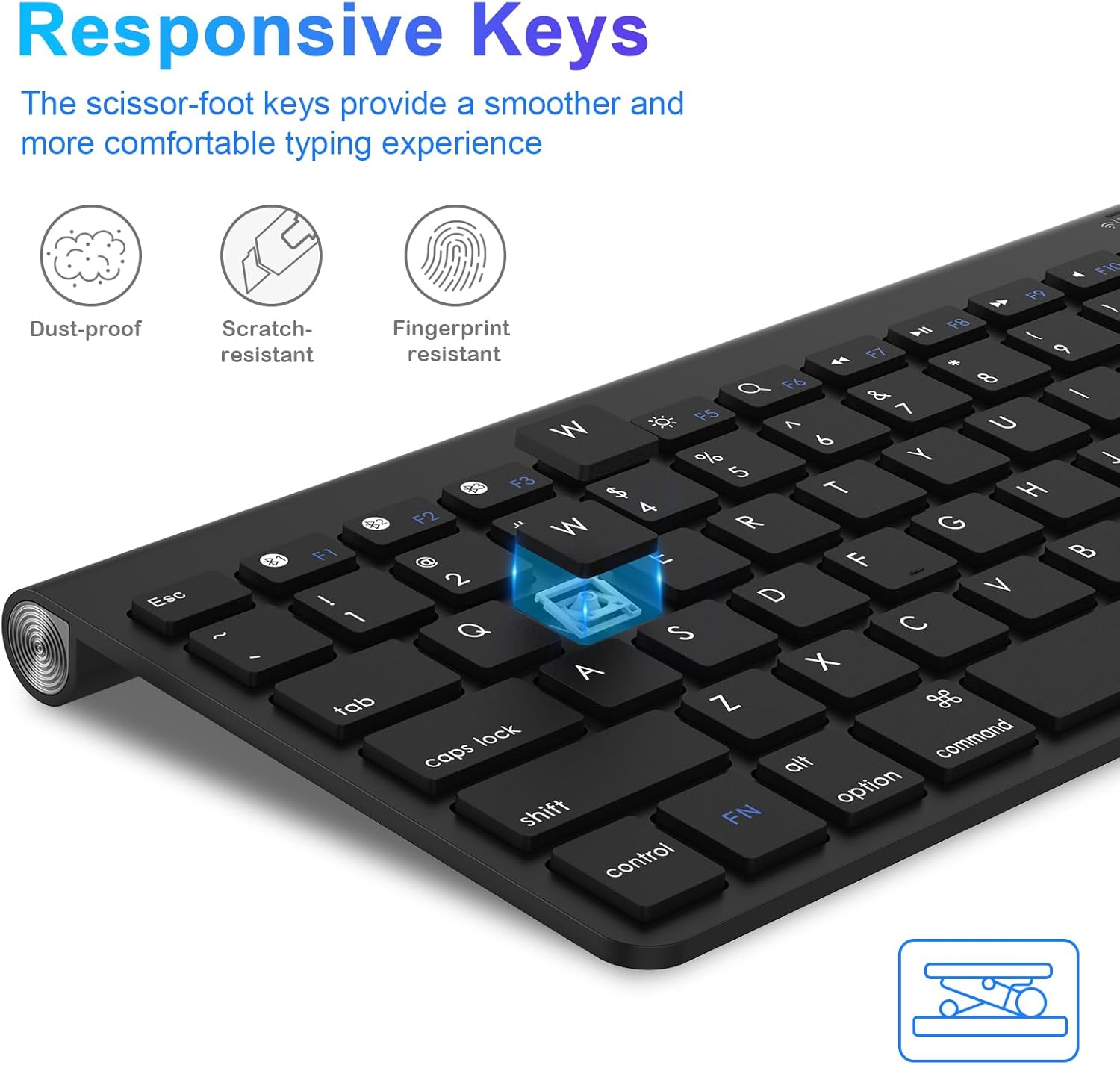
Image: A close-up view of the keyboard highlighting the scissor-switch key mechanism, which ensures responsive and quiet typing.

Image: A user's hands positioned on the keyboard, demonstrating its ergonomic design for comfortable typing, with the mouse visible next to it.
Mouse Features
- Adjustable DPI: The mouse offers three adjustable DPI settings: 1000, 1200, and 1600. Press the DPI button (usually located near the scroll wheel) to cycle through these settings and adjust cursor sensitivity to your preference.
- Silent Click: The mouse is designed for silent clicks, minimizing noise during use.
- Rechargeable: The mouse features a built-in rechargeable battery. Use the provided USB-C cable to charge it when the battery is low.
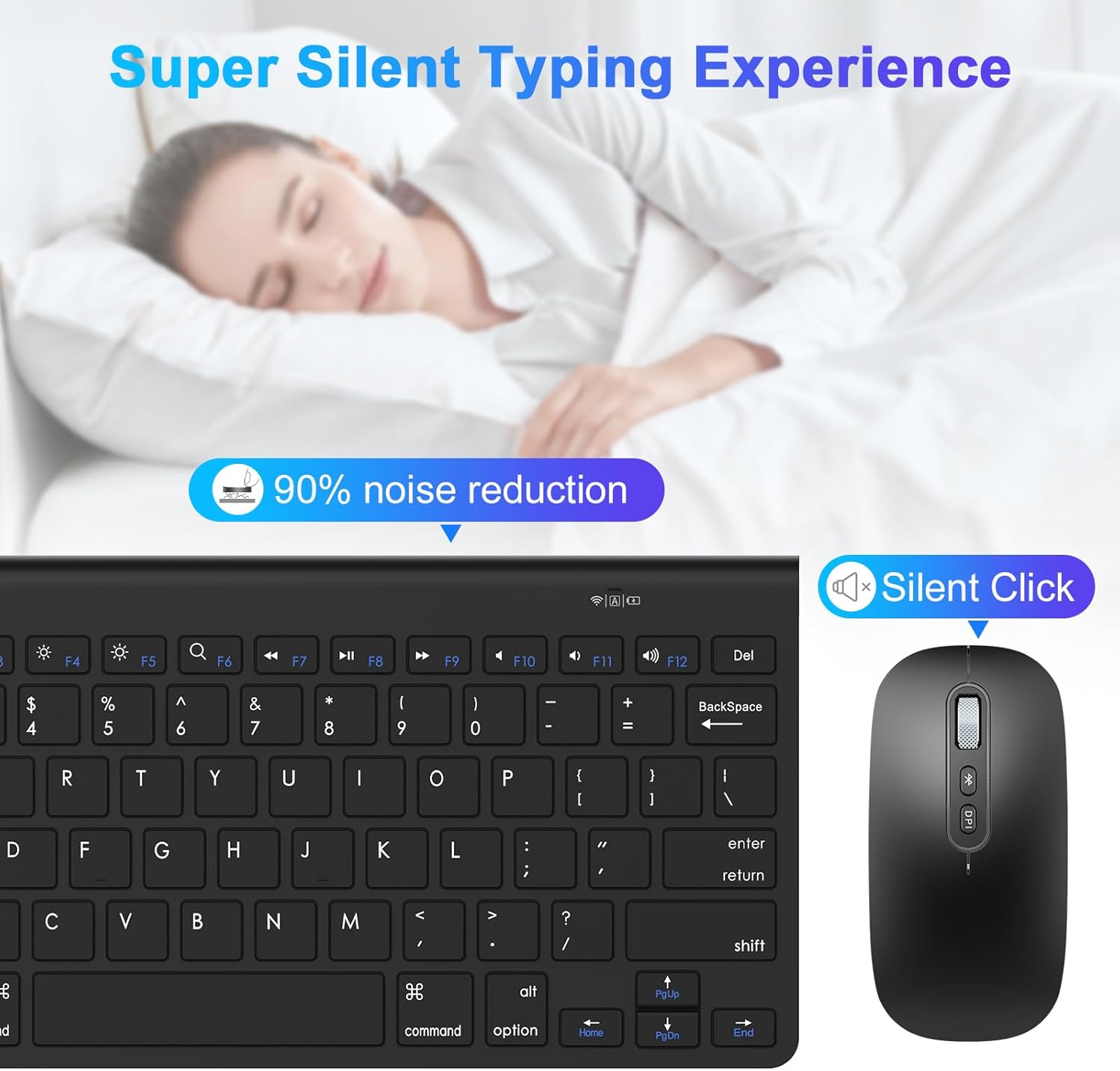
Image: The cimetech mouse, highlighting its silent click feature, positioned next to the keyboard.
Compatibility
The cimetech Bluetooth Keyboard and Mouse are broadly compatible with a variety of operating systems and devices, including:
- Mac OS X 10.10 and above (Mac, Mac Pro/Mini, MacBook, MacBook Pro, MacBook Air, iMac, iMac Pro)
- Windows 2000/ME/XP/7/8/10/11
- Linux
- Compatible Devices: Laptops, Personal Computers, Tablets, Smartphones, Televisions (with Bluetooth support).

Image: The keyboard and mouse displayed with icons representing Mac, PC, and Laptop, illustrating their broad compatibility.
Maintenance
- Cleaning: Use a soft, dry cloth to clean the surfaces of the keyboard and mouse. For stubborn dirt, slightly dampen the cloth with water or a mild cleaning solution. Avoid excessive moisture.
- Battery Replacement (Keyboard): When the keyboard's battery indicator light signals low power, replace the two AAA batteries. Ensure correct polarity.
- Charging (Mouse): Recharge the mouse when its indicator light shows low battery. Do not use damaged charging cables.
- Storage: When not in use for extended periods, turn off both devices to conserve battery life. Store them in a cool, dry place away from direct sunlight and extreme temperatures.
Troubleshooting
| Problem | Possible Cause | Solution |
|---|---|---|
| Keyboard/Mouse not connecting or frequently disconnecting. | Low battery; out of range; interference; incorrect pairing. |
|
| Keys not responding or mouse cursor erratic. | Low battery; software issue; physical obstruction. |
|
| Keyboard takes long to wake from sleep mode. | Normal power-saving feature. | This is a design feature to conserve battery. A slight delay (e.g., 1-2 seconds) before the first character registers is normal. |
Specifications
| Feature | Detail |
|---|---|
| Brand | cimetech |
| Model Number | K116-M01 |
| Connectivity Technology | Bluetooth 5.1 |
| Keyboard Battery | 2 x AAA batteries (included) |
| Mouse Battery | Rechargeable (Type-C) |
| Mouse DPI Settings | 1000 / 1200 / 1600 DPI |
| Keyboard Key Type | Scissor-switch |
| Special Features | Portable, Ergonomic, Lightweight, Rechargeable Mouse, Silent Keys/Click |
| Compatible Devices | Laptop, Personal Computer, Tablet, Smartphone, Television |
| Compatible OS | Mac OS X 10.10+, Windows 2000/ME/XP/7/8/10/11, Linux |
| Item Weight | 1.06 pounds (approx.) |
| Package Dimensions | 11.69 x 5.47 x 1.85 inches (approx.) |
| Country of Origin | China |
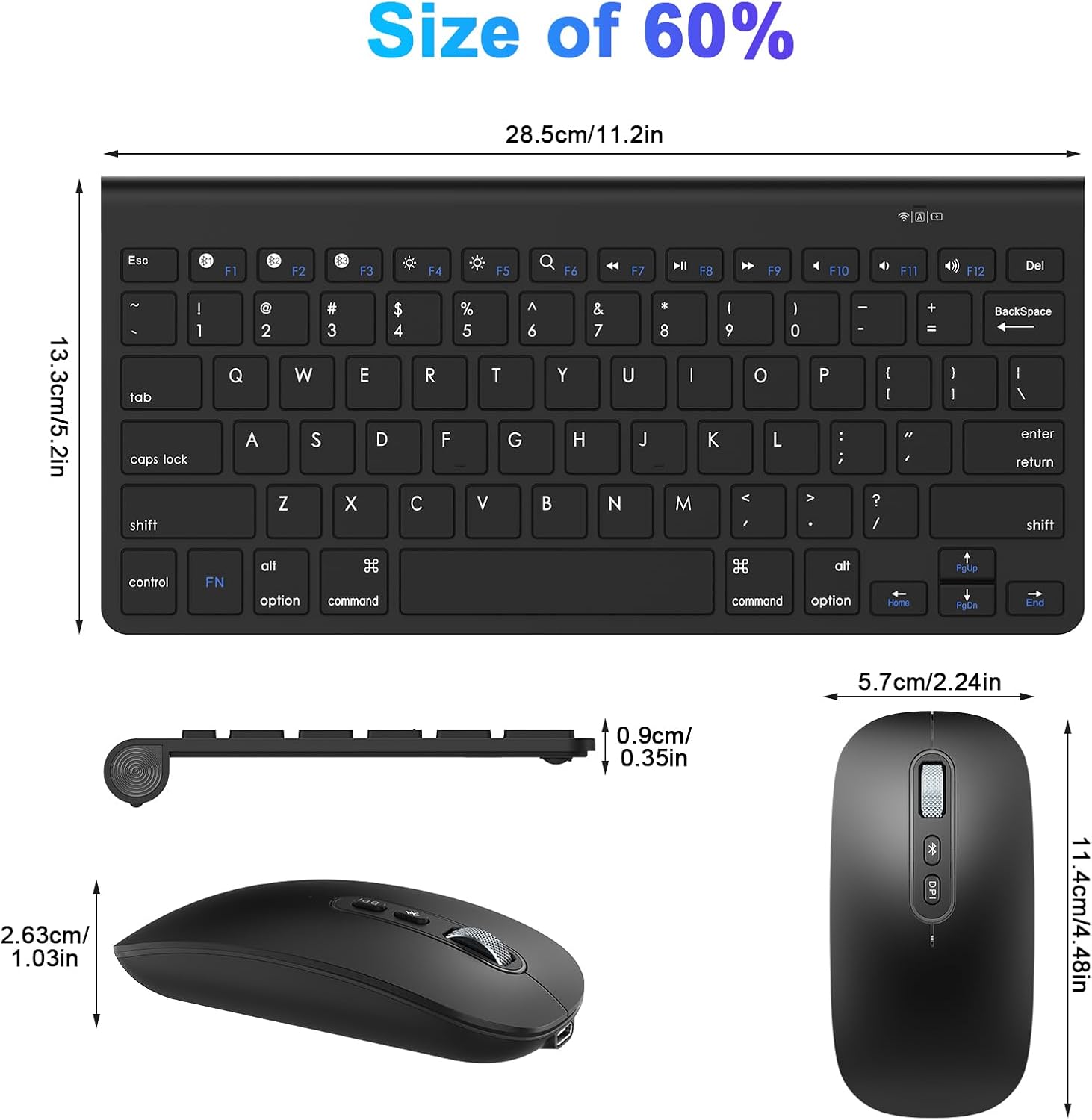
Image: Diagram showing the precise dimensions of both the cimetech keyboard and mouse.
Warranty and Support
cimetech products are designed for reliability and performance. We offer technical support to assist with any issues you may encounter.
- Customer Service: For technical assistance, troubleshooting, or warranty inquiries, please contact our customer support team. Refer to the product packaging or the official cimetech website for the most current contact information.
- Warranty: Specific warranty terms and conditions may vary. Please retain your proof of purchase for warranty claims.
We are committed to providing excellent service and ensuring your satisfaction with our products.
Ask a question about this manual
Ask about setup, troubleshooting, compatibility, parts, safety, or missing instructions. Manuals+ will review the question and use this page’s manual context to help answer it.