
Introduction
This manual provides detailed instructions for the installation, operation, and maintenance of your LETIANPAI 82ft/25m Smart RGB LED Strip Lights. Please read this manual thoroughly before use to ensure proper functionality and safety.
Safety Information
- Ensure the power supply is disconnected before installation or maintenance.
- Use only the provided power adapter. Using an incompatible adapter may damage the product or pose a safety risk.
- Do not expose the LED strips or controller to water or high humidity. This product is designed for indoor use.
- Avoid bending the LED strips sharply, as this can damage the circuit.
- Do not cover the power adapter or controller during operation to prevent overheating.
- Keep out of reach of children.
- If any damage occurs to the strip, power adapter, or controller, discontinue use immediately and contact customer support.
Package Contents
Verify that all items are present in your package:
- 2 x 41ft (12.5m) RGB LED Strip Lights (Total 82ft/25m)
- 1 x Smart Controller Box
- 1 x IR Remote Control
- 1 x Certified Power Adapter
- 1 x User Manual (This document)

Image: Overview of the LETIANPAI 82ft/25m Smart RGB LED Strip Lights, showing the two rolls of LED strips, smart controller, IR remote, and power adapter.
Setup and Installation
1. Surface Preparation
Before applying the LED strips, ensure the surface is clean, dry, and smooth. Dust, oil, or moisture can reduce the adhesive's effectiveness.
2. Connecting the Components
- Connect the LED strip(s) to the smart controller box. Ensure the arrows on the strip connector and the controller connector align.
- Connect the power adapter to the smart controller box.
- Plug the power adapter into a standard electrical outlet.

Image: Connection diagram illustrating how to connect the LED strips to the controller, and the controller to the power adapter. Emphasizes aligning arrows on connectors.


Image: A certified power adapter and a close-up of the LED strip showing its adhesive backing.
3. Applying the LED Strips
- Unroll the LED strips carefully.
- Peel off the protective film from the adhesive backing.
- Press the strip firmly onto the desired clean surface.
4. Cutting the LED Strips (Optional)
The LED strips can be cut to your desired length. Locate the designated cutting marks (usually indicated by a scissor icon or copper pads) on the strip. Cut only at these marks to avoid damaging the circuit.
5. App Download and Pairing
To utilize smart features, download the "HiLighting" app:
- Scan the QR code on the smart controller box or visit http://www.easytrack.net.cn/download/165JINGZEKONGGU to download the "HiLighting" app.
- Install the app on your smartphone.
- Ensure Bluetooth is enabled on your phone.
- Open the "HiLighting" app. The app should automatically detect and connect to your LED strip lights.
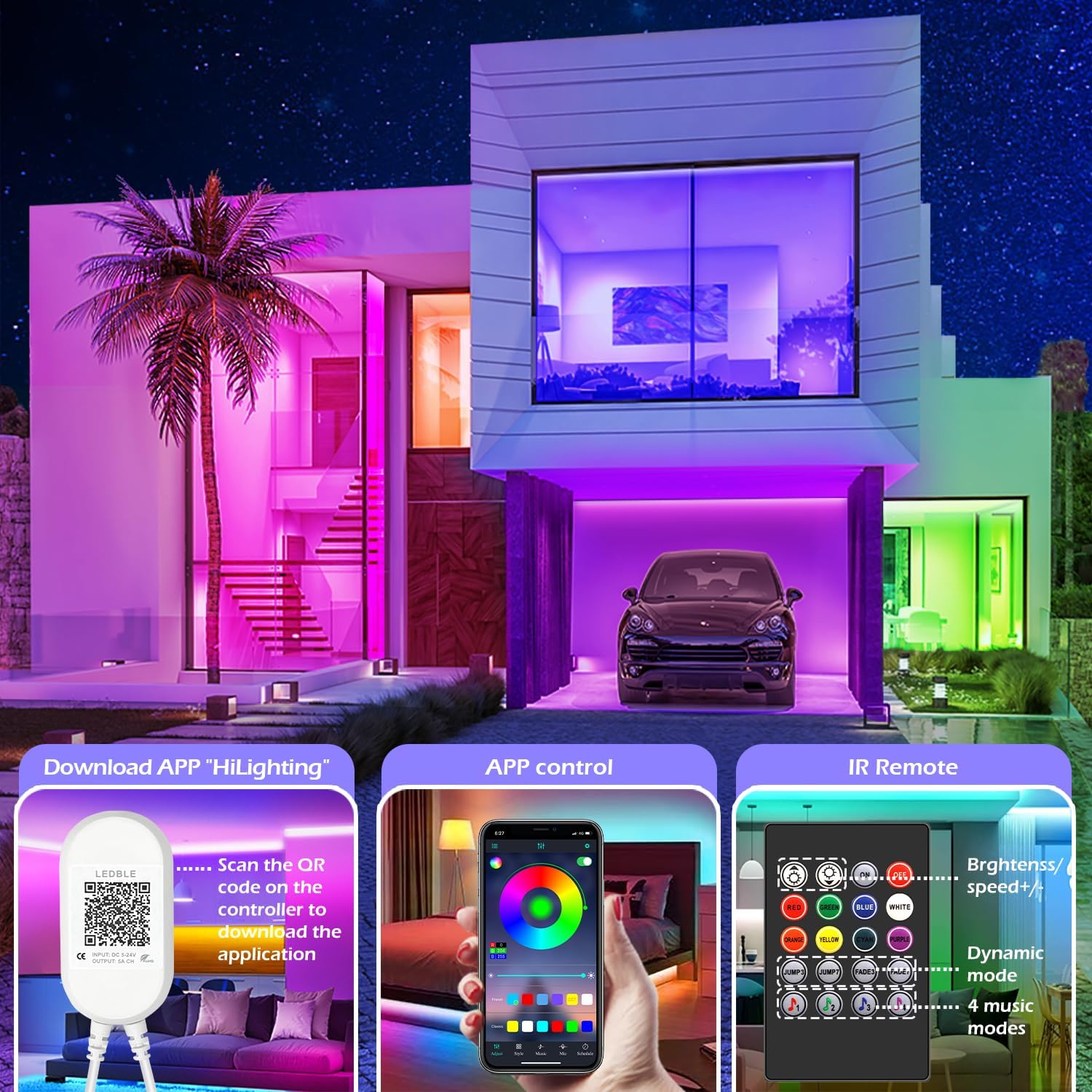
Image: Illustration of downloading the "HiLighting" app by scanning a QR code on the controller, and a preview of the app's color selection interface.

Image: Close-up of the LED controller showing the QR code for downloading the "HiLighting" application.
Operating Instructions
1. App Control (HiLighting App)
The "HiLighting" app offers comprehensive control over your LED strip lights:
- Color Selection: Choose from 16 million vivid colors using the color wheel.
- Brightness Adjustment: Adjust the light intensity from 0% to 100%.
- Dynamic Modes: Select from 29 pre-set dynamic modes (e.g., flash, rotate, fade).
- Music Sync Mode: The lights will change color in rhythm with music played through your phone.
- MIC Mode: The lights will pulsate and change colors in response to ambient sounds or your voice, detected by the phone's microphone.
- Timing Function: Set schedules for the lights to automatically turn on or off at specific times.
- Group Management: Control multiple sets of LETIANPAI LED strip lights simultaneously or individually by organizing them into groups within the app.


Image: Screenshots of the "HiLighting" app interface, demonstrating color selection and brightness adjustment features.

Image: Depicts individuals enjoying music, with text explaining Music Sync and MIC Mode functionalities of the LED strip lights.

Image: Illustrates the timing function, allowing users to set automatic on/off schedules for the LED lights, such as turning off at 11:00 PM and on at 7:00 AM.

Image: Shows the "Group Management" feature, enabling control of multiple light sets simultaneously or individually, with examples in different rooms.
2. IR Remote Control
The included IR remote control provides convenient access to basic functions:
- Power On/Off: Turn the lights on or off.
- Color Selection: Directly select common colors (Red, Green, Blue, White, Orange, Yellow, Cyan, Purple).
- Brightness/Speed Adjustment: Increase or decrease brightness, or adjust the speed of dynamic modes.
- Dynamic Modes: Access various pre-set dynamic modes (e.g., Jump3, Jump7, Fade3, Fade7).
- Music Modes: Activate 4 different music-responsive modes.

Image: Close-up of the IR remote control, detailing buttons for power, color selection, brightness/speed adjustment, dynamic modes, and music modes.
Maintenance
- Cleaning: Gently wipe the LED strips with a dry, soft cloth to remove dust. Do not use liquid cleaners or abrasive materials.
- Storage: If storing the lights for an extended period, ensure they are clean, dry, and stored in a cool, dark place.
- Inspection: Periodically check the connections and the strip for any signs of damage.
Troubleshooting
| Problem | Possible Cause | Solution |
|---|---|---|
| Lights do not turn on. | Power adapter not connected or faulty. LED strip not properly connected to controller. Remote control battery depleted. | Ensure power adapter is securely plugged in. Check all connections, ensuring arrows align. Replace remote control battery (CR2025, not included). |
| Lights show incorrect colors or only one color. | Incorrect connection between strip and controller. App/remote setting issue. | Disconnect and reconnect the LED strip to the controller, ensuring arrows align. Reset the lights via the app or remote, then re-select desired color. |
| App cannot connect to the lights. | Bluetooth is off. App is outdated. Interference. | Ensure Bluetooth is enabled on your smartphone. Update the "HiLighting" app to the latest version. Move closer to the controller. Restart the app and try again. |
| Remote control not working. | Battery depleted. Obstruction between remote and controller. Plastic tab not removed. | Replace the CR2025 battery. Ensure a clear line of sight to the controller. Remove the clear plastic tab from the remote's battery compartment. |
Specifications
| Model Number | 100FT |
| Brand | LETIANPAI |
| Length | 82ft / 25m (2 rolls of 41ft) |
| Light Source Type | LED (5050 RGB) |
| Light Color | RGB (Red, Green, Blue) |
| Control Method | Bluetooth App ("HiLighting"), IR Remote Control |
| Power Source | Corded Electric |
| Voltage | 12 Volts |
| Wattage | 24 Watts |
| Indoor/Outdoor Usage | Indoor |
| Special Features | Cuttable, Low energy consumption, Music Sync, Strong self-adhesive, Flexible |
| UPC | 611834347362 |
Warranty and Support
LETIANPAI is committed to providing quality products and customer service. All accessories included with your LED rope lights are officially certified, and the power adapter has undergone rigorous testing for safety.
If you encounter any issues during installation or operation, please contact LETIANPAI customer support directly. We aim to resolve all inquiries within 24 hours. Full refunds or free replacements are provided for quality-related issues.