
1. Introduction
This manual provides detailed instructions for the safe and efficient use of your IWEGGO Q2S Pro Android 15 Tablet. Please read this manual thoroughly before operating the device and retain it for future reference.
The IWEGGO Q2S Pro is a 7-inch tablet featuring the Android 15 operating system, a 1.6 GHz quad-core processor, 8GB RAM, and 32GB internal storage, expandable up to 1TB. It is designed for various tasks including browsing, media consumption, and light productivity.
2. Package Contents
Upon opening the package, please verify that all items listed below are present and in good condition:
- IWEGGO Q2S Pro Android 15 Tablet
- Protective Case
- USB Type-C Charging Cable
- User Manual (this document)
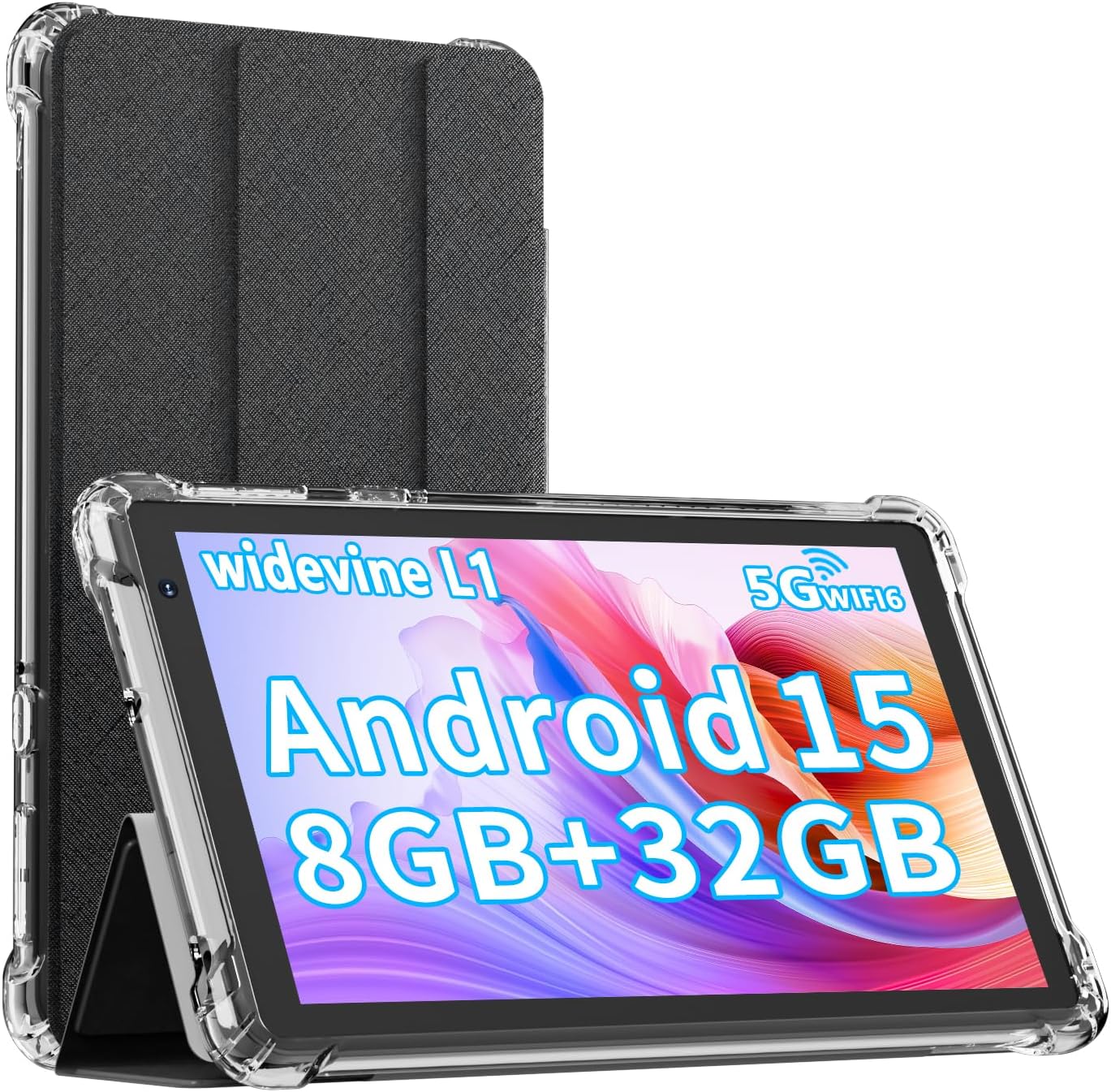
Image: The IWEGGO Q2S Pro tablet shown with its protective case. The tablet screen displays "Android 15 8GB+32GB".
3. Device Overview
Familiarize yourself with the physical components of your tablet:
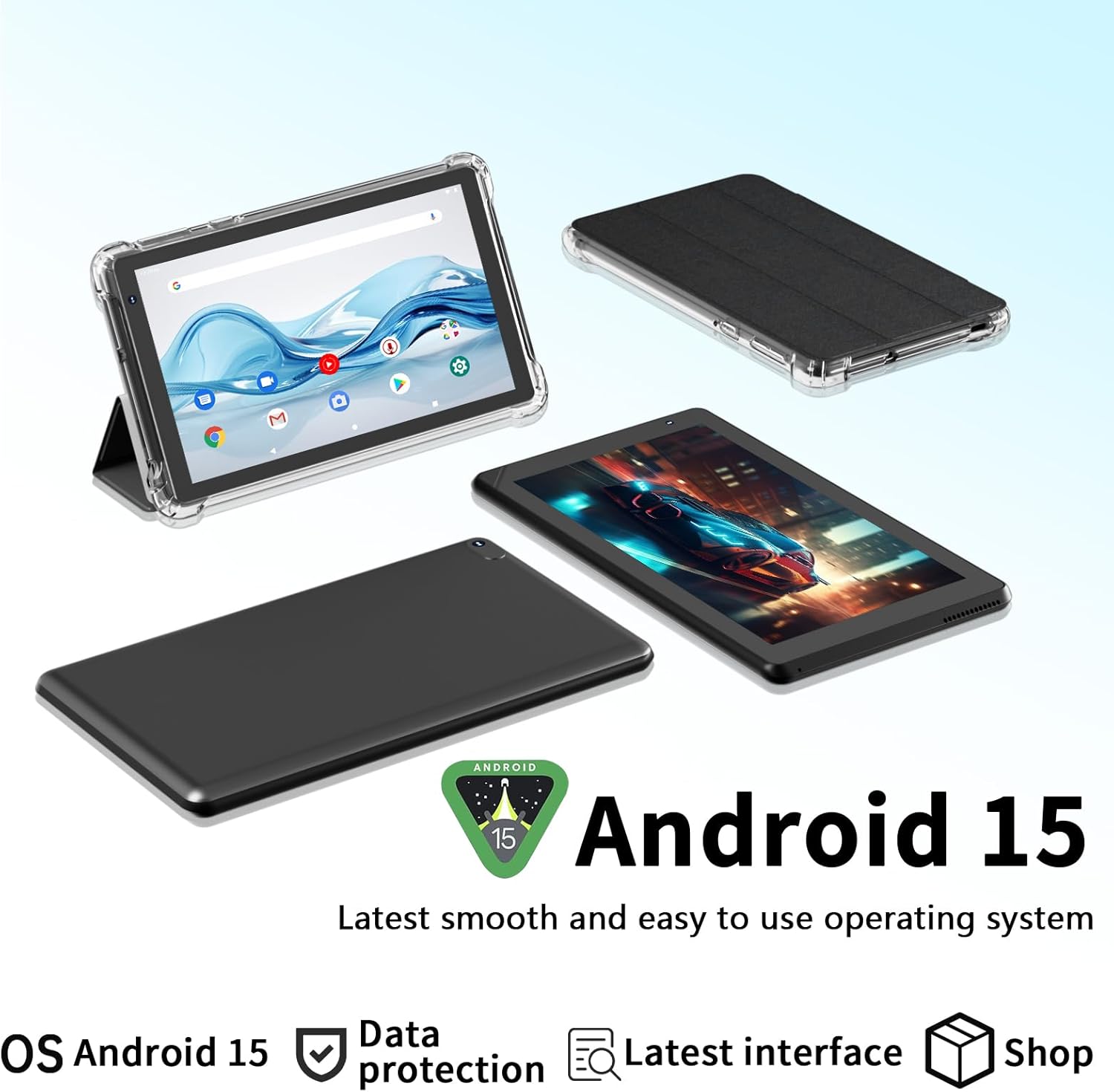
Image: Various perspectives of the IWEGGO Q2S Pro tablet, including the front display, the rear panel, and the tablet inserted into its protective case.
- Front Camera: Located above the screen, used for video calls and selfies. (2MP)
- Display: 7-inch HD screen (1024x600 resolution).
- Power Button: Located on the side, used to turn the tablet on/off or put it to sleep/wake it up.
- Volume Buttons: Located on the side, used to adjust audio volume.
- USB Type-C Port: For charging and data transfer.
- 3.5mm Headphone Jack: For connecting wired headphones.
- MicroSD Card Slot: For expanding storage up to 1TB.
- Rear Camera: Located on the back, used for taking photos and videos. (5MP)
- Dual Speakers: For audio output.
4. Setup
4.1 Initial Power On
- Press and hold the Power Button until the screen lights up.
- Follow the on-screen prompts to select your language, region, and accept the terms and conditions.
4.2 Wi-Fi Connection
- During initial setup or later, navigate to Settings > Network & internet > Wi-Fi.
- Toggle Wi-Fi On.
- Select your desired Wi-Fi network from the list.
- Enter the network password if prompted, then tap Connect.
4.3 Google Account Setup
A Google account is required to download apps from Google Play and access Google services.
- During initial setup, you will be prompted to sign in with your Google account or create a new one.
- If skipping during setup, go to Settings > Accounts > Add account > Google.
- Follow the on-screen instructions to complete the sign-in or account creation process.
5. Operating Instructions
5.1 Basic Navigation
- Home Screen: Swipe left or right to access different home screen panels.
- App Drawer: Swipe up from the bottom of the screen to view all installed applications.
- Notifications & Quick Settings: Swipe down from the top of the screen to access notifications and quick settings toggles (Wi-Fi, Bluetooth, Brightness, etc.).
- Multitasking: Tap the square icon (or swipe up and hold from the bottom if using gesture navigation) to view recently used apps.
5.2 Installing and Managing Apps
Your tablet comes with Google Play pre-installed, allowing access to millions of applications.
- Open the Google Play Store app.
- Search for the desired app.
- Tap Install to download and install the app.
- To uninstall an app, press and hold its icon on the home screen or app drawer, then drag it to "Uninstall" or select "App info" and choose "Uninstall".
5.3 Storage Management
The tablet has 32GB of internal storage. You can expand this using a MicroSD card.

Image: A visual representation of the tablet's storage capabilities, highlighting 8GB RAM (3GB physical + 5GB virtual) and 32GB ROM, with an icon for expandable storage.
- Inserting a MicroSD Card: Locate the MicroSD card slot on the side of the tablet. Gently insert the card until it clicks into place.
- Checking Storage: Go to Settings > Storage to view internal and external storage usage.
5.4 Camera Usage
The tablet features a 2MP front camera and a 5MP rear camera.

Image: An illustration of the tablet's dual camera system, indicating a 2MP front camera and a 5MP rear camera, accompanied by sample photographs.

Image: A collage of images showing people enjoying various activities, demonstrating the tablet's ability to capture moments with its cameras.
- Open the Camera app.
- Tap the shutter button to take a photo.
- Switch between front and rear cameras using the camera toggle icon.
5.5 Reading Mode
Activate "Reading mode" to reduce eye strain by adjusting screen colors and brightness.
- Access Quick Settings by swiping down from the top of the screen.
- Look for the "Reading mode" or "Eye comfort shield" toggle and tap to activate/deactivate.
5.6 Media Consumption (Widevine L1)
The tablet supports Widevine L1 certification, enabling high-definition streaming from compatible services.

Image: The tablet screen showcasing its Widevine L1 certification, indicating support for high-definition streaming on platforms such as Netflix, Hulu, YouTube, and HBO.
5.7 Android 15 Features
Your tablet runs on Android 15, offering enhanced functionality and a cleaner user experience with features designed for privacy, security, and multitasking.

Image: A tablet screen illustrating key Android 15 features such as improved privacy and security management, a convenient taskbar for multitasking, parental controls, and an upgraded user interface design.
- Privacy & Security: Manage app permissions and data access more effectively.
- Taskbar: Utilize the taskbar for convenient multitasking and quick app switching.
- Parental Control: Control screen time and manage content for younger users.
- System UI Upgrade: Experience a refined and intuitive user interface.
6. Connectivity
6.1 Wi-Fi 6 (802.11ax)
The tablet supports Wi-Fi 6 for faster and more stable wireless internet connections.

Image: The tablet positioned next to a Wi-Fi signal icon, illustrating its 5G and Wi-Fi 6 wireless capabilities for efficient internet access.
- Ensure your Wi-Fi router supports Wi-Fi 6 for optimal performance.
- Connect as described in Section 4.2.
6.2 Bluetooth
Connect wireless accessories such as headphones, speakers, or keyboards via Bluetooth.
- Go to Settings > Connected devices > Bluetooth.
- Toggle Bluetooth On.
- The tablet will scan for available devices. Select your device from the list to pair.
7. Charging and Battery Management
The tablet is equipped with a 3000mAh battery, providing approximately 6 hours of average use.

Image: A visual representation of the tablet's 3000mAh battery capacity, indicating extended usage time.
- Charging: Connect the provided USB Type-C cable to the tablet's Type-C port and the other end to a compatible USB power adapter (not included) or computer. A 5V 2A charger is recommended.
- Battery Optimization: To extend battery life, reduce screen brightness, disable Wi-Fi/Bluetooth when not in use, and close unused applications.
- Battery Status: View battery percentage and usage statistics in Settings > Battery.
8. Maintenance and Care
- Cleaning: Use a soft, lint-free cloth to clean the screen and body. Avoid abrasive cleaners or solvents.
- Temperature: Operate the tablet within a temperature range of 0°C to 35°C (32°F to 95°F). Avoid extreme heat or cold.
- Water Exposure: The tablet is not waterproof. Avoid exposure to liquids.
- Storage: When not in use for extended periods, store the tablet in a cool, dry place. Charge the battery to about 50% before long-term storage.
- Software Updates: Regularly check for system updates in Settings > System > System update to ensure optimal performance and security.
9. Troubleshooting
| Problem | Possible Solution |
|---|---|
| Tablet does not turn on. | Ensure the battery is charged. Connect the tablet to a charger for at least 30 minutes, then try powering on again. |
| Tablet is slow or unresponsive. | Close unused applications. Restart the tablet. Check for available system updates. Consider performing a factory reset if issues persist (backup data first). |
| Cannot connect to Wi-Fi. | Ensure Wi-Fi is enabled. Check if the Wi-Fi password is correct. Restart your Wi-Fi router and the tablet. |
| Battery drains quickly. | Reduce screen brightness. Disable Wi-Fi, Bluetooth, and GPS when not in use. Close background apps. Check battery usage in settings to identify power-hungry apps. |
| Tablet not charging. | Ensure the charging cable is securely connected. Try a different USB Type-C cable and a 5V 2A power adapter. Clean the charging port for any debris. |
10. Specifications
| Feature | Detail |
|---|---|
| Brand | IWEGGO |
| Model | Q2S Pro |
| Operating System | Android 15 |
| Screen Size | 7 Inches |
| Screen Resolution | 1024x600 Pixels |
| Processor | 1.6 GHz Quad-core |
| RAM | 8GB (3GB Physical + 5GB Virtual) |
| Internal Storage (ROM) | 32GB |
| Expandable Storage | Up to 1TB via MicroSD card |
| Rear Camera | 5 MP |
| Front Camera | 2 MP |
| Wireless Connectivity | Wi-Fi 6 (802.11ax), Bluetooth 5.0 |
| Battery Capacity | 3000mAh |
| Average Battery Life | 6 Hours |
| Ports | USB Type-C, 3.5mm Headphone Jack |
| Dimensions (LxWxH) | 7.5 x 4.3 x 0.3 inches |
| Item Weight | 13.7 ounces |
11. Warranty and Support
For warranty information and technical support, please refer to the warranty card included with your product or visit the official IWEGGO website. Keep your purchase receipt as proof of purchase for warranty claims.
For further assistance, you may contact IWEGGO customer service through their official channels.