
1. Introduction
This manual provides detailed instructions for the setup, operation, and maintenance of your 8BitDo Retro Mechanical Keyboard (Fami Edition). Designed with a classic aesthetic, this keyboard offers versatile connectivity options and programmable features for an enhanced user experience on Windows and Android devices.

Image: The 8BitDo Retro Mechanical Keyboard (Fami Edition) set up on a wooden desk, surrounded by vintage computer peripherals, showcasing its retro design.
2. Package Contents
Verify that all items are present in your package:
- 8BitDo Retro Mechanical Keyboard (Fami Edition)
- 8BitDo Dual Super Buttons (x1 set)
- USB-C Cable
- 2.4G Wireless Receiver (stored within the keyboard)
- Instruction Manual (this document)
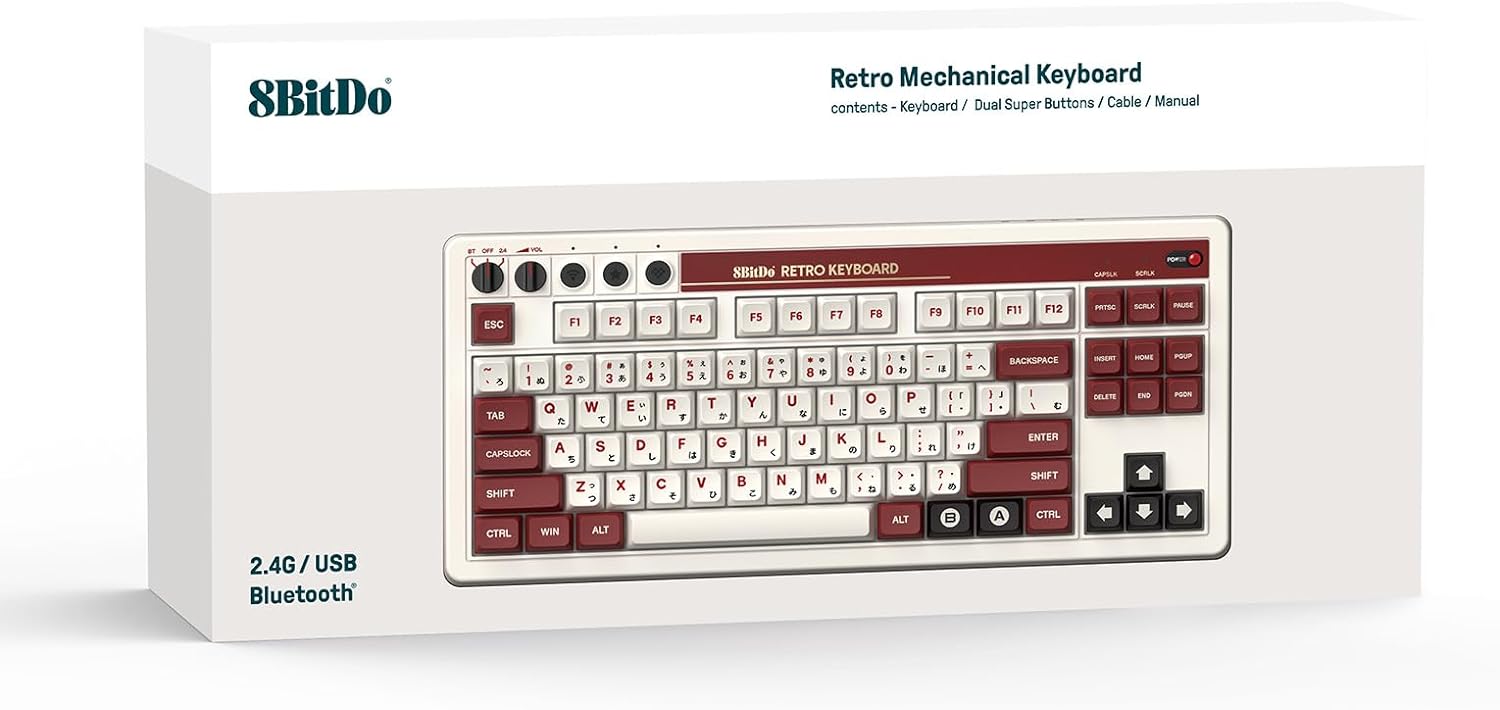
Image: The rear of the keyboard, highlighting the USB-C port and the integrated storage compartment for the 2.4G wireless receiver.
3. Setup
3.1 Powering On/Off
To power on the keyboard, locate the power switch on the top right of the keyboard and slide it to the 'ON' position. A classic power status LED will illuminate. To power off, slide the switch to 'OFF'.

Image: A detailed view of the keyboard's independent control panel, showing the power switch, volume knobs, and connection mode selector.
3.2 Connectivity Options
The 8BitDo Retro Mechanical Keyboard supports three connection modes: Bluetooth, 2.4G Wireless, and USB-C Wired.
3.2.1 2.4G Wireless Connection
- Locate the 2.4G wireless receiver stored in the compartment on the back of the keyboard.
- Plug the receiver into an available USB port on your Windows PC or Android device.
- Set the keyboard's connection mode switch (located on the independent control panel) to '2.4G'.
- The keyboard should automatically connect.

Image: A hand demonstrating the removal or insertion of the 2.4G USB wireless receiver from its dedicated storage slot on the keyboard.
3.2.2 Bluetooth Connection
- Set the keyboard's connection mode switch to 'BT' (Bluetooth).
- On your Windows PC (Windows 10 version 1903 or above) or Android device (Android 9.0 or above), navigate to Bluetooth settings.
- Select '8BitDo Retro Mechanical Keyboard' from the list of available devices to pair.
3.2.3 USB-C Wired Connection
- Connect one end of the provided USB-C cable to the keyboard's USB-C port.
- Connect the other end of the cable to an available USB port on your device.
- The keyboard will automatically switch to wired mode and begin charging if necessary.
4. Operating Instructions
4.1 Keyboard Layout and Features
The keyboard features an 87-key layout with Kailh Box Switch V2 White switches and durable dye-sub PBT keycaps. It supports N-key rollover for precise input during gaming or fast typing.

Image: A clear top-down view of the 8BitDo Retro Mechanical Keyboard (Fami Edition), showcasing its 87-key layout and keycap design.
4.2 Hot-Swappable PCB
The keyboard is equipped with a hot-swappable PCB, allowing users to easily change switches without soldering. This enables customization of typing feel and sound.

Image: A close-up shot illustrating the hot-swappable nature of the keyboard, with a keycap and switch removed to show the socket.
4.3 Dual Super Buttons
The included Dual Super Buttons offer large, programmable keys that can be mapped instantly without software. Up to 4 sets (1 set included) can be connected.
- Connect the Super Buttons to the designated 3.5mm audio jacks on the side of the keyboard.
- Use the 8BitDo Ultimate Software V2 (available September 2023) for advanced custom mapping and macro creation.
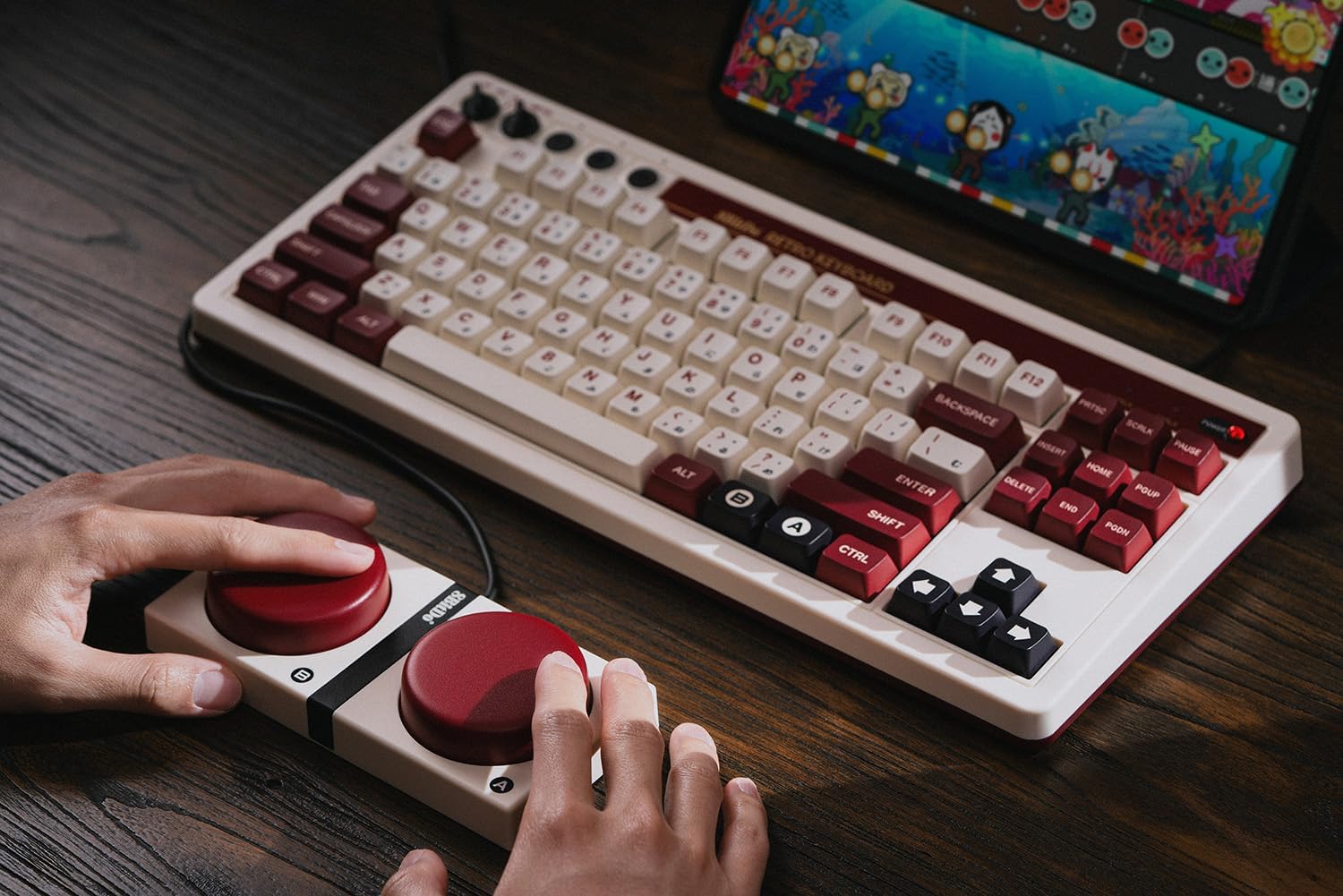
Image: A user's hands interacting with the 8BitDo Retro Mechanical Keyboard and the connected Dual Super Buttons, demonstrating their use.

Image: A close-up of a hand placing a custom sticker onto one of the large, red Dual Super Buttons, indicating customization options.

Image: A hand connecting the 3.5mm audio jack from the Dual Super Buttons into the corresponding port on the side of the keyboard.
4.4 Independent Control Panel
The keyboard features an independent control panel with dedicated knobs for volume control and a switch for selecting between Bluetooth, Off, and 2.4G wireless modes.
4.5 8BitDo Ultimate Software V2
For advanced customization, including key remapping and macro creation, download the 8BitDo Ultimate Software V2. This software allows for personalized keyboard configurations to suit your workflow or gaming style. (Software release: September 2023)
Video: An official 8BitDo video demonstrating the features and functionality of the Retro Mechanical Keyboard, including its design and programmable elements.
5. Maintenance
To ensure the longevity and optimal performance of your 8BitDo Retro Mechanical Keyboard, follow these maintenance guidelines:
- Cleaning: Use a soft, dry cloth to wipe down the keyboard surface. For deeper cleaning, remove keycaps and use compressed air to clear debris.
- Keycap and Switch Replacement: Due to the hot-swappable design, keycaps and switches can be replaced. Use a keycap puller and switch puller (not included) to carefully remove components. Ensure replacement switches are compatible (5-pin).
- Storage: When not in use, store the keyboard in a cool, dry place away from direct sunlight and extreme temperatures.
6. Troubleshooting
If you encounter issues with your keyboard, refer to the following common solutions:
- Keyboard Not Responding:
- Ensure the keyboard is powered on.
- Check the connection mode switch (BT, 2.4G, or wired) matches your intended connection.
- For 2.4G, ensure the receiver is securely plugged in.
- For Bluetooth, ensure the keyboard is paired and within range. Try re-pairing if necessary.
- Connect via USB-C cable to check if the issue is power-related or wireless connectivity.
- Super Buttons Not Working:
- Ensure the 3.5mm jacks are fully inserted into the keyboard ports.
- Verify button mappings using the 8BitDo Ultimate Software V2.
- Keys Not Registering:
- Check for debris under the keycaps.
- If a specific key is not working, the switch might need to be reseated or replaced due to the hot-swappable design.
7. Specifications
| Feature | Detail |
|---|---|
| Brand | 8Bitdo |
| Model Number | 6922621504283 |
| Connectivity | Bluetooth, 2.4G Wireless, USB-C Wired |
| Layout | 87-key |
| Switches | Kailh Box Switch V2 White (Hot-swappable) |
| Keycaps | Dye-sub PBT |
| Compatibility | Windows 10 (1903 or above), Android 9.0 (or above) |
| Special Features | N-key rollover, Dual Super Programmable Buttons, Independent Control Panel, 8BitDo Ultimate Software V2 support |
| Item Weight | 4.27 pounds |
| Batteries | 1 Lithium Polymer battery (included) |
8. Warranty and Support
For warranty information and technical support, please refer to the official 8Bitdo website or contact their customer service. Keep your proof of purchase for warranty claims.
Online resources and software updates can be found at: www.8bitdo.com


