1. Introduction
This manual provides essential information for the proper setup, operation, and maintenance of your MSI Stealth 14 Studio A13VF gaming laptop. Please read this manual thoroughly before using your device to ensure optimal performance and longevity. Keep this manual for future reference.
2. Package Contents
Verify that all items are present in the package:
- MSI Stealth 14 Studio A13VF Gaming Laptop
- Power Adapter
- Power Cord
- Quick Start Guide (if included)
- Warranty Card (if included)
Note: The specific contents may vary by region or retailer. If any items are missing or damaged, contact your retailer or MSI support.
3. Physical Overview
Familiarize yourself with the components and ports of your MSI Stealth 14 Studio A13VF laptop.
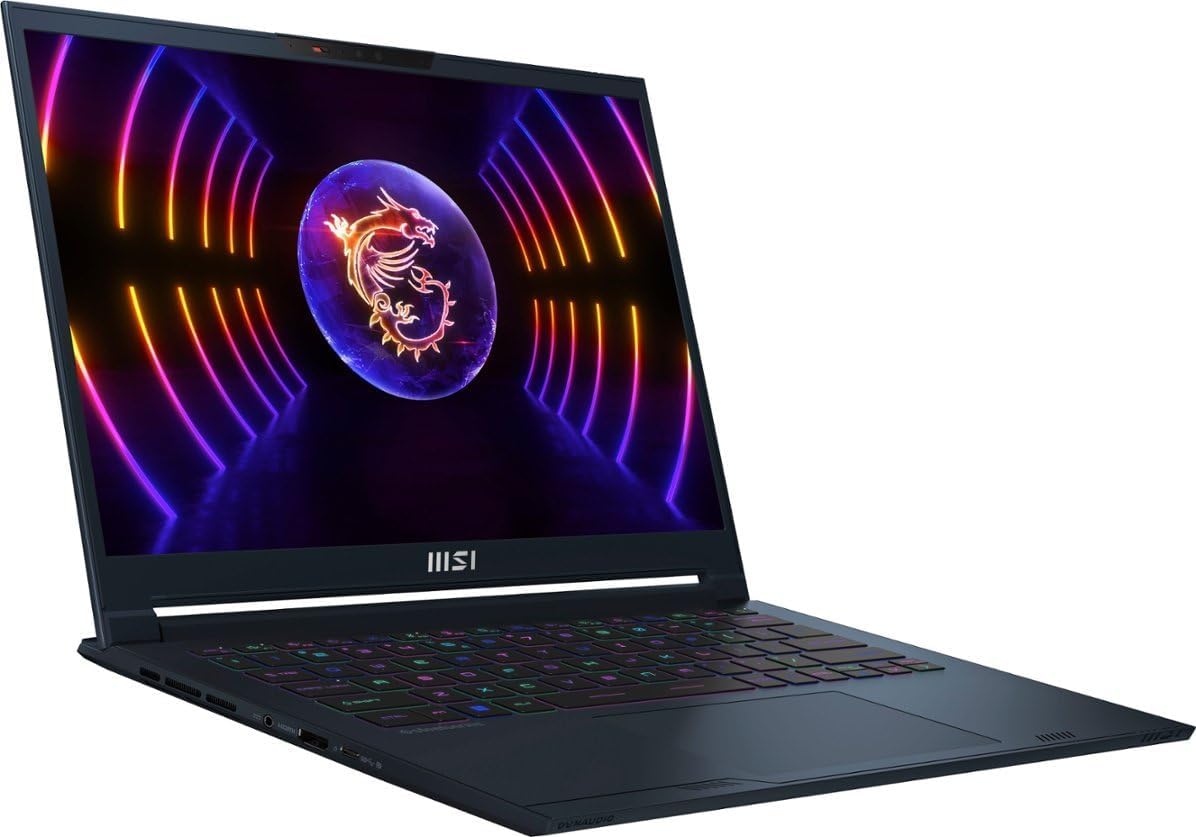
Figure 3.1: Front-left view of the MSI Stealth 14 Studio A13VF laptop with the display open, showcasing the keyboard and screen.
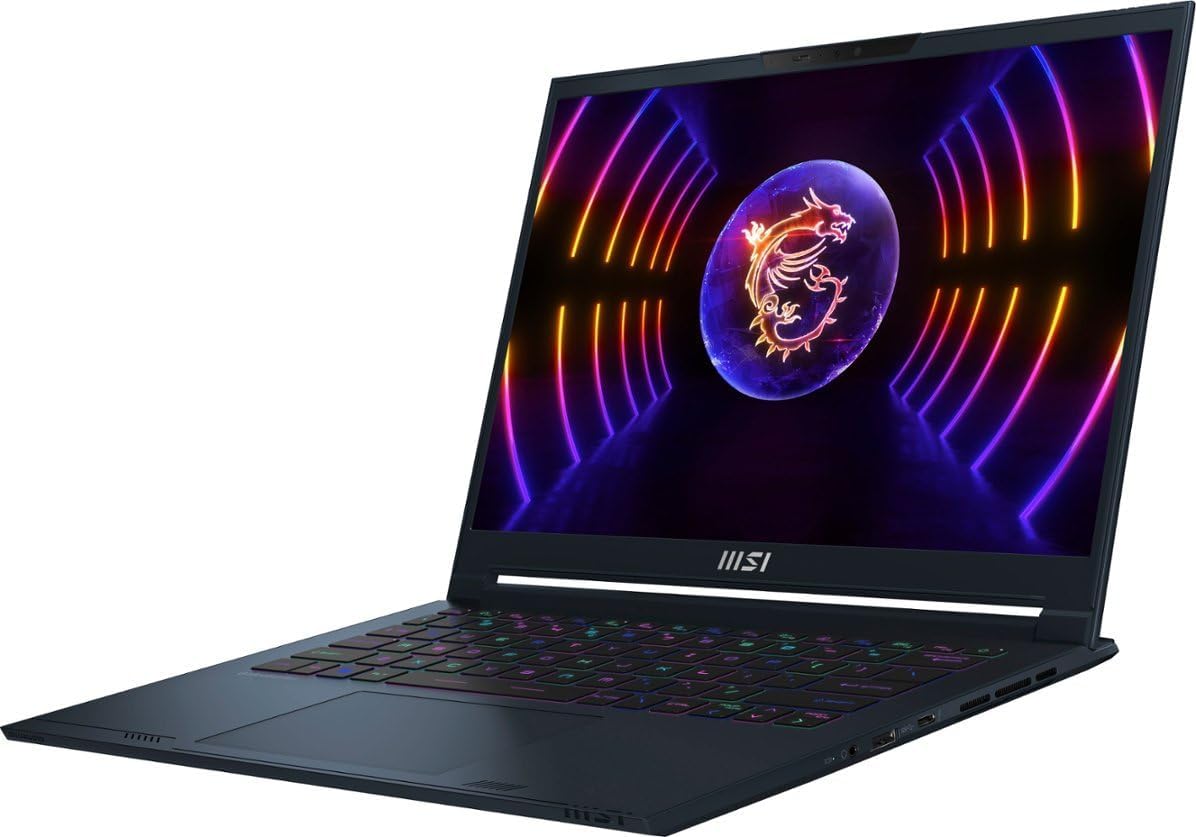
Figure 3.2: Front-right view of the MSI Stealth 14 Studio A13VF laptop with the display open, highlighting the keyboard and touchpad.

Figure 3.3: Top-down view of the MSI Stealth 14 Studio A13VF laptop, showing the full keyboard layout with RGB backlighting and the display.

Figure 3.4: Rear-left view of the MSI Stealth 14 Studio A13VF laptop, illustrating the hinge design and available ports on the left side.
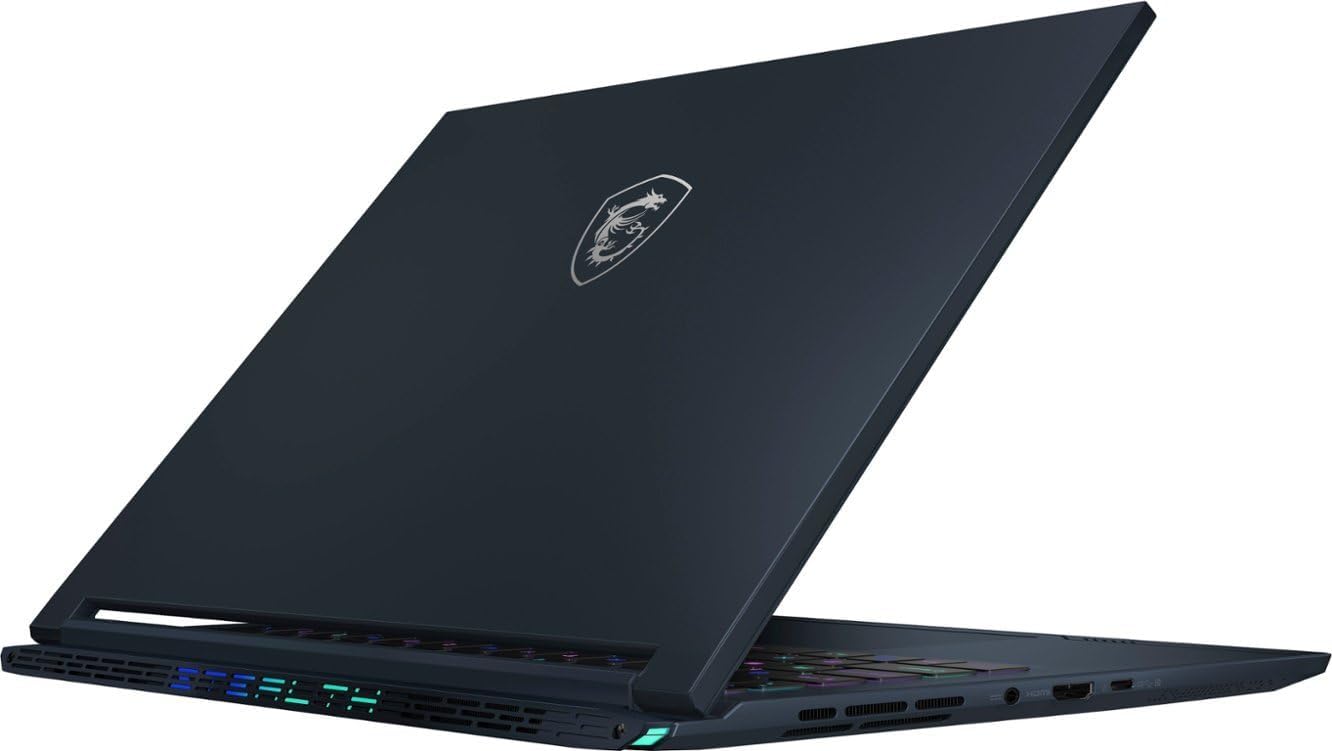
Figure 3.5: Rear-right view of the MSI Stealth 14 Studio A13VF laptop, showing the hinge and ports located on the right side.

Figure 3.6: Top view of the MSI Stealth 14 Studio A13VF laptop when closed, featuring the MSI dragon logo on the lid.

Figure 3.7: Rear view of the MSI Stealth 14 Studio A13VF laptop, displaying the exhaust vents and the "STEALTH" illuminated text.

Figure 3.8: Bottom view of the MSI Stealth 14 Studio A13VF laptop, showing the ventilation grilles and rubber feet for stability.
Ports and Connectors:
- USB Type-A: For connecting standard USB devices.
- Thunderbolt 4: High-speed port for data transfer, display output, and power delivery.
- USB Type-C: Versatile port for data, display, and charging.
- HDMI 2.1: For connecting to external displays or TVs.
- Headphone/Microphone Combo Jack: For audio input and output.
- RJ45 (Ethernet): For wired network connection.
- Power Connector: For connecting the AC adapter.
4. Setup
4.1. Connecting the Power Adapter
- Connect the AC adapter to the power connector on your laptop.
- Plug the power cord into the AC adapter.
- Plug the other end of the power cord into a grounded electrical outlet.
It is recommended to fully charge the battery before initial use.
4.2. Initial Power On
- Open the laptop lid.
- Press the power button, typically located above the keyboard or on the side.
- Follow the on-screen instructions to complete the Windows 11 Home setup process. This includes setting up your user account, network connection, and privacy settings.
5. Operating Instructions
5.1. Power Management
- Power On: Press the power button.
- Sleep Mode: Close the lid or select "Sleep" from the Windows Start menu.
- Shut Down: Select "Shut down" from the Windows Start menu.
- Restart: Select "Restart" from the Windows Start menu.
5.2. Keyboard Functions
The laptop features a SteelSeries per-Key RGB keyboard. Many functions are accessible via the Function (Fn) key in combination with other keys.
| Key Combination | Function |
|---|---|
| Fn + F1 | Sleep Mode |
| Fn + F2 | Toggle Wireless (Wi-Fi/Bluetooth) |
| Fn + F3 | Toggle Touchpad |
| Fn + F4 | Toggle Display Output |
| Fn + F5 | Webcam On/Off |
| Fn + F6 | Microphone Mute |
| Fn + F7 | MSI Center Hotkey |
| Fn + F8 | Crosshair Hotkey |
| Fn + F9 | Toggle Display Mode |
| Fn + F10 | Volume Down |
| Fn + F11 | Volume Up |
| Fn + F12 | Mute Audio |
| Fn + Up/Down Arrow | Adjust Display Brightness |
| Fn + Left/Right Arrow | Adjust Keyboard Backlight Brightness |
5.3. Network Connectivity
- Wi-Fi: To connect to a wireless network, click the Wi-Fi icon in the system tray, select your desired network, and enter the password if required.
- Ethernet: Connect an Ethernet cable from your router or modem to the RJ45 port on the laptop for a wired internet connection.
- Bluetooth: Enable Bluetooth in Windows settings to pair with compatible devices like headphones or mice.
6. Maintenance
6.1. Cleaning the Laptop
- Use a soft, lint-free cloth slightly dampened with water or a specialized screen cleaner for the display.
- For the keyboard and chassis, use a soft cloth. A can of compressed air can help remove dust from keyboard crevices and vents.
- Avoid harsh chemicals, abrasives, or excessive moisture.
6.2. Battery Care
- Avoid fully discharging the battery frequently.
- If storing the laptop for an extended period, ensure the battery is charged to approximately 50-60%.
- Operating the laptop in extremely hot or cold environments can affect battery life.
6.3. Software Updates
- Regularly update Windows 11 through the Settings app.
- Install driver updates for graphics (NVIDIA GeForce RTX 4060) and other components from the MSI official website or through the MSI Center application.
- Keep your antivirus software updated.
7. Troubleshooting
7.1. Common Issues and Solutions
- Laptop does not power on:
- Ensure the AC adapter is securely connected to both the laptop and a working power outlet.
- Verify the power outlet is functional by plugging in another device.
- Try a different power outlet.
- Display is blank or black:
- Press Fn + Up Arrow to increase display brightness.
- Connect an external monitor via HDMI to check if the issue is with the laptop's display.
- Restart the laptop.
- Wi-Fi connection issues:
- Ensure Wi-Fi is enabled (Fn + F2).
- Restart your router and modem.
- Check Windows network settings for any disabled adapters.
- Keyboard or Touchpad not responding:
- Ensure the touchpad is not disabled (Fn + F3).
- Restart the laptop.
- Check for driver updates in Device Manager.
For more advanced troubleshooting or persistent issues, refer to the MSI support website or contact customer service.
8. Specifications
| Feature | Specification |
|---|---|
| Model Name | Stealth 14 Studio A13VF |
| Display | 14-inch IPS-Level Wide UXGA (1920x1200) 165Hz, 3ms response time |
| Processor | Intel Core i7-13620H (10-Core, up to 4.9 GHz) |
| Graphics | NVIDIA GeForce RTX 4060 Laptop GPU with 8GB GDDR6 |
| RAM | 16GB DDR5 |
| Storage | 1TB NVMe PCIe SSD |
| Operating System | Windows 11 Home |
| Wireless Connectivity | Wi-Fi 6 (802.11ax), Bluetooth |
| Ports | 1x USB Type-A, 1x Thunderbolt 4, 1x USB Type-C, 1x HDMI 2.1, 1x RJ45, 1x Headphone/Microphone Combo |
| Keyboard | SteelSeries per-Key RGB with Anti-Ghost key |
| Audio | 2W*2 + 2W*2 Woofer |
| Battery | 4-cell 72Whr Li-ion polymer |
| Dimensions (LxWxH) | 12.4" x 9.69" x 0.75" (31.5 x 24.6 x 1.9 cm) |
| Weight | 3.75 lbs (1.7 kg) |
Note: Specifications are subject to change without notice. For the most up-to-date information, please refer to the official MSI product page.
9. Warranty and Support
Your MSI Stealth 14 Studio A13VF laptop comes with a limited warranty. Please refer to the warranty card included in your package or visit the official MSI website for detailed warranty terms and conditions specific to your region.
For technical support, driver downloads, and further assistance, please visit the official MSI support website:
When contacting support, please have your laptop's serial number and proof of purchase available.


