
HOCO W25
HOCO Bluetooth Headphones W25 User Manual
Model: W25 | Brand: HOCO
Introduction
The HOCO W25 Bluetooth Headphones are designed to provide a high-quality audio experience with deep bass and crisp sound. Featuring touch controls, a water-resistant and sweat-proof design, and extended battery life, these headphones are suitable for various activities, from daily commutes to workouts. They offer broad compatibility with Bluetooth-enabled devices, ensuring seamless connectivity and reliable performance.
What's in the Box
- HOCO W25 Bluetooth Headphones
- Charging Cable
Product Overview

Figure 1: Angled view of the HOCO W25 Bluetooth Headphones in Black.
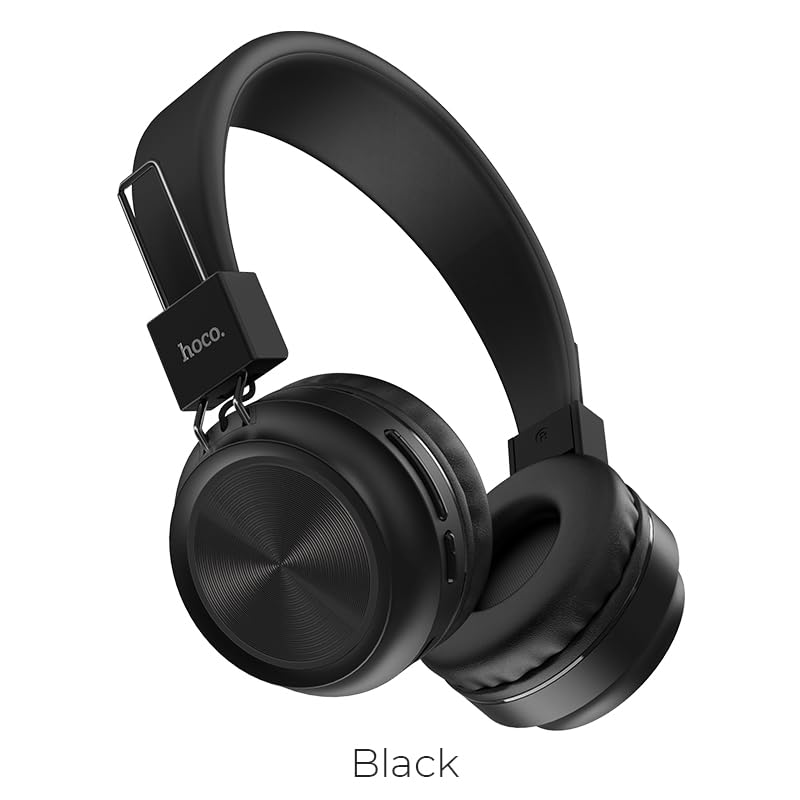
Figure 2: Front view of the HOCO W25 Bluetooth Headphones, highlighting the black color option.
Key Features:
- Superior Sound Quality: Rich, deep bass and crystal-clear highs for an immersive audio experience.
- Water-Resistant and Sweat-Proof: Designed to withstand water and sweat, making them ideal for workouts and outdoor use.
- Touch Controls: Convenient and intuitive control over music playback and calls.
- Bluetooth 5.3 Technology: Ensures seamless pairing, stable connectivity, and reliable wireless performance.
- Gaming Mode: Low latency performance for an enhanced gaming experience.
- Sleek and Stylish Design: Lightweight and comfortable over-ear design.
Setup
1. Charging the Headphones
Before first use, fully charge your HOCO W25 headphones. Connect the provided charging cable to the charging port on the headphones and the other end to a USB power source (e.g., computer USB port, wall adapter). The charging indicator light will show the charging status and turn off when fully charged. A full charge takes approximately 1 hour.
2. Pairing with a Bluetooth Device
- Ensure the headphones are turned off.
- Press and hold the power button on the headphones until the indicator light flashes blue and red alternately, indicating pairing mode.
- On your device (smartphone, tablet, laptop), enable Bluetooth and search for available devices.
- Select "HOCO W25" from the list of found devices.
- Once connected, the indicator light on the headphones will turn solid blue or flash slowly.
Note: The headphones will automatically attempt to reconnect to the last paired device when powered on.
Operating Instructions
Power On/Off:
- Power On: Press and hold the power button for 3 seconds.
- Power Off: Press and hold the power button for 5 seconds.
Music Playback:
- Play/Pause: Single tap the multi-function button.
- Next Track: Double tap the multi-function button.
- Previous Track: Triple tap the multi-function button.
- Volume Up: Press the Volume + button.
- Volume Down: Press the Volume - button.
Call Management:
- Answer/End Call: Single tap the multi-function button.
- Reject Call: Press and hold the multi-function button for 2 seconds.
- Redial Last Number: Double tap the multi-function button when not on a call.
Voice Assistant:
- Activate Voice Assistant: Press and hold the multi-function button for 1 second.
Device Compatibility
The HOCO W25 Bluetooth Headphones are designed for wide compatibility and can connect with virtually all Bluetooth-enabled devices, including:
- Smartphones (iOS and Android)
- Tablets
- Laptops
- Smart TVs
- Other Bluetooth audio devices
Battery Life & Charging
- Playback Time: Up to 12 hours of continuous music playback or talk time on a single charge.
- Standby Time: Up to 200 hours.
- Charging Time: Approximately 1 hour for a full charge.
- Charging Indicator: The LED indicator will show charging status and turn off when fully charged.
Actual battery life may vary based on volume level, audio content, and usage conditions.
Maintenance
- Cleaning: Wipe the headphones with a soft, dry cloth. Do not use abrasive cleaners or solvents.
- Storage: Store the headphones in a cool, dry place away from direct sunlight and extreme temperatures.
- Water Exposure: While water-resistant and sweat-proof, avoid submerging the headphones in water. Dry thoroughly if exposed to moisture.
- Battery Care: To prolong battery life, avoid fully discharging the headphones frequently. Charge regularly, even if not in use for extended periods.
Troubleshooting
No Power:
- Ensure the headphones are fully charged.
- Check the charging cable and power source.
Cannot Pair:
- Make sure the headphones are in pairing mode (flashing blue and red light).
- Ensure Bluetooth is enabled on your device.
- Move the headphones closer to your device.
- Forget "HOCO W25" from your device's Bluetooth settings and try pairing again.
- Restart both the headphones and your device.
No Sound or Low Volume:
- Increase the volume on both the headphones and your connected device.
- Ensure the headphones are properly connected to your device.
- Check if another device is connected to the headphones.
Poor Sound Quality:
- Move closer to your device to avoid interference.
- Ensure there are no obstacles between the headphones and your device.
- Try playing different audio sources.
Specifications
| Feature | Detail |
|---|---|
| Model Name | W25 |
| Connectivity Technology | Wireless (Bluetooth) |
| Bluetooth Version | 5.3 |
| Noise Control | Sound Isolation |
| Water Resistance Level | Water Resistant |
| Control Type | Touch, Volume Control |
| Battery Life | 12 Hours (Playback) |
| Charging Time | 1 Hour |
| Standby Time | 200 Hours |
| Form Factor | Over Ear, On Ear |
| Microphone Format | Built-In |
| Material | Plastic |
| Item Weight | 161 g |
| Manufacturer | HOCO |
Official Product Video
This video provides an overview of the HOCO W25 Bluetooth Headphones, highlighting key features such as deep bass, touch controls, water resistance, and battery life. It also showcases the product's compatibility and design.
Warranty & Support
The HOCO W25 Bluetooth Headphones come with a standard brand warranty. For specific warranty terms and conditions, please refer to the warranty card included with your product or visit the official HOCO website.
For further assistance, technical support, or troubleshooting beyond this manual, please contact HOCO customer service or visit the product detail page on the retailer's website where you purchased the item.
- Warranty: 1 Year Warranty
You can find more information and support resources by visiting the product page on Amazon.in.
Related documentsW25


Ask a question about this manual
Ask about setup, troubleshooting, compatibility, parts, safety, or missing instructions. Manuals+ will review the question and use this page’s manual context to help answer it.