1. Introduction
This user manual provides comprehensive instructions for the Spedal CL860, a portable 9.3-inch HD touch screen system designed to enhance your driving experience with integrated CarPlay, Android Auto, 4K dash camera, and 1080P backup camera functionalities. It covers setup, operation, maintenance, and troubleshooting to ensure optimal performance and user satisfaction.
The Spedal CL860 offers seamless smartphone integration, allowing for calls, texts, navigation, and music playback. It features dual cameras for comprehensive recording, multiple audio output options, and flexible mounting solutions.
2. Package Contents
Before beginning installation, please verify that all components are present in the package:
- 9.3-inch Touchscreen Display Unit
- Front 4K Camera (integrated)
- Rear 1080P Camera (may vary between waterproof/non-waterproof)
- 64GB TF Card (U3 high-speed)
- User Manual
- Mounting Bracket (Adhesive Sticker Bracket and Suction Mount Bracket included)
- Power Cable
- Audio Cable
- USB Lightning Cable
- USB Type-C Cable
- Stickers
3. Setup and Installation
3.1 Mounting the Device
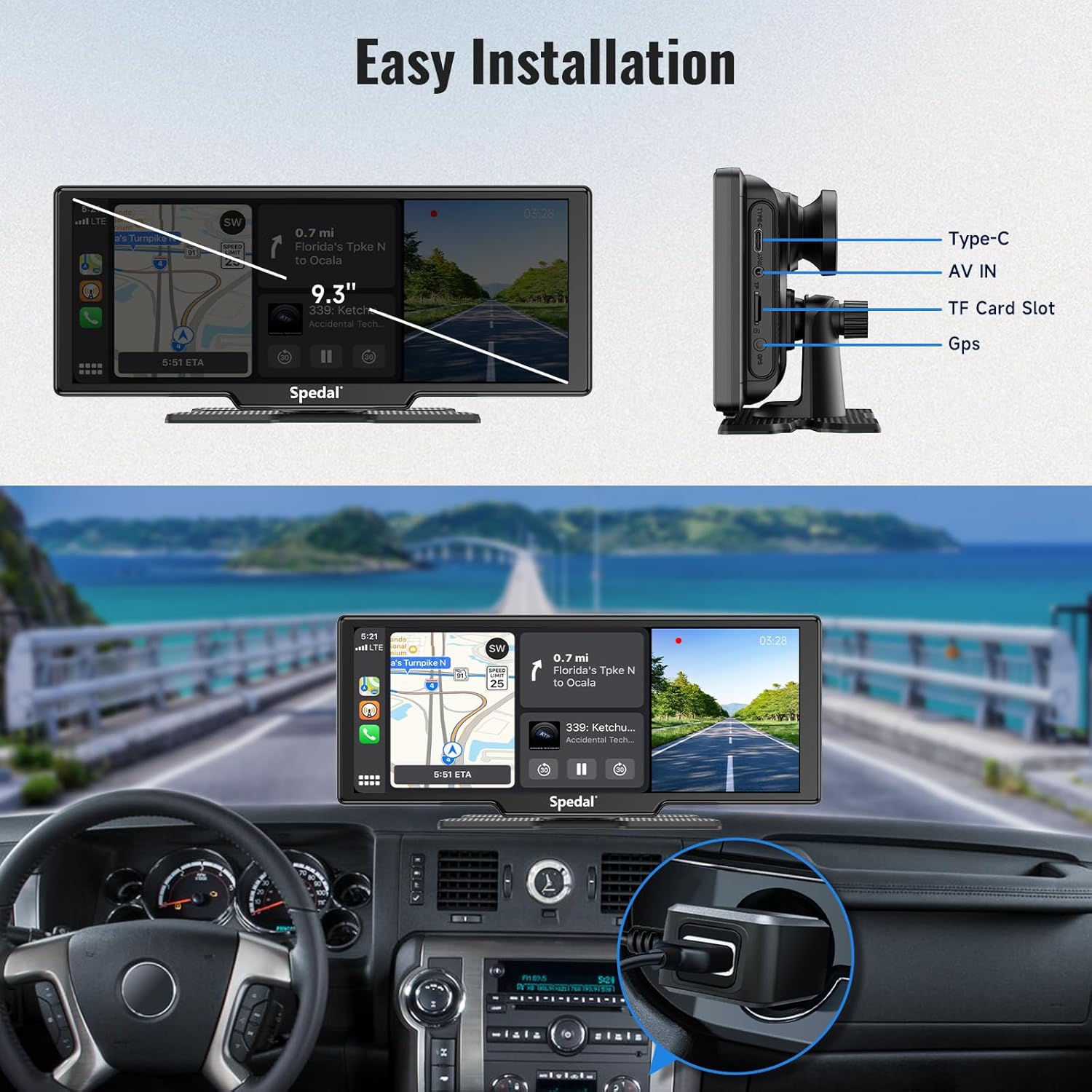
The Spedal CL860 offers two primary mounting methods: an adhesive sticker bracket for a fixed installation and a suction mount bracket for flexible placement on the dashboard or windshield.

3.2 Connecting Power and Cameras
Connect the power cable to the unit and your vehicle's power source. The front camera is integrated. Connect the rear camera to the AV IN port. Ensure all connections are secure.

3.3 Initial Wireless Connection (CarPlay/Android Auto)
For the first use, manually connect your mobile phone's Wi-Fi and Bluetooth. After the initial pairing, the system will automatically connect when your phone is detected.
Wireless Apple CarPlay Setup:
- Connect with your iPhone.
- Select the Bluetooth device starting with "Spedal-******".
- Wait for about 20-30 seconds, then select "Pair".
- Select "Use CarPlay".

Wireless Android Auto Setup:
- Connect with your Android phone.
- Turn on Wi-Fi and Bluetooth on your phone.
- Search for new Bluetooth devices and select the "Spedal-******".
- Wait for about 15 seconds, then click "Connect".
Note: Wireless Android Auto is compatible with Android 11.0 and later mobile phones only.

3.4 Mirror Link (AirPlay/MiraCast) Setup:
Apple AirPlay Setup:
- Connect with your iPhone.
- Select the "Spedal-******" Wi-Fi and enter the password.
- Click the "Screen Mirroring" icon on the Control Center menus.
- Click "Smartscreeen" to complete Screen Mirroring.

Android MiraCast Setup:
- Open the Wi-Fi on your smartphone.
- Find and tap on 'Connected devices' or a similar option.
- Look for 'Cast', 'Screen Mirroring', 'Smart View', or a similar option.
- Tap on it and enable the feature.

4. Operating Instructions
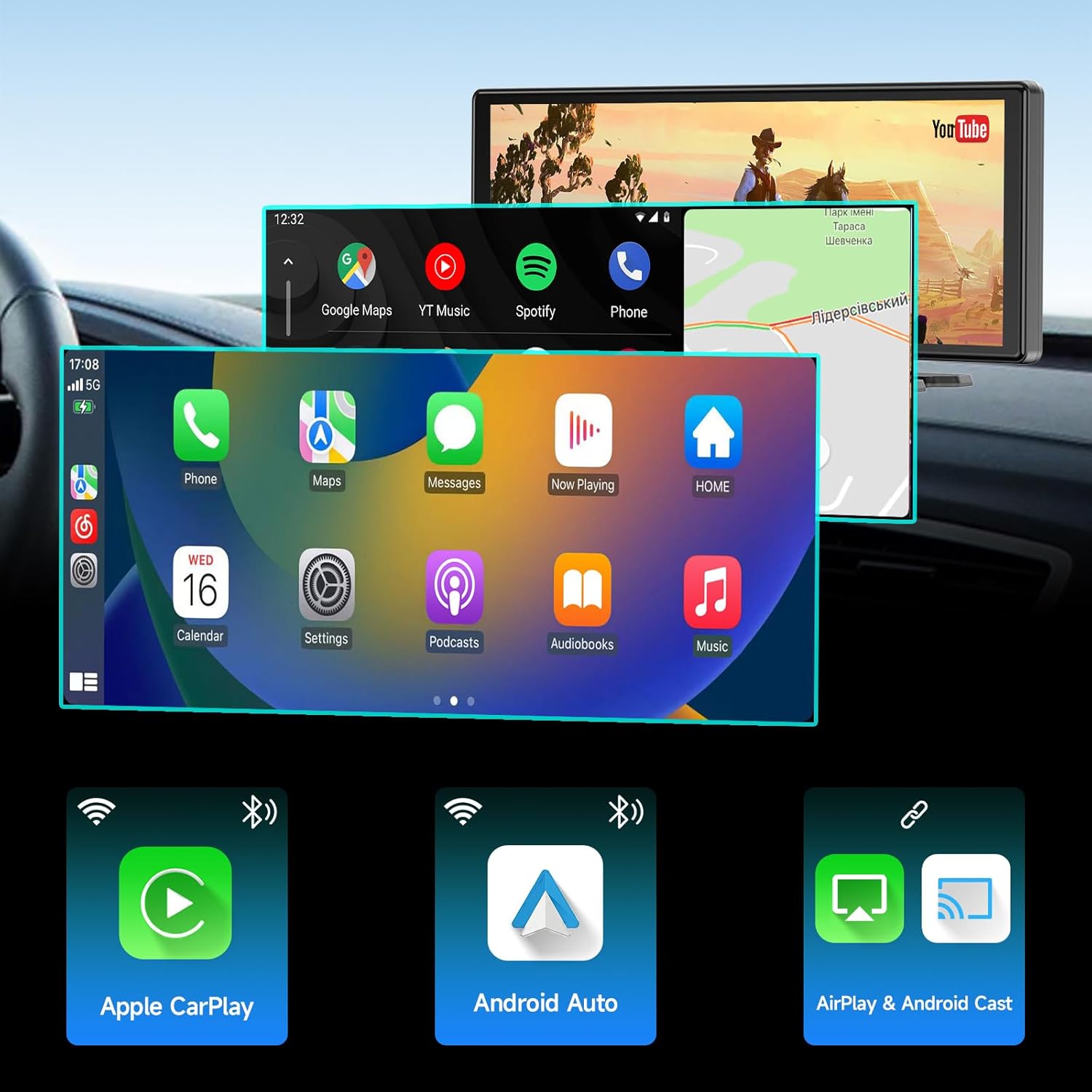
4.1 Core Functions: CarPlay, Android Auto, Mirror Link
The Spedal CL860 serves as a central hub for your smartphone's features, providing a safe and convenient way to access navigation, music, calls, and messages directly from the 9.3-inch display. CarPlay, Android Auto, and Mirror Link functions cannot be used simultaneously but can be switched freely.

4.2 Camera Functions (Dash Cam & Backup Camera)
The unit features a built-in 4K front camera and supports an external 1080P rear camera for comprehensive video recording. The system supports loop recording, ensuring continuous coverage by overwriting the oldest footage when the storage is full. Recorded videos and images can be accessed via the [RoadCam] APP using the built-in 5G WiFi.
4.3 Screen Modes and Views
The 9.3-inch display offers various viewing modes, including full-screen applications, split-screen for simultaneous views (e.g., navigation and camera feed), and dedicated camera views.

4.4 Audio Output Methods
The Spedal CL860 provides multiple options for audio output to your vehicle's sound system:
- Bluetooth: Connect wirelessly to your car's Bluetooth system.
- AUX Connection: Use the provided audio cable to connect to your car's AUX input.
- FM Transmitter: Transmit audio to your car's FM radio on a selected frequency.
- Built-in Speaker: The unit has its own integrated speaker for audio output.

4.5 Voice Control
Utilize Siri or Google Voice Control for hands-free operation, allowing you to make calls, send messages, and navigate safely while driving.

5. Maintenance
5.1 Formatting the SD Card
Regularly format the included 64GB TF card to ensure optimal recording performance and prevent data corruption. This can typically be done through the device's system settings menu.
5.2 General Care
Keep the screen clean using a soft, lint-free cloth. Avoid using abrasive cleaners or solvents. Ensure the unit is not exposed to extreme temperatures or direct sunlight for prolonged periods.
6. Troubleshooting
This section addresses common issues you might encounter with your Spedal CL860. For more detailed troubleshooting, please refer to the full user manual PDF available online.
6.1 Camera Continuously Recording
If the camera is continuously recording and you wish to stop it, navigate to the camera settings. While you can press the red button to stop recording temporarily, the system is designed for loop recording. To manage storage, ensure the loop recording function is enabled and the SD card is formatted regularly. If you experience issues with recording settings, check the system's video settings for options related to loop recording duration and motion detection.
6.2 AirPlay Incompatibility with iOS 17.2
There is a known AirPlay incompatibility issue with iOS 17.2, which may render the Screen Mirroring function unavailable. Please check for firmware updates for the Spedal CL860 or consider updating your iOS version if a fix has been released.
6.3 Connectivity Issues
If the device does not automatically connect to CarPlay or Android Auto after initial setup, ensure your phone's Wi-Fi and Bluetooth are enabled. Try restarting both the Spedal CL860 and your mobile phone. Re-pairing the devices from scratch may also resolve persistent connection problems.
7. Specifications
| Feature | Specification |
|---|---|
| Model Number | CL860 |
| Display Size | 9.3 inches (actual display size is 10.26 inches) |
| Resolution | 1600 x 600 |
| Front Camera | 4K |
| Rear Camera | 1080P |
| Connectivity | Bluetooth, 5G WiFi |
| Special Features | Wireless CarPlay & Android Auto, Mirror Link, Freely Switch Full/Split Screen, Loop Recording |
| Included Storage | 64GB TF Card (U3 high-speed) |
| Mounting Type | Dashboard Mount, Windshield Suction Mount |
| Operating System | Android |
| Power Compatibility | 12-24V |
8. Warranty and Support
Spedal is committed to providing quality products and customer satisfaction. Your Spedal CL860 comes with the following:
- 12 Months Product Warranty: Covers manufacturing defects and malfunctions under normal use.
- 30 Days Return Policy: Allows for returns within 30 days of purchase, subject to terms and conditions.
- 24 Hours Online Response: Dedicated support team available for quick responses to inquiries.
Customer Support:
For technical support, software updates, or any product-related questions, please contact our support team:
Contact Email: support@spedaltech.com


