
1. Introduction
This manual provides detailed instructions for the setup, operation, and maintenance of your SANSUI 24 Inch Gaming Monitor, model ES-G24F4. Please read this manual thoroughly before using the product to ensure proper functionality and to prevent damage.
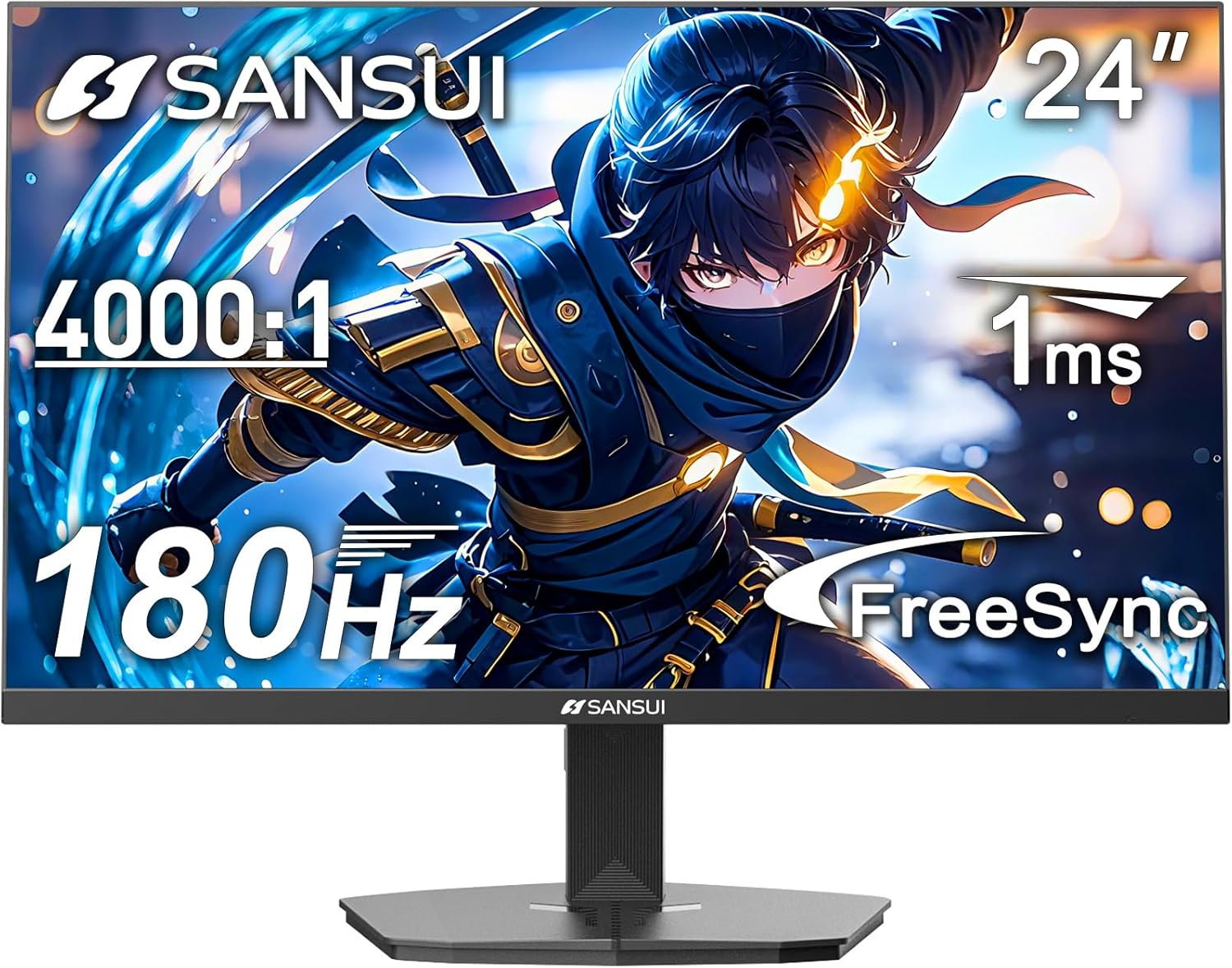
Figure 1: Front view of the SANSUI 24 Inch Gaming Monitor (ES-G24F4).
2. Product Overview
The SANSUI ES-G24F4 is a 24-inch Full HD gaming monitor designed for an enhanced visual experience. Key features include:
- Display Size & Resolution: 24 Inch Full HD (1920x1080)
- Refresh Rate: 180Hz for smooth visuals
- Response Time: 1ms MPRT to minimize motion blur
- Color Gamut: 110% sRGB for vibrant and accurate colors
- Brightness: 300 Nits
- Adaptive Sync: Technology to eliminate screen tearing and stuttering
- Connectivity: DP 1.4 and HDMI 2.0 Ports (HDMI Cable included)
- Mounting: 75x75mm VESA compatibility
- Ergonomics: Eye care features, stable stand with -5° to 15° tilt, 178° viewing angle
- Audio: No built-in speakers

Figure 2: Overview of monitor features.

Figure 3: Multimedia connection options for the monitor.
3. Setup
3.1 Stand Assembly
The monitor comes with a detachable stand for desktop use. To assemble:
- Carefully remove the monitor and stand components from the packaging.
- Attach the base to the stand pillar using the provided screws.
- Align the stand pillar with the mounting slot on the back of the monitor.
- Push the stand firmly into the slot until it clicks into place. Ensure the latch is engaged for a secure connection.
To detach the stand for VESA mounting, pull the latch located on the back of the monitor near the stand connection point, and gently pull the stand away from the monitor.
3.2 Connecting Cables
Connect the necessary cables to the monitor's ports:
- Power Cable: Connect the power adapter to the DC input port on the monitor and then to a power outlet.
- Video Cable: Connect one end of the HDMI cable (included) or a DisplayPort (DP) cable to the corresponding port on your computer's graphics card and the other end to the HDMI 2.0 or DP 1.4 port on the monitor.
- Audio Out: If using external speakers or headphones, connect them to the Audio Out port on the monitor.
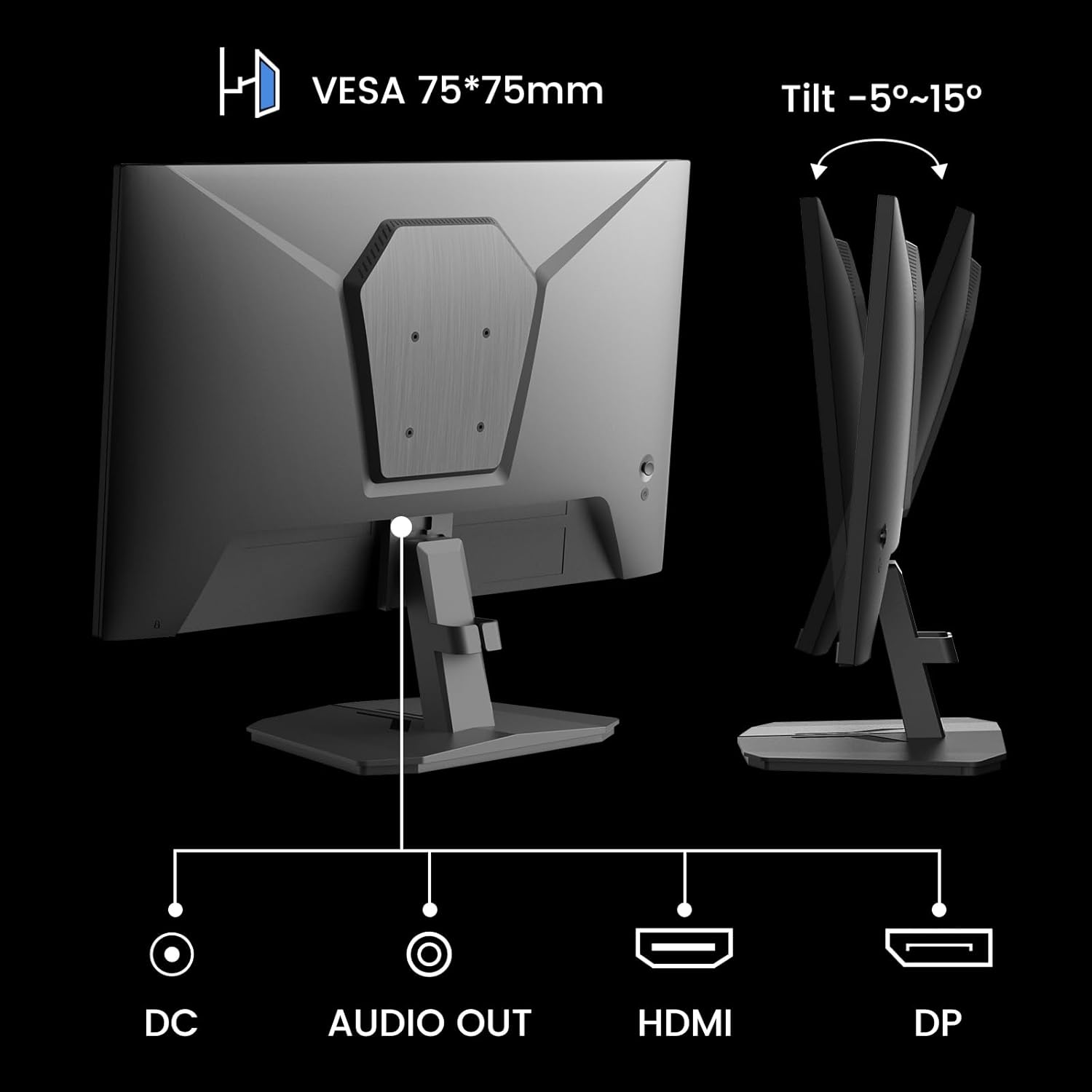
Figure 4: Monitor ports and tilt adjustment.
3.3 VESA Mounting
The monitor supports VESA 75x75mm mounting standards. If you wish to mount the monitor on a wall or an alternative stand, ensure the VESA mount is compatible and can support the monitor's weight (approximately 5.94 pounds).
Video 1: Demonstrates the monitor's thin design and detachable stand, highlighting its suitability for various setups including wall mounting.
4. Operating Instructions
4.1 OSD Menu Navigation
The On-Screen Display (OSD) menu is controlled by buttons located on the back of the monitor. Use these buttons to navigate through settings and adjust display parameters.
4.2 Picture Settings
- Brightness: Adjusts the overall luminance of the screen.
- Contrast: Controls the difference between the brightest and darkest areas.
- Sharpness: Enhances the clarity of image edges.
- Black Level: Adjusts the depth of black colors.
4.3 Color Settings
- Gamma: Adjusts the tone response curve of the display.
- Low Blue Light: Reduces blue light emission for eye comfort.
- Color Temperature: Selects preset color temperatures (e.g., Warm, Cool, User).
- Hue/Saturation: Fine-tunes color tones and intensity.

Figure 5: Color depth and gamut information.
4.4 Gaming Modes
The monitor offers optimized gaming modes for different genres:
- FPS (First-Person Shooter): Enhances visibility in dark areas.
- RTS (Real-Time Strategy): Optimizes clarity for strategic gameplay.
- Racing: Provides a smooth and immersive experience for racing games.

Figure 6: Exclusive Gaming Modes (RTS, FPS, Racing).

Figure 7: Different display modes for various content types.
4.5 Adaptive Sync (FreeSync)
Adaptive Sync technology synchronizes the monitor's refresh rate with your graphics card's frame rate, eliminating screen tearing and stuttering for a smoother gaming experience. Ensure this feature is enabled in both the monitor's OSD and your graphics card settings.

Figure 8: FreeSync ON vs. FreeSync OFF comparison.
4.6 HDR Support
The monitor supports HDR (High Dynamic Range) for a clearer display of moving graphics and enhanced visual depth. Enable HDR in your operating system's display settings and ensure it is activated on the monitor if applicable.
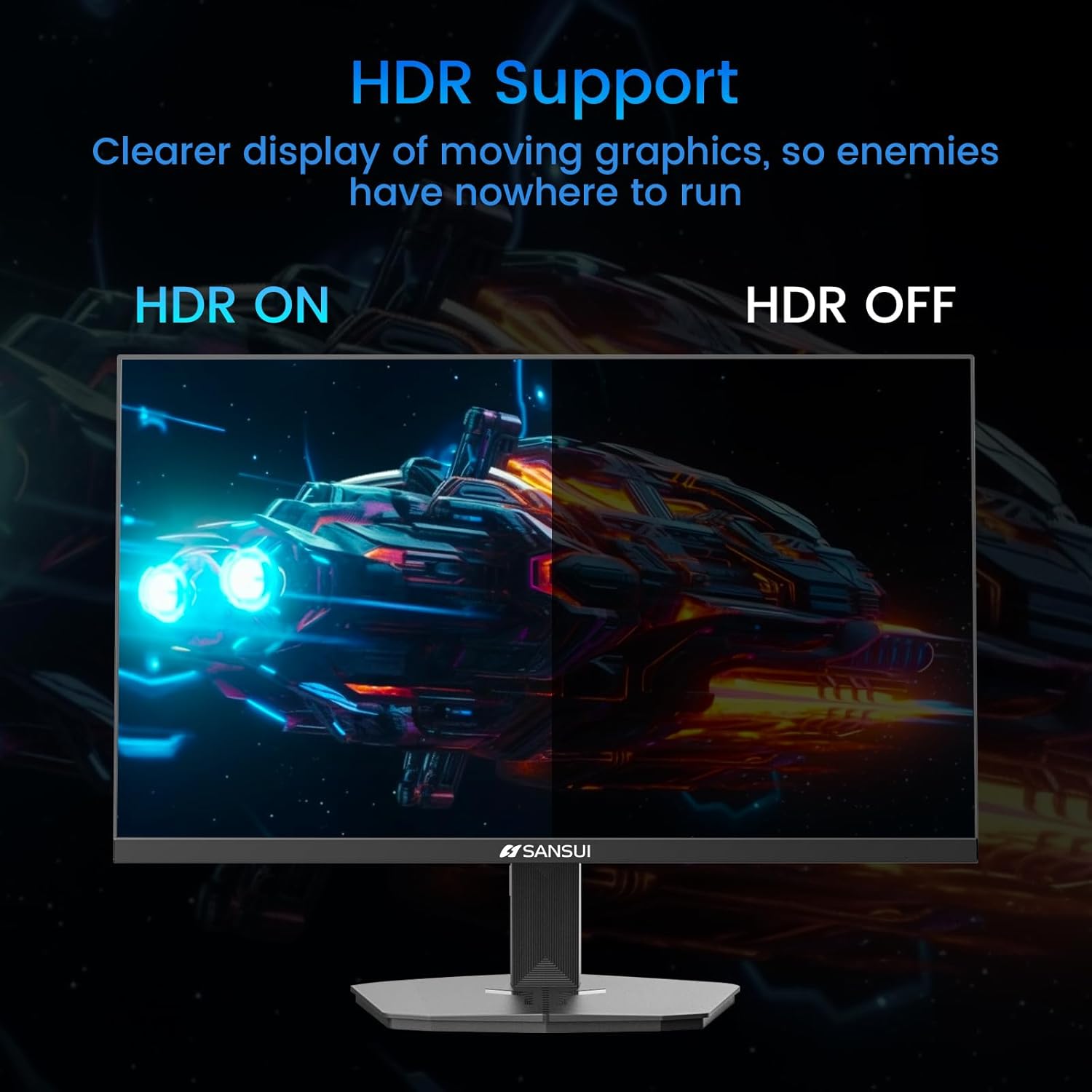
Figure 9: HDR ON vs. HDR OFF comparison.
5. Maintenance
To ensure the longevity and optimal performance of your monitor, follow these maintenance guidelines:
- Cleaning the Screen: Use a soft, lint-free cloth lightly dampened with water or a non-ammonia, non-alcohol based screen cleaner. Do not spray liquid directly onto the screen.
- Cleaning the Casing: Use a soft, dry cloth to wipe the monitor casing. Avoid abrasive cleaners.
- Ventilation: Ensure the monitor's ventilation openings are not blocked to prevent overheating.
- Power Off: Always turn off the monitor and unplug it from the power outlet before cleaning or if it will be unused for an extended period.
6. Troubleshooting
If you encounter issues with your monitor, refer to the following common problems and solutions:
| Problem | Possible Cause | Solution |
|---|---|---|
| No image on screen | Power cable disconnected, video cable loose, incorrect input source. | Check power and video cable connections. Select the correct input source via the OSD menu. |
| Image flickering or distortion | Faulty video cable, refresh rate mismatch, Adaptive Sync issue. | Replace video cable. Ensure refresh rate is set correctly in OS. Check Adaptive Sync settings. |
| Colors appear incorrect | Incorrect color settings, HDR not enabled/disabled properly. | Adjust color settings in OSD. Verify HDR settings in OS and monitor. |
| Monitor wobbles on desk | Stand not securely attached, uneven surface. | Ensure stand is fully clicked into place. Place monitor on a stable, level surface. |
If the problem persists after attempting these solutions, please contact SANSUI customer support for further assistance.
7. Specifications
| Feature | Specification |
|---|---|
| Model Number | ES-G24F4 |
| Screen Size | 24 Inches |
| Resolution | 1920 x 1080 (Full HD) |
| Refresh Rate | 180Hz |
| Response Time | 1ms MPRT |
| Brightness | 300 Nits |
| Color Gamut | 110% sRGB |
| Aspect Ratio | 16:9 |
| Viewing Angle | 178° (Horizontal/Vertical) |
| Connectivity | 1x DisplayPort 1.4, 2x HDMI 2.0, 1x Audio Out |
| VESA Compatibility | 75x75mm |
| Tilt Adjustment | -5° to 15° |
| Item Weight | 5.94 pounds |
| Included Cable | 1.5m HDMI Cable |

Figure 10: Product dimensions.
8. Warranty and Support
SANSUI provides the following support for your monitor:
- Warranty: A 30-day money-back and free replacement warranty from the order date.
- Technical Support: Lifetime technical support is available.
For warranty claims, technical assistance, or any product-related inquiries, please contact SANSUI customer service through their official channels.

Figure 11: Warranty and support details.


