
1. Introduction
This manual provides detailed instructions for the installation, operation, and maintenance of the PowMr 80A Solar Charge Controller. This device is designed to manage power flow from solar panels to batteries, ensuring efficient and safe charging for various battery types and system voltages.
Video 1.1: Unboxing the PowMr PStar Series Solar Controller. This video demonstrates the contents of the product package, including the controller and user manual.
2. Safety Instructions
- Ensure all wiring is correctly polarized and securely connected to prevent damage to the controller or battery.
- Always connect the battery to the charge controller first, then the solar panel. Disconnect in the reverse order.
- Install the controller in a well-ventilated area, away from flammable materials and direct sunlight.
- Do not attempt to disassemble or repair the controller yourself. Contact qualified personnel for service.
- Use appropriate circuit breakers or fuses for all connections to protect against overcurrent.
3. Product Overview
The PowMr 80A Solar Charge Controller features an adjustable LCD display, dual USB outputs, and supports multiple battery types. It utilizes 3-stage intelligent PWM technology for efficient charging.

Figure 3.1: Front view of the PowMr 80A Solar Charge Controller, highlighting key technical specifications such as Max. PV Open Circuit Voltage (100V), Rated Charging Current (80A), Nominal System Voltage (12V/24V/36V/48V Auto), Charging Technology (PWM), Charge Algorithm (3-Stages), USB Interface (5V/2A*2), Net weight (0.75 kg), and Operating Temperature Range (-20°C ~ +55°C).
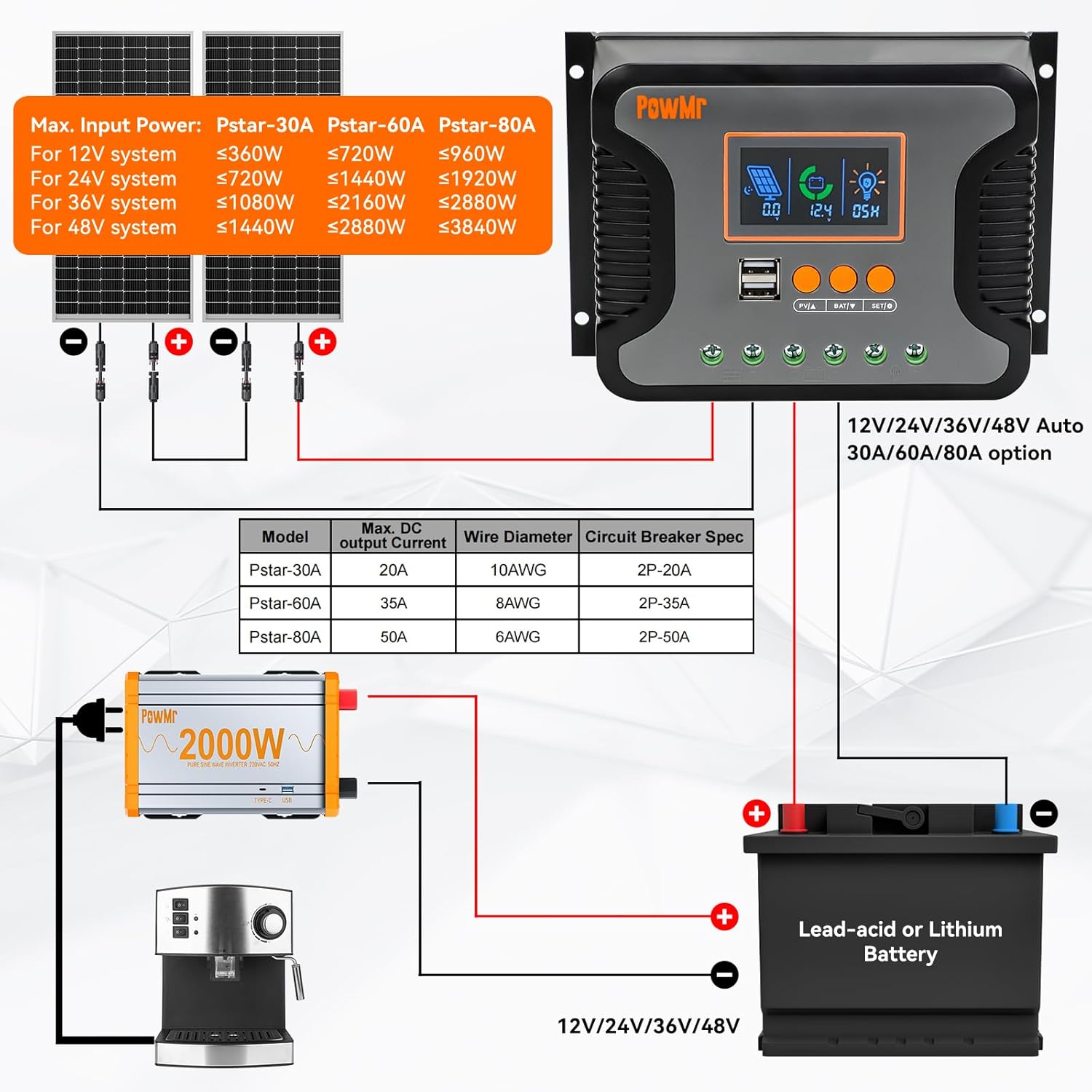
Figure 3.2: Detailed views of the controller's features, including the LCD display for monitoring, function keys for settings, dual USB ports for charging external devices, and the die-cast aluminum construction for heat dissipation.
3.1 Key Features
- Auto System Voltage Detection: Automatically detects 12V, 24V, 36V, and 48V DC systems.
- High PV Input: Supports a maximum PV input open circuit voltage of 100V.
- Broad Battery Compatibility: Compatible with Sealed, LiFePO4, Gel, Flooded, and Lithium batteries.
- Dual USB Output: Provides 5V/2.5A (max) for charging mobile devices.
- Multiple Protections: Includes protection against overheating, short circuits, over-discharging, reverse polarity, and overcurrent.
- LCD Display: Real-time monitoring of charging current, generated energy, temperature, and battery voltage.

Figure 3.3: Illustration of the controller's compatibility with different battery types, including Lithium Iron Phosphate (LiFePO4), Sealed Lead-Acid (SLA), GEL, Flooded (FLD), and AGM batteries.
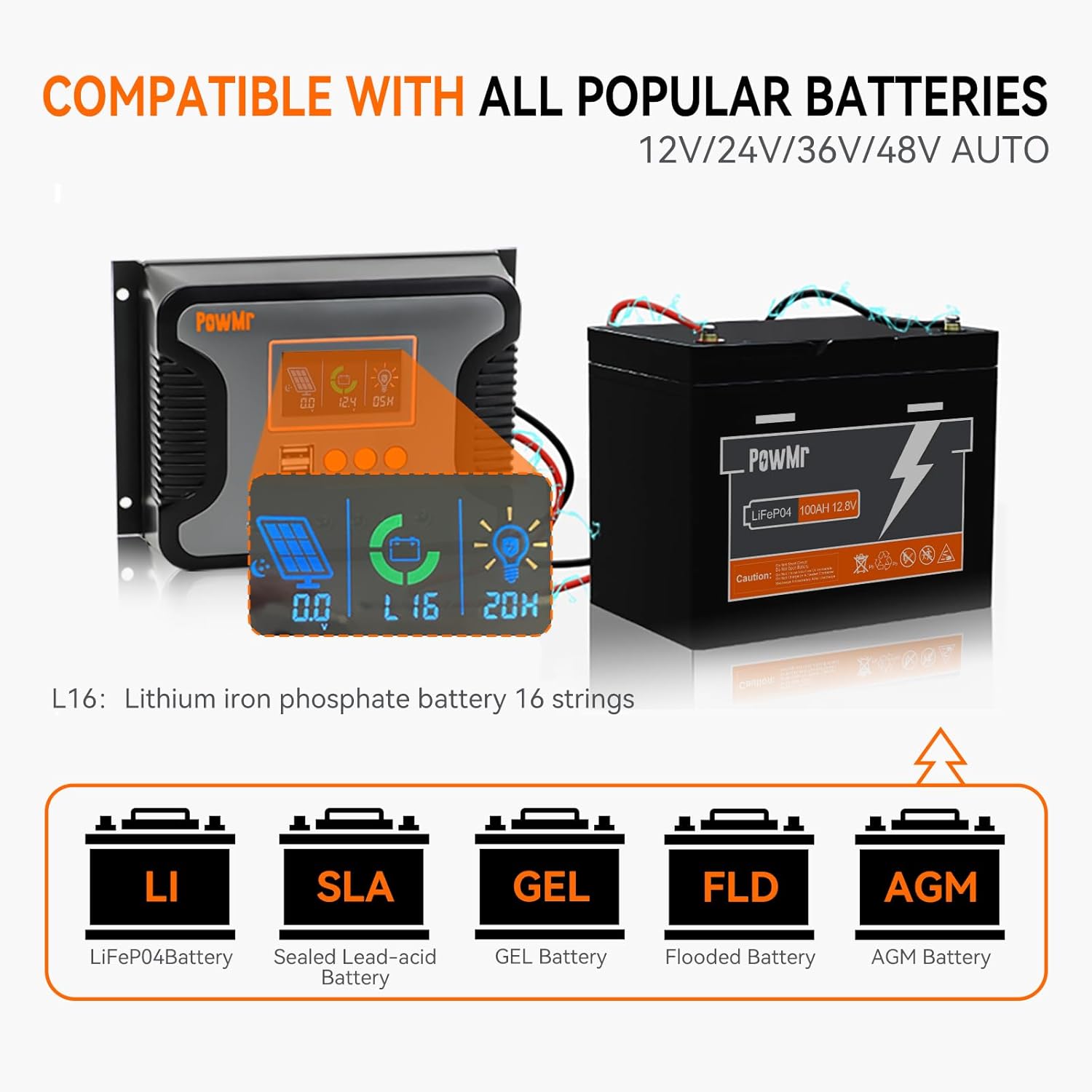
Figure 3.4: Visual representation of the comprehensive protection features integrated into the controller, ensuring safe operation and longevity of the system components.
4. Technical Specifications
| Feature | Specification |
|---|---|
| Model | 80A |
| Nominal System Voltage | 12V/24V/36V/48V Auto |
| Max. PV Input Open Circuit Voltage | 100V |
| Max. PV Input Power (12V Battery) | 960W |
| Max. PV Input Power (24V Battery) | 1920W |
| Max. PV Input Power (36V Battery) | 2880W |
| Max. PV Input Power (48V Battery) | 3840W |
| Rated Charging Current | 80A |
| Rated DC Output Current | 50A |
| Charging Technology | PWM (3-Stages) |
| USB Interface | Dual USB output 5V/2.5A (max) |
| Operating Temperature Range | -20°C ~ +55°C |
| Item Weight | 0.7 Kilograms (1.54 pounds) |
| Display Type | LCD |
5. Installation
Proper installation is crucial for the safe and efficient operation of your solar charge controller. Follow these steps carefully:
5.1 Mounting the Controller
- Choose a suitable location: Ensure it is dry, well-ventilated, and protected from direct sunlight and moisture.
- Secure the controller to a wall or mounting surface using four screws.
Video 5.1: Quick installation video for PowMr Pstar-80A solar controller. This video demonstrates the physical mounting of the controller and the correct wiring sequence.
5.2 Wiring Connections
Important: Always connect the battery first, then the solar panel, and finally the load. Disconnect in the reverse order (load, then solar panel, then battery).
- Connect the Battery: Connect the positive and negative terminals of your battery to the corresponding battery terminals on the controller. Ensure correct polarity.
- Connect the Solar Panel: Connect the positive and negative terminals of your solar panel(s) to the corresponding PV input terminals on the controller. Ensure correct polarity.
- Connect the DC Load (Optional): If using a DC load directly from the controller, connect its positive and negative terminals to the load terminals on the controller.
- Power On: Close the battery circuit breaker to power on the controller.

Figure 5.1: Comprehensive wiring diagram illustrating the connection points for solar panels, battery, and DC load. It also provides a table with recommended wire diameters and circuit breaker specifications for different models (Pstar-30A, Pstar-60A, Pstar-80A).
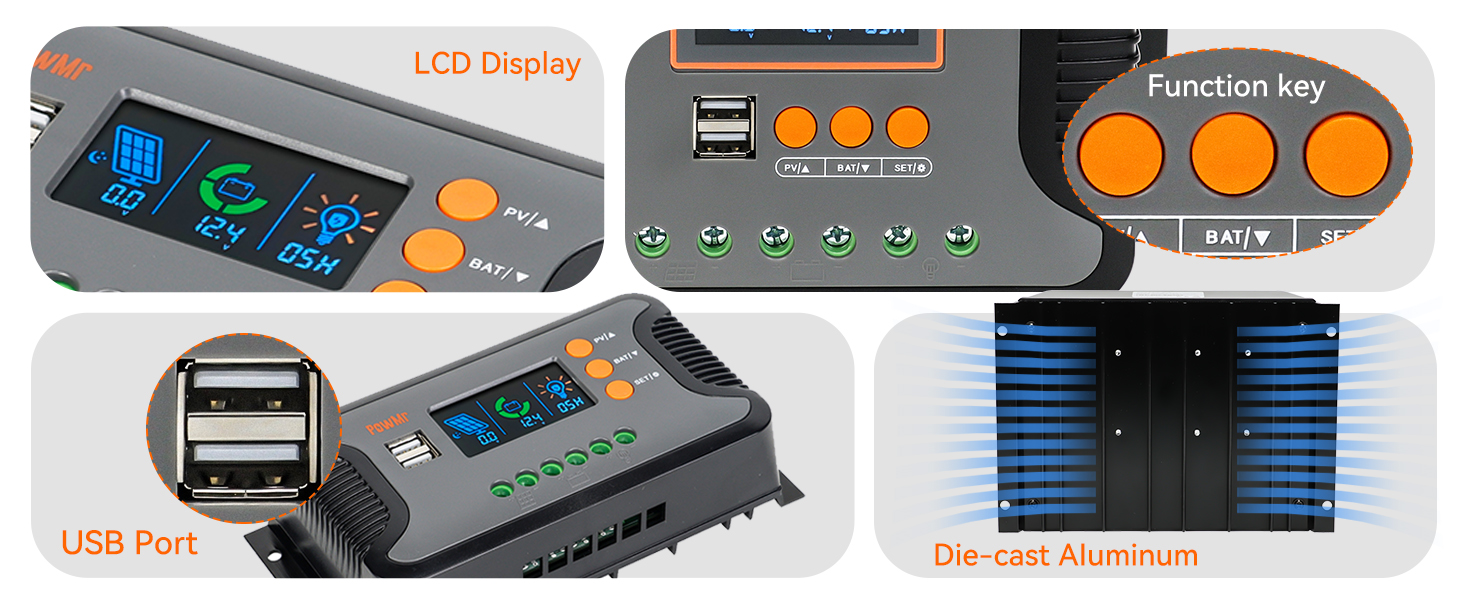
Figure 5.2: A simplified two-step connection guide, emphasizing the correct sequence of connecting the battery first (Step 1) and then the solar panels (Step 2) to the charge controller.
6. Operation
The controller features an LCD display and three buttons for easy monitoring and parameter adjustment.
6.1 LCD Display and Buttons
The LCD displays real-time system information such as solar panel voltage, battery voltage, charging current, and load status. The three buttons (PV/A, BAT/V, SET/↓) are used for navigating menus and adjusting settings.
- PV/A Button: Short press to cycle through solar panel related displays (e.g., PV voltage, charging current).
- BAT/V Button: Short press to cycle through battery related displays (e.g., battery voltage, battery type).
- SET/↓ Button: Short press to enter or exit setting mode, or to decrease a value during setting. Long press to save settings.
6.2 Setting Battery Type
To optimize charging, select the correct battery type:
- Press the BAT/V button until the battery type icon flashes on the LCD.
- Use the PV/A and SET/↓ buttons to cycle through available battery types (e.g., SEL for Sealed, FLD for Flooded, GEL for Gel, Li for Lithium).
- Once the desired battery type is displayed, long press the SET/↓ button to confirm and save the setting.
The controller will automatically return to the default display screen if no button is pressed for 100 seconds.
7. Maintenance
Regular maintenance ensures the longevity and optimal performance of your solar charge controller:
- Periodically check all wiring connections for tightness and corrosion.
- Clean the controller's exterior with a dry cloth to remove dust and debris.
- Ensure the ventilation fins are clear of obstructions to allow for proper heat dissipation.
- Monitor the LCD display for any error codes or unusual readings.
8. Troubleshooting
If you encounter issues with your PowMr 80A Solar Charge Controller, refer to the following common problems and solutions:
| Problem | Possible Cause | Solution |
|---|---|---|
| Controller not powering on | Battery not connected or low voltage; reverse polarity. | Check battery connections and voltage. Ensure correct polarity. |
| No charging from solar panels | Solar panels not connected; insufficient sunlight; PV voltage too low. | Verify solar panel connections. Check for shading. Ensure PV voltage is above battery voltage. |
| Load not working | Load not connected; battery voltage too low; overload protection activated. | Check load connections. Charge battery. Reduce load or check for short circuits. |
| Inaccurate voltage readings | Loose connections; incorrect battery type setting. | Tighten all connections. Verify the correct battery type is selected in settings. |
9. Warranty and Support
The PowMr 80A Solar Charge Controller comes with a standard manufacturer's warranty. For specific warranty terms, please refer to the warranty card included in your product packaging or contact Temank customer support.
For technical assistance, troubleshooting beyond this manual, or to inquire about replacement parts, please contact Temank customer service through their official website or the contact information provided with your purchase.


