
CelsusSound S800C
CelsusSound S800C Bone Conduction Headphones User Manual
Model: S800C | Brand: CelsusSound
Introduction
Thank you for choosing CelsusSound S800C Bone Conduction Headphones. These open-ear Bluetooth headphones are designed to provide high-fidelity audio while maintaining situational awareness, making them ideal for sports and daily activities. This manual provides detailed instructions for setup, operation, and maintenance to ensure optimal performance and longevity of your device.

Image: CelsusSound S800C Bone Conduction Headphones, orange and black design.
What's in the Box
- 1 x Bone Conduction Headphones (S800C)
- 1 x Magnetic Charging Cable
- 1 x User Manual

Image: The contents of the product packaging, including the headphones, charging cable, and user manual.
Product Overview
The CelsusSound S800C headphones feature an ergonomic design for comfortable wear and intuitive controls for easy operation.

Image: A diagram illustrating the location and function of the three independent control buttons on the headphone unit: Magnetic charging port, Volume up/Next song, Power on/off/Play/Pause, and Volume down/Previous song.
Key Features:
- Open-Ear Design: Allows awareness of surroundings.
- Bluetooth 5.3: Stable and fast connection.
- IPX7 Water-Resistant: Suitable for workouts and light rain.
- Long Battery Life: Up to 8-10 hours of playback.
- Flexible Titanium Frame: Durable and comfortable fit.
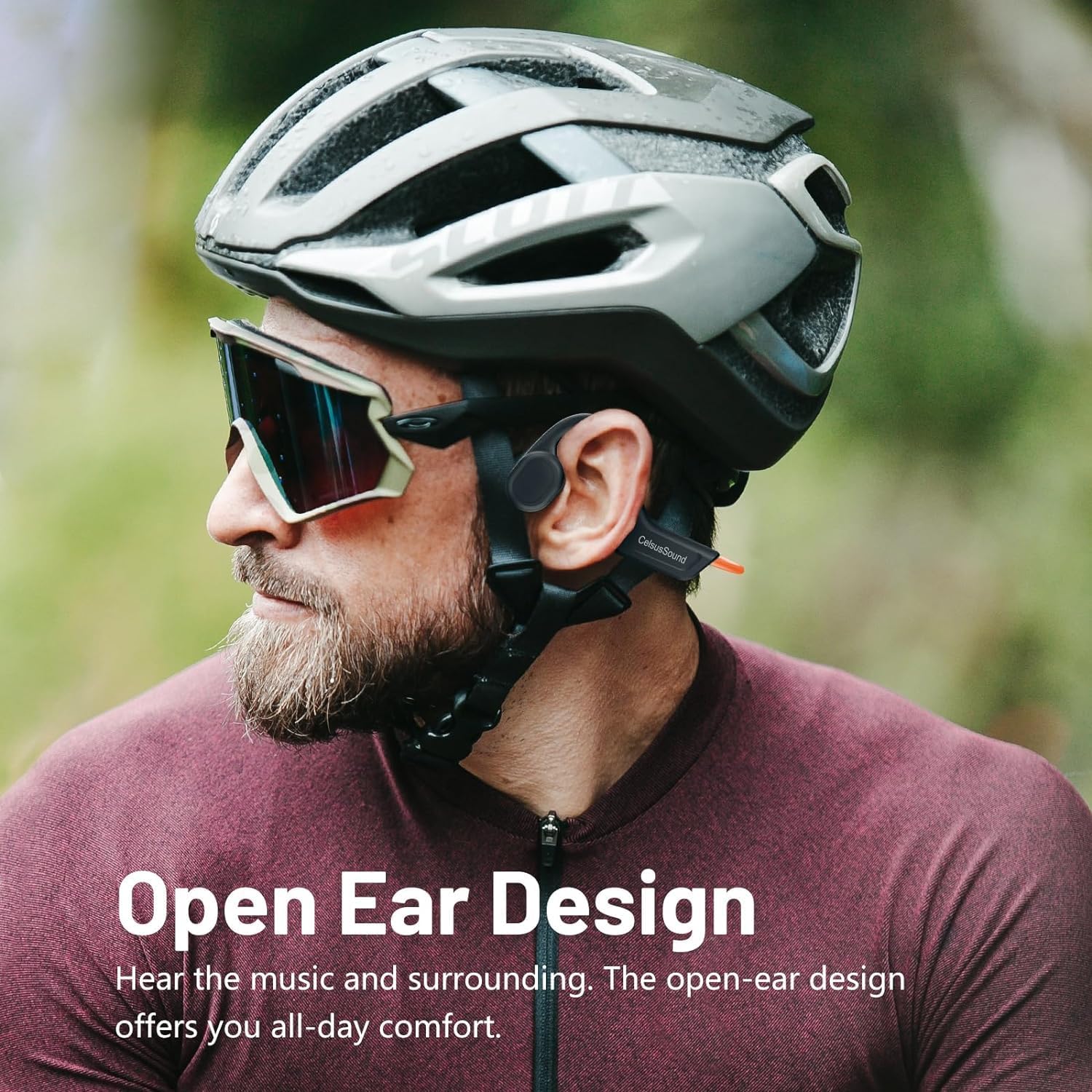
Image: A person wearing the CelsusSound S800C headphones, highlighting the open-ear design that allows ambient sound awareness.
Setup
1. Charging the Headphones
Before first use, fully charge your headphones. Use the provided magnetic charging cable. Connect the magnetic end to the charging port on the headphones and the USB end to a compatible power source (e.g., computer USB port, USB wall adapter).
- Charging Time: Approximately 1.5 hours for a full charge.
- Battery Indicator: Refer to the LED indicator on the headphones for charging status.

Image: A close-up view of the magnetic charging connection point on the headphones.
2. Powering On/Off
- Power On: Long press the Power button for 3 seconds until the LED indicator lights up and you hear a power-on prompt.
- Power Off: Long press the Power button for 3 seconds until the LED indicator turns off and you hear a power-off prompt.
3. Bluetooth Pairing
To connect your headphones to a device:
- Ensure the headphones are powered off.
- Long press the Power button for 3 seconds to power on. The headphones will automatically enter pairing mode, indicated by a flashing LED light.
- On your device (smartphone, tablet, computer), enable Bluetooth and search for available devices.
- Select "S800C" from the list of found devices to connect.
- Once connected, the LED indicator will stop flashing, and you will hear a connection confirmation.
Your headphones are now ready for use.
Video: A demonstration on how to operate the CelsusSound S800C Bluetooth Headphones, including powering on, connecting via Bluetooth, and basic music controls.
Operating Instructions
Music Playback
- Play/Pause: Click the Power button once.
- Volume Up: Click the "+" button once.
- Volume Down: Click the "-" button once.
- Next Song: Long press the "+" button for 2 seconds.
- Previous Song: Long press the "-" button for 2 seconds.

Image: A visual guide detailing the functions of each button for music playback and call management, including single clicks and long presses.
Call Management
- Answer/Hang Up Call: Click the Power button once.
- Refuse Call: Long press the Power button for 2 seconds.
Maintenance
- Cleaning: Wipe the headphones with a soft, damp cloth. Do not use abrasive cleaners or immerse in water for cleaning.
- Water Resistance: The headphones are IPX7 water-resistant, meaning they can withstand splashes, rain, and sweat. They are not suitable for swimming or prolonged submersion. Ensure the charging port is dry before charging.
- Storage: Store the headphones in a cool, dry place away from direct sunlight and extreme temperatures. The flexible design allows for easy storage.

Image: A person holding the CelsusSound S800C headphones with water splashing, demonstrating their IPX7 waterproof and sweatproof capabilities.
Troubleshooting
| Problem | Possible Cause | Solution |
|---|---|---|
| Cannot power on | Low battery; Not pressing button long enough. | Charge the headphones fully. Long press the Power button for 3 seconds. |
| Cannot pair with device | Bluetooth is off; Headphones not in pairing mode; Device too far. | Ensure Bluetooth is enabled on your device. Power on headphones to enter pairing mode. Keep devices within 10 meters. |
| No sound or low volume | Volume too low; Not connected; Audio source issue. | Increase volume on headphones and device. Re-pair headphones. Check audio output settings on your device. |
| Sound quality issues | Interference; Device too far; Low battery. | Move closer to the device. Charge headphones. Avoid strong electromagnetic interference. |
Specifications
- Model: S800C
- Connectivity Technology: Bluetooth 5.3
- Bluetooth Range: 15 meters
- Audio Driver Type: Bone Conduction Driver
- Battery Capacity: 230mAh
- Charging Time: 1.5 Hours
- Playback Time: 8-10 Hours
- Standby Time: 150 Hours
- Water Resistance Level: IPX7 Water Resistant
- Material: Titanium Alloy
- Item Weight: 1 Ounce (approx. 33g)
- Product Dimensions: 6.1 x 2.17 x 5.39 inches
- Frequency Range: 20 Hz - 20,000 Hz
- Control Method: Touch/Button
Warranty and Support
CelsusSound is committed to the quality of its products. We offer:
- Lifetime technical support.
- A 12-month worry-free warranty.
- 24-hour customer service.
For any questions or assistance, please contact CelsusSound customer service.
Ask a question about this manual
Ask about setup, troubleshooting, compatibility, parts, safety, or missing instructions. Manuals+ will review the question and use this page’s manual context to help answer it.