
HOCO Y2 Pro
Hoco Y2 Pro Smart Sports Watch User Manual
Model: Y2 Pro
1. Introduction
Thank you for choosing the Hoco Y2 Pro Smart Sports Watch. This manual provides essential information for setting up, operating, and maintaining your device. Please read it carefully to ensure proper use and to maximize the watch's features. The Hoco Y2 Pro is designed to enhance your daily activities with its call function, sports modes, and health monitoring capabilities.
2. Safety Information
- Do not attempt to disassemble or modify the watch. Unauthorized repairs may void the warranty and cause damage.
- Keep the watch away from extreme temperatures, direct sunlight, and corrosive liquids.
- Avoid strong impacts or dropping the watch.
- While the watch is IP68 waterproof, it is not suitable for deep diving or prolonged submersion in hot water. Avoid contact with chemical detergents.
- Consult a medical professional before starting any new exercise regimen, especially if you have pre-existing health conditions. The health monitoring data is for reference only and should not be used for medical diagnosis.
- Ensure the charging cable is properly connected to a power source and the watch to prevent short circuits or damage.
3. Package Contents
Please check the box for the following items:
- Hoco Y2 Pro Smart Sports Watch
- Charging Cable
- User Manual (this document)

Image: Hoco Y2 Pro Smart Watch packaging, showing the watch box and its contents.
4. Product Overview
The Hoco Y2 Pro features a 1.28-inch TFT display and a durable design. Familiarize yourself with the watch's components:
- Display: 1.28-inch TFT touchscreen for interactive control and information display.
- Side Buttons: Typically used for power on/off, screen wake-up, and menu navigation.
- Heart Rate Sensor: Located on the back of the watch, used for heart rate and other health monitoring.
- Charging Contacts: Magnetic contacts on the back for connecting the charging cable.
- Strap: Adjustable and comfortable for daily wear.

Image: Front view of the Hoco Y2 Pro Smart Watch, displaying a digital watch face with activity trackers.
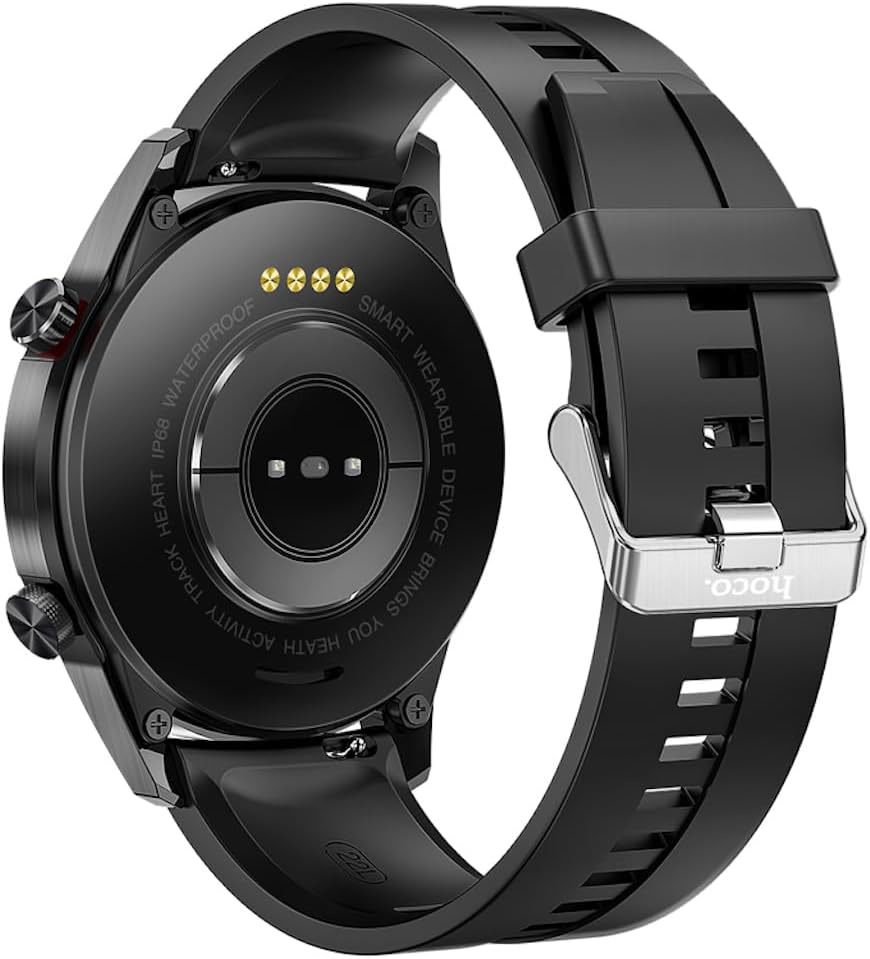
Image: Back view of the Hoco Y2 Pro Smart Watch, showing the heart rate sensor and charging contacts.
5. Setup
5.1. Charging the Device
Before first use, fully charge your Hoco Y2 Pro. Connect the magnetic charging cable to the charging contacts on the back of the watch. Connect the other end of the cable to a USB power adapter (not included) or a computer's USB port. The watch display will indicate charging status.
- Charging time: Approximately 2-3 hours for a full charge.
- Battery life: 3-5 days with dual Bluetooth enabled, 7-10 days with call function off.
5.2. Powering On/Off
- Power On: Press and hold the side button until the screen lights up.
- Power Off: From the watch face, swipe down or navigate to the settings menu, then select 'Power Off' or 'Shutdown'. Confirm your choice.
5.3. App Installation and Pairing
To unlock the full potential of your Hoco Y2 Pro, you need to install the companion application on your smartphone and pair the devices.
- Download the App: Scan the QR code in the watch's manual or on the watch itself (if available) or search for the official Hoco smartwatch app in your smartphone's app store (Google Play Store for Android, Apple App Store for iOS).
- Register/Log In: Open the app and follow the on-screen instructions to create an account or log in.
- Enable Bluetooth: Ensure Bluetooth is enabled on your smartphone.
- Pairing: In the app, navigate to 'Device' or 'Add Device'. The app will search for available devices. Select 'Hoco Y2 Pro' from the list. Follow any prompts on both the watch and the phone to confirm the pairing.
- Dual Bluetooth Connection: For call functionality, ensure both the main Bluetooth connection and the call-specific Bluetooth connection are established. This usually happens automatically after initial pairing, but you may need to check your phone's Bluetooth settings for a second 'Hoco Y2 Pro_CALL' or similar device.

Image: Hoco Y2 Pro Smart Watch displayed next to a smartphone, illustrating the connection.
6. Operating Instructions
6.1. Basic Navigation
- Swipe Up: Access notifications or quick settings.
- Swipe Down: Access quick settings or notifications.
- Swipe Left/Right: Navigate between different widgets or main functions (e.g., heart rate, activity, weather).
- Tap: Select an item or enter a menu.
- Press Side Button: Return to the watch face, or wake the screen.
6.2. Call Function
With dual Bluetooth enabled, you can make and receive calls directly from your watch.
- Making Calls: Access the dial pad or contact list on the watch to initiate a call.
- Receiving Calls: When a call comes in, the watch will display the caller ID. You can answer or reject the call directly from the watch.
6.3. Sports Modes
The watch supports multiple sports modes to track your workouts. Navigate to the 'Sports' or 'Workout' menu to select your desired activity (e.g., running, walking, cycling). The watch will record data such as duration, distance, calories burned, and heart rate.
6.4. Health Monitoring
- Heart Rate Monitoring: Access the heart rate function on the watch to measure your real-time heart rate. For continuous monitoring, enable the feature in the companion app.
- Sleep Monitoring: Wear the watch to bed, and it will automatically track your sleep patterns, including deep sleep, light sleep, and wake-up times. View detailed sleep data in the app.
- Sedentary Reminder: Enable this feature in the app to receive alerts when you have been inactive for a prolonged period, encouraging you to move.
6.5. Notifications and Other Features
- Information Push: Once paired, the watch can receive notifications from your smartphone (e.g., calls, SMS, social media alerts). Configure which app notifications to receive in the companion app.
- Real-time Weather: View current weather conditions on your watch after syncing with the app.
- Find Phone: If your phone is connected via Bluetooth, use this feature on the watch to make your phone ring, helping you locate it.
- Watch Faces: Customize your watch face from a selection of pre-installed options or download more through the companion app.
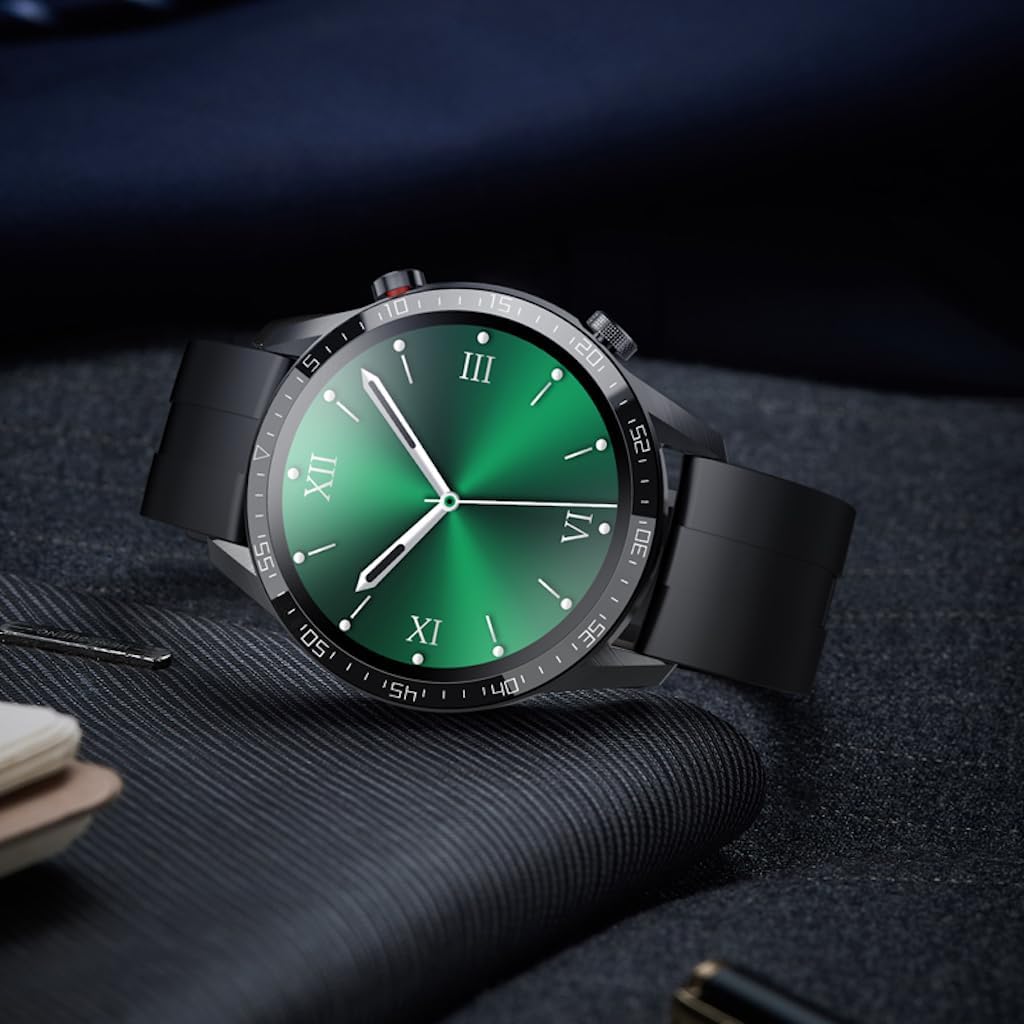
Image: Hoco Y2 Pro Smart Watch displaying an alternative watch face.
7. Maintenance
7.1. Cleaning
Regularly clean your watch to ensure optimal performance and hygiene.
- Wipe the screen and body with a soft, lint-free cloth.
- For stubborn dirt, dampen the cloth slightly with water. Do not use harsh chemicals or abrasive materials.
- Clean the charging contacts periodically to ensure good connection.
7.2. Water Resistance (IP68)
The Hoco Y2 Pro is IP68 waterproof, meaning it is resistant to dust and can withstand immersion in water up to 1.5 meters for up to 30 minutes. This makes it suitable for daily use, such as hand washing, rain, or accidental splashes.
- Do not wear the watch while showering with hot water, in saunas, or during diving.
- Avoid exposing the watch to high-pressure water streams.
- If the watch gets wet, wipe it dry before charging or using the buttons.
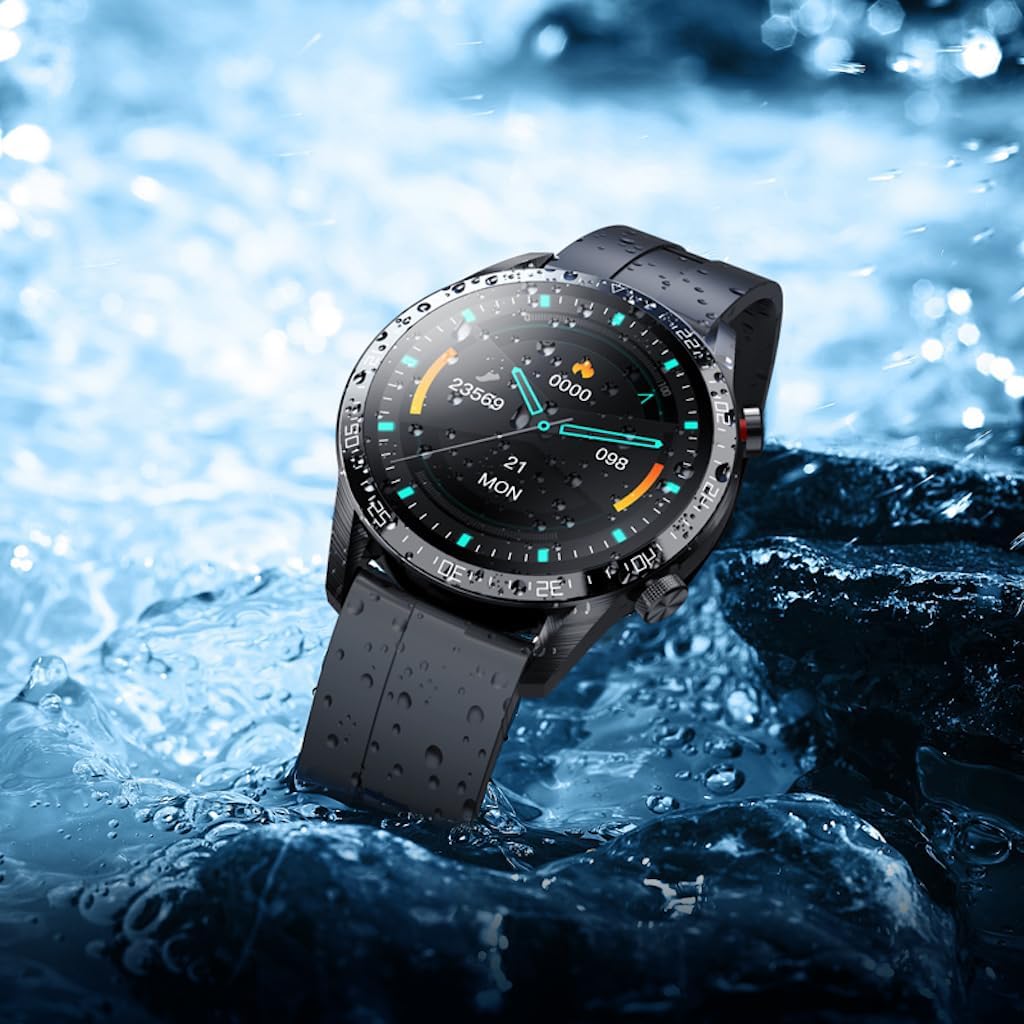
Image: Hoco Y2 Pro Smart Watch partially submerged in water, demonstrating its water resistance.
7.3. Battery Care
- Avoid completely draining the battery frequently.
- Store the watch with some charge if not used for extended periods.
- Use only the provided charging cable.
8. Troubleshooting
| Problem | Possible Cause | Solution |
|---|---|---|
| Watch does not turn on | Low battery; System crash | Charge the watch for at least 30 minutes; Press and hold the side button for 10-15 seconds to force restart. |
| Cannot pair with smartphone | Bluetooth off; App issue; Watch not discoverable | Ensure phone Bluetooth is on; Restart watch and phone; Reinstall the app; Ensure watch is in pairing mode. |
| Call function not working | Dual Bluetooth not connected; App permissions | Check phone's Bluetooth settings for the second 'CALL' connection; Grant necessary phone permissions to the app. |
| Inaccurate health data | Watch fit too loose/tight; Sensor dirty | Ensure watch is snug but comfortable on wrist; Clean the sensor area on the back of the watch. |
| Notifications not received | App permissions; Notification settings in app/phone | Check app notification permissions on phone; Ensure notifications are enabled for specific apps in the companion app. |
9. Specifications
| Feature | Specification |
|---|---|
| Model | Y2 Pro |
| Main Screen | 1.28 inch TFT |
| Resolution | 240 x 240 |
| Waterproof Rating | IP68 |
| CPU | Realtek8762CW |
| Memory | RAM192KB + ROM64MB |
| Connectivity | Dual Bluetooth |
| Battery Capacity | 260 mAh |
| Battery Life (Dual Bluetooth) | 3-5 days |
| Battery Life (Call Off) | 7-10 days |
| GPS | No GPS |
| Human Interface Input | Touchscreen |
| Color | Black |
| Item Weight | 183 g |
| Supported Languages | 22 languages (Chinese, English, Russian, Arabic, Vietnamese, Danish, Thai, Polish, Persian, Spanish, Malay, Greek, French, Italian, German, Portuguese, Turkish, Latin, Romanian, Hebrew, Burmese, Ukrainian) |
10. Warranty and Support
Your Hoco Y2 Pro Smart Sports Watch is covered by a standard manufacturer's warranty. Please refer to the warranty card included in your product packaging for specific terms and conditions, including the warranty period and coverage details.
For technical support, troubleshooting assistance, or warranty claims, please contact Hoco customer service through the contact information provided on the official Hoco website or your local distributor. Please have your product model number (Y2 Pro) and proof of purchase ready when contacting support.
Related documentsY2 Pro


Ask a question about this manual
Ask about setup, troubleshooting, compatibility, parts, safety, or missing instructions. Manuals+ will review the question and use this page’s manual context to help answer it.