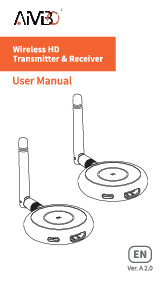
Introduction
This manual provides comprehensive instructions for the installation, operation, and maintenance of your AIMIBO Wireless HDMI Extender. This device allows for wireless transmission of 1080P@60Hz video and audio signals from an HDMI source to multiple displays or mobile devices, offering flexibility and reducing cable clutter in various environments.
What's in the Box
- 1 x Wireless HDMI Transmitter (TX)
- 1 x Wireless HDMI Receiver (RX)
- 2 x HDMI Cables
- 2 x USB C Cables
- 1 x Mini HDMI Adapter
- 1 x Micro HDMI Adapter
- 1 x User Manual

Figure 1: Contents of the AIMIBO Wireless HDMI Extender package.
Product Overview
The AIMIBO Wireless HDMI Extender system consists of a Transmitter (TX) and a Receiver (RX) unit. Both units are compact and designed for ease of use. The TX unit connects to your HDMI source device, and the RX unit connects to your display. They communicate wirelessly to transmit high-definition video and audio.

Figure 2: Front view of the Transmitter (TX) and Receiver (RX) units, along with the mini and micro HDMI adapters.
Key features include external antennas for strong signal, 5G/60Hz smooth streaming, and a lightweight, portable design.
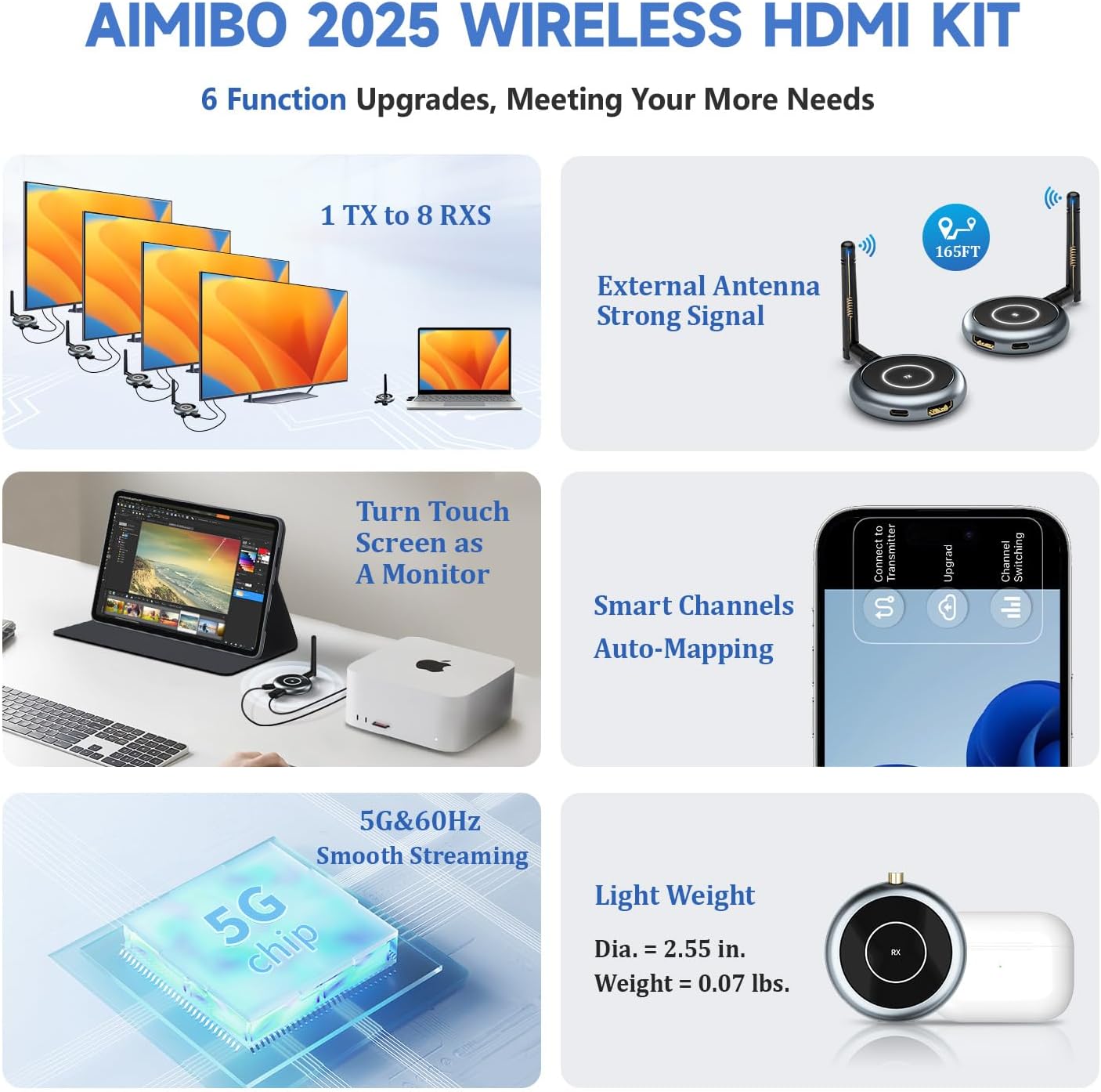
Figure 3: Overview of the AIMIBO Wireless HDMI Kit's main functionalities.
Setup Instructions
The AIMIBO HDMI wireless kit is pre-paired at the factory for plug-and-play convenience. Follow these steps for initial setup:
Output Method 1: Transmission from Transmitter to Receiver
- Connect the HDMI cable and USB-C power cable to the Transmitter (TX) unit. Plug the HDMI cable into your HDMI output device (e.g., laptop, cable box).
- Connect the HDMI cable and USB-C power cable to the Receiver (RX) unit. Plug the HDMI cable into your HDMI input device (e.g., TV, projector, monitor).
- Wait approximately 5 seconds for the devices to establish a connection and begin streaming.

Figure 4: Standard setup for wireless HDMI transmission.
Output Method 2: Output from Transmitter to Phone/Tablet (RScreen App)
- Connect the TX unit to your HDMI output device and power it on.
- Install the 'RScreen' app on your iOS or Android phone/tablet.
- Connect your phone/tablet to the Wi-Fi network broadcast by the TX device (usually named 'TuTuplay-xxxx').
- Open the 'RScreen' app on your phone/tablet for syncing and viewing the mirrored display.

Figure 5: Using a mobile device as a monitor with the RScreen app.
Output Method 3: Output from Transmitter to Multiple Receivers
- Prepare multiple RX units. Pair each individually with the TX unit during the initial setup (long-press the function button on both TX and RX for 5 seconds until they connect).
- Connect the RX units to their respective displays and establish the connection by plugging the TX unit into your HDMI output device.
- Wait a few seconds, and the screen will sync into multiple displays, providing simultaneous output.

Figure 6: Multi-receiver setup for extended viewing.
The system supports up to 8 receivers or 8 phones/tablets, or a combination of both, for simultaneous display.

Figure 7: Example of multi-screen extension in a professional setting.
Operating Instructions
Plug and Play Operation
Once connected and powered, the TX and RX units will automatically connect. If re-pairing is needed, simply long-press the function button on both the TX and RX units for approximately 5 seconds. The devices will then automatically establish a connection.

Figure 8: Simple plug-and-play functionality.
Wide Compatibility
The HDMI wireless extender is compatible with most HDMI display devices such as HDTVs, Projectors, Monitors, Laptops, PCs, Cameras, Set-top boxes, Cable Boxes, Blu-ray/DVD players, Roku, Satellite boxes, and Gaming consoles. The wireless HDMI transmitter can cast content from various sources to smartphones, tablets, iPads, and iPhones, supporting popular video services.
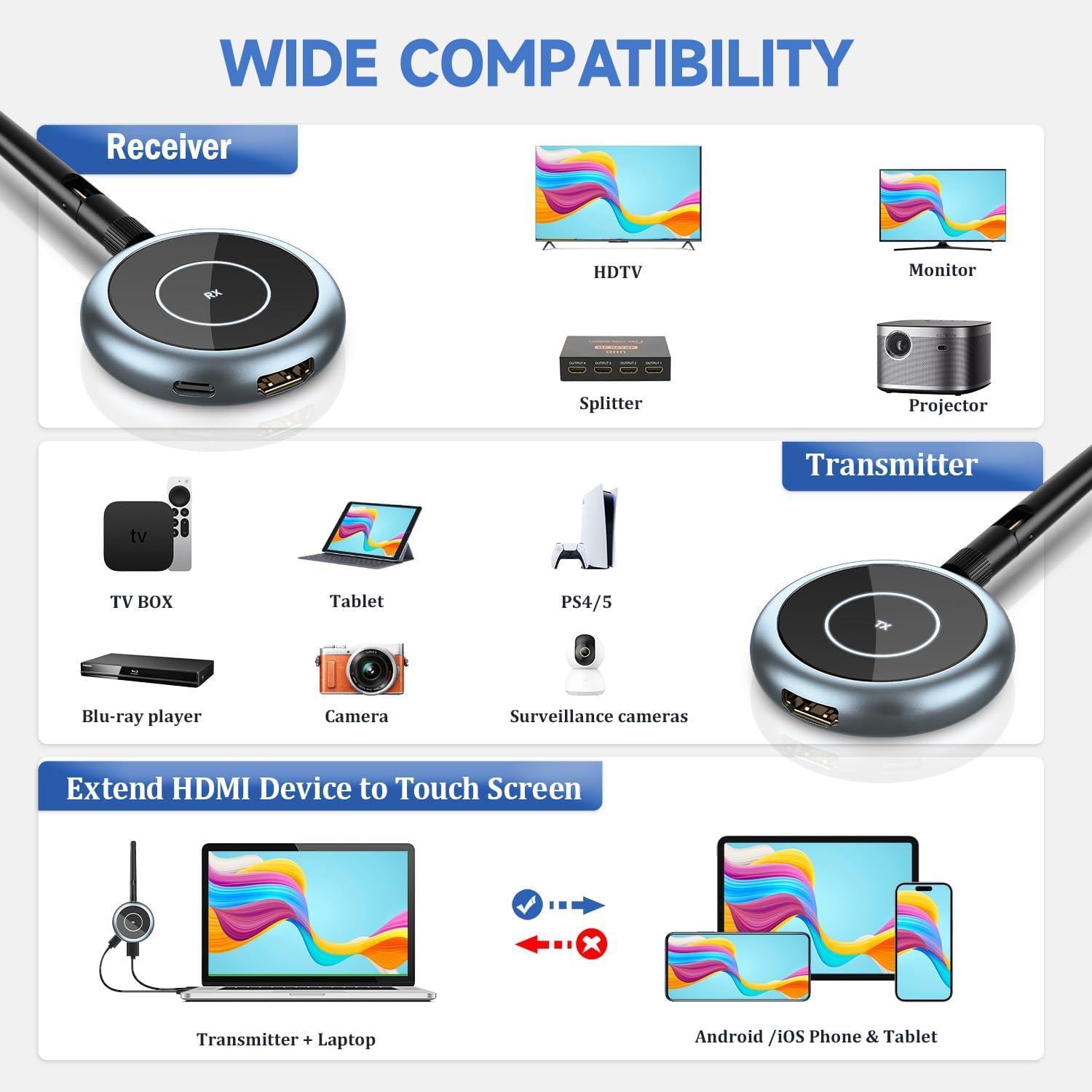
Figure 9: Compatibility chart for the HDMI extender.
Turning Your Touch Screen into a Monitor
The advanced HDMI transmitter allows you to cast HDMI output from a device like a laptop directly to mobile devices wirelessly. This transforms your phone or tablet into a monitor using the RScreen app. This is particularly useful in large meeting rooms where participants can view presentations on their personal devices.
Note:
- Operating your laptop on a phone is not supported. The mobile device functions only as a display screen for the mirrored content.

Figure 10: Utilizing a touch screen device as an extended display.
Dual Modes Support
The system supports two primary modes of operation:
- Mode 1: Only TX to 4 Screens - The Transmitter can send signals to up to four displays (TVs, monitors, projectors).
- Mode 2: TX+RX+3 Screens - The Transmitter can send signals to one Receiver connected to a display, plus three additional touch screens (mobile devices) via the RScreen app.

Figure 11: Explanation of the dual operating modes.
Long Range Transmission
The HDMI wireless transmitter and receiver provide stable signal transmission up to 165 feet (50 meters) in an open environment, utilizing an updated wireless frequency band with multiple channels. This minimizes signal interruptions over long distances.
Note:
- When passing through walls, the transmission distance is reduced to approximately 32 feet (10 meters).
Maintenance
To ensure the longevity and optimal performance of your AIMIBO Wireless HDMI Extender, please follow these maintenance guidelines:
- Cleaning: Use a soft, dry cloth to clean the units. Avoid using liquid cleaners or aerosols, as they may damage the device.
- Storage: Store the devices in a cool, dry place away from direct sunlight and extreme temperatures when not in use.
- Handling: Handle the units with care. Avoid dropping them or subjecting them to strong impacts, which can damage internal components.
- Power: Always use the provided USB-C power cables. Ensure a stable power source to prevent unexpected disconnections or damage.
- Ventilation: Ensure the units have adequate ventilation during operation to prevent overheating. Do not cover the devices.
Troubleshooting
If you encounter issues with your AIMIBO Wireless HDMI Extender, refer to the following common problems and solutions:
- No Signal/Black Screen:
• Ensure both TX and RX units are properly powered and connected to their respective HDMI ports.
• Verify that the input source is active and outputting a signal.
• Try re-pairing the TX and RX units by long-pressing their function buttons for 5 seconds.
• Check if the HDMI cables are securely connected and not damaged. - Image is Transmitted, but No Sound:
• Please check the audio settings of your output device. The system supports 2.0 stereo audio output. It does not support Dolby, 2.1 channel stereo, 5.1 channel stereo, or 7.1 channel stereo output. - Poor Video Quality/Choppy Playback:
• Ensure the TX and RX units are within the recommended transmission range (165ft/50m in open space, 32ft/10m through walls). Obstacles like walls and other wireless devices can affect signal quality.
• Reduce interference from nearby wireless connections by opening the RScreen app and clicking on "Channel Switching" to select a less congested channel.
• Verify that your source device is outputting a stable 1080P@60Hz signal. - Cannot Continue Playing Videos When Exiting App on Phone:
• This occurs because your phone has disconnected from the TX device's Wi-Fi network. To resume video playback, you need to go back to your phone's Wi-Fi settings, reconnect to the 'TuTuplay-xxxx' network, and then reopen the RScreen app. - Units Getting Hot:
• It is normal for the units to generate some heat during operation. Ensure they are placed in a well-ventilated area and not covered to allow for proper heat dissipation.
Specifications
| Feature | Specification |
|---|---|
| Brand | AIMIBO |
| Model Number | Q3+G48 |
| Item Weight | 8 ounces |
| Product Dimensions | 6.5 x 10 x 1.5 inches |
| Output Wattage | 50 Watts |
| Color | Silver |
| Connectivity Technology | Wireless, App, Wifi, Bluetooth |
| Video Resolution | 1080P@60Hz |
| Latency | 0.1s |
| Transmission Range | Up to 165 feet (50m) in open environment; 32 feet (10m) through walls |
| Max Receivers Supported | 8 (or 8 phones/tablets, or combination) |
| Audio Output Mode | Stereo (2.0) |
| Video Encoding | MOV |
Warranty and Support
AIMIBO prioritizes quality and customer satisfaction. The product comes with professional technical support. For any issues or inquiries, please contact AIMIBO customer service through the platform where you purchased the product or visit the official AIMIBO store for support information.
Each item includes a unique code for authenticity verification through the Amazon app, ensuring you receive genuine products from the brand.