
1. Introduction
This manual provides detailed instructions for the safe and effective use of your CAMKORY 4K 48MP Digital Camera, model DC202. Please read this manual thoroughly before operating the camera and retain it for future reference.
2. Safety Information
To prevent damage to the camera or injury to yourself or others, observe the following safety precautions:
- Do not expose the camera to water or moisture.
- Avoid dropping the camera or subjecting it to strong impacts.
- Do not attempt to disassemble or modify the camera.
- Keep the camera away from strong magnetic fields.
- Use only approved batteries and accessories.
- Dispose of batteries and electronic components responsibly.
3. Package Contents
Verify that all items are present in your package:
- 1 x CAMKORY 4K Digital Camera
- 1 x User Manual
- 1 x Cleaning Cloth
- 1 x Carrying Bag
- 1 x USB Cable (for charging/connection)
- 1 x HDMI Cable
- 2 x Rechargeable Batteries
- 1 x Lens Cap
- 1 x 32GB SD Card
4. Camera Overview
The CAMKORY DC202 is a compact digital camera designed for ease of use, featuring 4K video recording and 48MP still image capture. It includes an optical viewfinder, autofocus, and digital image stabilization.
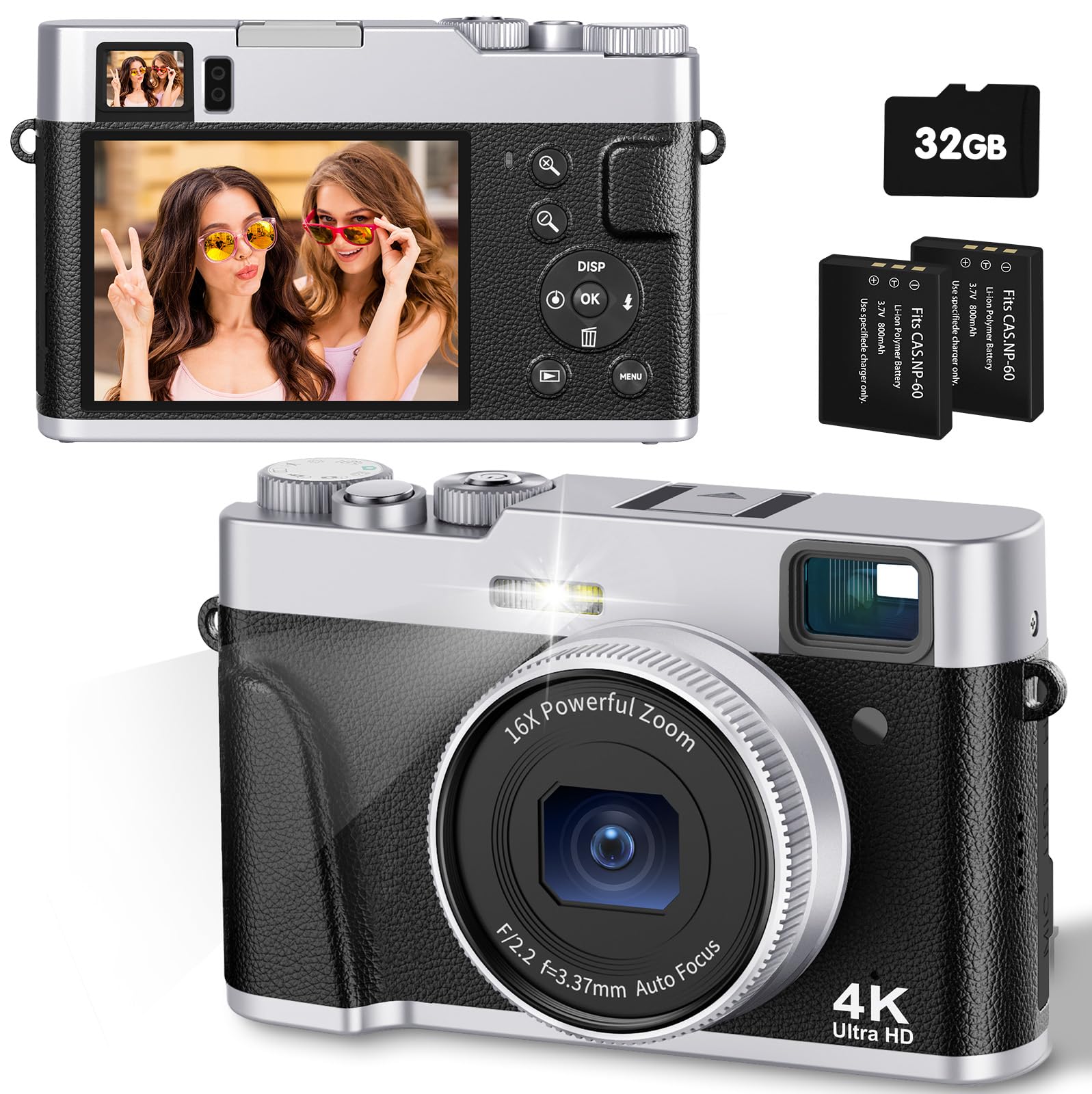
Image: The CAMKORY 4K Digital Camera, illustrating the optical viewfinder and the difference between 1080p and 4K image quality in a landscape scene.

Image: Front view of the camera, showing the lens, built-in flash, and the mode dial on top.

Image: Rear view of the camera, displaying the LCD screen and various control buttons for navigation and settings.
5. Setup
5.1 Battery Installation
The camera uses Lithium-polymer batteries. Ensure correct orientation when inserting the battery. The information page on the battery should face the camera screen side when inserted. Incorrect insertion may prevent the camera from powering on or charging.
5.2 Memory Card Installation
Insert the provided 32GB SD card into the memory card slot until it clicks into place. Ensure the card is inserted in the correct direction.
5.3 Charging the Battery
Connect the camera to a power source using the supplied USB cable. The charging indicator will illuminate. Charging is complete when the indicator turns off.
5.4 Initial Power On
Press and hold the power button to turn the camera on. Follow any on-screen prompts for initial setup, such as setting the date and time.
6. Operating the Camera
6.1 Power On/Off
Press and hold the power button to turn the camera on or off.
6.2 Taking Photos
To take a photo, select the photo mode using the mode dial. Point the camera at your subject. Lightly press the shutter button halfway down to activate autofocus. The focus frame on the screen will change from yellow to green when focus is achieved. Press the shutter button fully to capture the image.

Image: A person using the camera, demonstrating the autofocus function on a subject.

Image: Advanced autofocus technology ensuring clear focus on subjects, contrasting with blurry results from other cameras.
6.3 Recording Videos
To record a video, select the video mode using the mode dial. Press the shutter button to start recording and press it again to stop. The camera supports 4K video recording with a pause function.
6.4 Using the Optical Viewfinder
The optical viewfinder provides a clear and precise view of your subject, even in bright conditions, aiding in composition without relying solely on the LCD screen.
6.5 Flash Operation
The camera features an improved powerful flash. You can set the flash to automatic, on, or off depending on lighting conditions. The flash is ideal for low-light environments.

Image: A comparison showing the effect of the camera's flash in a low-light setting, with the flash off and on.
6.6 Zoom Function
The camera features a 16x digital zoom. Use the zoom controls to adjust the magnification of your subject.
6.7 Image Stabilization
The camera includes digital image stabilization to help reduce blur caused by camera shake, resulting in clearer photos and videos.
6.8 Mode Dial
The mode dial allows quick selection between different functions such as photo mode, video mode, and settings.
6.9 Special Features
- Macro Function: The advanced autofocus allows for close-up photography, capturing fine details like water droplets.
- Self-Timer: Set a delay of 2, 5, or 10 seconds before a photo is taken, useful for self-portraits or group shots.
- Slow Motion & Time-lapse: Capture dynamic scenes with slow-motion video or condense long events into short time-lapse sequences.
- Filters: Apply one of 20 different filters to your photos for creative effects.
- Webcam Function: Connect the camera to a computer via USB to use it as a webcam for live streaming or video calls.
- Smile Detection & Burst Shooting: The camera can automatically detect smiles and capture multiple images in quick succession for burst shooting.

Image: A collage showcasing various camera features such as powerful flash, webcam capability, slow motion, time-lapse, 20 different filters, and self-timer options.
7. Playback and Data Transfer
7.1 Viewing Media
Switch to playback mode to review your captured photos and videos on the LCD screen.
7.2 Connecting to a Computer
Use the supplied USB cable to connect the camera to your computer. This allows for easy transfer of images and videos without requiring additional software.
7.3 Connecting to a TV
Use the supplied HDMI cable to connect the camera to a television for viewing photos and videos on a larger screen.
8. Maintenance
8.1 Cleaning
Gently clean the lens with the provided cleaning cloth. For the camera body and screen, use a soft, dry cloth. Do not use harsh chemicals or abrasive materials.
8.2 Storage
When not in use, store the camera in its carrying bag in a cool, dry place, away from direct sunlight and extreme temperatures. Remove batteries if storing for extended periods.
9. Troubleshooting
- Camera does not power on: Ensure the battery is correctly inserted and fully charged. Check if the battery is inserted with the information page facing the camera screen.
- Images are blurry: Ensure proper focus by half-pressing the shutter button. Check lighting conditions and consider using the flash. Digital image stabilization helps, but steady hands are still recommended.
- Memory card error: Ensure the SD card is correctly inserted. If the error persists, try formatting the card (this will erase all data) or use a different compatible SD card.
- Flash not working: Check flash settings to ensure it is not set to 'off'. Ensure the battery has sufficient charge.
- Cannot transfer files to computer: Ensure the USB cable is securely connected to both the camera and the computer. Check the camera's connection mode settings (if applicable) to ensure it's set for data transfer.
10. Specifications
| Feature | Specification |
|---|---|
| Model Number | DC202 |
| Brand | CAMKORY |
| Dimensions (L x W x H) | 12 x 3 x 7.5 cm |
| Weight | 140 grams |
| Effective Capture Resolution | 48 Megapixels |
| Video Capture Format | AVI (4K resolution) |
| Image Format | JPEG |
| Optical Sensor Technology | CMOS |
| Optical Sensor Size | 1/3.2 inch |
| Digital Zoom | 16x |
| Image Stabilization | Digital |
| Autofocus | Yes |
| Optical Viewfinder | Yes |
| Flash | Integrated (Auto, On, Off modes) |
| Screen Size | 3 Inches (IPS display) |
| Memory Card Type | SD (32GB card included) |
| Connectivity | HDMI, USB |
| Battery Type | Lithium-polymer (2 included) |
| Exposure Control Type | Automatic, Manual |
| Special Features | 4K Video, 48 MP Image, Easy Operation, Macro Autofocus, Optical Viewfinder, Powerful Flash, 16x Digital Zoom, Image Stabilization, Time-lapse, Slow Motion, Self-timer, 20 Filters, Live Streaming, Webcam |
11. Warranty and Support
For warranty information and technical support, please refer to the documentation included with your purchase or contact CAMKORY customer service through their official website.