
1. Introduction
This manual provides detailed instructions for the installation, operation, and maintenance of your Qsee 5MP Security Camera System. This system is designed to provide comprehensive surveillance with advanced features such as 5MP HD resolution, color night vision, and intelligent human and vehicle detection.
The Qsee security camera system includes an 8-channel 5MP DVR and 5MP cameras with a 90-degree viewing angle. The cameras feature a metal IP67 weatherproof housing and 3500K warm light LEDs for clear, colorful night vision up to 110 feet. The system supports 24/7 continuous recording and remote access via the Qsee app.
2. Package Contents
Verify that all items are present in your package:
- DVR x 1
- Cameras x 4
- 60ft BNC cables x 4
- Power adapter x 2
- 6.5ft HDMI cable x 1
- USB mouse x 1
- Power splitter x 1
- 3.3ft network cable x 1
- Surveillance card x 4
- Positioning stickers x 4
- Screws x 4
- User manual x 1
3. Setup
3.1 System Connection
Follow these steps to connect your security camera system:
- Connect the cameras to the DVR using the provided BNC cables.
- Connect the DVR to a monitor using the HDMI or VGA cable.
- Connect the DVR to a power source using the power adapter.
- Connect the DVR to your network router using the Ethernet cable for remote access features.
- Connect the USB mouse to the DVR for local control.

Figure 3.1: System Connection Diagram. This image illustrates how to connect the security cameras to the DVR, and the DVR to a monitor, power, and network for initial setup.
3.2 App Installation and Configuration
To access your security system remotely, download and configure the Qsee Smart Home App:
- Download the 'Qsee - Smart Home' app from the App Store (iOS) or Google Play Store (Android).
- Register an account and log in.
- Add your security system to the app by following the on-screen instructions, typically involving scanning a QR code on the DVR or manually entering device details.
- Once added, you can view live feeds and manage settings from your smartphone or computer.

Figure 3.2: Remote Access Interface. This image displays the Qsee app on a smartphone and multiple camera feeds on a computer monitor, demonstrating remote viewing capabilities.
4. Operating Instructions
4.1 Live View and Recording
After successful setup, you can view live camera feeds and manage recordings.
- 24/7 Continuous Recording: The system is configured for continuous recording. Ensure a hard drive is installed and functioning for storage.
- H.265 Video Compression: The system utilizes H.265 compression to optimize storage space and provide smoother video streaming.

Figure 4.1: 24/7 Recording and Playback. This image illustrates the timeline interface for reviewing recorded footage, highlighting continuous recording and easy playback features.
4.2 Advanced Detection Features
The Qsee system incorporates intelligent detection capabilities:
- Human & Vehicle Detection: The system can differentiate between people and vehicles, reducing false alarms from animals or environmental factors.
- Customized Motion Area: You can define specific motion detection zones to focus surveillance on critical areas and minimize unwanted alerts.

Figure 4.2: Human and Vehicle Detection. This image demonstrates the system's ability to accurately identify and distinguish between human and vehicle movement, reducing false alarms.

Figure 4.3: Customized Motion Area. This image illustrates how users can define specific regions within the camera's view for motion detection, enhancing alert accuracy.
4.3 Night Vision and Audio
- Color Night Vision: The cameras provide 110ft color night vision for enhanced clarity in low-light conditions.
- One-way Audio: The cameras support one-way audio, allowing you to hear sounds from the camera's location.
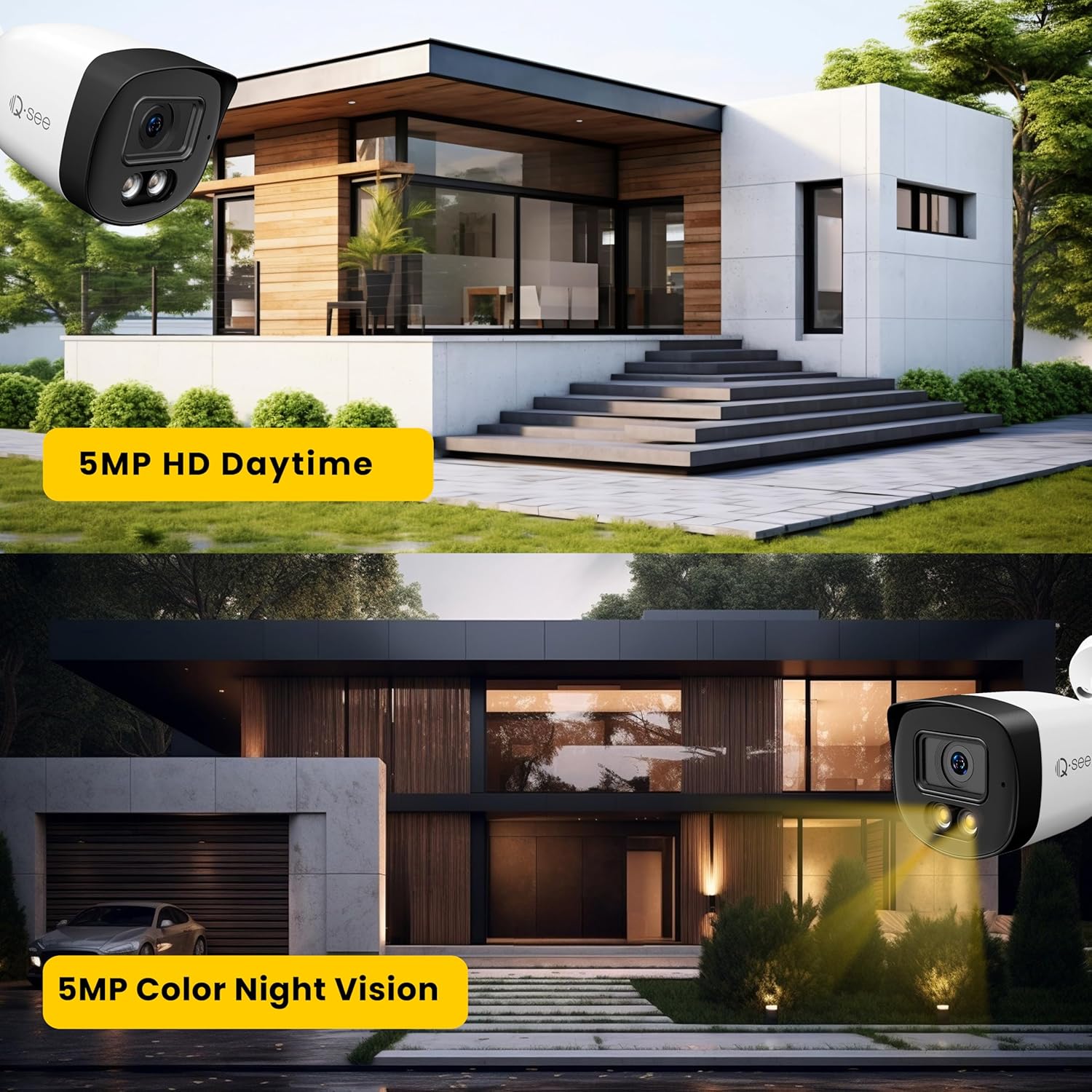
Figure 4.4: 5MP HD Daytime and Color Night Vision. This image compares the clear daytime 5MP HD footage with the vibrant 5MP color night vision provided by the cameras.

Figure 4.5: One-way Audio Feature. This image depicts a scenario where the camera's one-way audio allows monitoring of sounds from the surveillance area.
4.4 Privacy and Alerts
- Privacy Masking: You can conceal specific regions within the camera's view using privacy masks to protect sensitive areas.
- Alert Notifications: Configure the Qsee app to receive email, push, or buzzer alerts for motion events.

Figure 4.6: Privacy Masking. This image demonstrates the use of privacy masks to obscure specific areas within the camera's field of view, ensuring privacy.

Figure 4.7: Alert Notifications. This image illustrates the various notification methods (app push, email, buzzer) available to keep users informed of motion events.
5. Maintenance
To ensure optimal performance and longevity of your Qsee Security Camera System, follow these maintenance guidelines:
- Regular Cleaning: Periodically clean the camera lenses with a soft, damp cloth to remove dust, dirt, or water spots that may obstruct the view. Avoid abrasive cleaners.
- Cable Inspection: Regularly check all cables (BNC, power, network) for any signs of wear, damage, or loose connections. Secure or replace damaged cables promptly.
- DVR Environment: Ensure the DVR is placed in a well-ventilated area, free from excessive dust, moisture, and extreme temperatures.
- Firmware Updates: Check the Qsee website or app for available firmware updates for your DVR and cameras. Keeping firmware updated can improve performance and security.
- Hard Drive Management: Monitor the hard drive's storage capacity. The system supports up to 10TB capacity per disk. Consider adding an extra HDD if more storage is needed.
5.1 Weather Resistance
The cameras are designed with IP67 weatherproof housing, making them suitable for outdoor use in various weather conditions.

Figure 5.1: IP67 All-Weather Proof Camera. This image highlights the camera's robust IP67 weatherproof design, ensuring durability in various environmental conditions.

Figure 5.2: Weatherproof Specifications. This image details the working temperature and humidity ranges for the IP67 weatherproof cameras.
6. Troubleshooting
If you encounter issues with your Qsee Security Camera System, refer to the following common problems and solutions:
- No Video Display on Monitor:
- Check all video cable connections (BNC, HDMI/VGA) between cameras, DVR, and monitor.
- Ensure the DVR and monitor are powered on. - Cameras Not Recording or Playback Issues:
- Verify that a hard drive is properly installed and detected by the DVR. Refer to the DVR's system settings to check HDD status.
- Ensure recording schedules are correctly configured.
- Check hard drive health in DVR settings; replace if faulty. - Remote Access Not Working:
- Ensure the DVR is connected to the internet via the Ethernet cable.
- Check your network connection and router settings.
- Verify that the Qsee app is updated to the latest version and your device is connected to the internet.
- Confirm correct device addition in the Qsee app.

Figure 6.1: Internet Connection Status. This image visually represents the importance of a stable internet connection for remote access features of the DVR.
- False Motion Alerts:
- Adjust the motion detection sensitivity settings in the DVR or app.
- Utilize the customized motion area feature to exclude irrelevant zones (e.g., public roads, swaying trees).
- Ensure Human & Vehicle Detection is enabled to filter out non-human/vehicle movements. - Poor Night Vision Quality:
- Clean the camera lens to remove any obstructions.
- Ensure there are no strong light sources directly facing the camera at night, which can cause glare.
7. Specifications
| Feature | Specification |
|---|---|
| Brand | QSEE |
| Model Number | QH08045YC |
| Connectivity Technology | Wired |
| Video Capture Resolution | 5MP |
| Special Features | Color Night Vision, Human/Vehicle Detection, Customized Motion Area, IP67 Weatherproof |
| Number of Channels | 8 |
| Memory Storage Capacity | 2 TB (expandable up to 10TB) |
| Color | Black |
| Power Source | DC 12V |
| Item Dimensions (L x W x H) | 15 x 12 x 8 inches |
| Operating System | Embedded Linux |
| Recommended Uses | Home Outdoor Security |
| Compatible Devices | Laptops, Personal Computers, Smartphones |
| Other Camera Features | Warm Light Color Night Vision |
| Low Light Technology | Support |
| Focal Length | 3.6mm |
| Night Vision Range | 110 Feet |
| Frame Rate | 5.0MP@20fps/12.5fps |
| Recording Mode | Regular, Manual, Event |
| Total USB Ports | 2 |
| Hardware Interface | Ethernet, HDMI, VGA |
| Lens Type | Fixed |
| Video Input | BNC, RJ45 |
| Viewing Angle | 90 Degrees |
| Item Weight | 10.8 pounds |
| Date First Available | August 9, 2023 |
8. Warranty and Support
8.1 Product Warranty
Qsee provides a 2-year warranty for product-related issues. In the event of a covered issue, Qsee aims to provide a seamless experience by offering a replacement product.
8.2 Lifetime Product Support
Qsee is committed to providing lifetime product support to all valued customers. If you require assistance with installation, operation, or troubleshooting, please contact Qsee customer support.
8.3 Contact Information
For support, please visit the official Qsee website or refer to the contact information provided in your product packaging. You can also find FAQs and troubleshooting guides on the Qsee brand store page: QSEE Store.


