
QSEE QP08045YC
Qsee 8CH 5MP Security Camera System User Manual
Model: QP08045YC
1. Introduction
This manual provides detailed instructions for the installation, operation, and maintenance of your Qsee 8-channel 5MP Security Camera System, model QP08045YC. This system is designed to provide reliable surveillance with features such as 5MP resolution, color night vision, smart motion detection, and remote access. Please read this manual thoroughly before using the product to ensure proper setup and functionality.
2. Package Contents
Verify that all items listed below are included in your package. If any items are missing or damaged, please contact Qsee support.
- Network Video Recorder (NVR) x 1
- 5MP Wired PoE Cameras x 4
- Built-in 2TB Hard Disk Drive (HDD) x 1
- 66ft IP PoE Cables x 4
- Power Adapter x 1
- 6.5ft HDMI Cable x 1
- USB Mouse x 1
- 3.3ft Network Cable x 1
- Surveillance Cards x 4
- Positioning Stickers x 4
- Screws x 4
- User Manual x 1
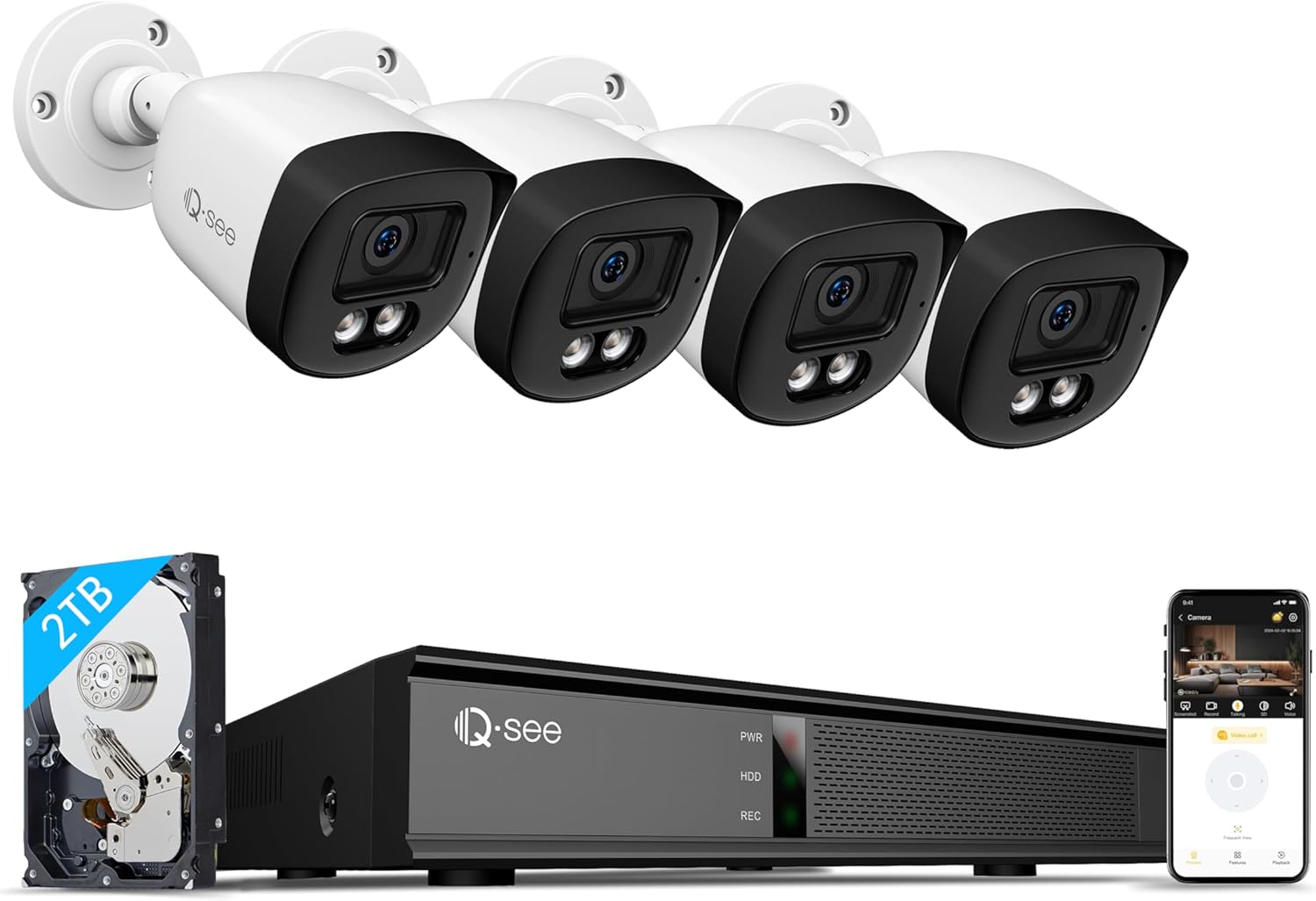
This image displays the complete Qsee 8-channel 5MP Security Camera System, including the Network Video Recorder (NVR), a 2TB hard disk drive, four wired Power over Ethernet (PoE) cameras, and a smartphone screen illustrating the remote access application.
3. Setup and Installation
3.1 System Overview
The Qsee system utilizes Power over Ethernet (PoE) technology, simplifying installation by providing both power and data transmission through a single Ethernet cable for each camera.
3.2 Connecting the Hardware
- Connect Cameras to NVR: Use the provided 66ft IP PoE cables to connect each camera to the PoE ports on the back of the NVR.
- Connect NVR to Monitor: Use the HDMI cable to connect the NVR to a monitor or TV for local viewing.
- Connect NVR to Network: Use the network cable to connect the NVR to your router for internet access and remote viewing capabilities.
- Connect Power: Plug the power adapter into the NVR and then into a power outlet.
- Connect USB Mouse: Plug the USB mouse into one of the USB ports on the NVR for navigation.

This image highlights the simplicity of the Plug & Play PoE system, demonstrating how a single Ethernet cable connects the camera to the NVR, supplying both power and video transmission for straightforward installation.
3.3 Camera Placement and Mounting
The cameras feature a heavy-duty metal weatherproof IP67 housing, making them suitable for outdoor installation. Use the positioning stickers and screws to securely mount the cameras in desired locations. Ensure the cameras have a clear line of sight to the areas you wish to monitor.
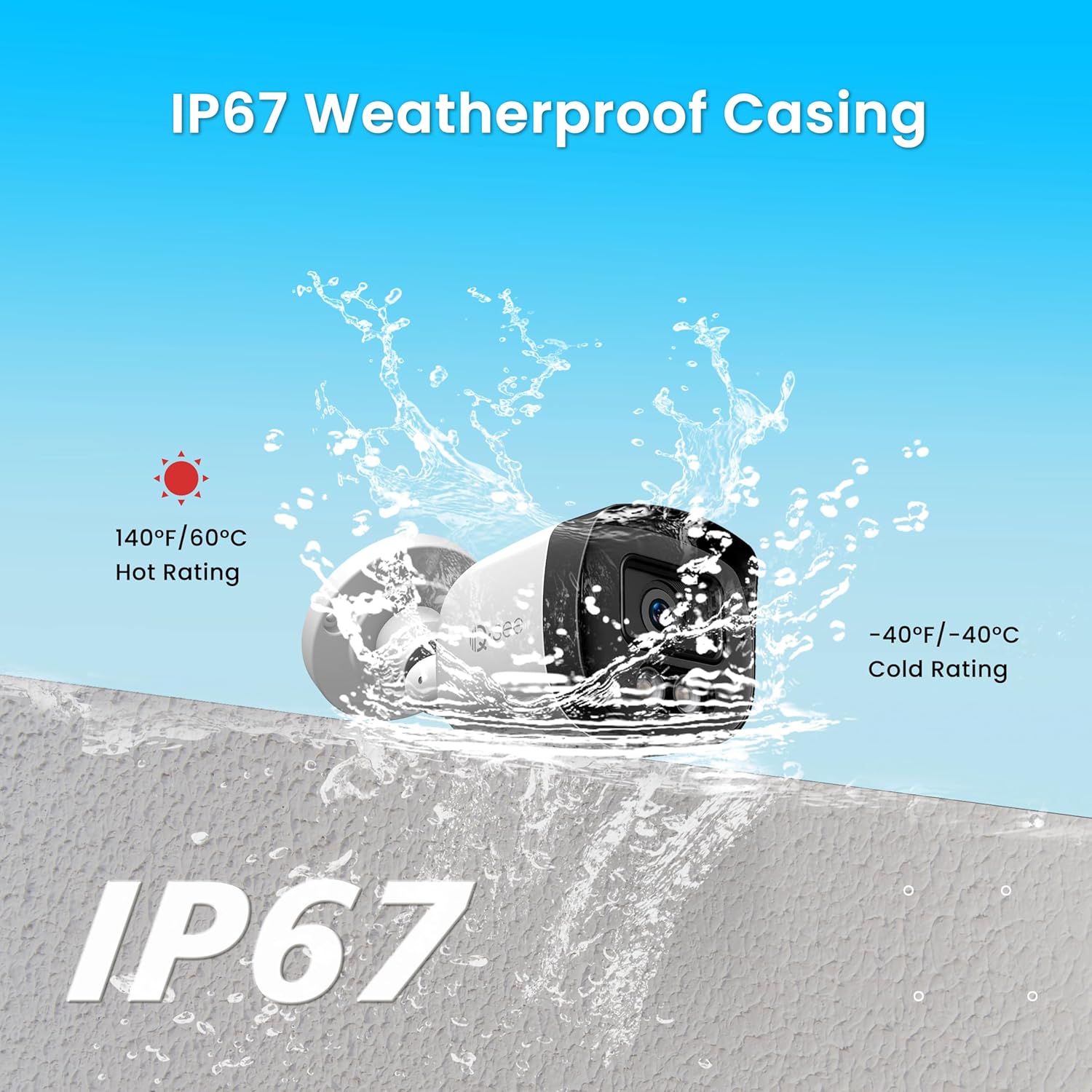
This image emphasizes the camera's IP67 weatherproof casing, illustrating its resistance to water and extreme temperatures, making it suitable for outdoor installation in various environmental conditions.
4. Operating Instructions
4.1 Initial System Boot-up
Once all connections are made, power on the NVR. Follow the on-screen prompts to complete the initial setup, including setting up a password and configuring basic network settings.
4.2 Video Monitoring and Recording
The system is configured for 24/7 continuous recording to the built-in 2TB HDD. The NVR will automatically overwrite older footage once the storage is full. You can view live feeds on the connected monitor or remotely via the Qsee app.

This image depicts the 24/7 continuous recording functionality and the user-friendly playback interface, allowing users to review recorded footage from specific dates and times, ensuring no event is missed.
4.3 Color Night Vision
The 5MP cameras feature 2pcs 3500K warm light LEDs, enabling color night vision up to 82 feet. These warm lights automatically adjust intensity based on environmental conditions, providing clear, colorful images even in low-light settings.
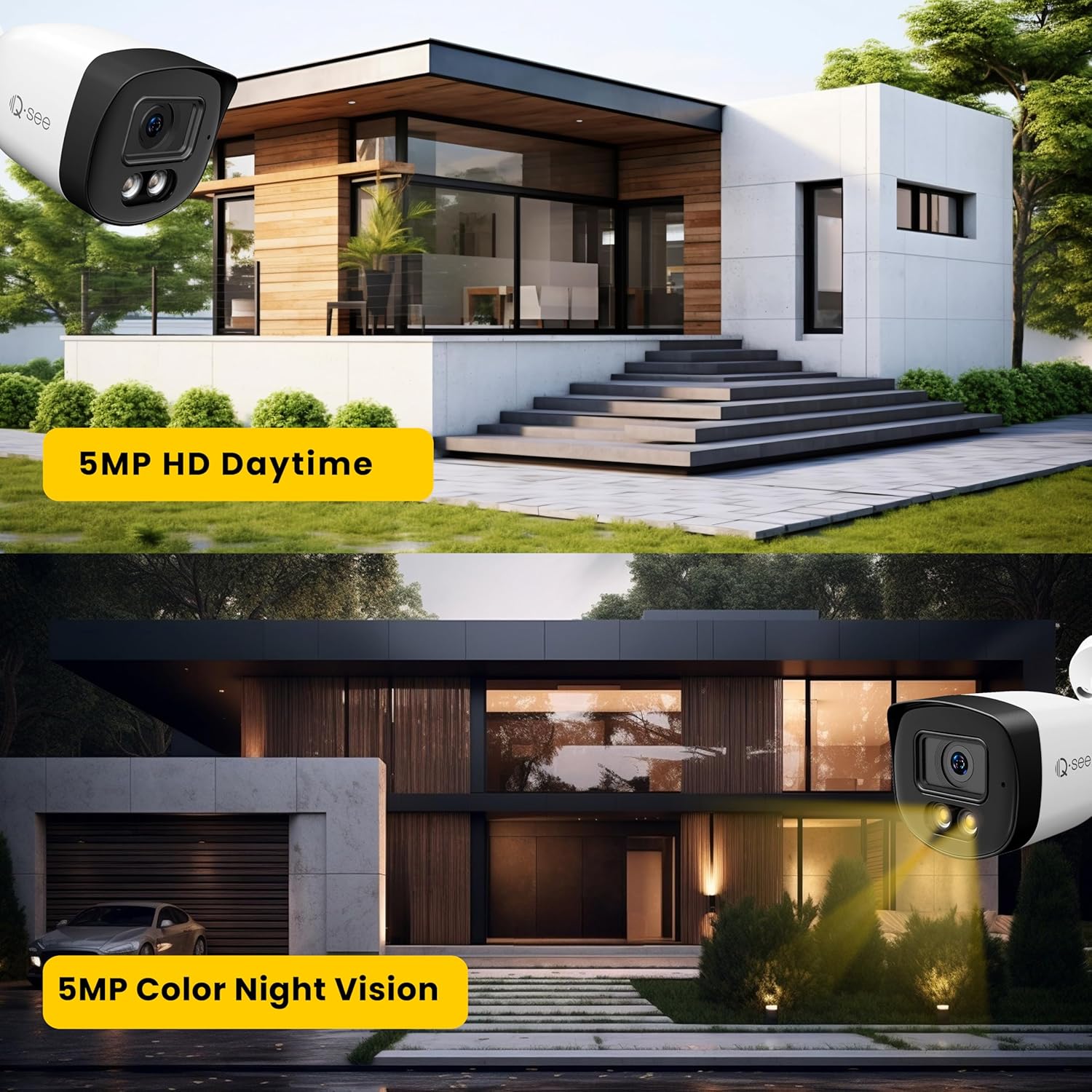
This image demonstrates the visual clarity of the Qsee 5MP cameras, showcasing a daytime view with high-definition detail and a nighttime view with full-color night vision capabilities, providing enhanced visibility in low-light conditions.
4.4 Smart Motion Detection and Alerts
The NVR system includes smart motion detection. When motion is detected, the system can trigger instant alerts via the Qsee mobile app and email (after initial setup). You can customize motion detection zones and sensitivity levels for each camera to minimize false alarms.

This image illustrates the smart motion detection feature, where the system identifies activity and sends instant alerts to the user's smartphone via the Qsee application, as shown by the notification on the phone screen.
4.5 Remote Access
Monitor your property from anywhere using the Qsee app (available for iOS and Android) or the Qsee client software on your PC. This allows for live viewing and playback of recordings over mobile networks or Wi-Fi.

This image illustrates the remote access capabilities of the Qsee system, enabling users to monitor their premises from anywhere in the world using a smartphone, laptop, or personal computer via the dedicated Qsee application or client software.
5. Maintenance
5.1 Hard Drive Management
The NVR includes a 2TB hard drive for continuous recording. When the drive is full, the system automatically overwrites the oldest footage. For extended storage, the NVR supports up to 10TB capacity per disk, allowing for an upgrade with an additional hard drive.

This image shows the NVR with its included 2TB hard drive and indicates the possibility of upgrading to a larger 10TB hard drive for increased storage capacity.
5.2 H.265 Video Compression
The system utilizes advanced H.265 video compression technology. This reduces the bit rate by up to 50% compared to H.264, saving storage space and allowing for longer recording times while maintaining high video quality and smoother streaming.

This image demonstrates the efficiency of H.265 video compression technology, showing how it reduces file sizes compared to H.264, allowing for longer recording times and more efficient storage utilization without compromising video quality.
5.3 Cleaning and Care
Regularly clean camera lenses with a soft, damp cloth to ensure clear image quality. Avoid using harsh chemicals. Ensure all cable connections are secure and free from moisture.
6. Troubleshooting
If you encounter issues with your Qsee security system, please refer to the following general troubleshooting steps:
- No Video Feed: Check all cable connections between cameras and the NVR, and between the NVR and the monitor. Ensure the NVR is powered on.
- No Remote Access: Verify the NVR is connected to your router and has internet access. Check your network settings and ensure the Qsee app is updated to the latest version.
- Motion Detection Not Working: Review the motion detection zone settings and sensitivity levels in the NVR's configuration. Ensure the feature is enabled.
- Poor Night Vision: Ensure camera lenses are clean and free from obstructions. Verify that the warm light LEDs are functioning.
For more detailed troubleshooting or persistent issues, please contact Qsee technical support.
7. Specifications
| Feature | Specification |
|---|---|
| Brand | QSEE |
| Model Number | QP08045YC |
| Connectivity Technology | Wired (PoE) |
| Video Capture Resolution | 5MP (2880x1620) |
| Number of Channels | 8 |
| Memory Storage Capacity | 2 TB (expandable up to 10 TB) |
| Power Source | DC 48V |
| Operating System | Embedded Linux |
| Recommended Uses | Outdoor |
| Compatible Devices | Laptops, Personal Computers, Smartphones |
| Low Light Technology | Color Night Vision |
| Night Vision Range | Up to 82 feet (with warm light LEDs) |
| Frame Rate | 5.0MP@25fps |
| Recording Mode | Schedule, Event, Manual |
| Total USB Ports | 2 |
| Hardware Interface | Ethernet, HDMI, USB, VGA |
| Lens Type | Fixed (3.6mm focal length) |
| Video Input | Ethernet RJ45 |
| Viewing Angle | 90 Degrees |
| Weatherproof Rating | IP67 |
8. Warranty and Support
Qsee provides a 2-year warranty for this product. Additionally, Qsee offers lifetime technical support to all valued customers. For any product-related inquiries, technical assistance, or warranty claims, please contact us:
Email: support@q-see.com
In the event of product issues covered under warranty, Qsee aims to provide a seamless experience by offering a replacement product.
Related documentsQP08045YC


Ask a question about this manual
Ask about setup, troubleshooting, compatibility, parts, safety, or missing instructions. Manuals+ will review the question and use this page’s manual context to help answer it.