
KRUX KRX0137
ENDORFY Krux Qara 60% Mechanical Keyboard User Manual
Model: KRX0137
Introduction
This manual provides comprehensive instructions for the setup, operation, maintenance, and troubleshooting of your ENDORFY Krux Qara 60% Mechanical Keyboard. Please read this manual thoroughly before using the product to ensure proper functionality and longevity.
Product Overview
The ENDORFY Krux Qara 60% is a compact mechanical gaming keyboard designed for performance and portability. It features Outemu Red Mechanical Switches, zone RGB backlighting, and a durable construction.
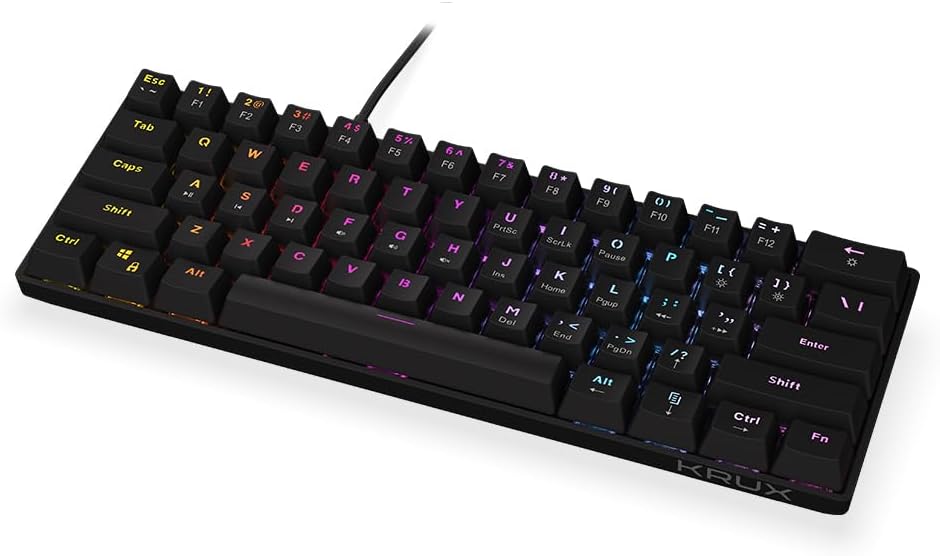
Figure 1: Front view of the ENDORFY Krux Qara 60% Mechanical Keyboard, showcasing its compact 60% layout and vibrant RGB zone backlighting. The keyboard features black keycaps with white legends.

Figure 2: Top-down perspective of the keyboard, highlighting the keycap layout and the integrated USB-A cable connection point at the top center.

Figure 3: Rear view of the keyboard, showing the product label with model information (KRX0137) and certification marks. The two adjustable feet are visible in their folded position.
Package Contents
Ensure all items are present before proceeding with setup:
- ENDORFY Krux Qara 60% Mechanical Keyboard
- USB cable (integrated)
- User Manual (this document)
Setup
- Unpacking: Carefully remove the keyboard and its accessories from the packaging.
- Connection: Connect the integrated USB-A cable from the keyboard to an available USB port on your computer (PC, Linux, Mac).
- Driver Installation: The keyboard is plug-and-play and typically does not require additional drivers for basic functionality. Your operating system should automatically recognize the device.
- Placement: Place the keyboard on a stable, flat surface. You may adjust the keyboard height using the foldable feet located on the underside for ergonomic comfort.

Figure 4: Side view illustrating the keyboard's profile and the adjustable feet in their extended position, providing an elevated typing angle.
Operating Instructions
Basic Functionality
The keyboard functions as a standard QWERTY input device. All alphanumeric keys, symbols, and basic modifiers (Shift, Ctrl, Alt) operate as expected.
Function Key Combinations (Fn Layer)
Due to its 60% compact layout, many standard keyboard functions are accessed via the Fn key in combination with other keys. The secondary functions are typically printed on the front or side of the keycaps.
- Fn + Number Row (F1-F12): Accesses F1 through F12 functions. For example, Fn + 1 for F1.
- Fn + P, [, ]: Multimedia controls (Play/Pause, Previous Track, Next Track).
- Fn + ;, ', /: Volume controls (Mute, Volume Down, Volume Up).
- Fn + Right Shift: Arrow keys (Up, Down, Left, Right).
- Fn + M, <, >: Home, End, PgUp, PgDn.
- Fn + I, K, L: Insert, Home, Page Up.
- Fn + U, J, H: Print Screen, Scroll Lock, Pause Break.
Backlight Control
The keyboard features zone RGB backlighting. Use the following combinations to control the lighting:
- Fn + \|: Cycle through backlight modes.
- Fn + Enter: Adjust backlight brightness.
- Fn + Right Ctrl: Change backlight color.
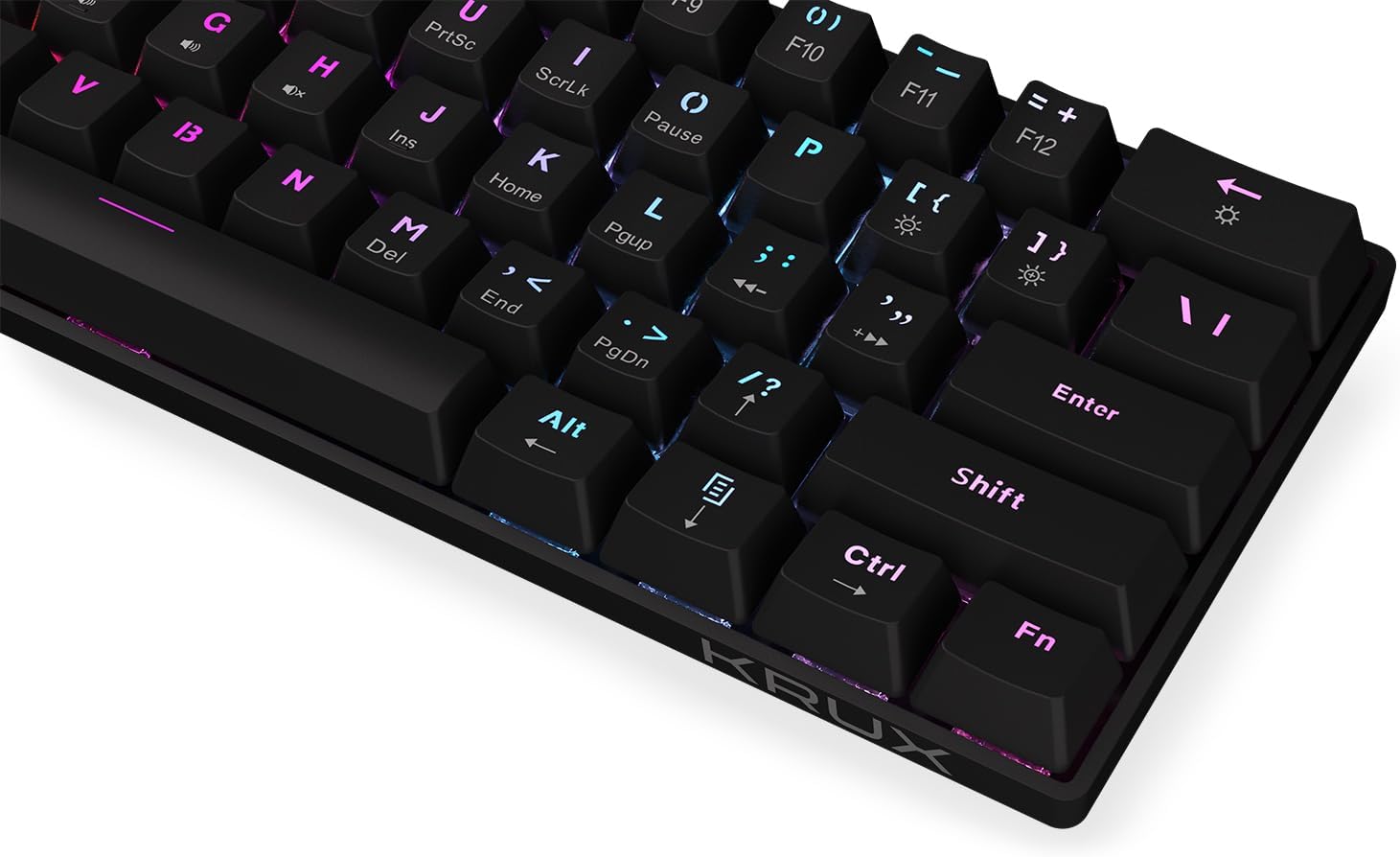
Figure 5: A close-up view of the keycaps, demonstrating the RGB backlighting effect and the secondary functions printed on the front of some keys.
Maintenance
Regular maintenance helps prolong the life of your keyboard:
- Cleaning: Use a soft, dry cloth to wipe the surface of the keyboard. For dust and debris between keycaps, use compressed air. Avoid liquid cleaners directly on the keyboard.
- Spills: In case of liquid spills, immediately disconnect the keyboard from your computer. Turn it upside down to drain liquid and allow it to dry completely before reconnecting. Do not use a hairdryer as excessive heat can damage components.
- Storage: Store the keyboard in a cool, dry place away from direct sunlight and extreme temperatures.
Troubleshooting
| Problem | Possible Cause | Solution |
|---|---|---|
| Keyboard not responding | Loose USB connection, faulty USB port, system error. | Ensure USB cable is securely connected. Try a different USB port. Restart your computer. |
| Keys not registering or double-typing | Dust/debris under keycap, switch malfunction. | Use compressed air to clean around the affected key. If problem persists, contact support. |
| Backlight not working or inconsistent | Backlight setting, software glitch. | Press Fn + Enter to adjust brightness. Cycle through modes with Fn + \|. Restart computer. |
| Fn key combinations not working | Incorrect key combination, software conflict. | Refer to the "Operating Instructions" section for correct combinations. Ensure no conflicting software is running. |
Specifications
- Model: KRX0137
- Keyboard Type: 60% Mechanical Gaming Keyboard
- Switches: Outemu Red Mechanical Switches
- Backlight: Zone RGB
- Connectivity: Wired USB-A
- Dimensions: 29.1 x 10.1 x 3.9 cm (11.46 x 3.98 x 1.54 inches)
- Weight: 506 g (1.11 lbs)
- Compatible Operating Systems: Windows 10, Mac OS X 10.12 Sierra, Linux
- Included Components: USB cable (integrated)
Warranty and Support
For warranty information and technical support, please refer to the official KRUX website or contact your local retailer. Keep your proof of purchase for warranty claims.
Manufacturer: Krux
Website: www.krux.tech (Note: This is a placeholder link, please refer to the official manufacturer's website for accurate support information.)
Related documentsKRX0137

Ask a question about this manual
Ask about setup, troubleshooting, compatibility, parts, safety, or missing instructions. Manuals+ will review the question and use this page’s manual context to help answer it.