
1. Introduction
This manual provides detailed instructions for the AUSDOM Airkey84 Wireless Mechanical Keyboard. Please read this guide thoroughly to ensure proper setup, operation, and maintenance of your device. The Airkey84 is a compact 75% layout keyboard featuring multiple connection modes, white backlighting, and low-profile brown switches, designed for various computing environments.

Image 1.1: The AUSDOM Airkey84 Wireless Mechanical Keyboard, showcasing its compact 75% layout and white keycaps with gray accents. A USB-C cable is connected, and a Bluetooth dongle is visible, indicating its wireless capabilities.
2. Package Contents
Please verify that all items are present in your package:
- AUSDOM Airkey84 Wireless Mechanical Keyboard
- USB-C Cable
- 2.4GHz USB Receiver (typically stored in the keyboard's battery compartment or a dedicated slot)
- Extra Keycaps for Windows (3 pieces)
- User Manual (this document)
3. Product Overview
The AUSDOM Airkey84 keyboard offers a versatile and efficient typing experience with its key features:
- 75% Compact Layout: 84 keys, including dedicated arrow keys and function keys, optimizing desktop space.
- Triple Connection Modes: Supports Bluetooth 5.0, 2.4GHz wireless via USB receiver, and USB-C wired connection.
- Multi-Device Connectivity: Connects to up to 4 devices and allows seamless switching.
- Low Profile Brown Switches: Designed for comfortable and efficient typing.
- White Backlight: Features 14 distinct lighting options for visibility in various environments.
- Rechargeable Battery: Integrated 2000 mAh battery provides extended usage.
- Wide Compatibility: Compatible with Mac OS and Windows operating systems.
- Ergonomic Design: Features an ultra-slim aluminum frame and adjustable feet for comfortable typing angles.

Image 3.1: Illustration of the keyboard's triple connection modes: Bluetooth 5.0, 2.4G Wireless, and Wired Mode. The image shows the keyboard connected to a laptop, smartphone, and tablet, demonstrating its multi-device capability.

Image 3.2: Front and back views of the AUSDOM Airkey84 keyboard. The back view displays product information and regulatory markings, along with the adjustable feet.
4. Setup Instructions
4.1 Charging the Keyboard
Before first use, fully charge the keyboard using the provided USB-C cable. Connect one end to the keyboard's USB-C port and the other end to a USB power source (e.g., computer, wall adapter).

Image 4.1: The AUSDOM Airkey84 keyboard connected via its USB-C port to a charging cable, with a smartphone nearby. This illustrates the USB-C charging capability.
4.2 Connecting via Bluetooth Mode
- Ensure the keyboard's power switch is in the ON position.
- Press and hold the Fn + BT1 keycaps for 3-5 seconds. The keyboard will enter pairing mode, and the backlight indicator will flash rapidly.
- On your device (computer, tablet, smartphone), enable Bluetooth and search for available devices.
- Select "AUSDOM Airkey84" from the list to complete the pairing process.
- To connect to other Bluetooth devices, repeat steps 2-4 using Fn + BT2 or Fn + BT3.
4.3 Connecting via 2.4GHz Wireless Mode
- Ensure the keyboard's power switch is in the ON position.
- Press Fn + 3# once to switch to 2.4GHz USB connection mode.
- Plug the 2.4GHz USB receiver into an available USB port on your device. The keyboard should connect automatically.
4.4 Connecting via USB-C Wired Mode
- Connect the provided USB-C cable to the keyboard's USB-C port and the other end to your device's USB port.
- The keyboard will automatically switch to wired mode.

Image 4.2: A visual guide on how to use 2.4GHz and Bluetooth modes. The image highlights the 'esc' key (power button) and 'fn+BT1' keys for Bluetooth pairing, and 'fn+3#' for 2.4G wireless mode.
5. Operating Instructions
5.1 Switching Between Connected Devices
Once multiple devices are paired (via Bluetooth or 2.4GHz), you can switch between them:
- Press Fn + BT1/BT2/BT3 to switch to the corresponding Bluetooth device.
- Press Fn + 3# to switch to the 2.4GHz wireless connection.
- Connecting the USB-C cable will automatically switch to wired mode.
5.2 Backlight Control
The keyboard features a white backlight with 14 lighting options:
- Press Fn + \| to cycle through the 14 different backlight effects.
- Use Fn + ↑ and Fn + ↓ to adjust backlight brightness.
- Use Fn + ← and Fn + → to adjust backlight speed (for dynamic effects).

Image 5.1: The AUSDOM Airkey84 keyboard illuminated with its white backlight, demonstrating one of the 14 lighting options. The image shows the keyboard in a desktop setup with a monitor displaying a user interface.
5.3 Compatibility and Keycap Replacement
The keyboard is compatible with both Mac OS and Windows. Extra keycaps for Windows are included in the package to replace Mac-specific keys if desired.

Image 5.2: The AUSDOM Airkey84 keyboard shown in a desktop environment, highlighting its compatibility with both Mac and Windows operating systems. The image also mentions the inclusion of extra keycaps for Windows users.
5.4 Ergonomic Adjustment
The keyboard features adjustable feet on the underside. Flip these feet out to achieve a more angled typing position (approximately 4° or 7°) for improved comfort.
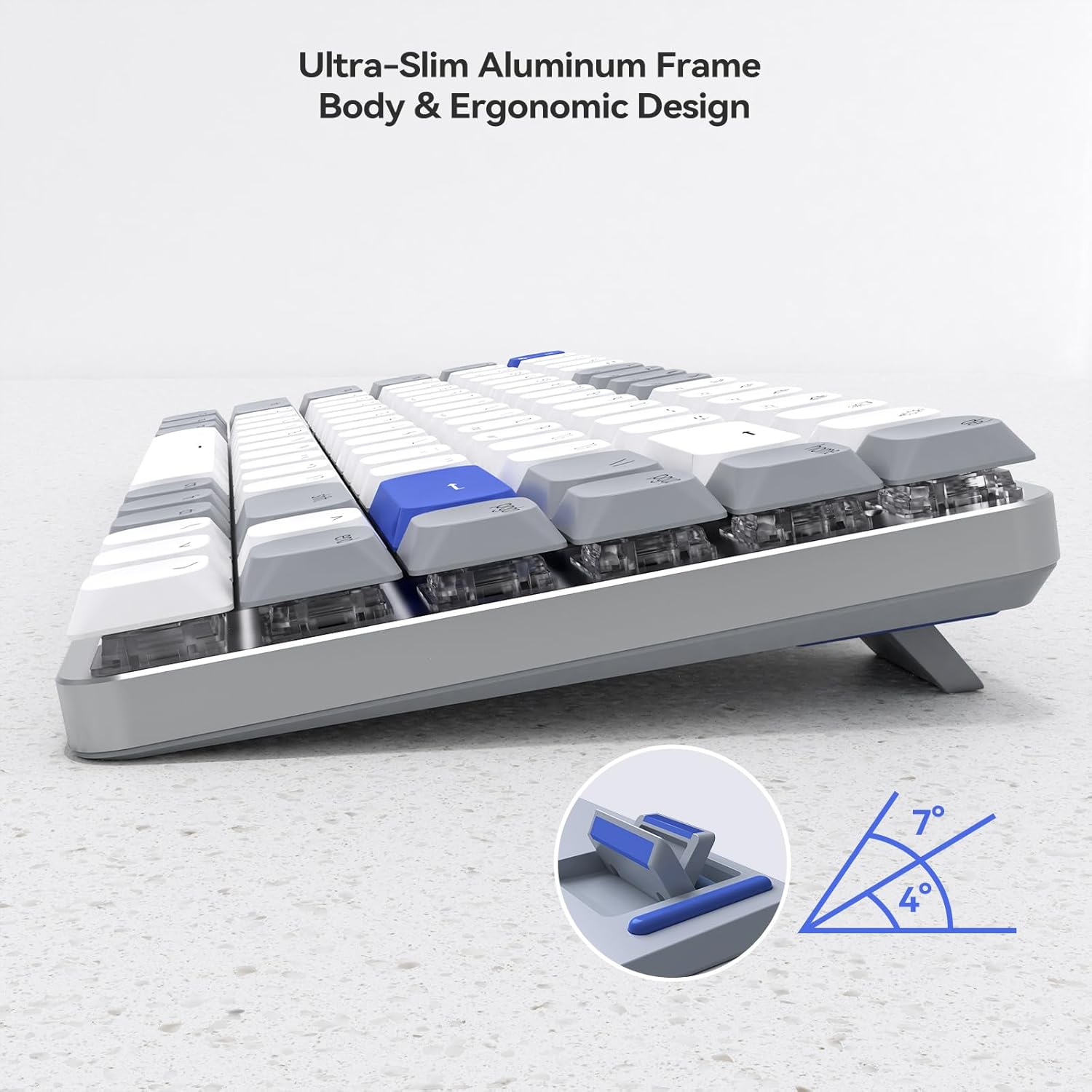
Image 5.3: A side view of the AUSDOM Airkey84 keyboard, illustrating its ultra-slim aluminum frame and adjustable feet that allow for 4° and 7° ergonomic typing angles.
6. Maintenance
To ensure the longevity and optimal performance of your AUSDOM Airkey84 keyboard, follow these maintenance guidelines:
- Cleaning: Use a soft, dry cloth to wipe the surface of the keyboard. For deeper cleaning, use compressed air to remove dust and debris from between the keycaps. Avoid using harsh chemicals or abrasive materials.
- Storage: When not in use for extended periods, store the keyboard in a cool, dry place away from direct sunlight and extreme temperatures.
- Battery Care: To preserve battery life, avoid fully discharging the keyboard frequently. Charge it when the battery indicator is low.
- Liquid Exposure: Avoid spilling liquids on the keyboard. If a spill occurs, immediately disconnect the keyboard, power it off, and allow it to dry completely before attempting to use it again.
7. Troubleshooting
If you encounter issues with your AUSDOM Airkey84 keyboard, refer to the following troubleshooting steps:
| Problem | Possible Cause | Solution |
|---|---|---|
| Keyboard does not turn on | Low battery; Power switch off | Charge the keyboard; Ensure power switch is ON. |
| Cannot connect via Bluetooth | Keyboard not in pairing mode; Device Bluetooth off; Interference | Put keyboard in pairing mode (Fn+BTx); Enable Bluetooth on device; Move closer to device; Restart device. |
| 2.4GHz wireless not working | USB receiver not plugged in; Keyboard not in 2.4GHz mode; Driver issue | Ensure receiver is securely plugged in; Press Fn+3# to switch to 2.4GHz mode; Try a different USB port; Reinstall drivers if necessary. |
| Keys are unresponsive or intermittent | Low battery; Connectivity issue; Debris under keycap | Charge keyboard; Re-establish connection; Clean under keycaps with compressed air. |
| Backlight not working or stuck | Backlight turned off; Software glitch | Press Fn+\| to cycle modes; Restart keyboard. |
If the problem persists after attempting these solutions, please contact AUSDOM customer support for further assistance.
8. Specifications
| Feature | Detail |
|---|---|
| Model | Airkey84 |
| Connectivity Technology | Bluetooth 5.0, 2.4GHz Wireless, USB-C Wired |
| Key Layout | 75% (84-Key) |
| Switch Type | Low Profile Brown Mechanical Switches |
| Backlight | White Backlight, 14 Lighting Options |
| Battery Capacity | 2000 mAh Lithium Polymer (included) |
| Battery Life | Up to 20 hours (backlight on), approx. 3 months (backlight off) |
| Compatibility | Mac OS, Windows |
| Material | Acrylonitrile Butadiene Styrene (ABS) |
| Item Weight | 2.21 pounds |
| Package Dimensions | 15.43 x 5.94 x 1.57 inches |
9. Warranty and Support
AUSDOM products are manufactured with quality and reliability in mind. For warranty information and customer support, please refer to the warranty card included with your product or visit the official AUSDOM website. When contacting support, please have your product model (Airkey84) and purchase details available.
For direct inquiries, you may visit the AUSDOM store on Amazon: AUSDOM Store


