
1. Introduction
This manual provides detailed instructions for the installation, operation, and maintenance of your SIXTOP P2 Android 13 Double DIN Car Radio. Please read this manual thoroughly before using the product to ensure proper function and safety. This device is designed to enhance your driving experience with advanced features such as Android 13 operating system, a 9-inch HD touchscreen, wireless Carplay, Android Auto, Bluetooth, WiFi, GPS, FM/RDS radio, EQ sound customization, Mirror Link, split-screen functionality, and support for a rear view camera.
2. Package Contents
Verify that all items listed below are included in your package. If any items are missing or damaged, please contact your retailer.

Figure 2.1: All components included in the SIXTOP P2 car radio package. This includes the main car radio unit, power cable, GPS antenna, rear camera input cable, RCA cable, two USB cables, two mounting brackets, four screws, and a user manual.
- 1 x Car Radio Player
- 1 x Power Cable
- 1 x GPS Antenna
- 1 x Rear Camera Input Cable
- 1 x RCA Cable
- 2 x USB Cables
- 2 x Mounting Brackets
- 4 x Screws
- 1 x User Manual
3. Compatible Vehicles
This car radio is specifically designed for:
- Ford Focus Classic: 2004-2011 (Silver dashboard models)
Please ensure your vehicle's dashboard matches the installation effect shown below. The wiring harness provided is not compatible with BOSE Premium, amplified sound systems, or Onstar systems. Verify your vehicle's original sound system specifications before purchasing the harness.

Figure 3.1: Installation effect of the SIXTOP P2 car radio in a Ford Focus dashboard, demonstrating compatibility with classic Ford Focus models from 2004-2011.
4. Setup and Installation
Professional installation is recommended. Ensure the vehicle's power is disconnected before beginning installation.
4.1. Pre-Installation Checks
- Confirm vehicle compatibility (Ford Focus Classic 2004-2011).
- Verify the wiring harness is suitable for your vehicle's sound system (not compatible with BOSE Premium, amplified, or Onstar systems).
- Ensure all package contents are present.
4.2. Wiring Connections
- Power Cable: Connect the main power cable harness to the car radio and the vehicle's power supply.
- GPS Antenna: Connect the GPS antenna to the designated port on the car radio and position it in a location with a clear view of the sky for optimal signal reception.
- Rear Camera: Connect the rear camera input cable to the car radio. If installing a rear camera, connect its video output to this input.
- USB Cables: Connect the provided USB cables to the car radio's USB ports. These can be routed to a convenient location for connecting USB devices or for wired Carplay/Android Auto.
- RCA Cable: Use the RCA cable for external audio/video connections if required.
4.3. Mounting
- Attach the mounting brackets to the sides of the car radio unit using the provided screws.
- Carefully slide the car radio into the dashboard opening, ensuring all cables are properly routed and not pinched.
- Secure the unit in place using the vehicle's mounting points or additional screws if necessary.
5. Operating Instructions
5.1. Carplay & Android Auto
The device supports both wireless and wired Carplay for Apple iPhones, and wired Android Auto for Android phones. This allows seamless integration of your smartphone's features, including navigation, music, calls, and messages, directly onto the car radio display.
- Wireless Connection: For Carplay, ensure Bluetooth and Wi-Fi are enabled on your iPhone. Pair your iPhone with the car radio via Bluetooth, then follow the on-screen prompts to activate wireless Carplay.
- Wired Connection: Connect your smartphone to one of the car radio's USB ports using an original USB cable. The system will automatically detect and launch Carplay or Android Auto.

Figure 5.1: Display of Apple Carplay and Android Auto interfaces, highlighting the ability to access phone applications and features on the car radio.
5.2. GPS Navigation & WiFi Function
The car radio features a built-in GPS receiver and supports various navigation applications. It comes with an offline map application pre-installed (e.g., "Here We Go").
- Offline Maps: To use offline maps, connect the car radio to a mobile hotspot or Wi-Fi network to download the necessary map data for your region.
- Online Navigation: Connect the car radio to a mobile hotspot via Wi-Fi to access online navigation services (e.g., Waze, Google Maps) and other internet-dependent applications.

Figure 5.2: GPS navigation display and illustration of Wi-Fi connectivity for accessing online services and applications.
5.3. Bluetooth & FM/RDS Radio
Enjoy hands-free communication and high-quality audio streaming with Bluetooth, and access your favorite radio stations with the FM/RDS tuner.
- Bluetooth: Pair your mobile phone via Bluetooth to make hands-free calls, access your phonebook, and stream music wirelessly to the car radio.
- FM/RDS Radio: Tune into FM radio stations (frequency range 87.5-108 MHz). The RDS (Radio Data System) feature provides additional information like station name and song titles. The radio supports storing up to 18 preset stations.

Figure 5.3: FM/RDS radio interface and Bluetooth functionality for calls and music playback.
5.4. Mirror Link
Mirror Link allows you to project your smartphone screen onto the car radio display.
- iOS (iPhone): Supports one-way projection. Connect your iPhone via its original USB cable to mirror its screen to the car radio.
- Android: Supports two-way connection. Connect your Android phone via its original USB cable to mirror its screen and control the phone from the car radio display.

Figure 5.4: Mirror Link feature, enabling screen mirroring from smartphones to the car radio.
5.5. Split Screen & EQ
Enhance multitasking and audio experience with split-screen mode and the Equalizer (EQ) function.
- Split Screen: Operate two applications simultaneously on the screen, such as navigation and music playback, for increased efficiency and convenience.
- EQ Sound Effects: Customize your audio experience with various EQ sound scenes. Adjust frequency bands to create a personalized and immersive surround sound.
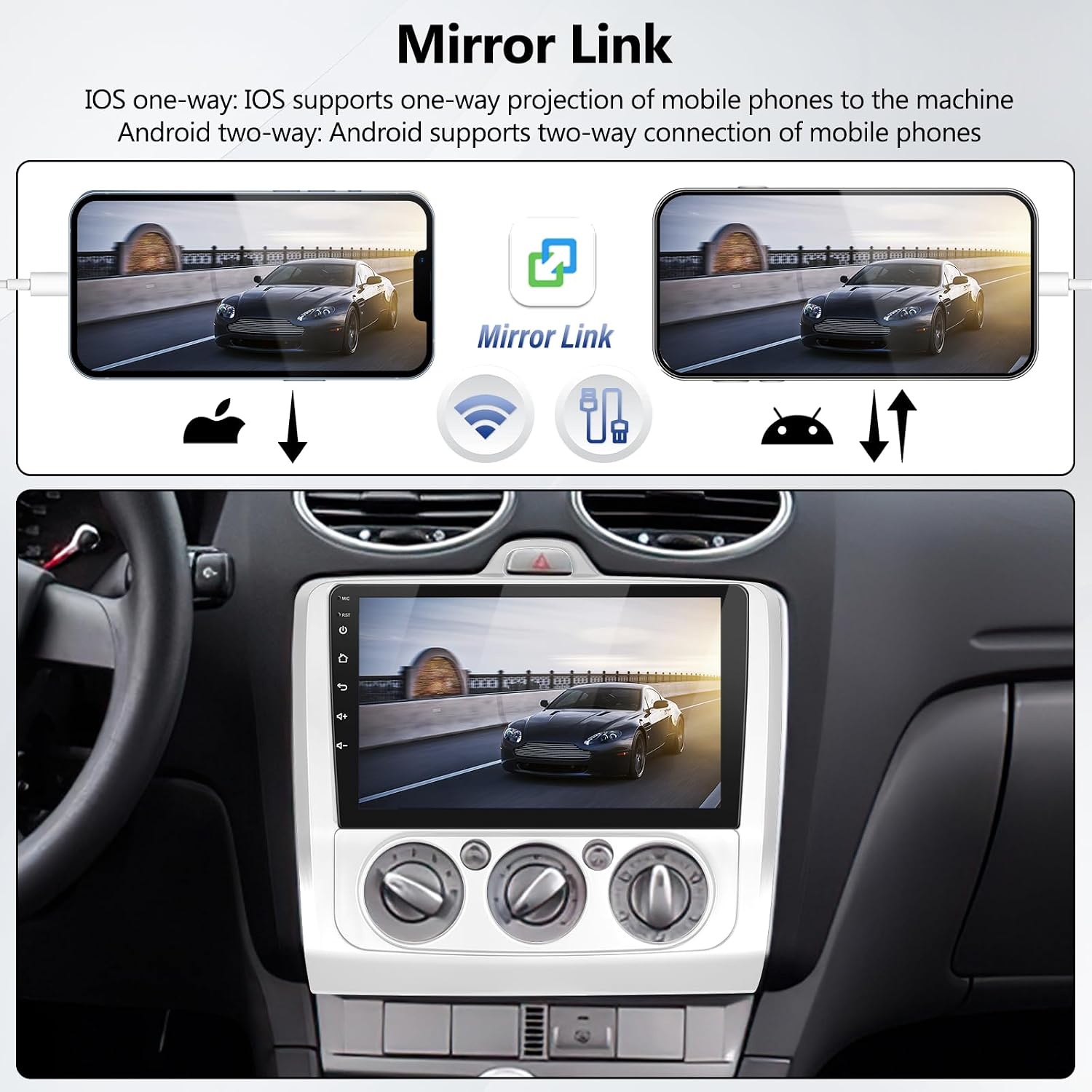
Figure 5.5: Split-screen functionality for multitasking and the Equalizer (EQ) interface for audio adjustments.
5.6. Rear View Camera & Steering Wheel Control
Improve parking safety and control your car radio conveniently with these features.
- Rear View Camera: When the vehicle is shifted into reverse gear, the car radio automatically displays the rear view image from a connected AHD waterproof wide-angle camera, assisting with safer parking.
- Steering Wheel Control: Utilize your vehicle's existing steering wheel controls to manage the car radio functions, such as changing songs, adjusting volume, and switching channels, without taking your hands off the wheel.

Figure 5.6: Rear view camera display and illustration of steering wheel control buttons for convenient operation.
6. Specifications
Technical specifications of the SIXTOP P2 Android 13 Car Radio:
| Feature | Specification |
|---|---|
| System | Android 13 |
| Chipset | MT8163 |
| Operating Speed | 1.3 GHz |
| Screen Size | 9 inches |
| Memory (RAM+ROM) | 2 GB (RAM) + 32 GB (ROM) |
| Screen Resolution | 1024*600 |
| Bluetooth Version | 4.1 |
| Radio Chip | MT6625N |
| Output Power | 4 x 45 W |
| Operating Temperature | -20℃ to 75℃ |
| Steering Wheel Control | Supported |
| Power Amplifier Chip | YD7388 |
| Radio Band | FM/RDS (87.5-108 MHz, 18 memory functions) |
| Video Output | Not Supported |
| Reversing Input | AHD/CVBS |
| External Microphone | Supported |
| Split Screen | Supported |
| Mirror Link | Supported (iOS one-way, Android two-way) |
| Carplay | Wireless |
| Android Auto | Wired |
| Maps | Built-in offline maps (requires data download) |
| WiFi | Supported |
| USB Interface | Dual USB |
| Audio Formats | APE/FLAC/WAV/MP3/WMA, etc. |
| Video Formats | MKV/RMVB/AVI/MP4/MDV, etc. |
| Image Formats | PNG/JPEG/JPG/GIF/WBMP/BNP, etc. |
| Languages | Chinese/English/French/Italian/Korean/Japanese/Arabic/Spanish/Portuguese/Russian/Turkish/Vietnamese/Hebrew/Polish/German |
7. Maintenance
To ensure the longevity and optimal performance of your car radio, follow these maintenance guidelines:
- Cleaning: Use a soft, dry cloth to clean the screen and exterior surfaces. Avoid abrasive cleaners or solvents that could damage the finish.
- Software Updates: Periodically check for available software updates to ensure your system has the latest features and security enhancements. Updates can typically be performed via Wi-Fi.
- Environmental Conditions: Avoid exposing the unit to extreme temperatures, direct sunlight for prolonged periods, or excessive moisture.
8. Troubleshooting
If you encounter issues with your car radio, refer to the following common problems and solutions:
- No Power:
- Check all power cable connections to ensure they are secure.
- Verify the vehicle's fuse for the car radio is intact.
- No Sound:
- Check the volume level and ensure it is not muted.
- Verify speaker connections are correct and secure.
- Ensure the wiring harness is compatible with your vehicle's sound system (not compatible with BOSE Premium, amplified, or Onstar systems).
- GPS Signal Issues:
- Ensure the GPS antenna is properly connected and placed in a location with a clear view of the sky.
- If using online maps, verify your Wi-Fi connection is stable.
- Bluetooth Connectivity Problems:
- Ensure Bluetooth is enabled on both the car radio and your smartphone.
- Delete previous pairings and try pairing again.
- Carplay/Android Auto Not Connecting:
- For wired connections, use an original USB cable.
- For wireless Carplay, ensure Bluetooth and Wi-Fi are active on your iPhone.
- Restart both the car radio and your smartphone.
- Poor Fitment (Frame/Mounting):
- Double-check that the product is indeed for your specific vehicle model and year range (Ford Focus Classic 2004-2011).
- Ensure all mounting tabs and clips are correctly aligned and secured. Professional installation may be required to address specific vehicle dashboard variations.
If the problem persists after attempting these solutions, please contact SIXTOP customer support or your retailer for further assistance.
9. Warranty and Support
For warranty information and customer support, please refer to the documentation provided with your purchase or contact your retailer. Warranty terms and conditions may vary depending on the region and point of purchase. Keep your proof of purchase for any warranty claims.

