1. Introduction
The AnkerMake M5C is a high-speed, high-precision 3D printer designed for both beginners and experienced users. It features PowerBoost technology for rapid printing, a lightweight extruder, and a metal hotend supporting a wide range of materials. With its intuitive app control and easy setup, the M5C makes 3D printing accessible and efficient.

Figure 1.1: The AnkerMake M5C 3D Printer, showcasing its sleek design and robust frame.
2. Setup Guide
The AnkerMake M5C is designed for quick and easy assembly, allowing you to start printing within 15-20 minutes of unboxing.
2.1 Unboxing and Initial Assembly
- Carefully remove all components from the packaging. Ensure all included items (printer, power cord, tools, 26 screws, quick start guide) are present.
- Follow the instructions in the quick start guide to assemble the printer frame. The design facilitates straightforward assembly with minimal effort.
- Secure all connections and ensure the printer is placed on a stable, level surface.

Figure 2.1: The AnkerMake M5C highlighting its easy assembly process, suitable for beginners.
2.2 Power Connection and Software Installation
- Connect the power cord to the printer and a suitable power outlet.
- Download and install the dedicated EufyMake app on your smartphone (iOS 11+ / Android 5.0+) or the EufyMake Studio software on your computer (iOS 11+ / Android 5.0+).
- Follow the on-screen prompts within the app/software to connect your printer and complete the initial setup.

Figure 2.2: Controlling the AnkerMake M5C via the EufyMake app on a smartphone and EufyMake Studio on a laptop.
3. Operating Instructions
The AnkerMake M5C offers advanced features for efficient and high-quality 3D printing.
3.1 High-Speed Printing
Leveraging PowerBoost technology and a lightweight extruder, the M5C achieves a maximum movement speed of 500mm/s, significantly reducing print times while maintaining precision.
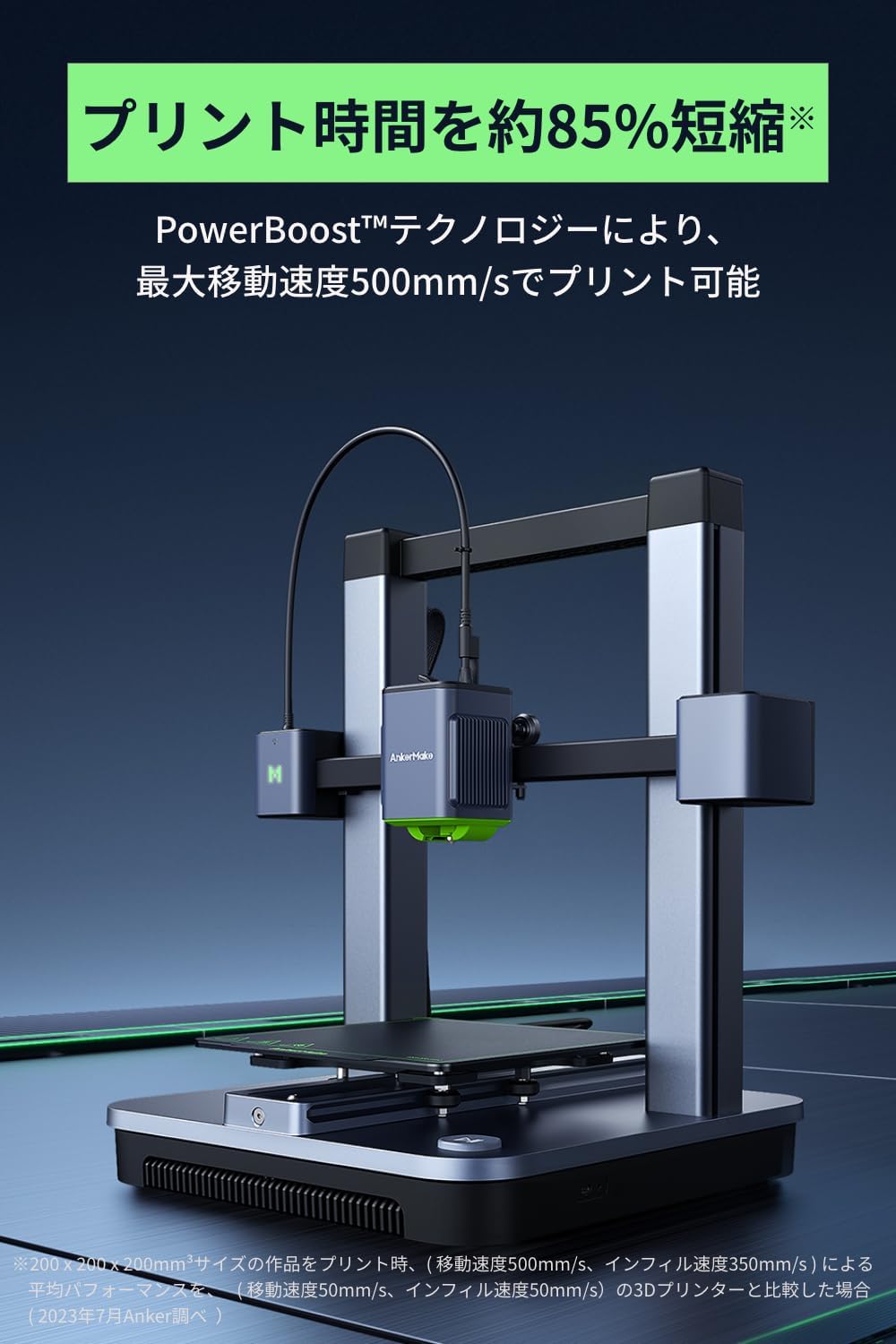
Figure 3.1: The AnkerMake M5C in operation, demonstrating its high-speed printing capabilities.
3.2 Material Compatibility
Equipped with a durable metal hotend, the M5C supports high-temperature printing and is compatible with a variety of materials, including PLA, ABS, PETG, PLA-CF, PETG-CF, PA, and PA-CF.

Figure 3.2: Close-up view of the metal hotend, enabling compatibility with various filament types.
3.3 Precision Printing
The printer is capable of precise printing down to 0.1mm, ensuring high-quality output even at high speeds.

Figure 3.3: An example of a detailed print, showcasing the M5C's precision capabilities.
3.4 Auto-Leveling and Flexible Heatbed
The 7x7 point auto-leveling feature, combined with advanced algorithms, ensures accurate vertical mapping for precise first layers. The flexible PEI heatbed allows for easy removal of printed objects by simply bending the plate.
3.5 Print Resume Function
In the event of a power outage, the printer saves the last printed layer, allowing you to resume printing from where it left off once power is restored.
4. Maintenance
Regular maintenance ensures optimal performance and longevity of your AnkerMake M5C 3D printer.
4.1 Cleaning the Print Bed
- After each print, allow the print bed to cool down.
- Gently remove any filament residue using a soft cloth or scraper. For stubborn residue, use isopropyl alcohol.
- Ensure the print bed is clean and free of debris before starting a new print to ensure proper adhesion.
4.2 Nozzle and Extruder Maintenance
- Periodically check the nozzle for clogs or wear. If a clog occurs, follow the manufacturer's guidelines for clearing it.
- Inspect the extruder gears for any filament dust or debris and clean as necessary.
4.3 General Cleaning
- Keep the printer free of dust and debris by wiping down external surfaces with a dry, soft cloth.
- Ensure the linear rails and lead screws are clean and lubricated according to the manufacturer's recommendations to maintain smooth movement.
5. Troubleshooting
This section addresses common issues you might encounter with your AnkerMake M5C 3D printer.
5.1 Print Quality Issues
- Poor First Layer Adhesion: Ensure the print bed is clean and properly leveled. Verify that the nozzle-to-bed distance is correct. Adjust bed temperature if necessary.
- Stringing or Oozing: Check retraction settings in your slicing software. Ensure filament is dry and not degraded.
- Layer Shifting: Verify that belts are properly tensioned and pulleys are secure. Ensure the printer is on a stable surface to prevent vibrations.
5.2 Filament Loading/Unloading Issues
- Filament Not Feeding: Check for clogs in the nozzle or hotend. Ensure the filament path is clear and the extruder gears are gripping the filament.
- Difficulty Unloading Filament: Ensure the hotend is at the correct temperature for the filament type. Gently pull the filament while the extruder is active.
5.3 Noise During Operation
While the AnkerMake M5C is designed for efficient operation, some noise is inherent to 3D printing. If you experience unusually loud or abnormal noises, consider the following:
- Vibrations: Ensure the printer is on a sturdy, non-resonant surface.
- Fan Noise: Some users have reported fan noise, particularly from the power supply fan. While this may be normal, if it's excessive or unusual, contact customer support.
- Motor Noise: Check for any obstructions in the movement path of the print head or bed.
5.4 Software Limitations
Some users have noted limitations within the AnkerMake Studio software, such as the inability to select 0.2mm nozzle settings or a limited number of preset profiles. Anker is continuously working on software updates to address these points. For the most up-to-date features and compatibility, ensure your software is updated to the latest version.
6. Specifications
| Feature | Specification |
|---|---|
| Brand Name | Anker |
| Manufacturer | Anker |
| Product Model Name | AnkerMake M5C |
| Product Model Number | V8110 |
| Overall Product Dimensions (L x W x H) | 37.4 x 46.6 x 48 cm |
| Build Volume (D x W x H) | 22 x 22 x 25 cm |
| Item Weight | 9.6 kg |
| Battery Usage | No |
| ASIN | B0CB3B4CJT |
| UPC | 194644150686 |
| Date First Available on Amazon.co.jp | 2023/10/5 |
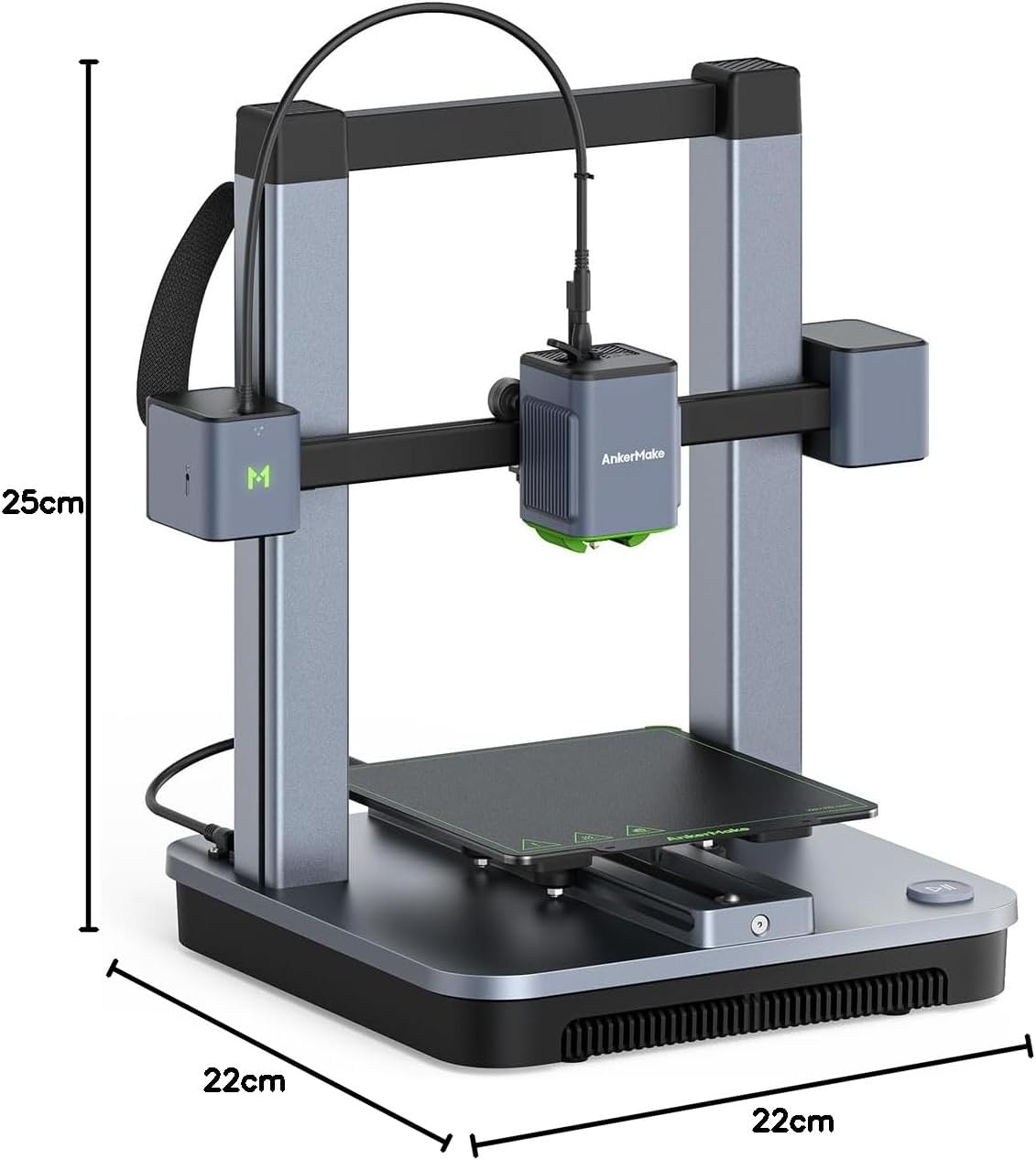
Figure 6.1: Diagram illustrating the dimensions of the AnkerMake M5C 3D Printer.
7. Warranty and Support
Anker provides customer support for the AnkerMake M5C. If you encounter any issues, please contact Anker customer support.
- Repair Process: If a repair is necessary, you may be required to return the main unit for service. Ensure you retain the original packaging for this purpose. Repairs are typically free within the warranty period.
- Replacement Parts: While replacement parts may be available for purchase online in some regions (e.g., USA), they might not be sold directly in all regions (e.g., Japan). Please check with your local Anker support for availability.
- Contact Information: Refer to the quick start guide or the Anker website for the most current customer support contact details.


